> ## Documentation Index
> Fetch the complete documentation index at: https://help.weavely.ai/llms.txt
> Use this file to discover all available pages before exploring further.
# Animations
{`{
"@context": "https://schema.org",
"@graph": [
{
"@type": "WebPage",
"@id": "https://help.weavely.ai/features/animations",
"url": "https://help.weavely.ai/features/animations",
"name": "Adding Animations to Your Form",
"description": "Add GIF and Lottie animations to your Weavely forms to make them feel more polished and fun.",
"inLanguage": "en",
"publisher": { "@id": "https://www.weavely.ai/#org" }
},
{
"@type": "TechArticle",
"@id": "https://help.weavely.ai/features/animations#article",
"headline": "Adding Animations to Your Form",
"description": "Add GIF and Lottie animations to your Weavely forms to make them feel more polished and fun.",
"inLanguage": "en",
"mainEntityOfPage": { "@id": "https://help.weavely.ai/features/animations" },
"author": { "@id": "https://www.weavely.ai/#org" },
"publisher": { "@id": "https://www.weavely.ai/#org" }
},
{
"@type": "VideoObject",
"@id": "https://help.weavely.ai/features/animations#video",
"name": "How to Add GIFs & Lottie Animations to Your Forms",
"description": "Learn how to add GIF and Lottie animations to your online forms in seconds. In this tutorial we cover: how to upload and embed GIFs in your forms, how to add Lottie animations (JSON files) to your forms, where to find free animations (Giphy, Tenor, LottieFiles, IconScout), and the difference between GIF and Lottie and when to use which. Weavely is a free AI-powered form builder that lets you create forms from a simple prompt. Try it free at https://weavely.ai",
"url": "https://youtu.be/1ctgf_CwalM",
"contentUrl": "https://youtu.be/1ctgf_CwalM",
"embedUrl": "https://www.youtube.com/embed/1ctgf_CwalM",
"duration": "PT2M45S",
"uploadDate": "2026-05-12T00:00:00+00:00",
"thumbnailUrl": [
"https://i.ytimg.com/vi/1ctgf_CwalM/hqdefault.jpg",
"https://i.ytimg.com/vi/1ctgf_CwalM/maxresdefault.jpg"
],
"publisher": { "@id": "https://www.weavely.ai/#org" },
"potentialAction": {
"@type": "WatchAction",
"target": "https://youtu.be/1ctgf_CwalM"
}
},
{
"@type": "Organization",
"@id": "https://www.weavely.ai/#org",
"name": "Weavely",
"url": "https://www.weavely.ai"
}
]
}`}
Adding animations is a quick way to make your form feel more polished and a bit more fun than your average Google Form. In Weavely, there are two ways to do it: **GIFs** (uploaded as regular images) and **Lottie animations** (uploaded as JSON files). This article covers both.
## GIF vs Lottie: which one should you use?
**GIFs** are the easiest option — upload the file like any image and you're done. Best for memes, screen recordings, or animations you already have. **Lottie animations** are vector-based, scale without losing quality, and tend to look more premium. File sizes are smaller and they're the format used by most modern animation libraries.
If you have a specific GIF you want to use, go with that. If you're choosing fresh, Lottie usually looks better.
## How to add a GIF to your form
Insert a new Image element wherever you want the animation to appear.
Upload the GIF file the same way you'd upload any image.
The default size may be too large. Setting the width to around **300 pixels** works well for most forms.
Set the alignment to centered (or wherever you want it), then drag it into place. You can also ask Weavely's AI to move it for you — for example: *"move the image to the top of the form"*.
The GIF will play automatically when someone views your form.
## How to add a Lottie animation to your form
Weavely already includes a built-in Lottie animation on the confirmation screen — the checkmark shown after someone submits the form. You can replace this with any other Lottie animation, or add Lottie animations elsewhere in your form the same way you'd add an image.
[LottieFiles.com](https://lottiefiles.com) is the main library, with thousands of free animations. Use the search bar to find something relevant to your form (e.g., "cookie," "celebration," "checkmark"), then filter by **Free** to exclude premium animations. Other sources like IconScout also have Lottie animations available.
Lottie files come in several formats, but Weavely needs the **Lottie JSON** specifically. On LottieFiles, open the download options and select **Lottie JSON**.
Insert a new Lottie element wherever you want the animation to appear. Upload the JSON file the same way you'd upload an image.
By default, the animation may be set to **fill** the available space, which can be too large. Set a specific size (around **300 pixels** works for most cases) until it looks right.
## Where to put your animations
A few common placements that work well:
* **Welcome screen**: set the tone before people start filling out your form
* **Between sections**: break up longer multi-step forms
* **Confirmation/thank you screen**: replace the default checkmark with something on-brand
* **Next to specific questions**: add personality or visual context
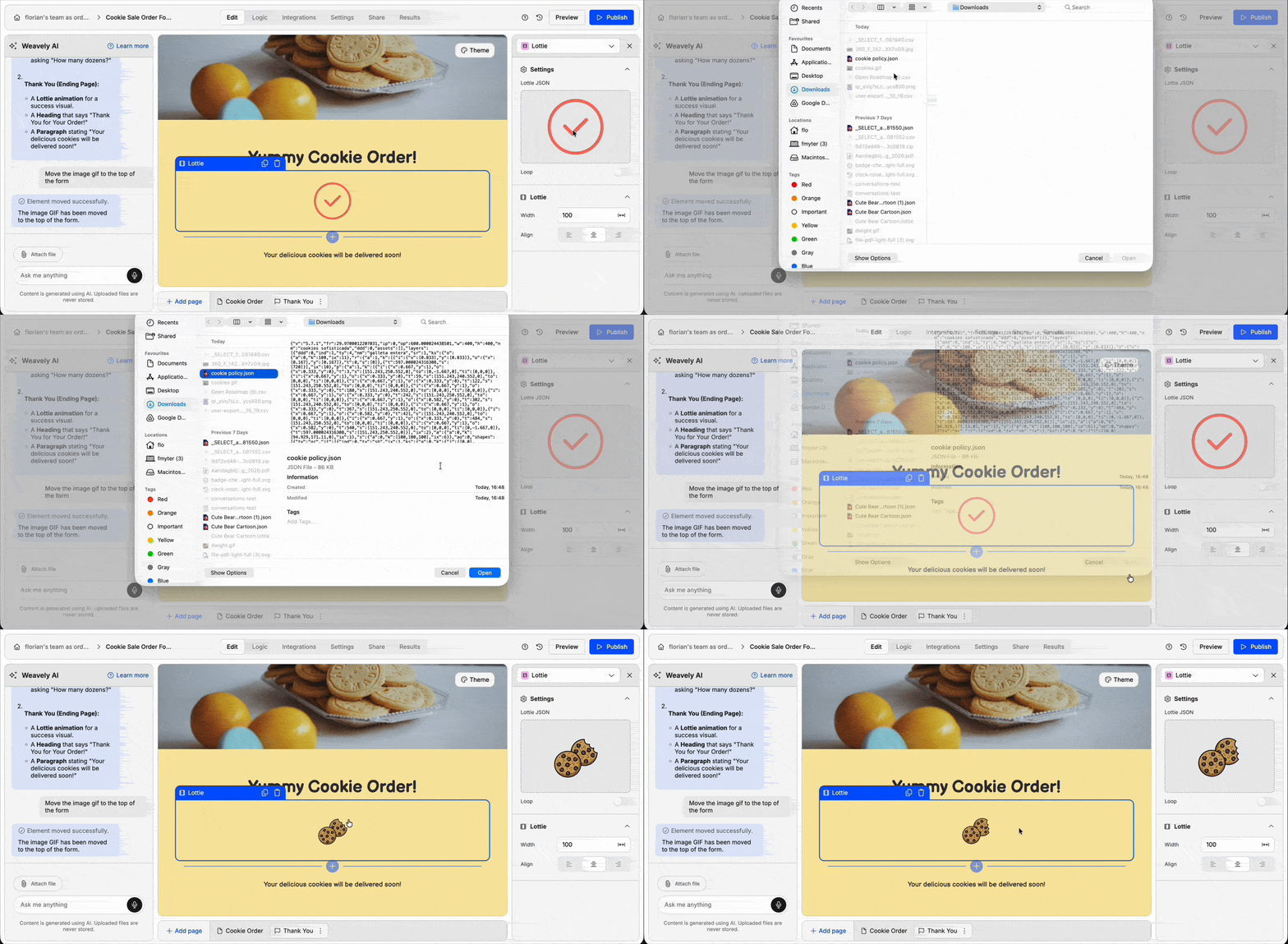 Insert a new Lottie element wherever you want the animation to appear. Upload the JSON file the same way you'd upload an image.
.gif)