> ## Documentation Index
> Fetch the complete documentation index at: https://help.weavely.ai/llms.txt
> Use this file to discover all available pages before exploring further.
# Field Validation
> Learn how to validate text, number, email, phone, URL, date, and time inputs so you never end up with bad data.
{`{
"@context": "https://schema.org",
"@graph": [
{
"@type": "WebPage",
"@id": "https://help.weavely.ai/features/field-validation",
"url": "https://help.weavely.ai/features/field-validation",
"name": "Field Validation",
"description": "Learn how to validate text, number, email, phone, URL, date, and time inputs so you never end up with bad data.",
"inLanguage": "en",
"publisher": {
"@id": "https://www.weavely.ai/#org"
}
},
{
"@type": "TechArticle",
"@id": "https://help.weavely.ai/features/field-validation#article",
"headline": "Field Validation",
"description": "Learn how to validate text, number, email, phone, URL, date, and time inputs so you never end up with bad data.",
"inLanguage": "en",
"mainEntityOfPage": {
"@id": "https://help.weavely.ai/features/field-validation"
},
"author": {
"@id": "https://www.weavely.ai/#org"
},
"publisher": {
"@id": "https://www.weavely.ai/#org"
}
},
{
"@type": "VideoObject",
"@id": "https://help.weavely.ai/features/field-validation#video",
"name": "How to Validate Form Fields in Weavely AI",
"description": "Never end up with messy, unusable form data again. In this tutorial, we walk through all the input validation options in Weavely: for text, numbers, emails, phone numbers, URLs, dates, and times. You'll learn how to set minimum and maximum lengths, restrict inputs to specific formats, and use AI to generate custom validation rules ... no regex knowledge needed!",
"url": "https://youtu.be/GlQDUp8wsz4",
"contentUrl": "https://youtu.be/GlQDUp8wsz4",
"embedUrl": "https://www.youtube.com/embed/GlQDUp8wsz4",
"duration": "PT4M15S",
"uploadDate": "2026-03-18T00:00:00+00:00",
"thumbnailUrl": [
"https://img.youtube.com/vi/GlQDUp8wsz4/maxresdefault.jpg"
],
"publisher": {
"@id": "https://www.weavely.ai/#org"
},
"potentialAction": {
"@type": "WatchAction",
"target": "https://youtu.be/GlQDUp8wsz4"
}
},
{
"@type": "Organization",
"@id": "https://www.weavely.ai/#org",
"name": "Weavely",
"url": "https://www.weavely.ai"
}
]
}`}
Weavely lets you set validation rules on every field where respondents can type freely. This ensures you only collect clean, correctly formatted data. No more garbage responses to clean up later.
This guide covers validation options for each input type and shows you how to use custom patterns (with help from AI) for advanced rules.
## Text inputs (short and long)
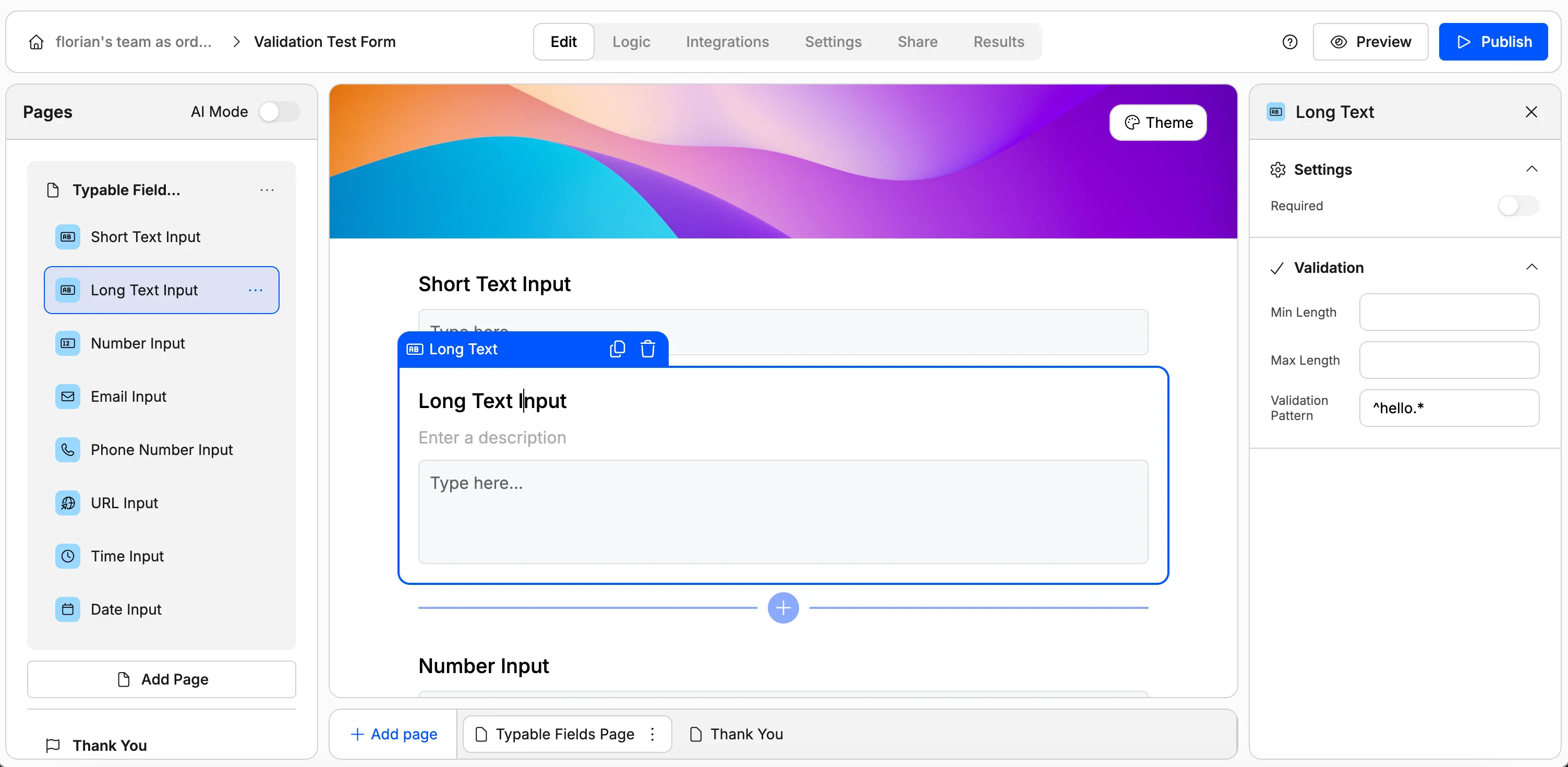
Short text and long text fields share the same validation options.
**Min / max length**
Set a minimum and maximum character count to control the length of responses. This is useful when you need answers within a specific range — for example, requiring at least 10 characters for a feedback field or capping a field at 100 characters.
**Custom pattern (regex)**
For more specific validation, you can define a custom pattern using regular expressions. This lets you enforce rules like "must start with a specific word" or "must follow a particular format."
Don't know how to write regular expressions? No problem, just describe what you want in the AI chat and Weavely will generate the pattern for you.
### Example: require text to start with "hello"
In the Weavely AI chat, type something like: *"All of the inputs in the long text input question should start with hello in order to be valid."*
Weavely's AI creates a regular expression and automatically fills it into the custom pattern field for that question.
Open the form preview and try submitting a response that doesn't start with "hello" — you'll see a "please enter valid format" error. Now change your input to start with "hello" and submit again. This time it goes through.
***
## Number input
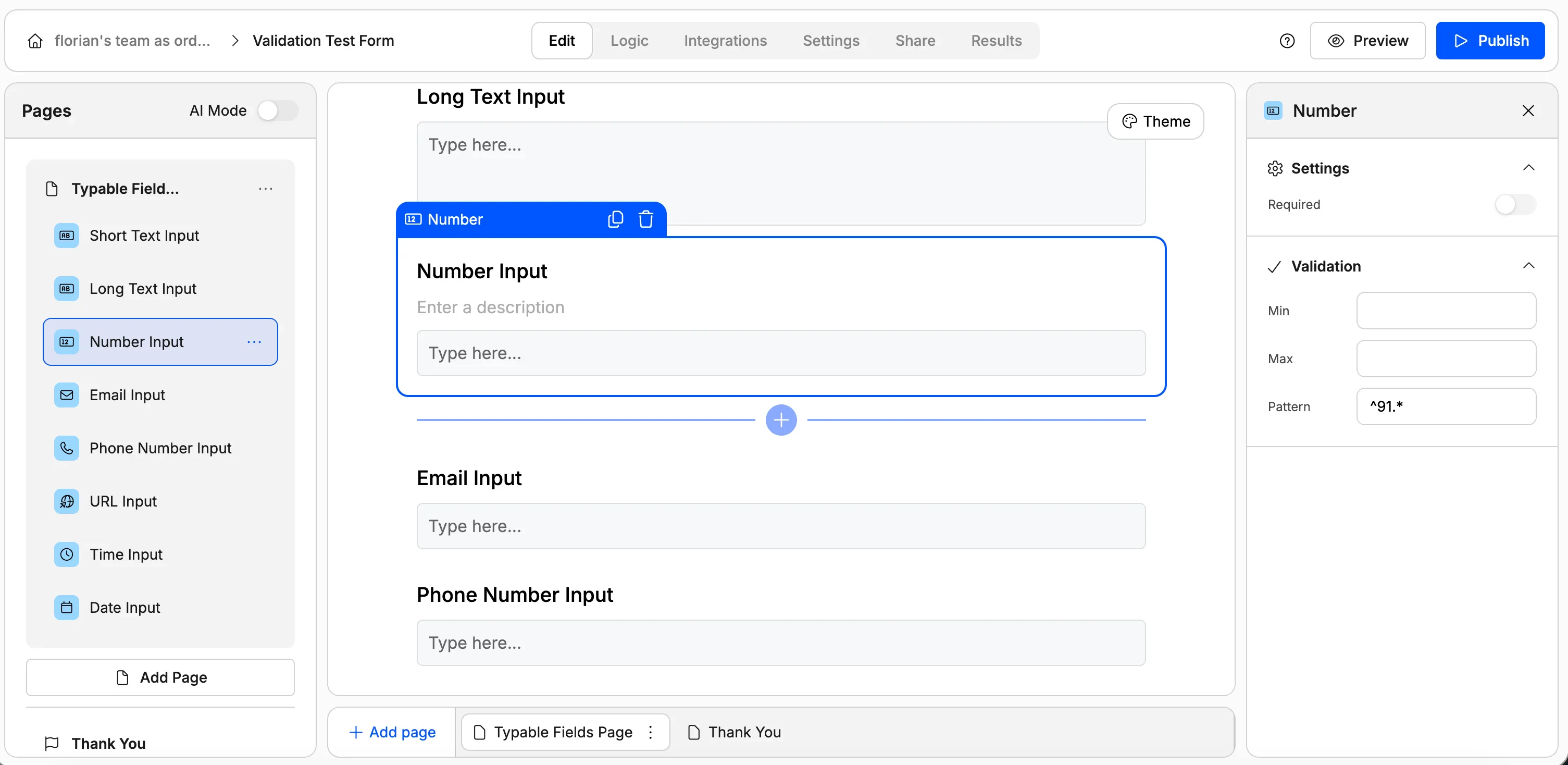
Number fields validate the **actual value** (not the number of digits).
**Min / max value**
Set a minimum and maximum accepted value. For example, you could require a number between 1 and 100.
**Custom pattern (regex)**
Just like text fields, you can specify a pattern for numeric inputs. This is useful for things like ID numbers or account numbers that must follow a specific format.
### Example: require numbers starting with "91"
In the AI chat, type something like: *"A response is only valid if it starts with 91 and then anything after that."*
The AI creates a regex and sets it in the pattern field for your number input.
In the form preview, enter a number like `10` and submit — you'll get an error. Now enter `911` and submit — it goes through successfully.
***
## Email input
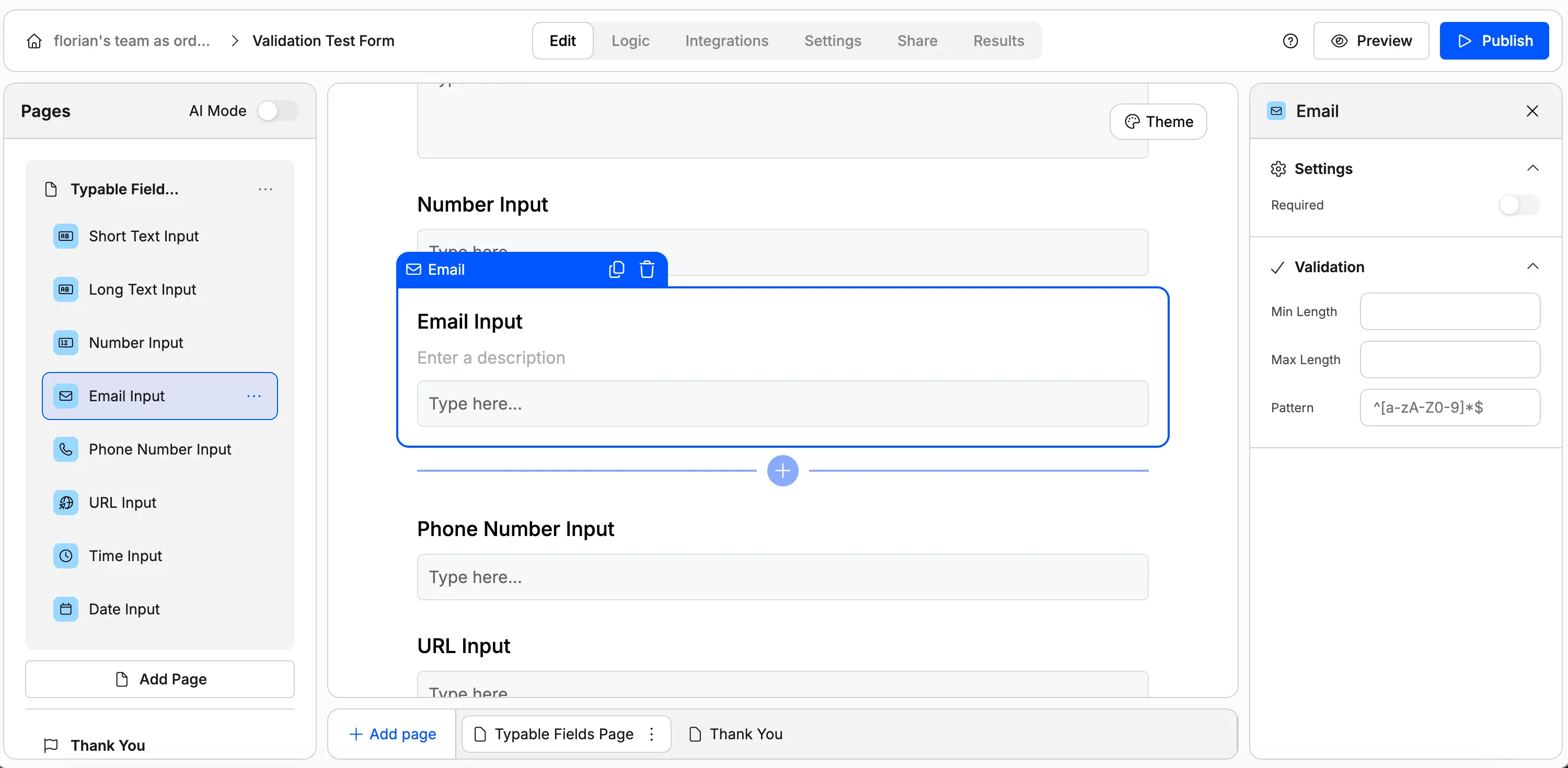
Email fields come with **built-in validation** — the input must contain an `@` symbol to be accepted. No configuration needed.
**Custom pattern (regex)**
You can add a pattern to further restrict which emails are accepted. For example, if you only want to allow Gmail addresses, describe that rule to the AI and it will generate the appropriate pattern.
***
## Phone number input
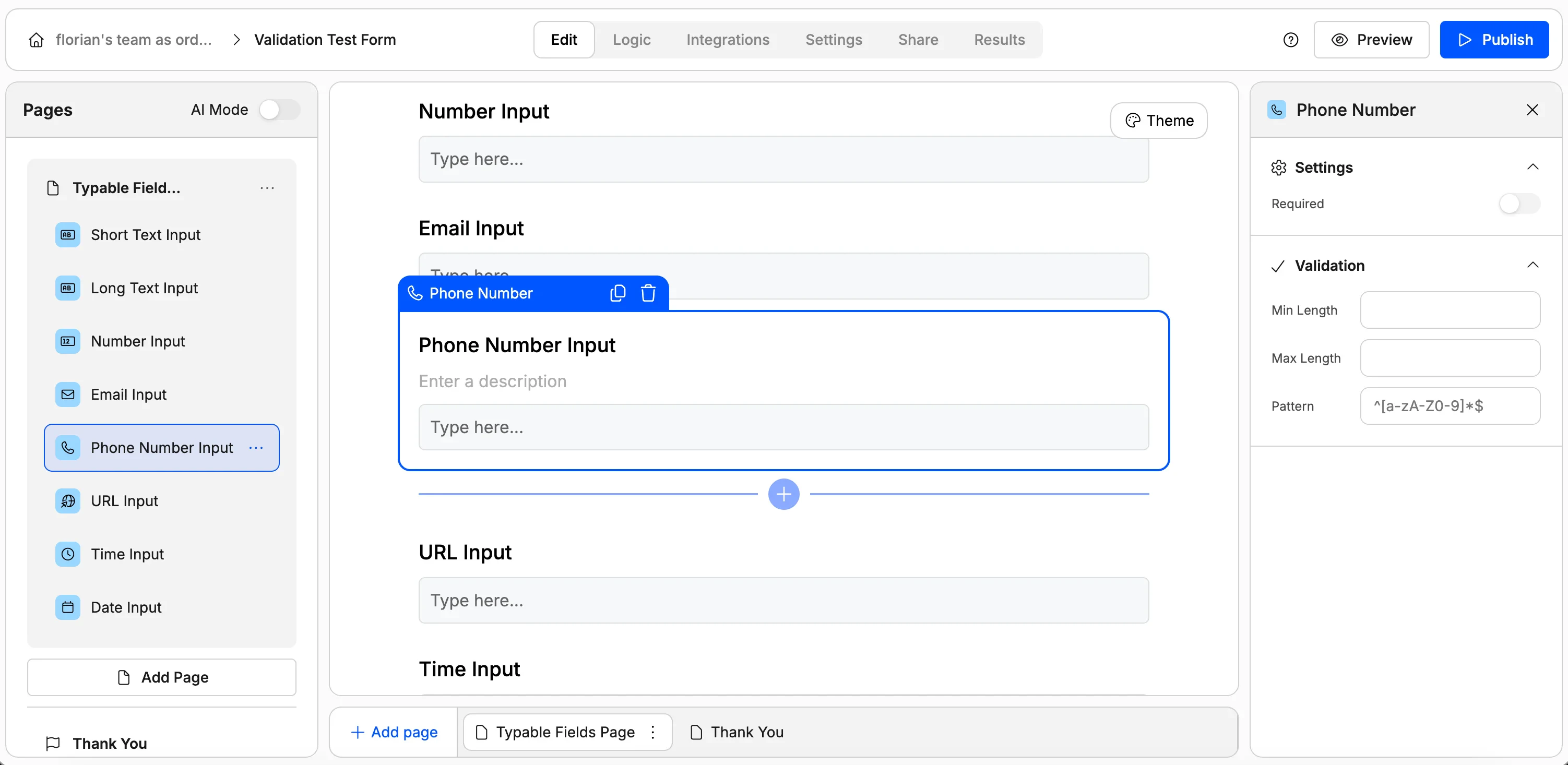
Phone number fields require a **country code** to be valid. If a respondent enters just their phone number without the country code (e.g. `+1`, `+44`, `+32`), the form will reject it.
**Custom pattern (regex)**
You can further restrict phone inputs by specifying a pattern — for instance, only accepting numbers from a specific country code.
***
## URL input
URL fields require the input to start with `http://` or `https://` followed by the rest of the address. Entering just a domain name like `weavely.ai` without the protocol will be rejected.
**Min / max length and custom pattern**
You can also set length restrictions and custom patterns on URL fields. For example, you could restrict inputs to only `.com` domains.
***
## Date and time inputs
**Date input**
Set a minimum and maximum date to define an acceptable date range. This is useful for booking forms, event registrations, or any scenario where responses must fall within a specific window.
**Time input**
Set a minimum and maximum time to restrict which times are valid. For example, you could limit a booking form to only accept times between 9:00 AM and 5:00 PM.
***
## Quick reference
| Field type | Built-in validation | Configurable options |
| ---------- | ---------------------------- | ------------------------------ |
| Short text | — | Min/max length, custom pattern |
| Long text | — | Min/max length, custom pattern |
| Number | — | Min/max value, custom pattern |
| Email | Must contain `@` | Custom pattern |
| Phone | Requires country code | Custom pattern |
| URL | Must start with `http(s)://` | Min/max length, custom pattern |
| Date | — | Min/max date |
| Time | — | Min/max time |
For any field that supports a custom pattern, you can always ask the AI to generate the regular expression for you. Just describe the rule you want in plain English, no regex knowledge required.
 Short text and long text fields share the same validation options.
**Min / max length**
Set a minimum and maximum character count to control the length of responses. This is useful when you need answers within a specific range — for example, requiring at least 10 characters for a feedback field or capping a field at 100 characters.
**Custom pattern (regex)**
For more specific validation, you can define a custom pattern using regular expressions. This lets you enforce rules like "must start with a specific word" or "must follow a particular format."
Short text and long text fields share the same validation options.
**Min / max length**
Set a minimum and maximum character count to control the length of responses. This is useful when you need answers within a specific range — for example, requiring at least 10 characters for a feedback field or capping a field at 100 characters.
**Custom pattern (regex)**
For more specific validation, you can define a custom pattern using regular expressions. This lets you enforce rules like "must start with a specific word" or "must follow a particular format."
 Number fields validate the **actual value** (not the number of digits).
**Min / max value**
Set a minimum and maximum accepted value. For example, you could require a number between 1 and 100.
**Custom pattern (regex)**
Just like text fields, you can specify a pattern for numeric inputs. This is useful for things like ID numbers or account numbers that must follow a specific format.
### Example: require numbers starting with "91"
Number fields validate the **actual value** (not the number of digits).
**Min / max value**
Set a minimum and maximum accepted value. For example, you could require a number between 1 and 100.
**Custom pattern (regex)**
Just like text fields, you can specify a pattern for numeric inputs. This is useful for things like ID numbers or account numbers that must follow a specific format.
### Example: require numbers starting with "91"
 Email fields come with **built-in validation** — the input must contain an `@` symbol to be accepted. No configuration needed.
**Custom pattern (regex)**
You can add a pattern to further restrict which emails are accepted. For example, if you only want to allow Gmail addresses, describe that rule to the AI and it will generate the appropriate pattern.
***
## Phone number input
Email fields come with **built-in validation** — the input must contain an `@` symbol to be accepted. No configuration needed.
**Custom pattern (regex)**
You can add a pattern to further restrict which emails are accepted. For example, if you only want to allow Gmail addresses, describe that rule to the AI and it will generate the appropriate pattern.
***
## Phone number input
 Phone number fields require a **country code** to be valid. If a respondent enters just their phone number without the country code (e.g. `+1`, `+44`, `+32`), the form will reject it.
**Custom pattern (regex)**
You can further restrict phone inputs by specifying a pattern — for instance, only accepting numbers from a specific country code.
***
## URL input
Phone number fields require a **country code** to be valid. If a respondent enters just their phone number without the country code (e.g. `+1`, `+44`, `+32`), the form will reject it.
**Custom pattern (regex)**
You can further restrict phone inputs by specifying a pattern — for instance, only accepting numbers from a specific country code.
***
## URL input
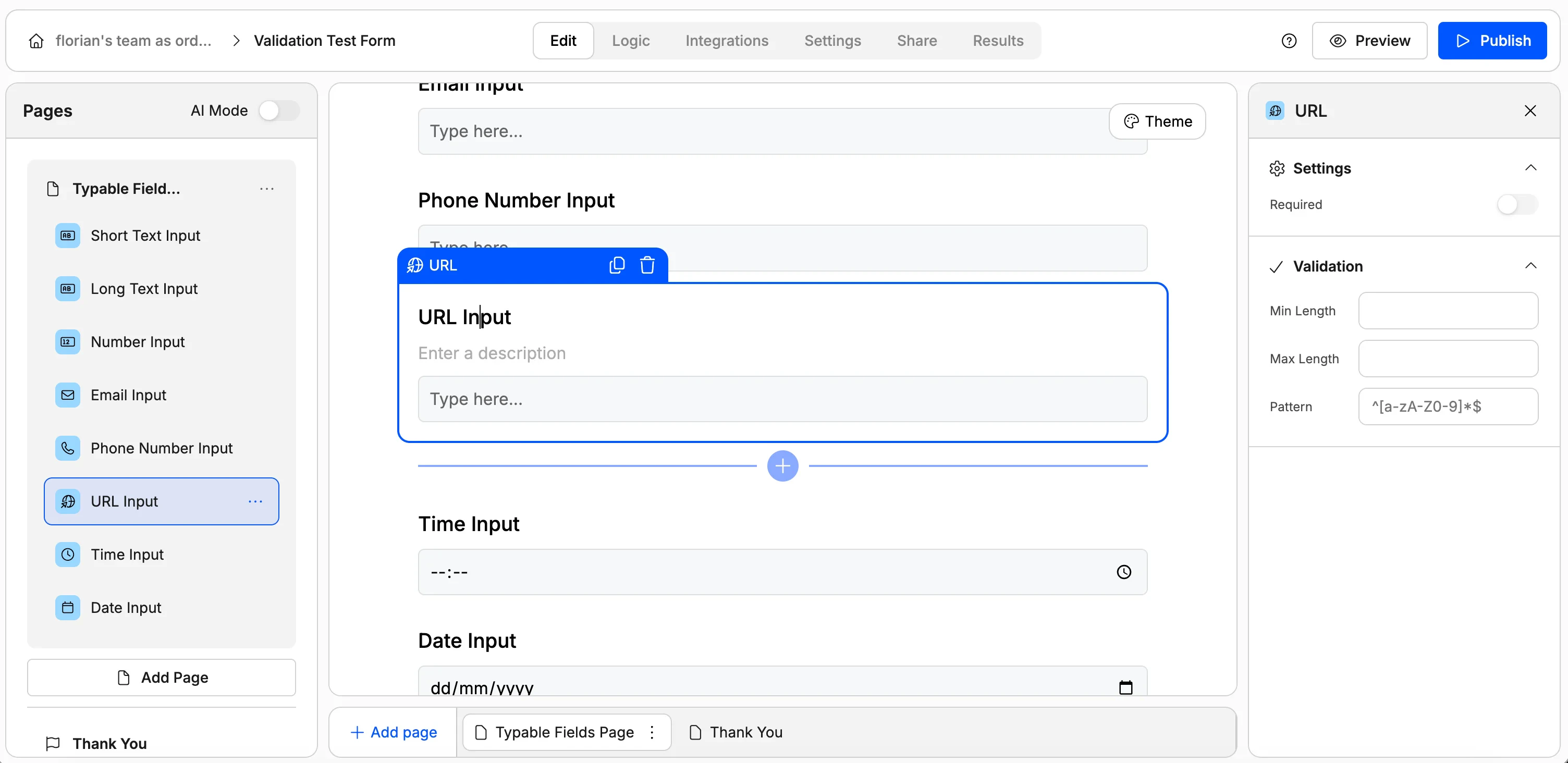 URL fields require the input to start with `http://` or `https://` followed by the rest of the address. Entering just a domain name like `weavely.ai` without the protocol will be rejected.
**Min / max length and custom pattern**
You can also set length restrictions and custom patterns on URL fields. For example, you could restrict inputs to only `.com` domains.
***
## Date and time inputs
URL fields require the input to start with `http://` or `https://` followed by the rest of the address. Entering just a domain name like `weavely.ai` without the protocol will be rejected.
**Min / max length and custom pattern**
You can also set length restrictions and custom patterns on URL fields. For example, you could restrict inputs to only `.com` domains.
***
## Date and time inputs
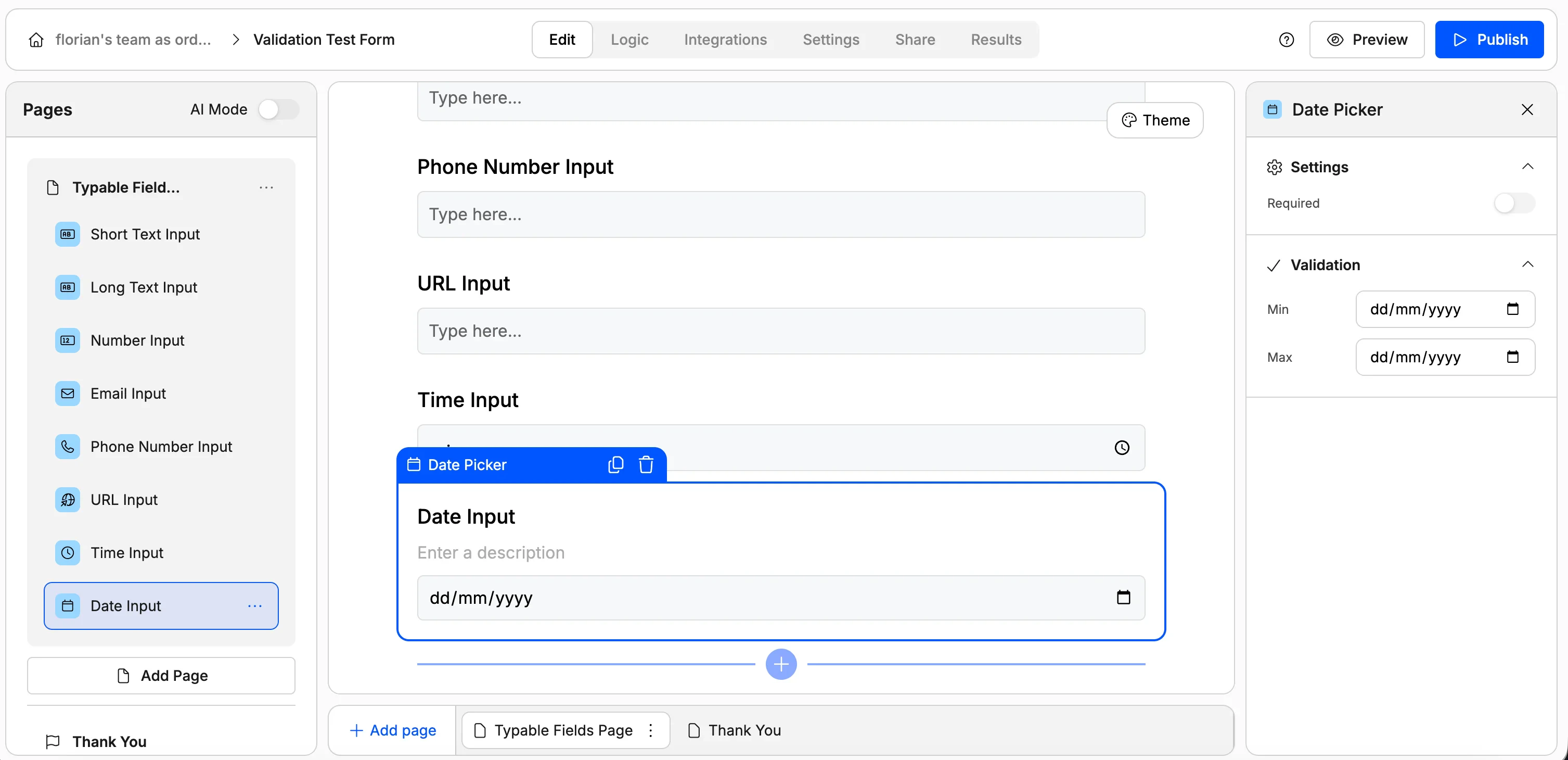 **Date input**
Set a minimum and maximum date to define an acceptable date range. This is useful for booking forms, event registrations, or any scenario where responses must fall within a specific window.
**Time input**
Set a minimum and maximum time to restrict which times are valid. For example, you could limit a booking form to only accept times between 9:00 AM and 5:00 PM.
***
## Quick reference
| Field type | Built-in validation | Configurable options |
| ---------- | ---------------------------- | ------------------------------ |
| Short text | — | Min/max length, custom pattern |
| Long text | — | Min/max length, custom pattern |
| Number | — | Min/max value, custom pattern |
| Email | Must contain `@` | Custom pattern |
| Phone | Requires country code | Custom pattern |
| URL | Must start with `http(s)://` | Min/max length, custom pattern |
| Date | — | Min/max date |
| Time | — | Min/max time |
**Date input**
Set a minimum and maximum date to define an acceptable date range. This is useful for booking forms, event registrations, or any scenario where responses must fall within a specific window.
**Time input**
Set a minimum and maximum time to restrict which times are valid. For example, you could limit a booking form to only accept times between 9:00 AM and 5:00 PM.
***
## Quick reference
| Field type | Built-in validation | Configurable options |
| ---------- | ---------------------------- | ------------------------------ |
| Short text | — | Min/max length, custom pattern |
| Long text | — | Min/max length, custom pattern |
| Number | — | Min/max value, custom pattern |
| Email | Must contain `@` | Custom pattern |
| Phone | Requires country code | Custom pattern |
| URL | Must start with `http(s)://` | Min/max length, custom pattern |
| Date | — | Min/max date |
| Time | — | Min/max time |