> ## Documentation Index
> Fetch the complete documentation index at: https://help.weavely.ai/llms.txt
> Use this file to discover all available pages before exploring further.
# How to Download Form Responses as PDF in Weavely
> Learn how to download your form responses as formatted PDF reports. Weavely generates a PDF for each submission, with questions, answers, signatures, and file uploads. Ready to save, share, or print.
{`{
"@context": "https://schema.org",
"@graph": [
{
"@type": "WebPage",
"@id": "https://help.weavely.ai/features/pdf-responses",
"url": "https://help.weavely.ai/features/pdf-responses",
"name": "How to Download Form Responses as PDF in Weavely",
"description": "Learn how to download your form responses as formatted PDF reports. Weavely generates a PDF for each submission, with questions, answers, signatures, and file uploads. Ready to save, share, or print.",
"inLanguage": "en",
"publisher": { "@id": "https://www.weavely.ai/#org" }
},
{
"@type": "TechArticle",
"@id": "https://help.weavely.ai/features/pdf-responses#article",
"headline": "How to Download Form Responses as PDF in Weavely",
"description": "Learn how to download your form responses as formatted PDF reports. Weavely generates a PDF for each submission, with questions, answers, signatures, and file uploads. Ready to save, share, or print.",
"inLanguage": "en",
"mainEntityOfPage": { "@id": "https://help.weavely.ai/features/pdf-responses" },
"author": { "@id": "https://www.weavely.ai/#org" },
"publisher": { "@id": "https://www.weavely.ai/#org" }
},
{
"@type": "VideoObject",
"@id": "https://help.weavely.ai/features/pdf-responses#video",
"name": "Turn Form Responses into Branded PDFs in 2 Clicks (Weavely AI)",
"description": "Learn how to download and save your form responses as a PDF in Weavely — formatted to look exactly like your original form, with no add-ons, no scripts, and no exporting to a spreadsheet first. There are two ways to export form responses to PDF, and which you use depends on whether the file needs to match your form's exact layout or can be a simple summary. This tutorial walks through both: a single response that mirrors your form's design and branding pixel-for-pixel, and a bulk download that turns every response into a clean question-and-answer PDF in one go. Perfect for storing signed consent forms, sharing reports with your team, or printing submissions for your records.",
"url": "https://youtu.be/atGIychom9Y",
"contentUrl": "https://www.youtube.com/watch?v=atGIychom9Y",
"embedUrl": "https://www.youtube.com/embed/atGIychom9Y",
"duration": "PT1M59S",
"uploadDate": "2026-06-17",
"thumbnailUrl": [
"https://i.ytimg.com/vi/atGIychom9Y/maxresdefault.jpg",
"https://i.ytimg.com/vi/atGIychom9Y/hqdefault.jpg"
],
"publisher": { "@id": "https://www.weavely.ai/#org" },
"potentialAction": {
"@type": "WatchAction",
"target": "https://youtu.be/atGIychom9Y"
}
},
{
"@type": "Organization",
"@id": "https://www.weavely.ai/#org",
"name": "Weavely",
"url": "https://www.weavely.ai"
}
]
}`}
Weavely lets you save the responses collected on your form as PDF files. There are two ways to do it, and the right one depends on whether your PDF needs to look exactly like your form or can be a simple summary.
Export a single response as a PDF that mirrors your form's layout, banner, and branding — ideal for consent waivers, contracts, or anything you'll print or file.
Export many responses at once as plain question-and-answer PDFs. Faster, but not styled like your form.
Both options work from the **Results** view of your form, where every submission is listed as a row.
## Choose your method
Use this when each PDF needs to match your form's exact design — for example, a photo consent waiver you want to store, print, or share. The result looks as if you took a snapshot of the completed form, with the same banner, fields, and submitted answers in place.
Go to the form whose responses you want to export and open the **Results** view, where each submission appears as its own row.
Locate the row for the response you'd like to save as a PDF. Select the **PDF icon** at the start of the result row. Weavely generates a PDF of that single response, filled in exactly as the person submitted it.
The downloaded PDF keeps your form's banner, fields, and styling, with the respondent's answers in each field.
This export is generated one response at a time because rendering each PDF to match your form is resource-intensive. If you need many responses at once, use the **bulk download** method instead.
Use this when you want to export several responses quickly and don't need them styled like your form. Each PDF is stripped down to the essentials: the question name and the answer that was provided.
Open the **Results** view for your form.
Check the responses you want a PDF for. You can select as many as you need. Under **Download**, switch to the **PDF** tab.
Decide whether you want the responses combined into **one PDF file** or delivered as **separate PDF files**, then download.
Bulk PDFs use a clean, basic layout — just the question and the response data. They are **not** formatted to match your form's original design.
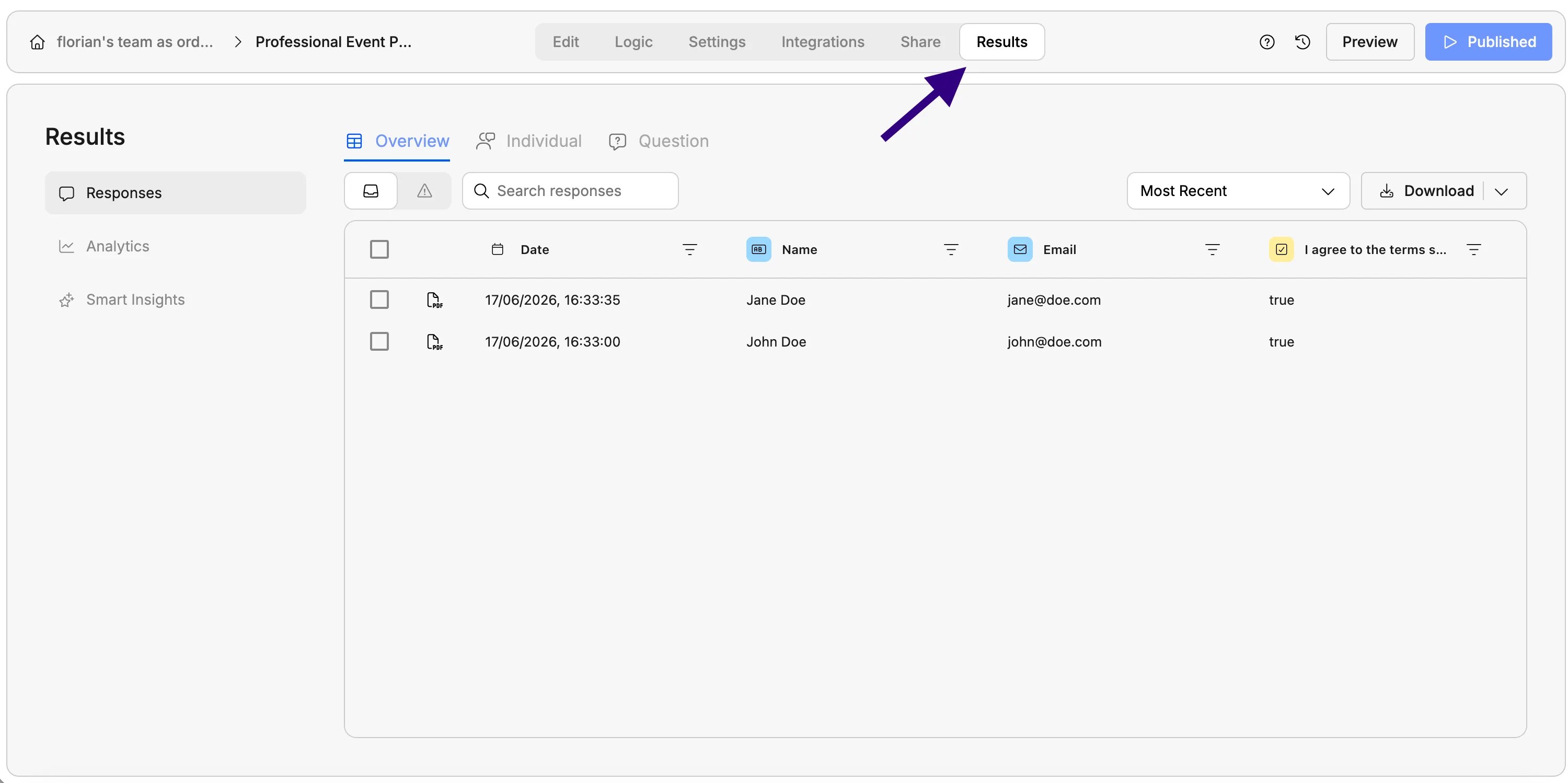 Go to the form whose responses you want to export and open the **Results** view, where each submission appears as its own row.
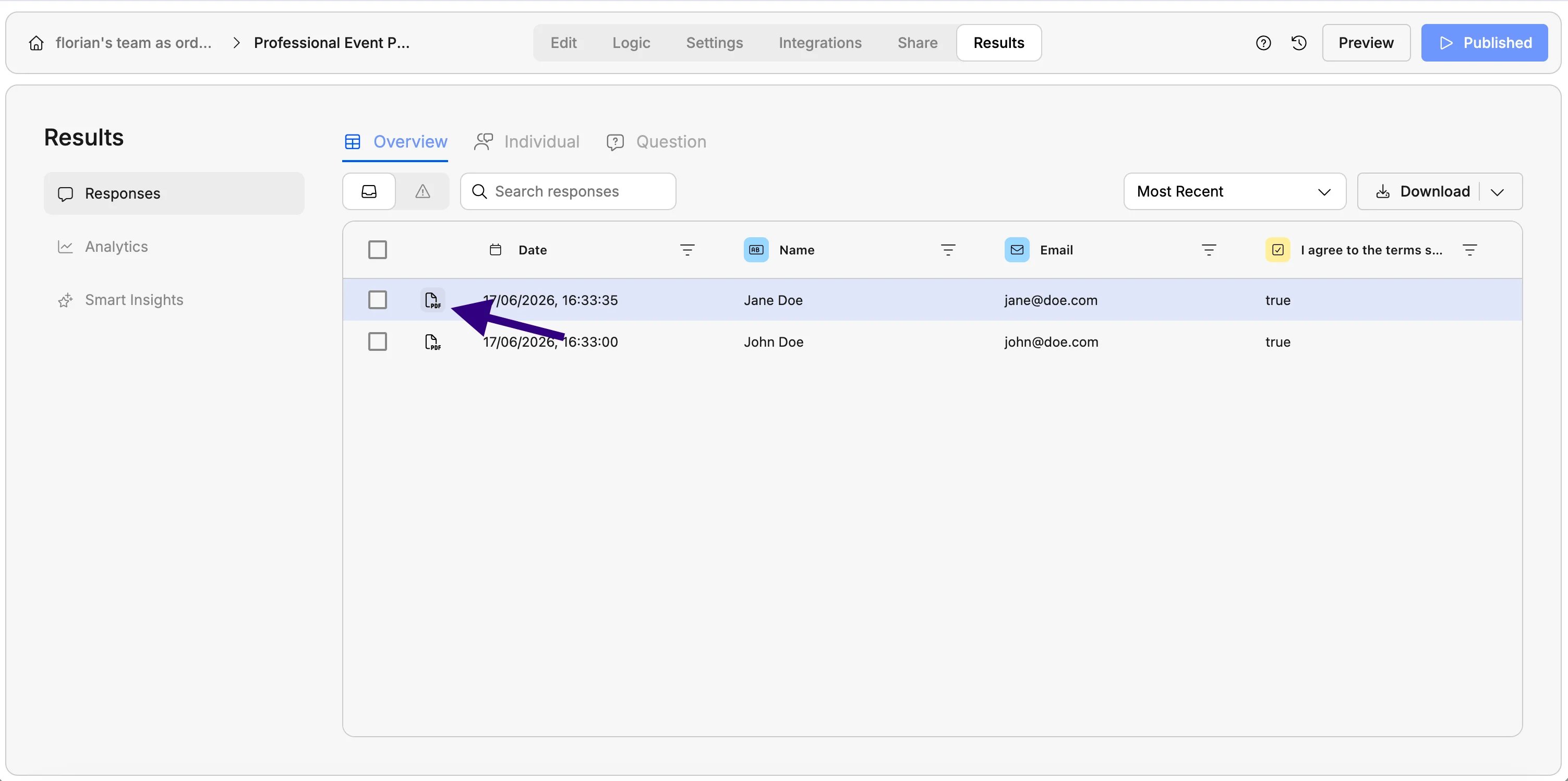 Locate the row for the response you'd like to save as a PDF. Select the **PDF icon** at the start of the result row. Weavely generates a PDF of that single response, filled in exactly as the person submitted it.
-1.webp?fit=max&auto=format&n=3us8I7lOYFE7a37d&q=85&s=845a94b844874a34b6d8a7273047d77f) The downloaded PDF keeps your form's banner, fields, and styling, with the respondent's answers in each field.
The downloaded PDF keeps your form's banner, fields, and styling, with the respondent's answers in each field.
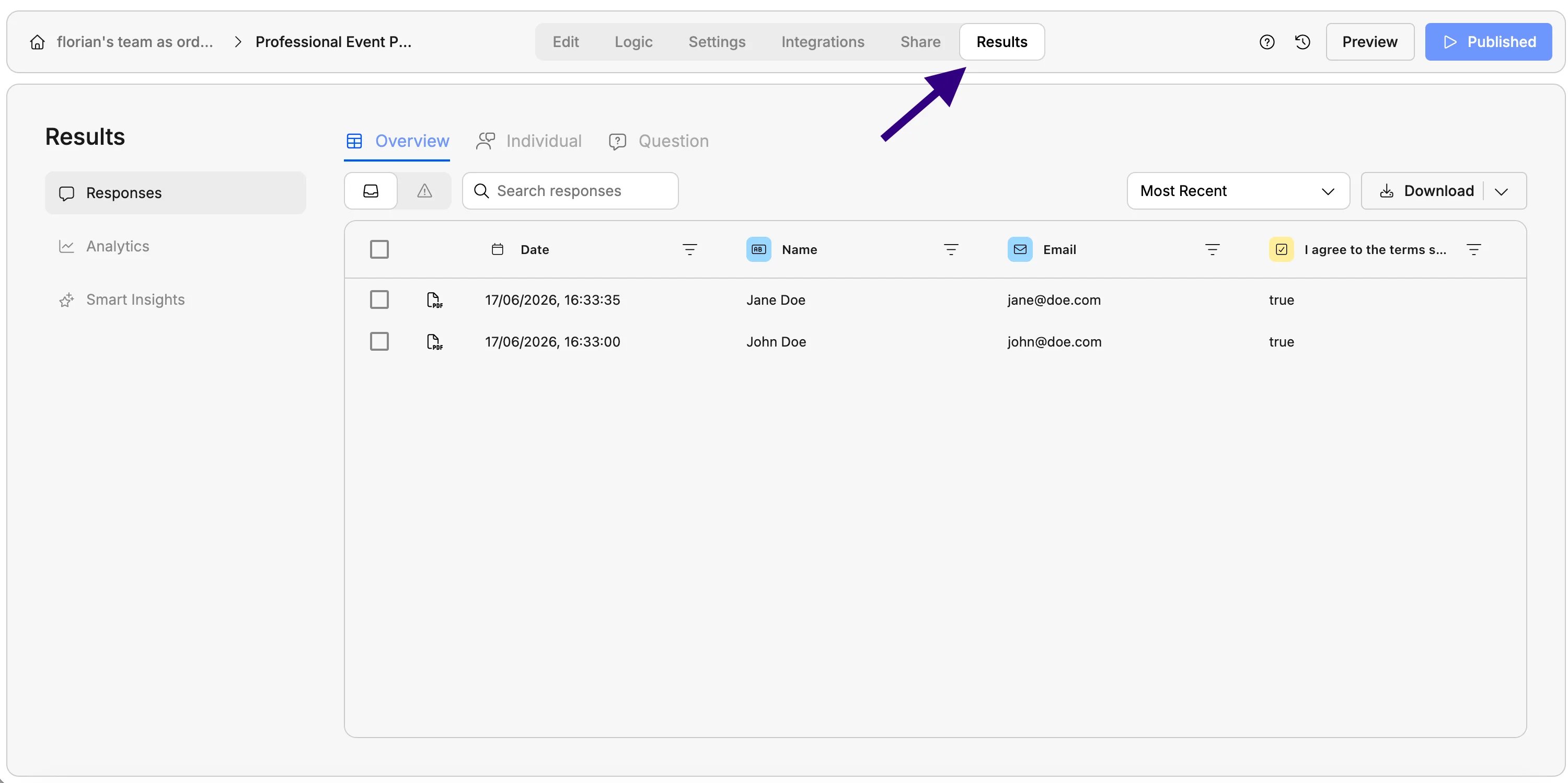 Open the **Results** view for your form.
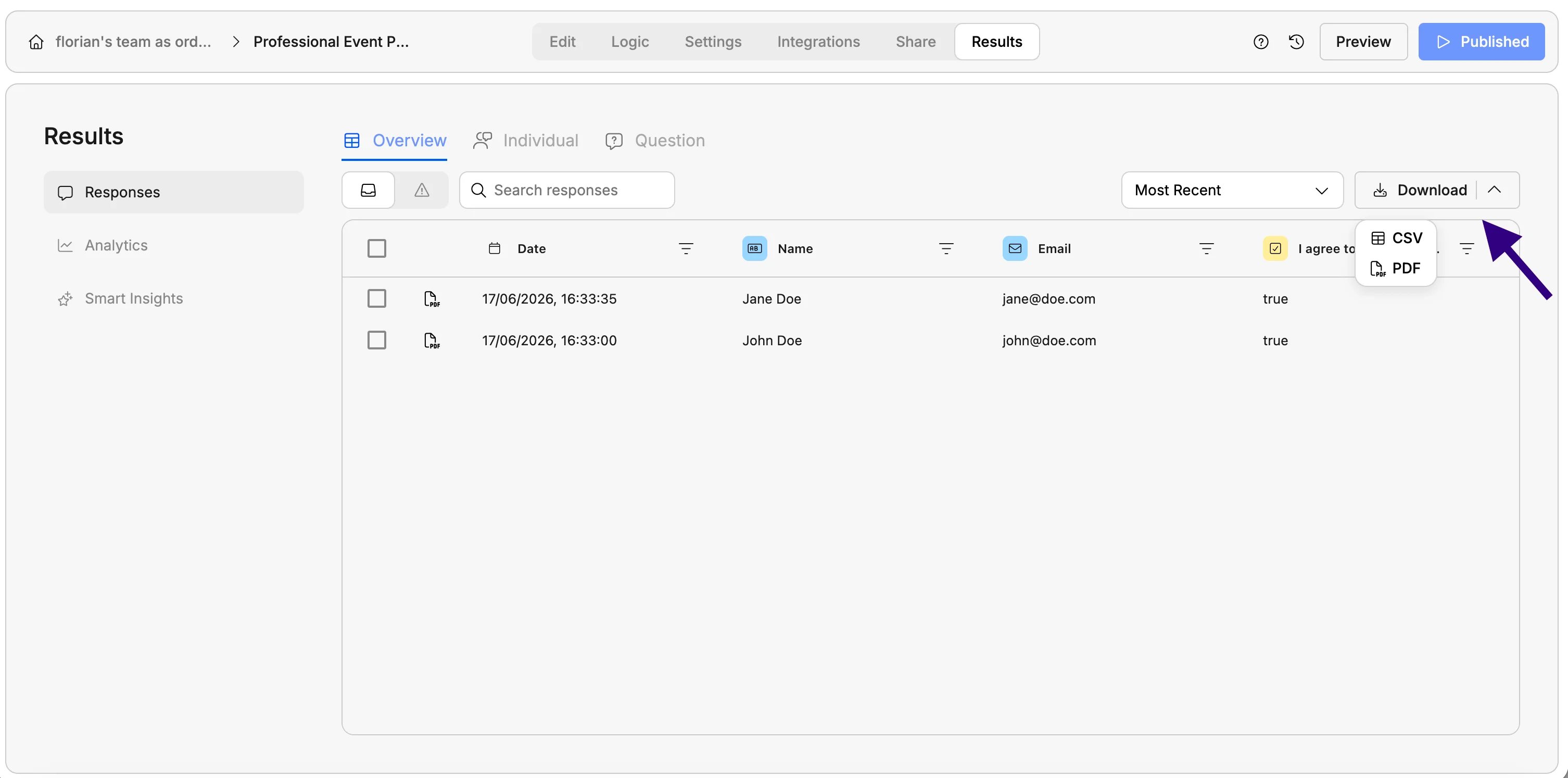 Check the responses you want a PDF for. You can select as many as you need. Under **Download**, switch to the **PDF** tab.