> ## Documentation Index
> Fetch the complete documentation index at: https://help.weavely.ai/llms.txt
> Use this file to discover all available pages before exploring further.
# How to Add a Progress Bar to Your Weavely AI Form
> Use Weavely’s AI form builder to add a progress bar to multi-step, multi-page surveys and improve user experience.
{`{
"@context": "https://schema.org",
"@graph": [
{
"@type": "WebSite",
"@id": "https://help.weavely.ai/#website",
"url": "https://help.weavely.ai/",
"name": "Weavely Help Center"
},
{
"@type": "WebPage",
"@id": "https://help.weavely.ai/features/progress-bar#webpage",
"url": "https://help.weavely.ai/features/progress-bar",
"name": "How to Add a Progress Bar to Your Weavely AI Form",
"description": "Use Weavely’s AI form builder to add a progress bar to multi-step, multi-page surveys and improve user experience.",
"inLanguage": "en",
"isPartOf": {
"@id": "https://help.weavely.ai/#website"
},
"breadcrumb": {
"@id": "https://help.weavely.ai/features/progress-bar#breadcrumb"
},
"publisher": {
"@id": "https://www.weavely.ai/#org"
}
},
{
"@type": "BreadcrumbList",
"@id": "https://help.weavely.ai/features/progress-bar#breadcrumb",
"itemListElement": [
{
"@type": "ListItem",
"position": 1,
"name": "Weavely Help Center",
"item": "https://help.weavely.ai/"
},
{
"@type": "ListItem",
"position": 2,
"name": "Features",
"item": "https://help.weavely.ai/features"
},
{
"@type": "ListItem",
"position": 3,
"name": "Progress Bar",
"item": "https://help.weavely.ai/features/progress-bar"
}
]
},
{
"@type": "TechArticle",
"@id": "https://help.weavely.ai/features/progress-bar#article",
"headline": "How to Add a Progress Bar to Your Weavely AI Form",
"description": "Step-by-step guide to enabling and customizing progress bars in Weavely AI forms to improve completion rates and user experience.",
"inLanguage": "en",
"author": {
"@id": "https://www.weavely.ai/#org"
},
"publisher": {
"@id": "https://www.weavely.ai/#org"
},
"mainEntityOfPage": {
"@id": "https://help.weavely.ai/features/progress-bar#webpage"
}
},
{
"@type": "Organization",
"@id": "https://www.weavely.ai/#org",
"name": "Weavely",
"url": "https://www.weavely.ai"
}
]
}`}
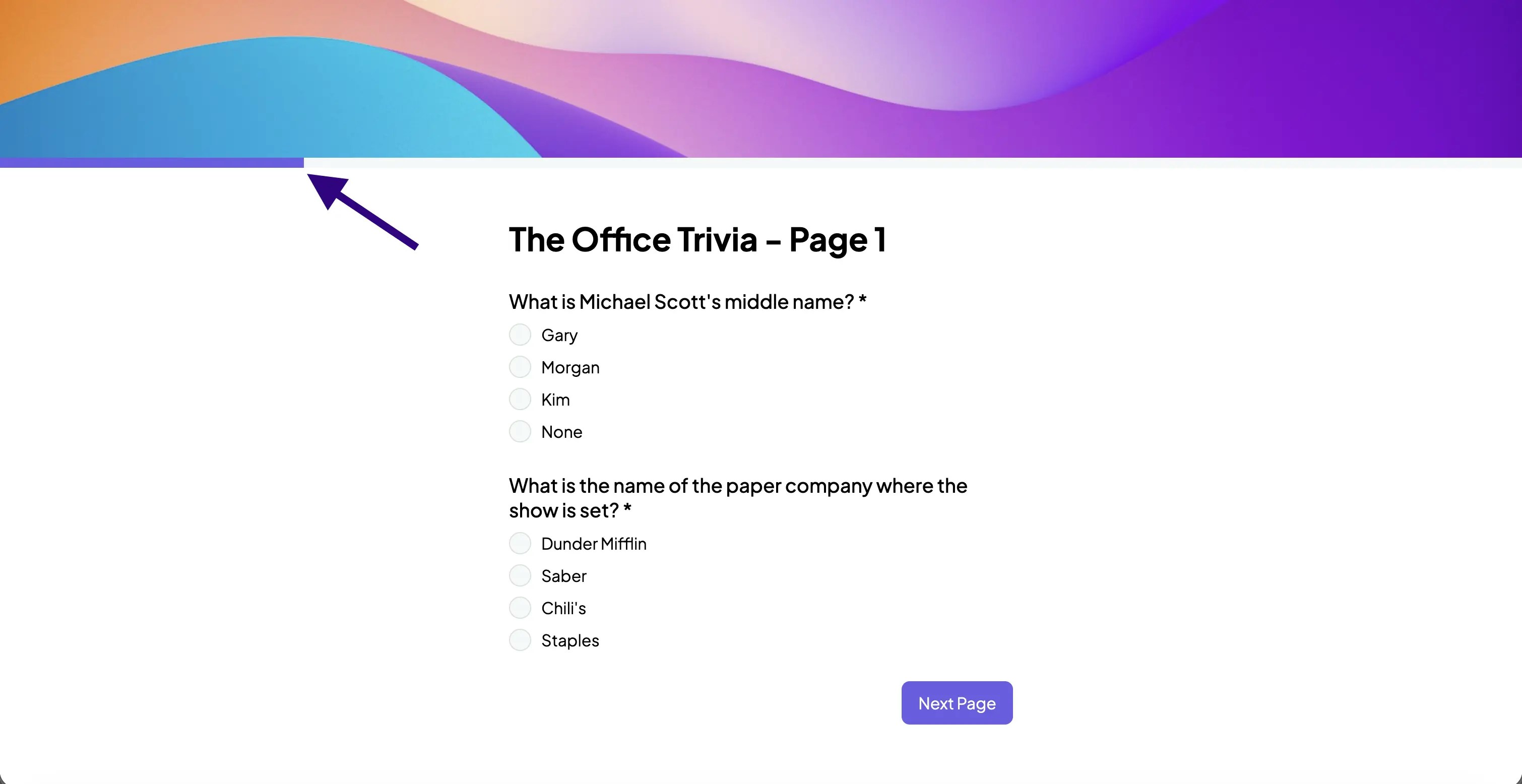
Want to show your respondent where they are in your survey or form? Enable progress bars for your Weavely forms by following these steps:
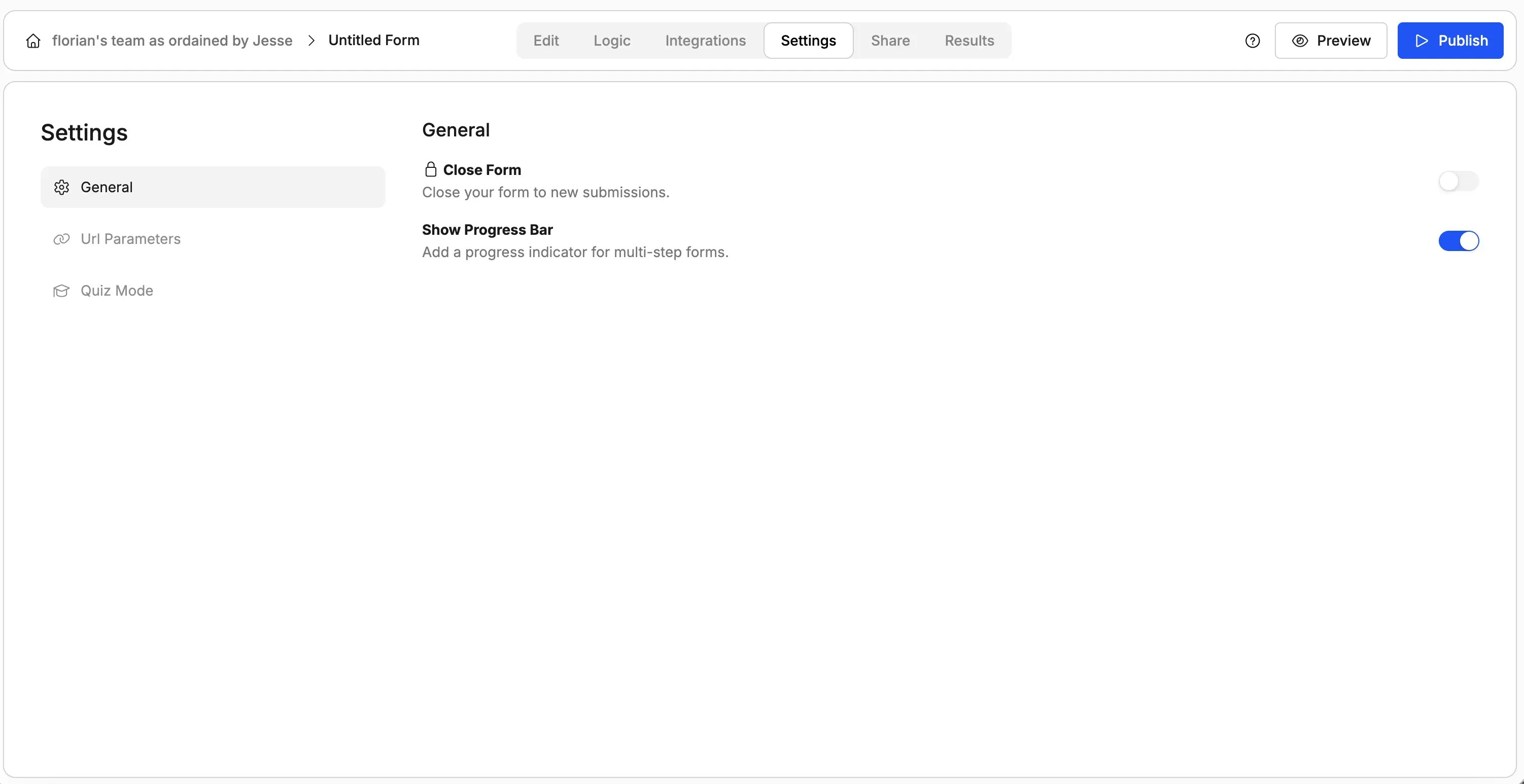
Navigate to your form's "***Settings->General***" tab and toggle the "Show Progress Bar" option as shown below.
 The progress bar uses your form's "***Primary color***", which you can either change by opening the "Theme" panel on the right or asking our AI.