> ## Documentation Index
> Fetch the complete documentation index at: https://help.weavely.ai/llms.txt
> Use this file to discover all available pages before exploring further.
# How to Build Knowledge Quizzes with AI in Weavely
> Create interactive quizzes with AI using Weavely. Auto-score responses, show correct answers, and collect data seamlessly.
{`{
"@context": "https://schema.org",
"@graph": [
{
"@type": "WebPage",
"@id": "https://help.weavely.ai/features/quizzes",
"url": "https://help.weavely.ai/features/quizzes",
"name": "How to Build Interactive Quizzes with AI in Weavely",
"description": "Create interactive quizzes with AI using Weavely. Auto-score responses, show correct answers, and collect data seamlessly.",
"inLanguage": "en",
"isPartOf": {
"@type": "WebSite",
"@id": "https://help.weavely.ai/#website",
"name": "Weavely Help Center"
},
"breadcrumb": {
"@type": "BreadcrumbList",
"itemListElement": [
{ "@type": "ListItem", "position": 1, "name": "Features", "item": "https://help.weavely.ai/features" },
{ "@type": "ListItem", "position": 2, "name": "Quizzes", "item": "https://help.weavely.ai/features/quizzes" }
]
},
"publisher": { "@id": "https://www.weavely.ai/#org" }
},
{
"@type": "TechArticle",
"headline": "How to Build Interactive Quizzes with AI in Weavely",
"description": "Create interactive quizzes with AI using Weavely. Auto-score responses, show correct answers, and collect data seamlessly.",
"inLanguage": "en",
"mainEntityOfPage": { "@id": "https://help.weavely.ai/features/quizzes" },
"author": { "@id": "https://www.weavely.ai/#org" },
"publisher": { "@id": "https://www.weavely.ai/#org" }
},
{
"@type": "VideoObject",
"@id": "https://help.weavely.ai/features/quizzes#video",
"name": "How to Build Interactive Quizzes with AI in Weavely",
"description": "In this tutorial, I’ll show you how to use Weavely’s quiz feature to build fully interactive, AI-powered quizzes. Perfect for lead generation, onboarding, assessments, or just engaging experiences. With natural language prompts and built-in logic, creating a smart quiz takes minutes ... not hours!",
"inLanguage": "en",
"thumbnailUrl": [
"https://i.ytimg.com/vi/k5rT2mUfvwM/maxresdefault.jpg",
"https://i.ytimg.com/vi/k5rT2mUfvwM/hqdefault.jpg"
],
"uploadDate": "2025-10-20T00:00:00Z",
"duration": "PT4M26S",
"embedUrl": "https://www.youtube.com/embed/k5rT2mUfvwM",
"contentUrl": "https://youtu.be/k5rT2mUfvwM",
"publisher": { "@id": "https://www.weavely.ai/#org" },
"potentialAction": {
"@type": "WatchAction",
"target": "https://www.youtube.com/watch?v=k5rT2mUfvwM"
}
},
{
"@type": "Organization",
"@id": "https://www.weavely.ai/#org",
"name": "WEAVE.LY BV",
"url": "https://www.weavely.ai",
"address": {
"@type": "PostalAddress",
"streetAddress": "Herbert Hooverlaan 141",
"addressLocality": "Schaarbeek",
"postalCode": "1030",
"addressCountry": "BE"
},
"identifier": "BE0773.878.569",
"sameAs": [
"https://www.instagram.com/weavely.ai/",
"https://www.linkedin.com/company/weave-ly/",
"https://www.youtube.com/@weavely"
]
}
]
}`}
Weavely.ai makes it easy to create AI-generated quizzes that score user responses, display correct answers, and show live performance feedback. Here's how to set one up in minutes.
To get started, head to [Weavely.ai](https://weavely.ai) and enter a prompt describing the quiz you need. For example:
> "I need a quiz on European geography. Make it single page and just ask 4 questions."
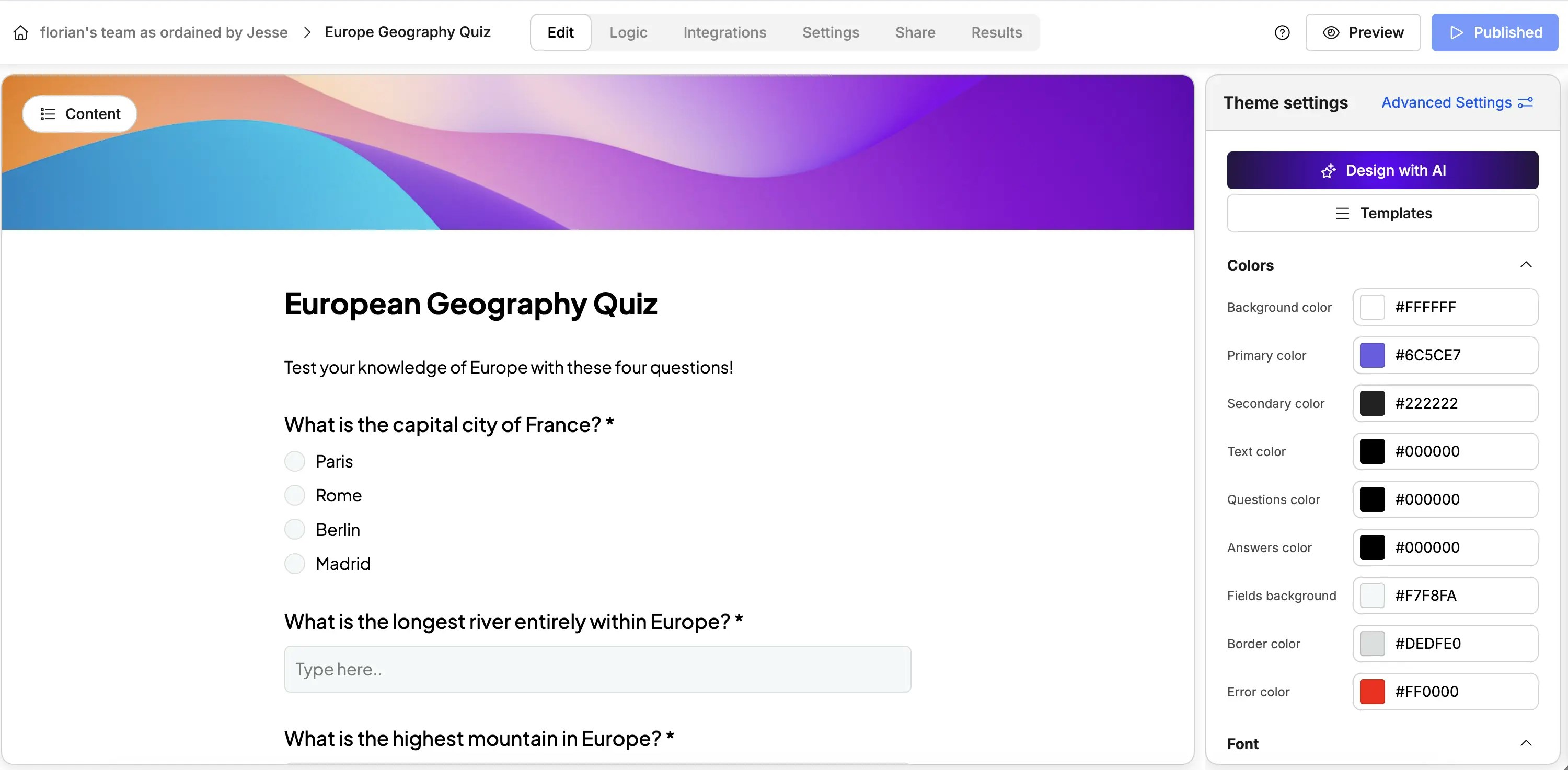
Weavely will automatically generate a basic quiz using AI, including multiple-choice and open-ended questions. You can customize the questions and look of the quiz from within the Weavely Editor. You can:
* Add, delete, or modify questions.
* Change the visual theme of your quiz (colors, fonts, layout).
* Use drag-and-drop or AI styling to match your brand.
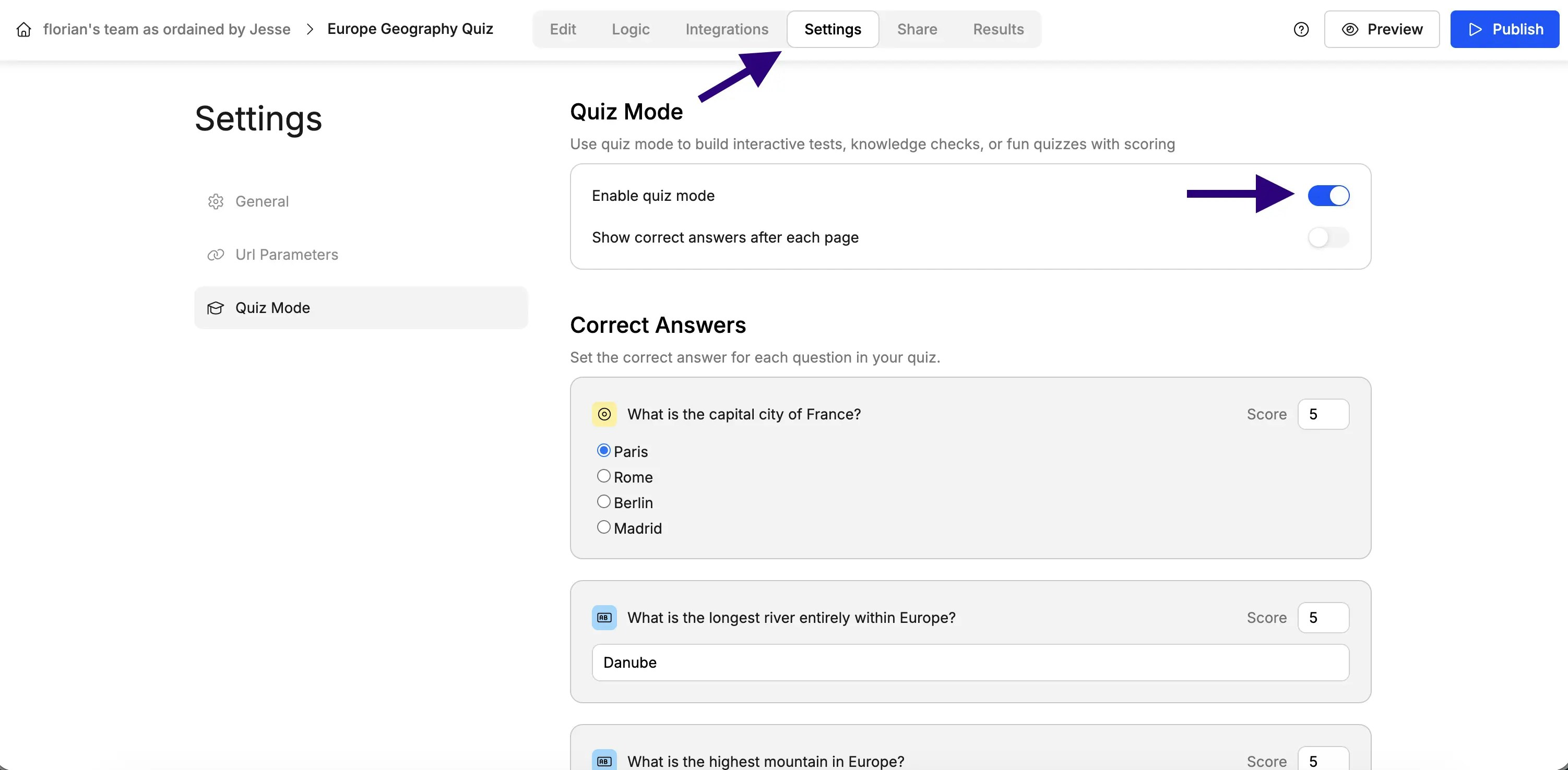
Next you'll need to finalize the settings of your quiz. First, go to the **Settings** tab and **enable quiz mode.**
Second, for each question that requires it, you'll need to **assign a score** and specify **which answer is correct**. Without assigning a score, you won't be able to set correct answers.
The results tab will contain all individual responses given by your respondents as well as their scores and number of correct answers. Furthermore, you can also set up integrations with third-party tools to automatically transfer your data. Read our [Google Sheets integration tutorial](/integrations/google-sheets) as an example.
When you're ready, hit **Publish** and share your quiz as:
* A standalone form (hosted on Weavely)
* An embedded quiz on your site
* A popup form on landing pages
You can customize the domain and preview settings if needed. We have a dedicated tutorial on sharing which you can read [here](https://help.weavely.ai/get-started/sharing).
## 💡 Tip 1: Dynamically Show Quiz Scores
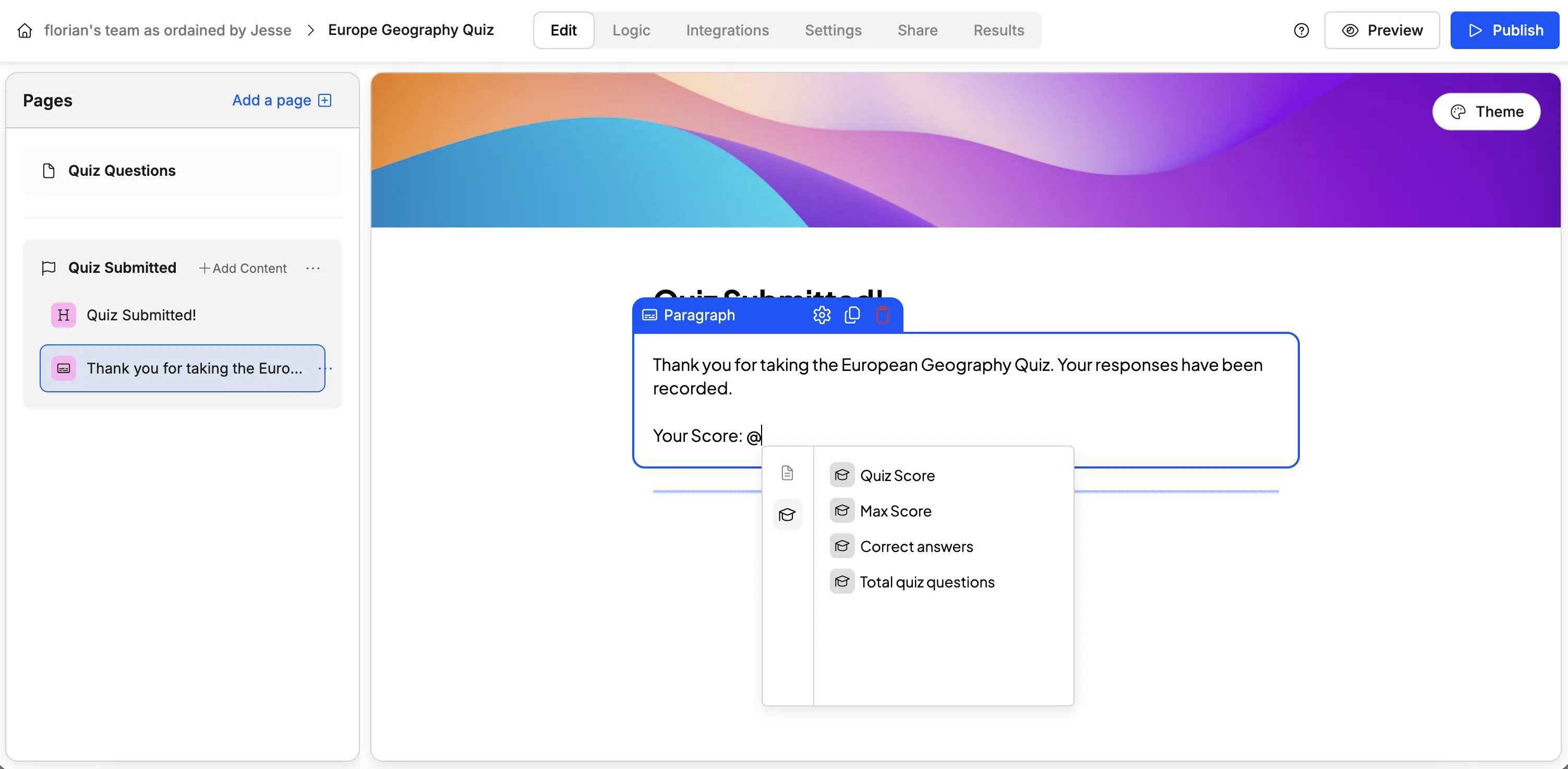
You can show the respondents their scores (for example on the ending screen) using Weavely's variable system. Concretely, any textual component in Weavely (e.g. a paragraph or a heading) can show variables. By typing "@" you're given a dropdown menu with variables to choose from.
## 💡 Tip 2: Show Immediate Feedback
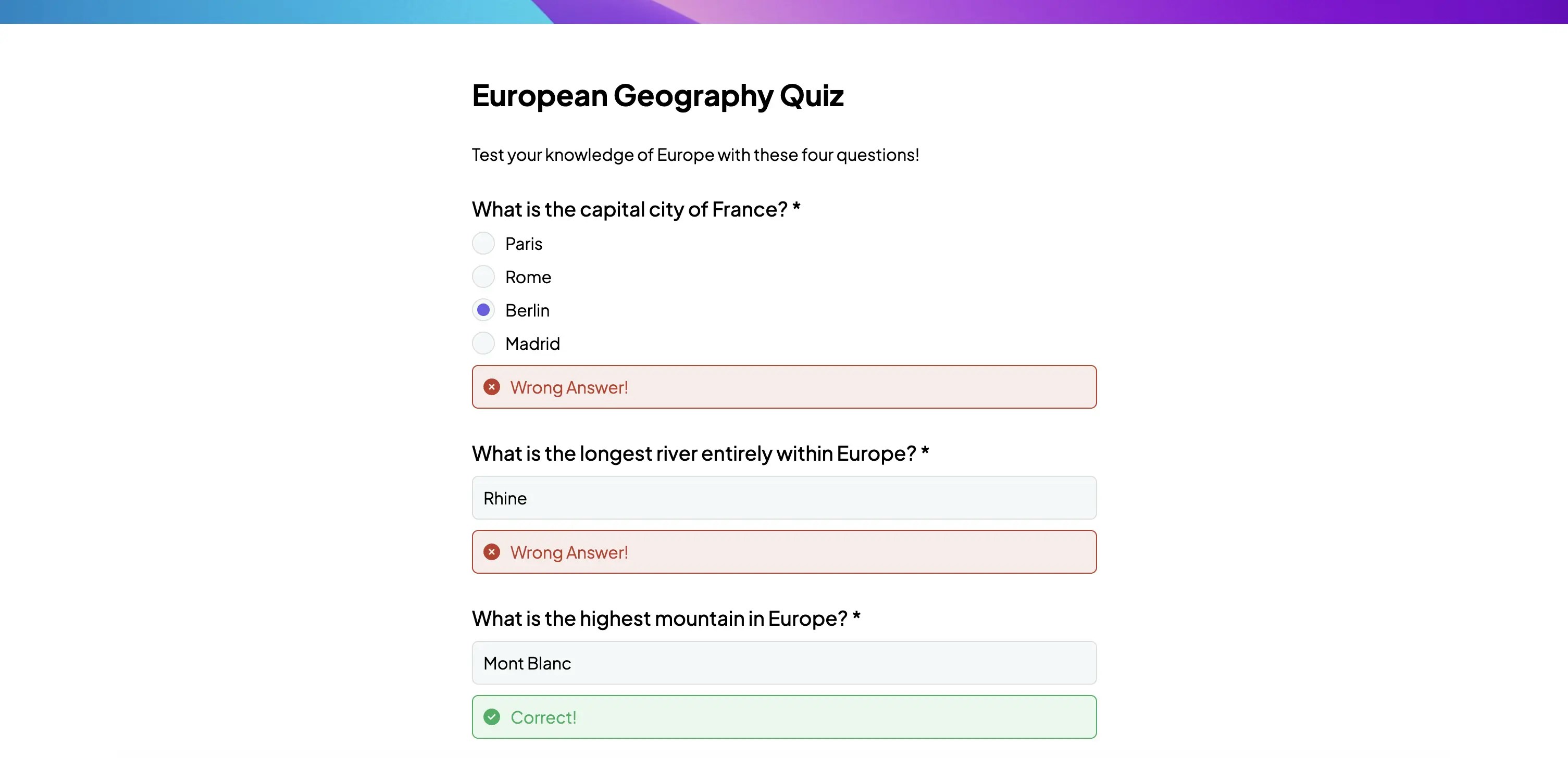
Do you want respondents to see if their answers were correct \_after each page? \_In **Settings**, enable **Show correct answers after each page**. This is especially useful for learning assessments or interactive quizzes.
## Example Use Cases
Typical use cases for our interactive quizzes include the following:
* Education and e-learning assessments
* Internal knowledge checks
* Trivia and gamified marketing content
Don't let that limit your imagination though 😉
 Second, for each question that requires it, you'll need to **assign a score** and specify **which answer is correct**. Without assigning a score, you won't be able to set correct answers.
 ## 💡 Tip 2: Show Immediate Feedback
Do you want respondents to see if their answers were correct \_after each page? \_In **Settings**, enable **Show correct answers after each page**. This is especially useful for learning assessments or interactive quizzes.
## 💡 Tip 2: Show Immediate Feedback
Do you want respondents to see if their answers were correct \_after each page? \_In **Settings**, enable **Show correct answers after each page**. This is especially useful for learning assessments or interactive quizzes.
 ## Example Use Cases
Typical use cases for our interactive quizzes include the following:
* Education and e-learning assessments
* Internal knowledge checks
* Trivia and gamified marketing content
Don't let that limit your imagination though 😉
## Example Use Cases
Typical use cases for our interactive quizzes include the following:
* Education and e-learning assessments
* Internal knowledge checks
* Trivia and gamified marketing content
Don't let that limit your imagination though 😉