> ## Documentation Index
> Fetch the complete documentation index at: https://help.weavely.ai/llms.txt
> Use this file to discover all available pages before exploring further.
# How to Use Form URL Parameters in Weavely
> Track custom data in AI-powered forms using URL query parameters in Weavely. Perfect for user segmentation and dynamic response tagging.
{`{
"@context": "https://schema.org",
"@graph": [
{
"@type": "WebSite",
"@id": "https://help.weavely.ai/#website",
"url": "https://help.weavely.ai/",
"name": "Weavely Help Center"
},
{
"@type": "WebPage",
"@id": "https://help.weavely.ai/features/url-parameters#webpage",
"url": "https://help.weavely.ai/features/url-parameters",
"name": "How to Use Form URL Parameters in Weavely",
"description": "Learn how to track custom data in AI-powered forms using URL query parameters in Weavely. Tag responses by user type, traffic source, campaign ID, and more for better segmentation and analysis.",
"inLanguage": "en",
"isPartOf": {
"@id": "https://help.weavely.ai/#website"
},
"breadcrumb": {
"@id": "https://help.weavely.ai/features/url-parameters#breadcrumb"
},
"publisher": {
"@id": "https://www.weavely.ai/#org"
}
},
{
"@type": "BreadcrumbList",
"@id": "https://help.weavely.ai/features/url-parameters#breadcrumb",
"itemListElement": [
{
"@type": "ListItem",
"position": 1,
"name": "Weavely Help Center",
"item": "https://help.weavely.ai/"
},
{
"@type": "ListItem",
"position": 2,
"name": "Features",
"item": "https://help.weavely.ai/features"
},
{
"@type": "ListItem",
"position": 3,
"name": "URL Parameters",
"item": "https://help.weavely.ai/features/url-parameters"
}
]
},
{
"@type": "TechArticle",
"@id": "https://help.weavely.ai/features/url-parameters#article",
"headline": "How to Use Form URL Parameters in Weavely",
"description": "Step-by-step guide to using URL query parameters in Weavely forms to pass hidden data such as user type, traffic source, and campaign identifiers into form submissions.",
"inLanguage": "en",
"datePublished": "2025-12-11",
"author": {
"@id": "https://www.weavely.ai/#org"
},
"publisher": {
"@id": "https://www.weavely.ai/#org"
},
"mainEntityOfPage": {
"@id": "https://help.weavely.ai/features/url-parameters#webpage"
}
},
{
"@type": "VideoObject",
"@id": "https://help.weavely.ai/features/url-parameters#video",
"name": "Hidden URL Parameters in AI Forms (Weavely Tutorial)",
"description": "Learn how to use URL query parameters in Weavely.ai to automatically tag form responses with custom data like user type, traffic source, campaign ID, and more without asking extra questions.",
"thumbnailUrl": [
"https://i.ytimg.com/vi/o-6_tRKs8ww/hqdefault.jpg"
],
"embedUrl": "https://www.youtube.com/embed/o-6_tRKs8ww",
"contentUrl": "https://www.youtube.com/watch?v=o-6_tRKs8ww",
"uploadDate": "2025-12-11T12:00:00Z",
"duration": "PT2M3S",
"inLanguage": "en",
"publisher": {
"@id": "https://www.weavely.ai/#org"
},
"potentialAction": {
"@type": "WatchAction",
"target": "https://www.youtube.com/watch?v=o-6_tRKs8ww"
}
},
{
"@type": "Organization",
"@id": "https://www.weavely.ai/#org",
"name": "Weavely",
"url": "https://www.weavely.ai"
}
]
}`}
Weavely allows you to dynamically pass external data into your form using **URL query parameters**. This is especially useful when distributing a form to different audiences and wanting to track user segments.
For example, you might send a feedback form to different user types (e.g., *testers*, *power users*) and track their responses accordingly.
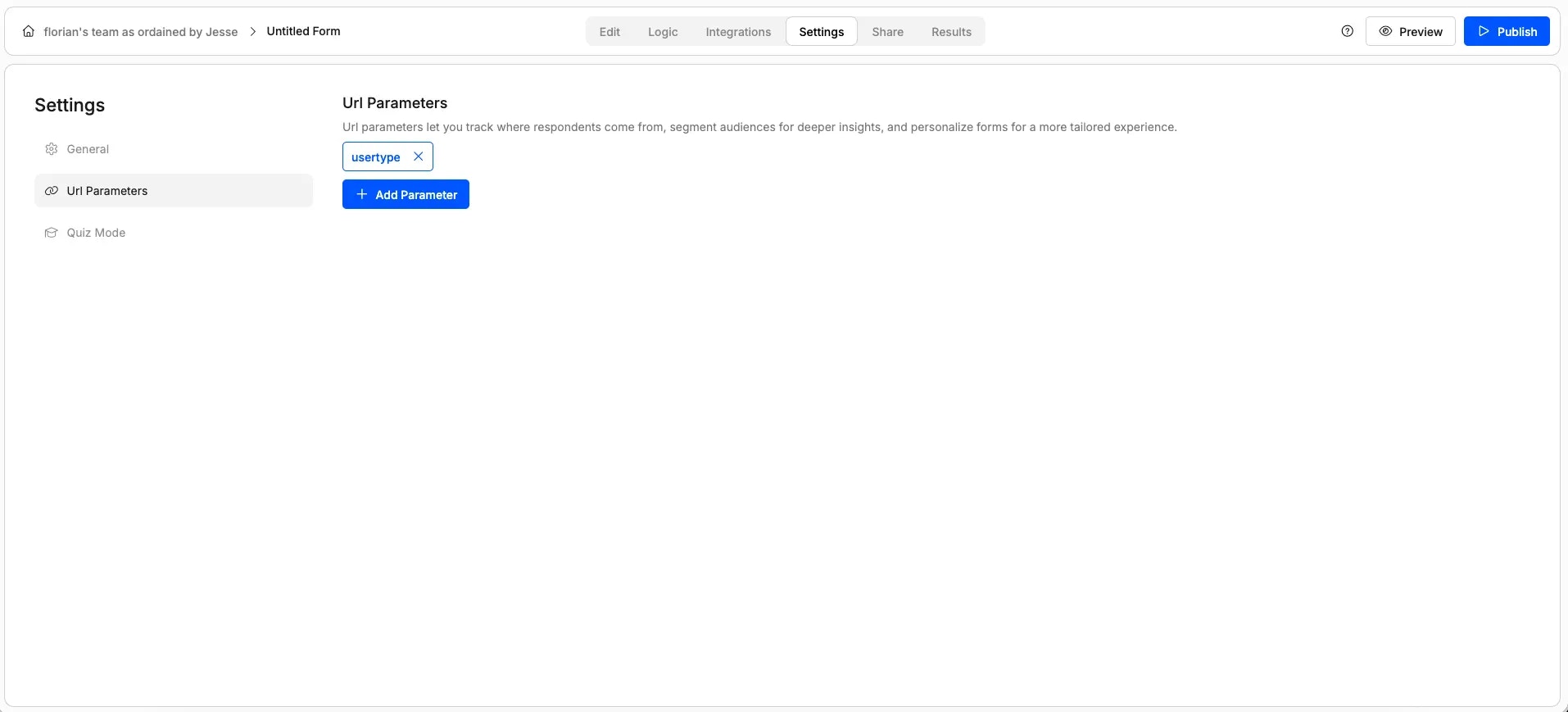
1. In your Weavely form editor, go to **Settings**.
2. Scroll down to the **URL Parameters** section.
3. Add a new parameter, for example, `usertype`.
1. Click **Publish** on your form.
2. Copy the generated form URL.
3. Append the parameter to the link using the format:
```
?parameter=value
```
For example, using the URL parameter we created in step 1 we would add it as follows:
```
https://forms.weavely.ai/formId?usertype=test
```
You can now share this modified link in emails, newsletters, or landing pages.
## URL Parameters in Form Responses
Form responses will automatically specify the values you provided for URL parameters. For example, in the image below we got three responses to our form. One where the URL parameter wasn't specified, one where `?usertype=tester` and one where `?usertype=power-user`.
## URL Parameters in Embedded Forms
In case you're embedding your form on a website, you'll need to add the URL parameters to the embed code. For example, say you have two url parameters: "usertype" and "ref". You would add these to your embedded form as follows:
```
```
## Pro Tip: Add Multiple Parameters
You can add multiple query parameters by repeating the process in **Settings → URL Parameters**. Then append them to your URL using the `&` symbol:
```
https://forms.weavely.ai/formId?usertype=poweruser&ref=newsletter
```
This is ideal for combining segmentation with traffic source tracking, for example.