> ## Documentation Index
> Fetch the complete documentation index at: https://help.weavely.ai/llms.txt
> Use this file to discover all available pages before exploring further.
# Form Elements
> A complete guide to all the form elements you can use in Weavely — from text fields and dropdowns to star ratings, file uploads, and more.
{`{
"@context": "https://schema.org",
"@graph": [
{
"@type": "WebPage",
"@id": "https://help.weavely.ai/get-started/form-lements",
"url": "https://help.weavely.ai/get-started/form-lements",
"name": "Form Elements",
"description": "A complete guide to all the form elements you can use in Weavely — from text fields and dropdowns to star ratings, file uploads, and more.",
"inLanguage": "en",
"publisher": { "@id": "https://www.weavely.ai/#org" }
},
{
"@type": "TechArticle",
"@id": "https://help.weavely.ai/get-started/form-lements#article",
"headline": "Form Elements",
"description": "A complete guide to all the form elements you can use in Weavely — from text fields and dropdowns to star ratings, file uploads, and more.",
"inLanguage": "en",
"mainEntityOfPage": { "@id": "https://help.weavely.ai/get-started/form-lements" },
"author": { "@id": "https://www.weavely.ai/#org" },
"publisher": { "@id": "https://www.weavely.ai/#org" }
},
{
"@type": "ItemList",
"@id": "https://help.weavely.ai/get-started/form-lements#list",
"itemListOrder": "ItemListOrderAscending",
"numberOfItems": 26,
"itemListElement": [
{ "@type": "ListItem", "position": 1, "name": "Short Text" },
{ "@type": "ListItem", "position": 2, "name": "Long Text" },
{ "@type": "ListItem", "position": 3, "name": "Number" },
{ "@type": "ListItem", "position": 4, "name": "Email" },
{ "@type": "ListItem", "position": 5, "name": "Phone Number" },
{ "@type": "ListItem", "position": 6, "name": "URL" },
{ "@type": "ListItem", "position": 7, "name": "Date Picker" },
{ "@type": "ListItem", "position": 8, "name": "Time" },
{ "@type": "ListItem", "position": 9, "name": "File Upload" },
{ "@type": "ListItem", "position": 10, "name": "Single Choice" },
{ "@type": "ListItem", "position": 11, "name": "Multiple Choice" },
{ "@type": "ListItem", "position": 12, "name": "Dropdown" },
{ "@type": "ListItem", "position": 13, "name": "Image Choice" },
{ "@type": "ListItem", "position": 14, "name": "Checkbox" },
{ "@type": "ListItem", "position": 15, "name": "Matrix" },
{ "@type": "ListItem", "position": 16, "name": "Ranking" },
{ "@type": "ListItem", "position": 17, "name": "Star Rating" },
{ "@type": "ListItem", "position": 18, "name": "Scale Rating" },
{ "@type": "ListItem", "position": 19, "name": "Range Slider" },
{ "@type": "ListItem", "position": 20, "name": "Heading" },
{ "@type": "ListItem", "position": 21, "name": "Paragraph" },
{ "@type": "ListItem", "position": 22, "name": "Image" },
{ "@type": "ListItem", "position": 23, "name": "Embed HTML" },
{ "@type": "ListItem", "position": 24, "name": "Audio Embed" },
{ "@type": "ListItem", "position": 25, "name": "Video Embed" },
{ "@type": "ListItem", "position": 26, "name": "Signature" }
]
},
{
"@type": "Organization",
"@id": "https://www.weavely.ai/#org",
"name": "Weavely",
"url": "https://www.weavely.ai"
}
]
}`}
Weavely gives you 26 different form elements to work with. You can add any of them by asking the AI (e.g. *"add a file upload field"*) or by browsing the element picker in the form editor.
This page gives you a quick overview of every element, what it's for, and what options you can configure.
You don't need to memorise these! Just describe what you need to Weavely's AI and it will pick the right element for you.
## Input Elements
These elements collect typed responses from your respondents — names, emails, numbers, dates, and more.
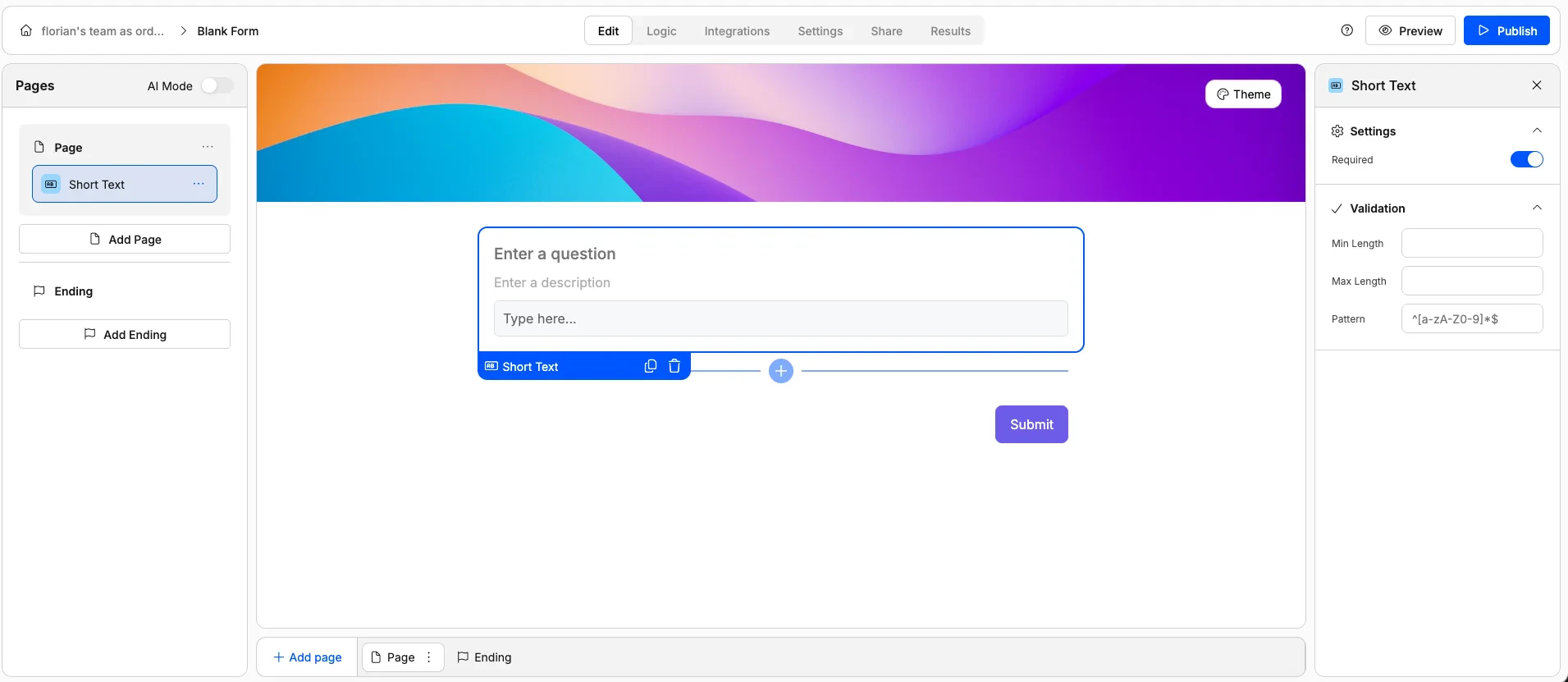
A single-line text field for short answers.
**Use it for:** Names, job titles, company names, or any brief free-text answer.
**Options:**
* Mark as required
* Add a description or helper text
* Set placeholder text
* Set a minimum and/or maximum character length
* Add a validation pattern (regex) for custom format rules
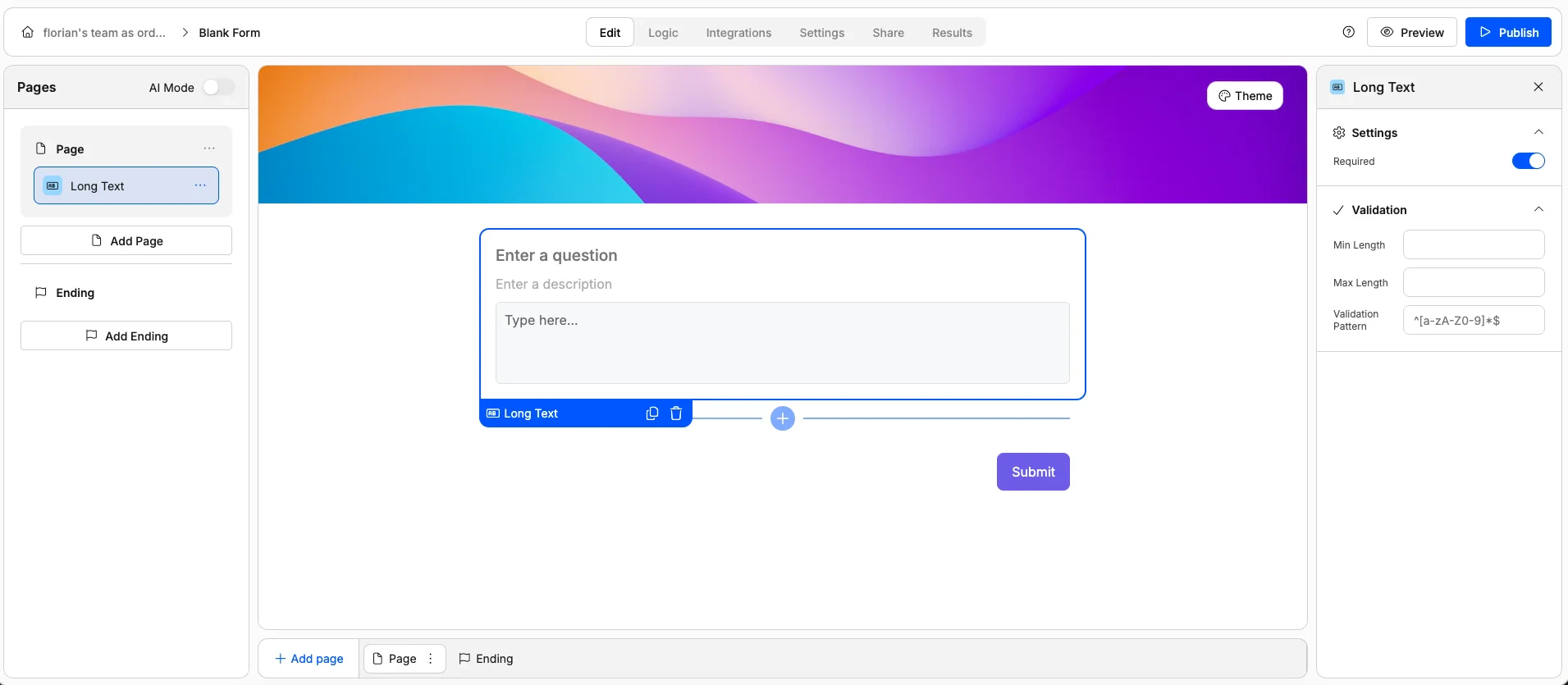
 A multi-line text field for longer responses.
**Use it for:** Comments, feedback, detailed descriptions, or open-ended questions.
**Options:**
* Mark as required
* Add a description or helper text
* Set placeholder text
* Set a minimum and/or maximum character length
* Add a validation pattern (regex) for custom format rules
A multi-line text field for longer responses.
**Use it for:** Comments, feedback, detailed descriptions, or open-ended questions.
**Options:**
* Mark as required
* Add a description or helper text
* Set placeholder text
* Set a minimum and/or maximum character length
* Add a validation pattern (regex) for custom format rules
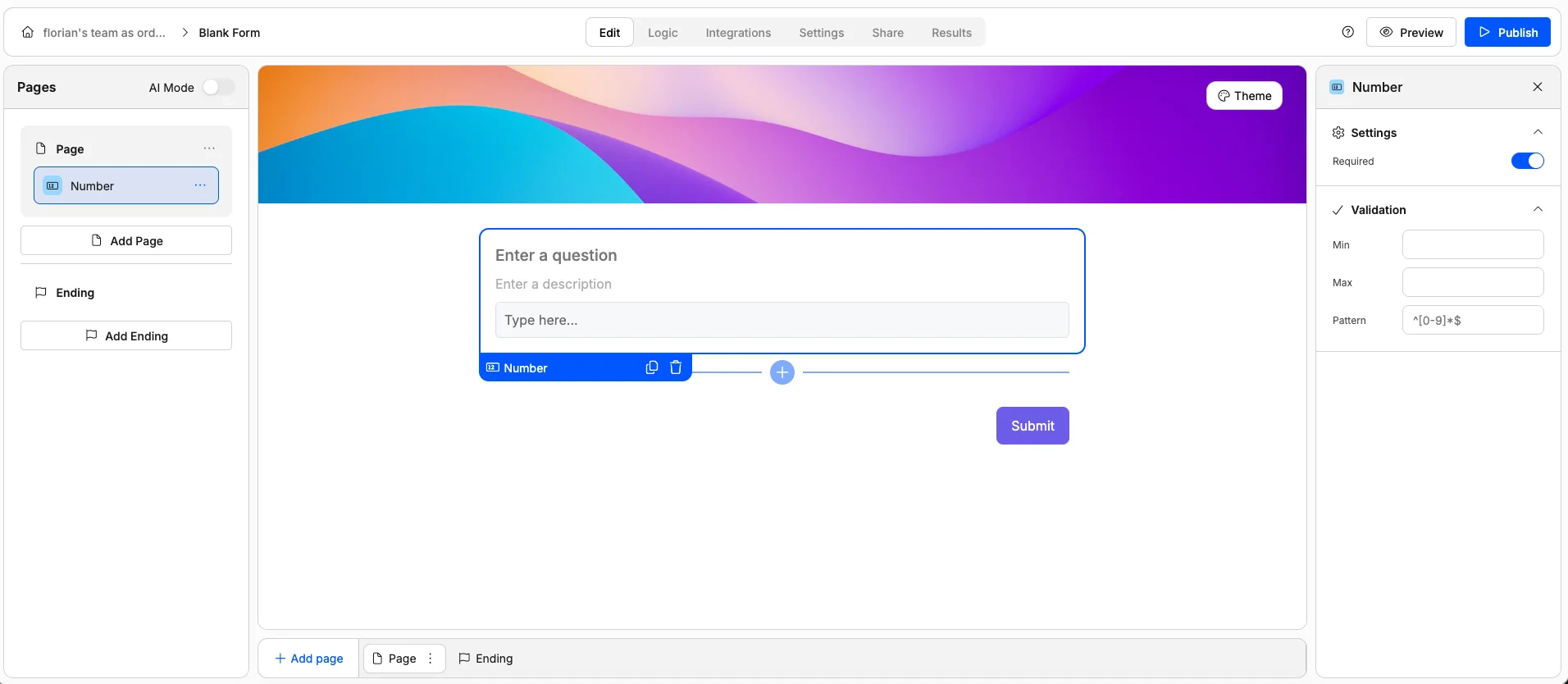
 A field that only accepts numeric values.
**Use it for:** Quantities, ages, budgets, headcounts, or any numerical answer.
**Options:**
* Mark as required
* Add a description or helper text
* Set placeholder text
* Set a minimum and/or maximum value
* Add a validation pattern (regex) for custom format rules
A field that only accepts numeric values.
**Use it for:** Quantities, ages, budgets, headcounts, or any numerical answer.
**Options:**
* Mark as required
* Add a description or helper text
* Set placeholder text
* Set a minimum and/or maximum value
* Add a validation pattern (regex) for custom format rules
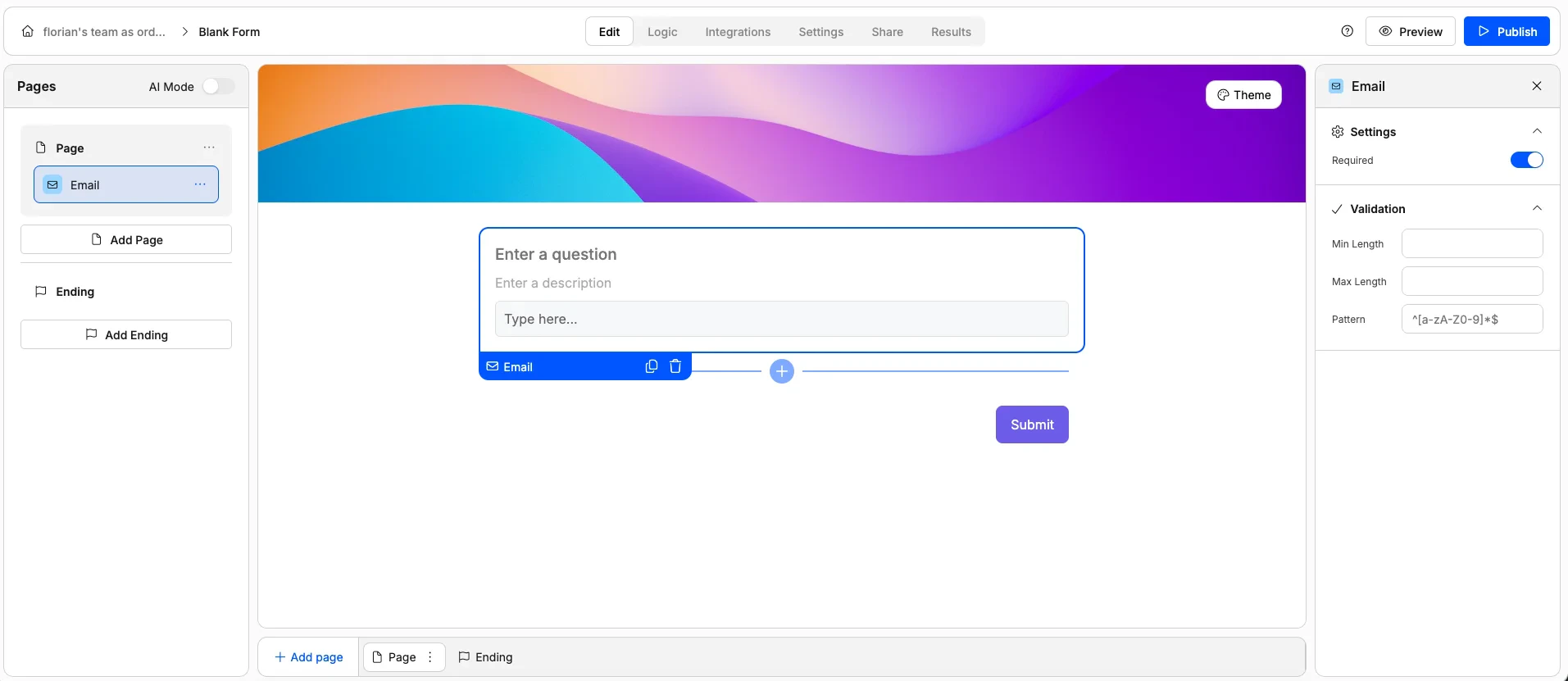
 A text field with built-in email validation. Respondents must enter a properly formatted email address.
**Use it for:** Collecting contact emails, newsletter signups, or account registration.
**Options:**
* Mark as required
* Add a description or helper text
* Set placeholder text
* Set a minimum and/or maximum character length
* Add a validation pattern (regex) for custom format rules
A text field with built-in email validation. Respondents must enter a properly formatted email address.
**Use it for:** Collecting contact emails, newsletter signups, or account registration.
**Options:**
* Mark as required
* Add a description or helper text
* Set placeholder text
* Set a minimum and/or maximum character length
* Add a validation pattern (regex) for custom format rules
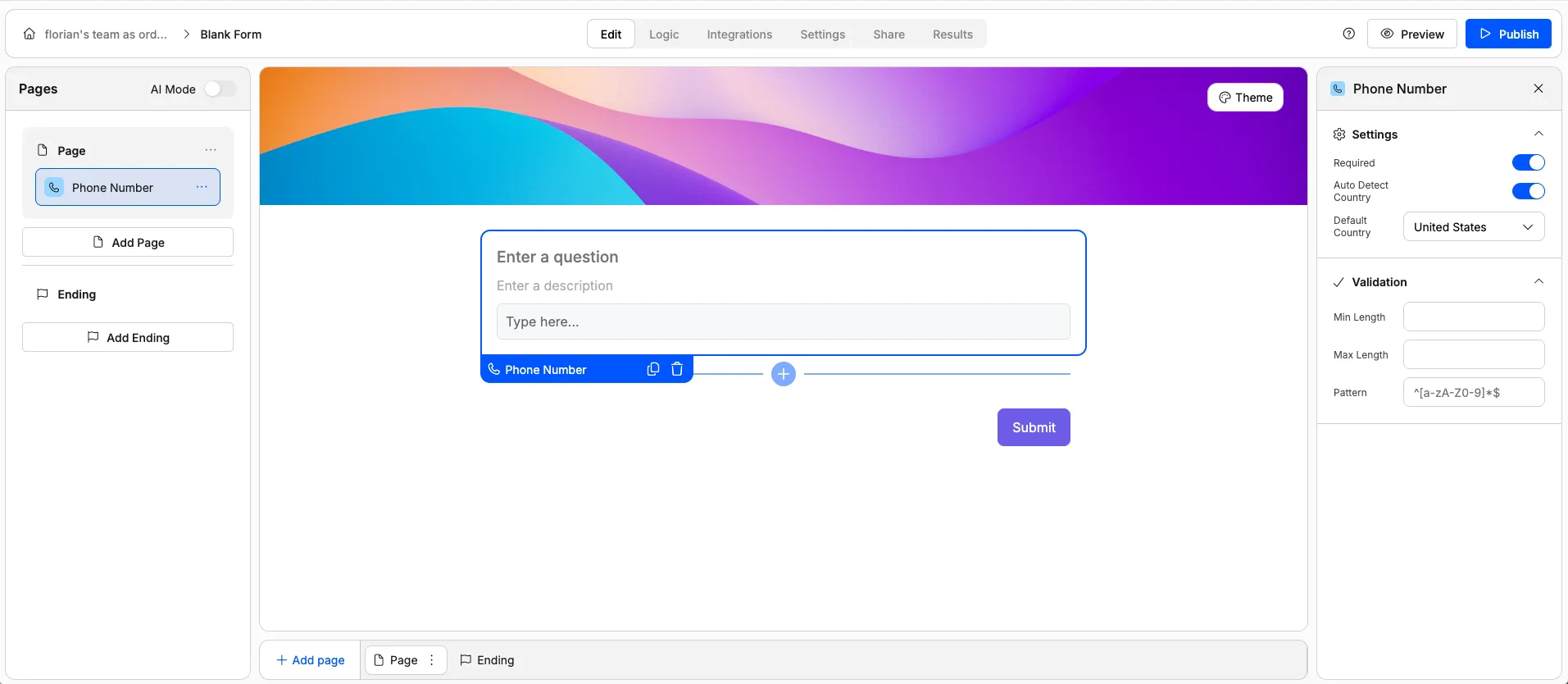
 A field for collecting phone numbers.
**Use it for:** Contact forms, booking forms, or any scenario where you need a phone number.
**Options:**
* Mark as required
* Add a description or helper text
* Set placeholder text
* Enable/disable auto-detection of respondent country
* Set default country code
* Set a minimum and/or maximum character length
* Add a validation pattern (regex) for custom format rules
A field for collecting phone numbers.
**Use it for:** Contact forms, booking forms, or any scenario where you need a phone number.
**Options:**
* Mark as required
* Add a description or helper text
* Set placeholder text
* Enable/disable auto-detection of respondent country
* Set default country code
* Set a minimum and/or maximum character length
* Add a validation pattern (regex) for custom format rules
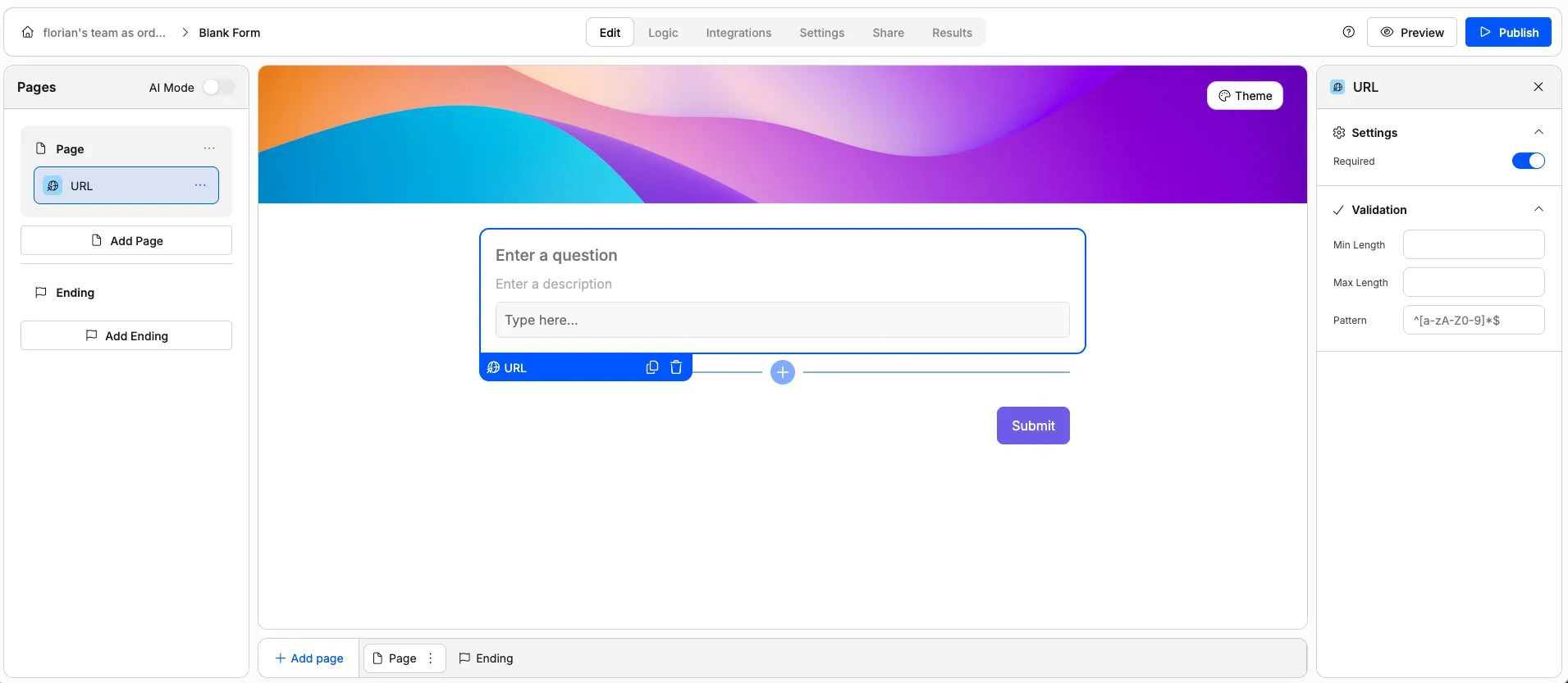
 A text field with URL validation. Respondents must enter a valid web address (must start with http\:// or https\:// followed by a domain).
**Use it for:** Collecting website links, portfolio URLs, social media profiles, or LinkedIn pages.
**Options:**
* Mark as required
* Add a description or helper text
* Set placeholder text
* Add a validation pattern (regex) for custom format rules
A text field with URL validation. Respondents must enter a valid web address (must start with http\:// or https\:// followed by a domain).
**Use it for:** Collecting website links, portfolio URLs, social media profiles, or LinkedIn pages.
**Options:**
* Mark as required
* Add a description or helper text
* Set placeholder text
* Add a validation pattern (regex) for custom format rules
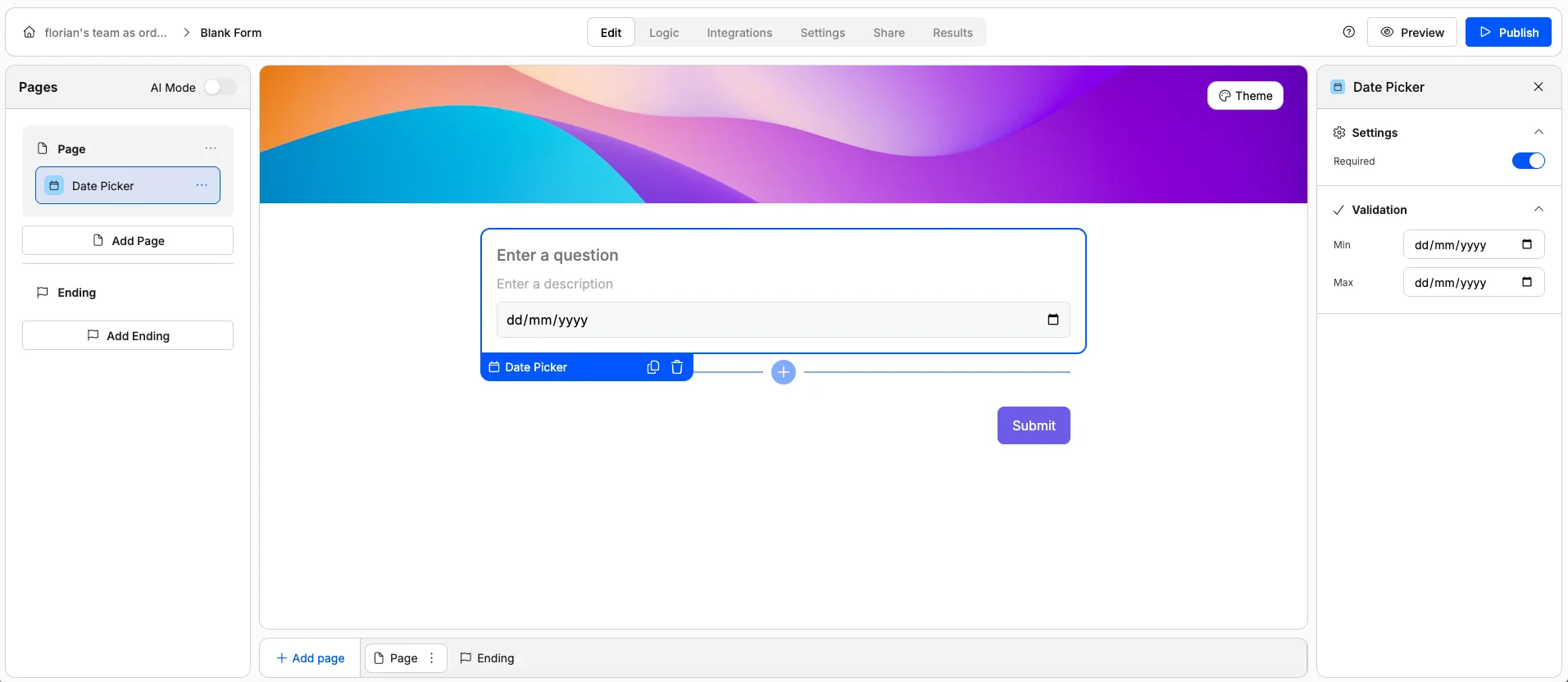
 A calendar-style picker that lets respondents select a date.
**Use it for:** Booking dates, event registration, deadlines, or dates of birth.
**Options:**
* Mark as required
* Add a description or helper text
* Set an earliest and/or latest allowed date
A calendar-style picker that lets respondents select a date.
**Use it for:** Booking dates, event registration, deadlines, or dates of birth.
**Options:**
* Mark as required
* Add a description or helper text
* Set an earliest and/or latest allowed date
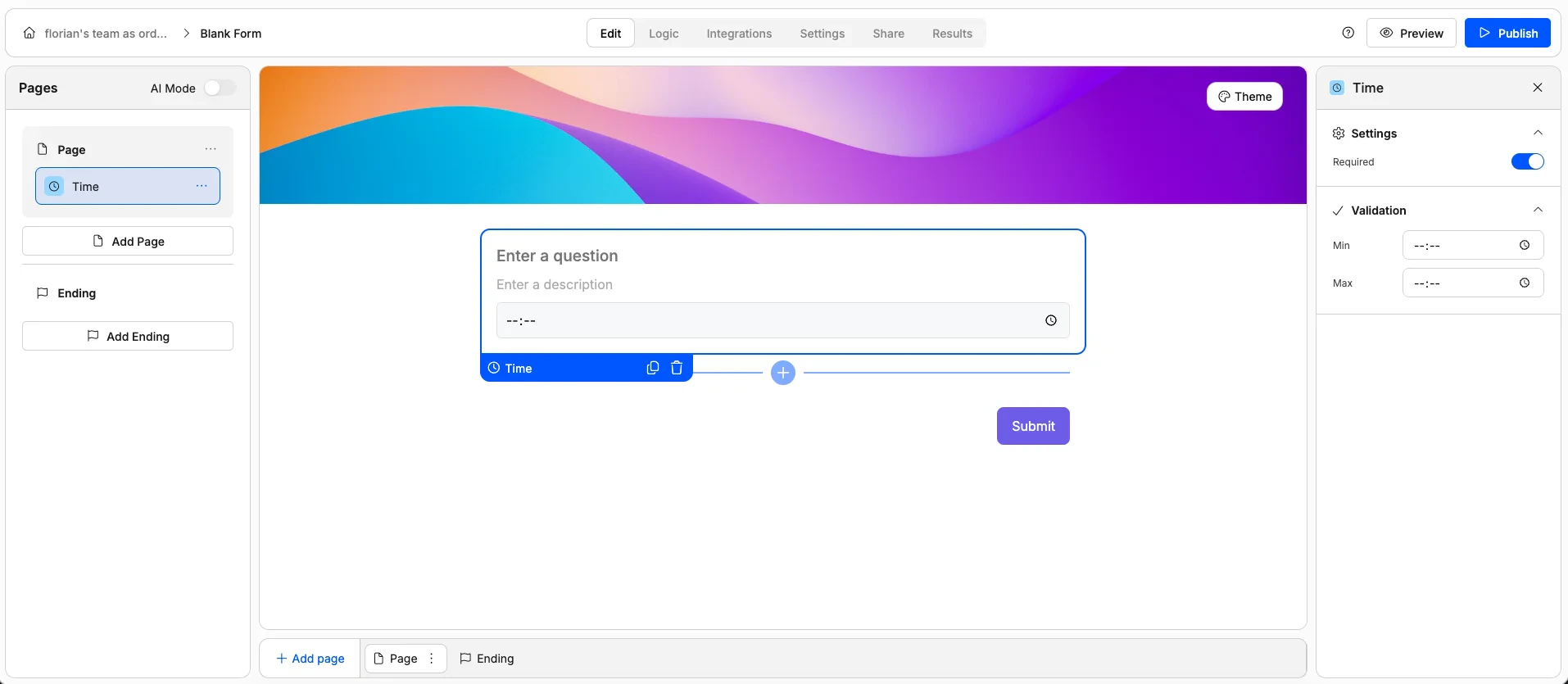
 A picker for selecting a specific time.
**Use it for:** Appointment scheduling, preferred contact times, or event start times.
**Options:**
* Mark as required
* Add a description or helper text
* Set an earliest and/or latest allowed time
A picker for selecting a specific time.
**Use it for:** Appointment scheduling, preferred contact times, or event start times.
**Options:**
* Mark as required
* Add a description or helper text
* Set an earliest and/or latest allowed time
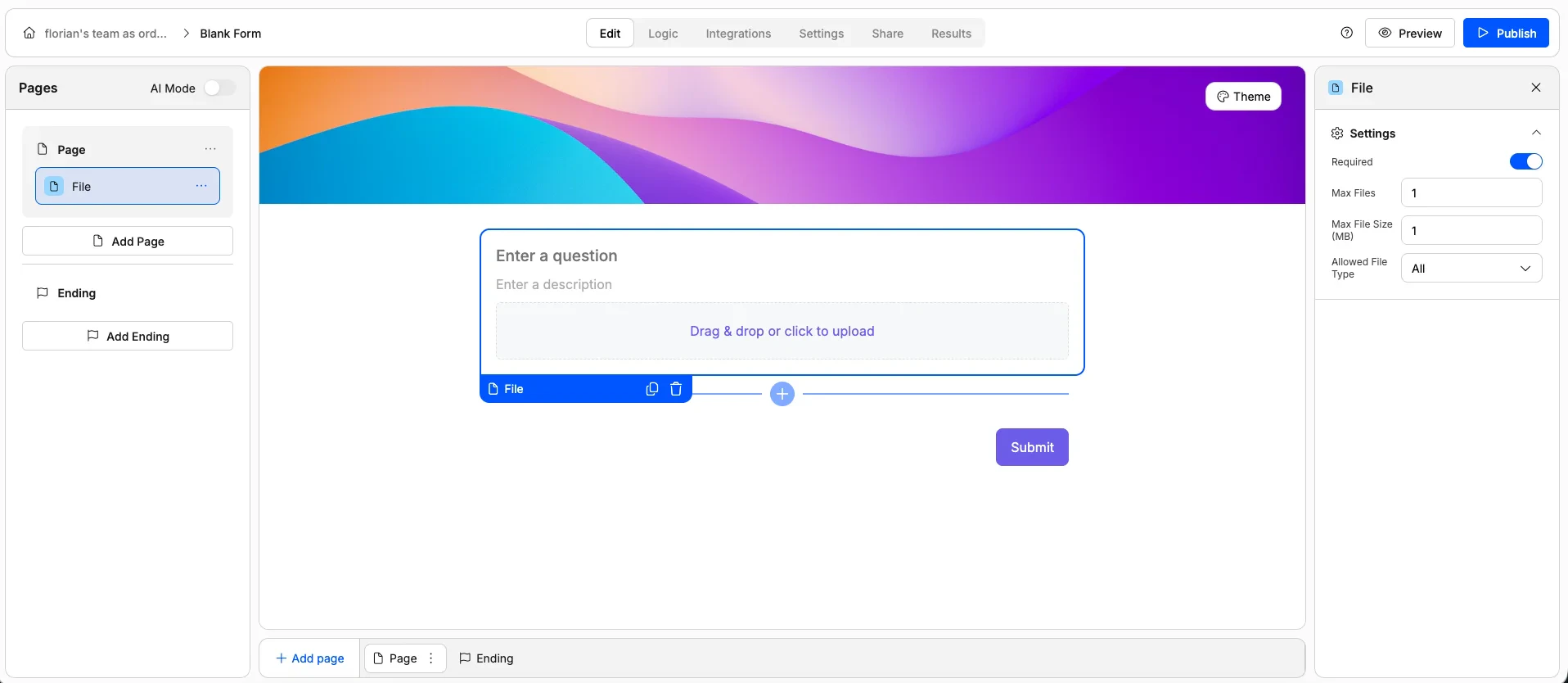
 Lets respondents upload one or more files directly through the form.
**Use it for:** Resumes, images, documents, portfolios, or any file attachment.
**Options:**
* Mark as required
* Limit the number of files allowed
* Set a maximum file size
* Restrict accepted file types (e.g. PDFs only, images only)
* Add a description or helper text
Lets respondents upload one or more files directly through the form.
**Use it for:** Resumes, images, documents, portfolios, or any file attachment.
**Options:**
* Mark as required
* Limit the number of files allowed
* Set a maximum file size
* Restrict accepted file types (e.g. PDFs only, images only)
* Add a description or helper text
 ## Choice Elements
These elements let respondents pick from a set of predefined options.
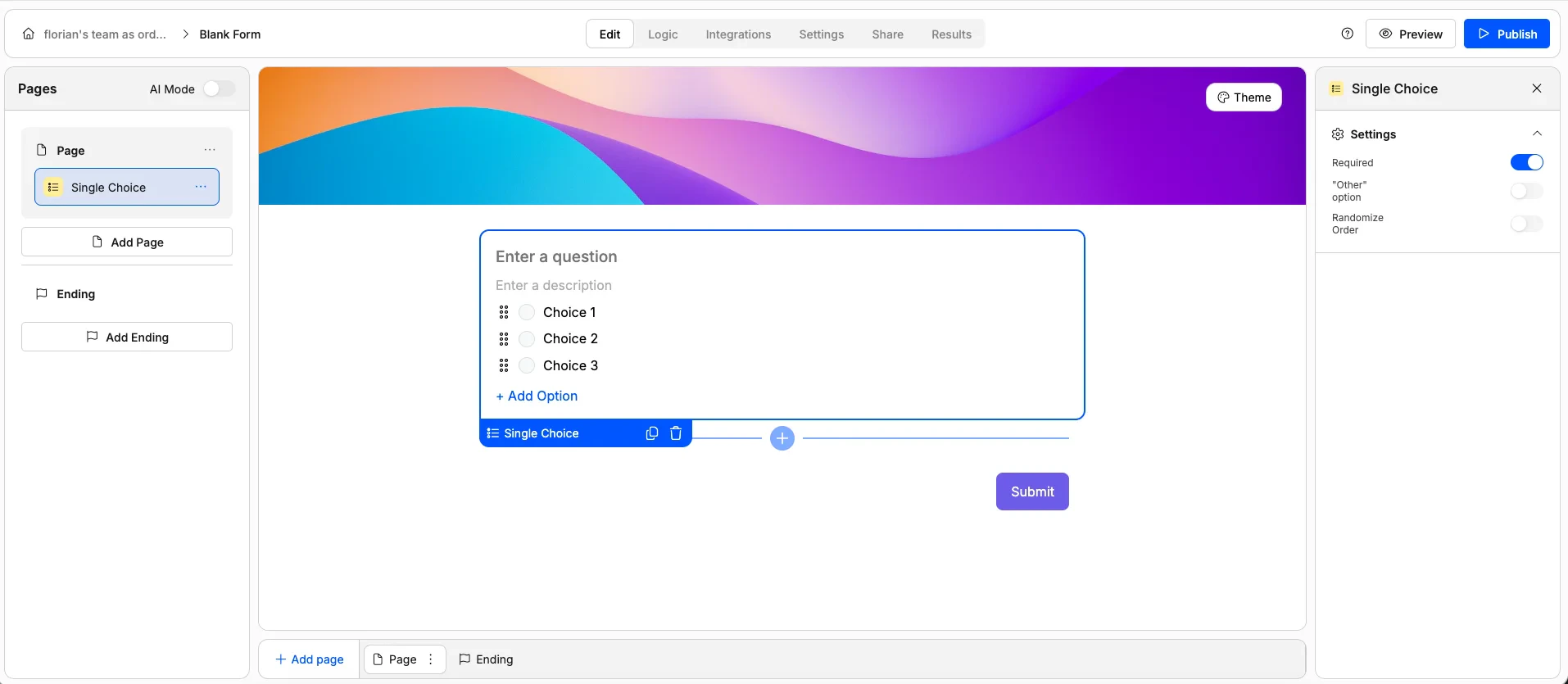
A list of options where respondents choose exactly one. Only one option can be selected at a time.
**Use it for:** Yes/no questions, preference picks, or any question with mutually exclusive answers.
**Options:**
* Mark as required
* Randomize option order
* Add an "Other" option with a free-text field
* Customise the "Other" option label
## Choice Elements
These elements let respondents pick from a set of predefined options.
A list of options where respondents choose exactly one. Only one option can be selected at a time.
**Use it for:** Yes/no questions, preference picks, or any question with mutually exclusive answers.
**Options:**
* Mark as required
* Randomize option order
* Add an "Other" option with a free-text field
* Customise the "Other" option label
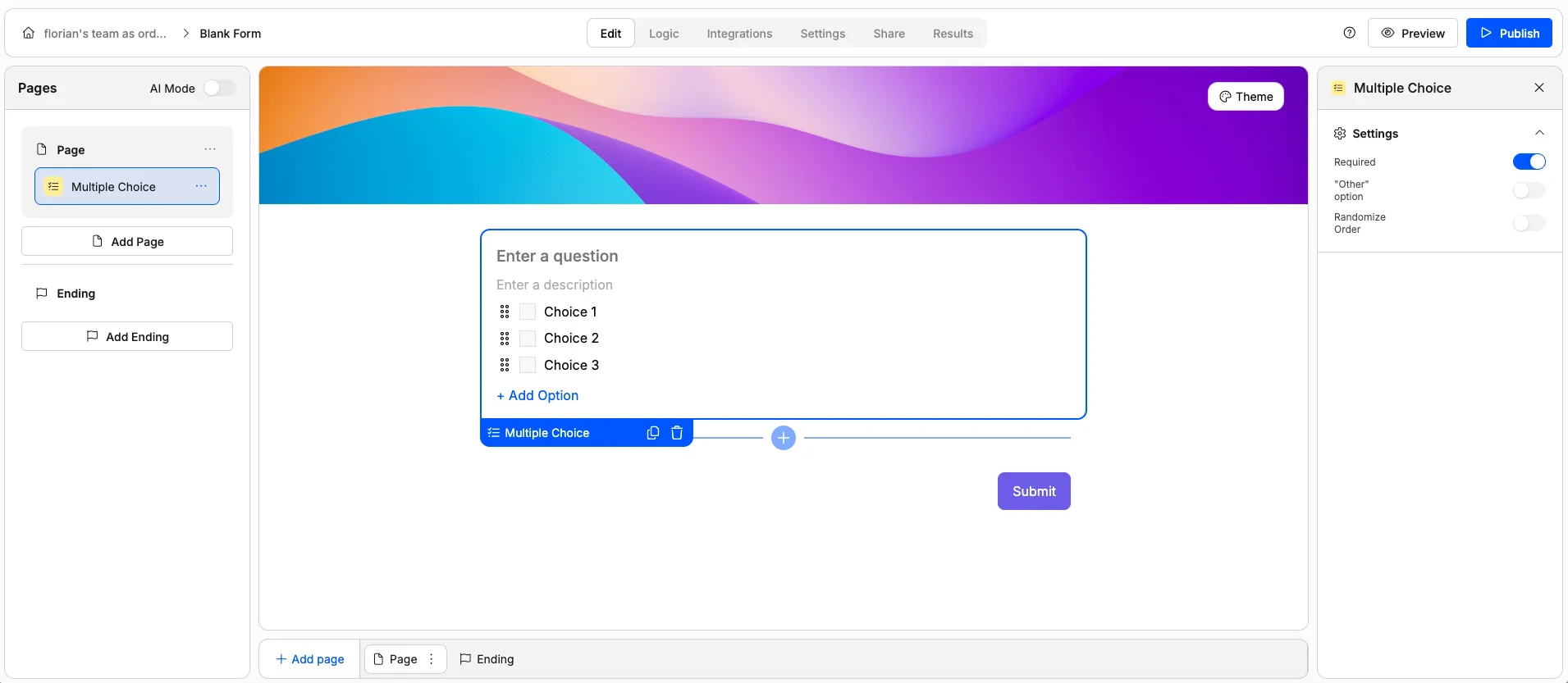
 A list of options where respondents can select multiple answers.
**Use it for:** "Select all that apply" questions, interest lists, or feature preferences.
**Options:**
* Mark as required
* Randomize option order
* Add an "Other" option with a free-text field
* Customise the "Other" option label
A list of options where respondents can select multiple answers.
**Use it for:** "Select all that apply" questions, interest lists, or feature preferences.
**Options:**
* Mark as required
* Randomize option order
* Add an "Other" option with a free-text field
* Customise the "Other" option label
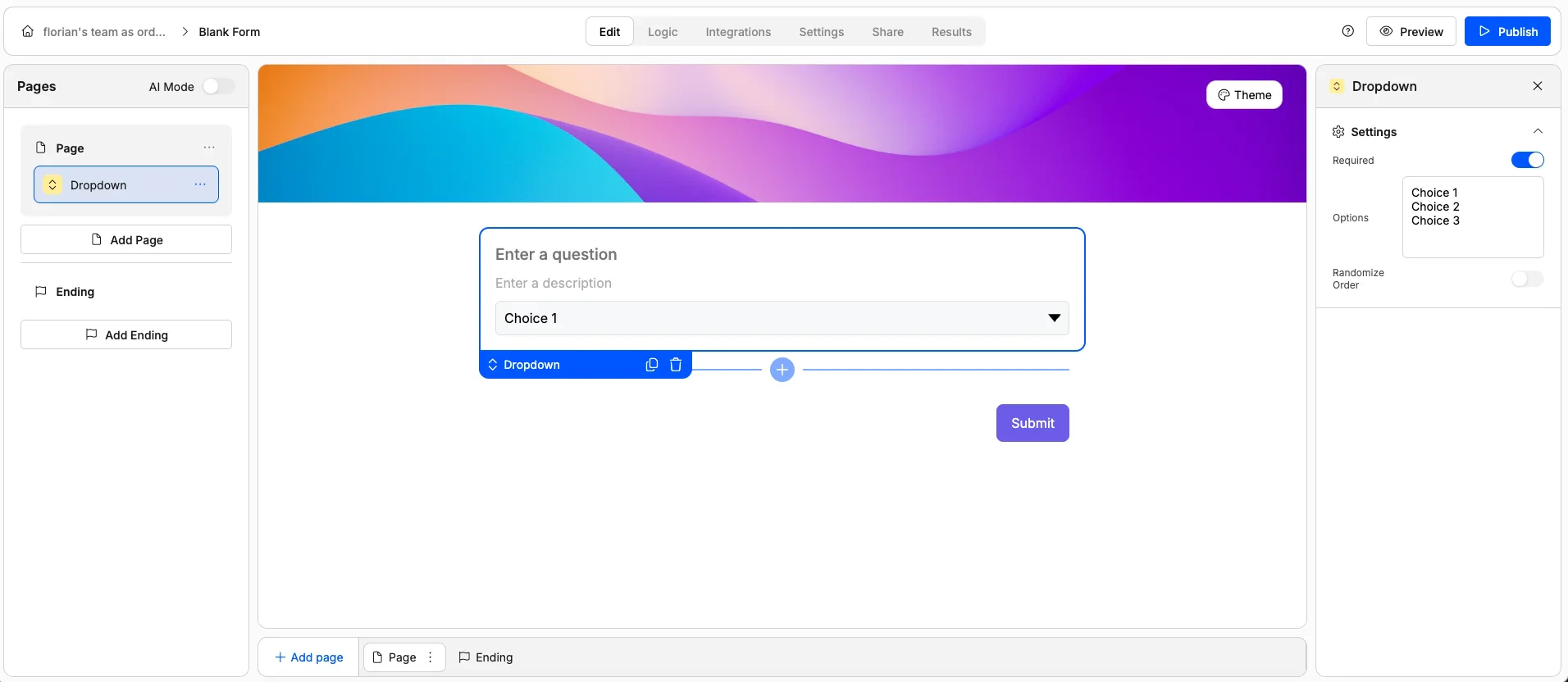
 A compact dropdown menu for selecting a single option. The options are hidden until the respondent clicks to expand the list.
**Use it for:** Long lists of options (countries, categories, departments) where radio buttons would take up too much space.
**Options:**
* Mark as required
* Randomize option order
A compact dropdown menu for selecting a single option. The options are hidden until the respondent clicks to expand the list.
**Use it for:** Long lists of options (countries, categories, departments) where radio buttons would take up too much space.
**Options:**
* Mark as required
* Randomize option order
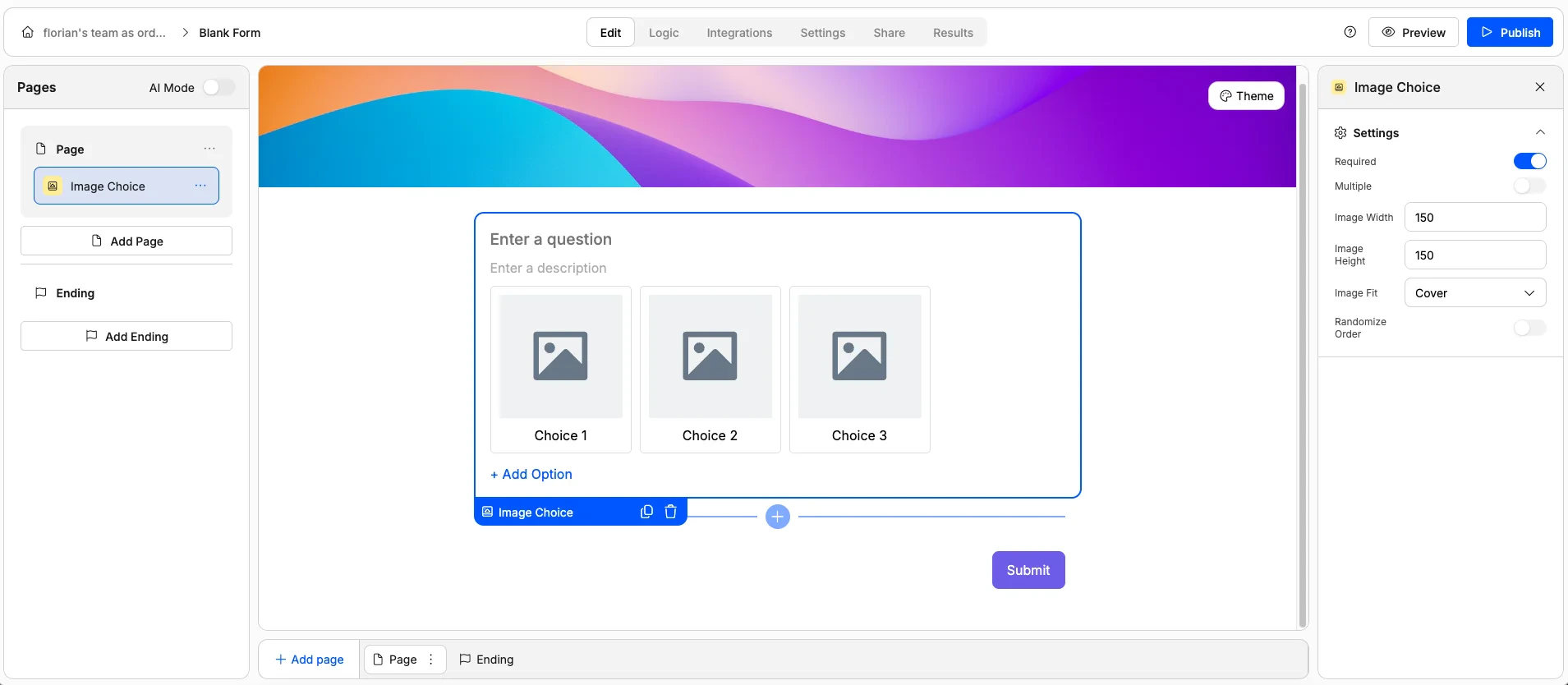
 A visual selection element where each option is represented by an image. Respondents click on an image to select it.
**Use it for:** Design preferences, product picks, mood boards, or any visual comparison.
**Options:**
* Mark as required
* Allow single or multiple selection
* Randomize option order
* Set image dimensions and fit
A visual selection element where each option is represented by an image. Respondents click on an image to select it.
**Use it for:** Design preferences, product picks, mood boards, or any visual comparison.
**Options:**
* Mark as required
* Allow single or multiple selection
* Randomize option order
* Set image dimensions and fit
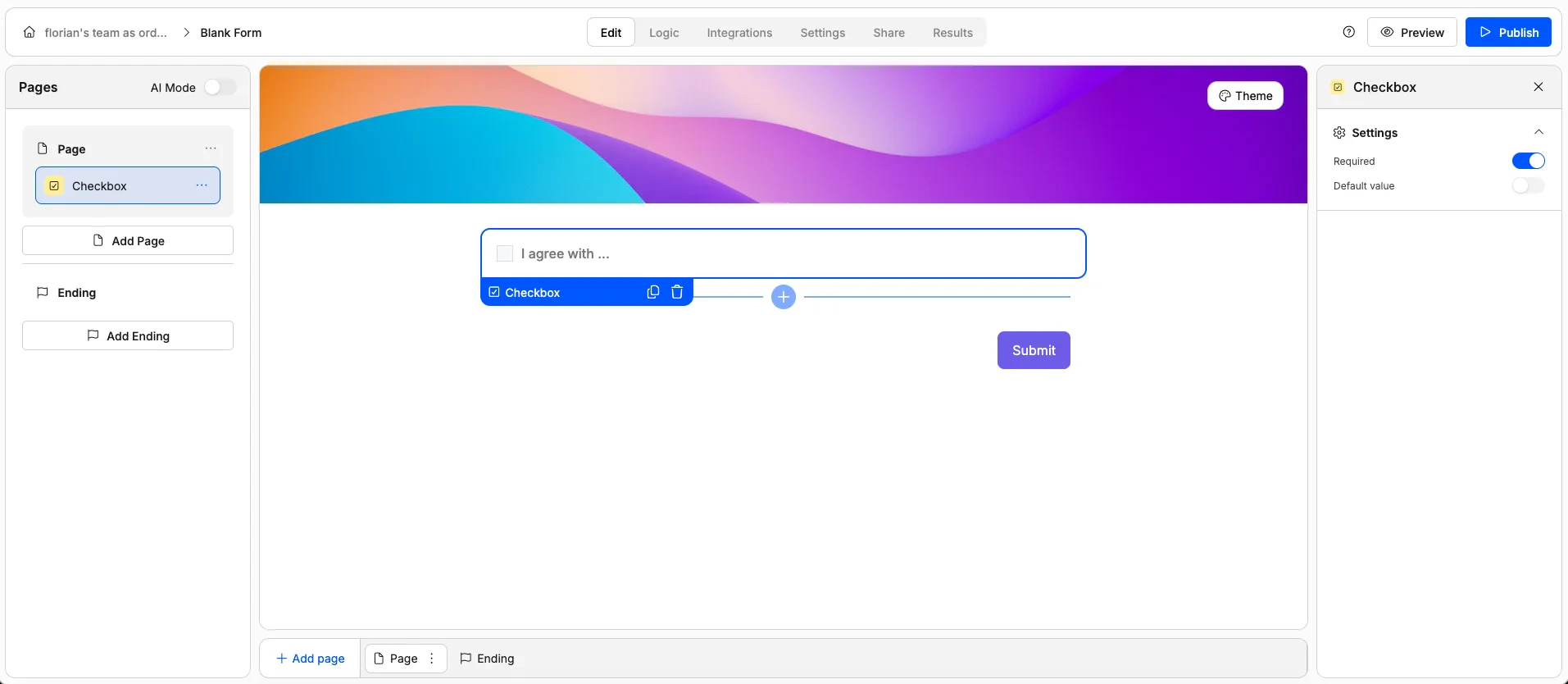
 A standalone checkbox — checked or unchecked.
**Use it for:** Terms and conditions agreements, opt-ins, consent confirmations, or any yes/no toggle.
**Options:**
* Mark as required (respondent must check the box)
* Set whether it's pre-checked by default
A standalone checkbox — checked or unchecked.
**Use it for:** Terms and conditions agreements, opt-ins, consent confirmations, or any yes/no toggle.
**Options:**
* Mark as required (respondent must check the box)
* Set whether it's pre-checked by default
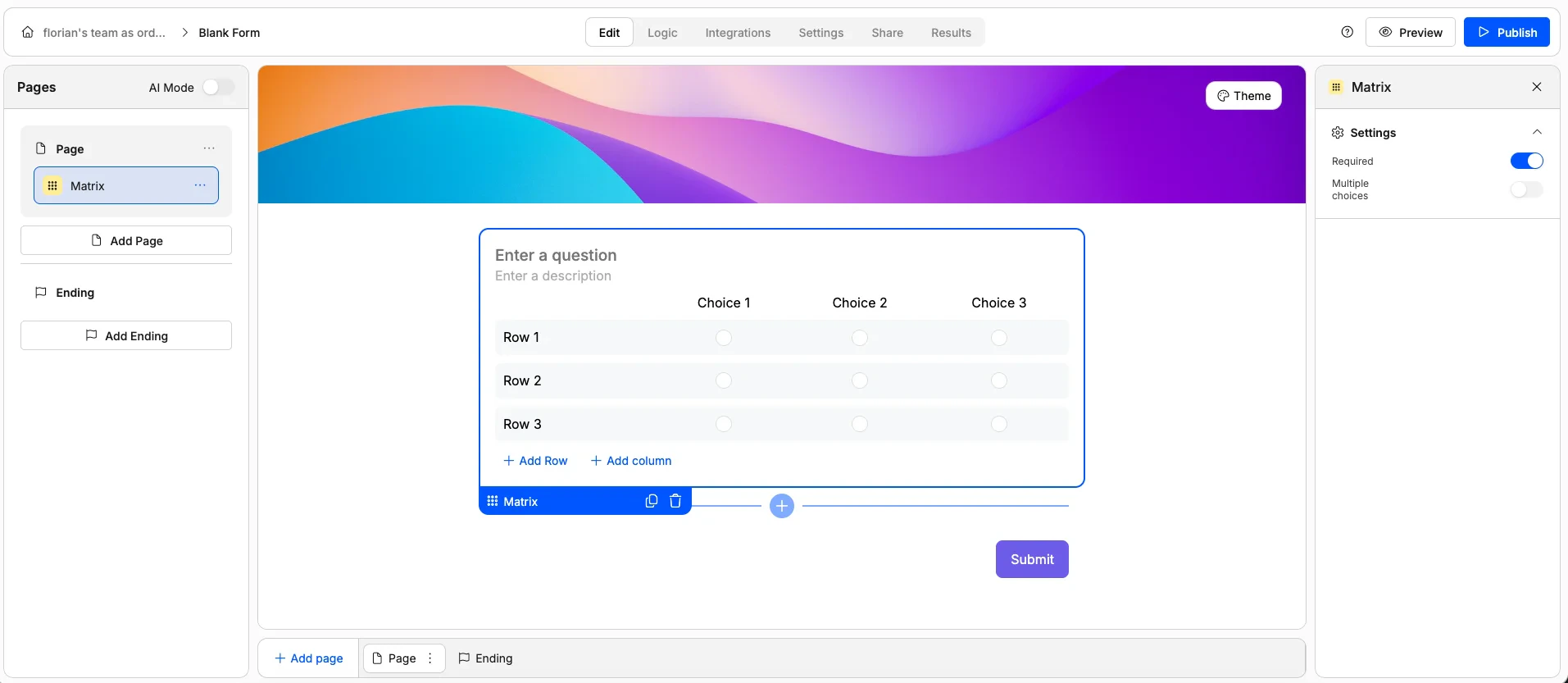
 A grid where rows represent sub-questions and columns represent answer options. Each row is answered independently using the same set of choices.
**Use it for:** Likert scales, multi-criteria evaluations, satisfaction surveys, or comparing multiple items on the same scale.
**Options:**
* Mark as required
* Allow single or multiple selections per row
A grid where rows represent sub-questions and columns represent answer options. Each row is answered independently using the same set of choices.
**Use it for:** Likert scales, multi-criteria evaluations, satisfaction surveys, or comparing multiple items on the same scale.
**Options:**
* Mark as required
* Allow single or multiple selections per row
 ## Rating Elements
These elements let respondents express a score or level of satisfaction.
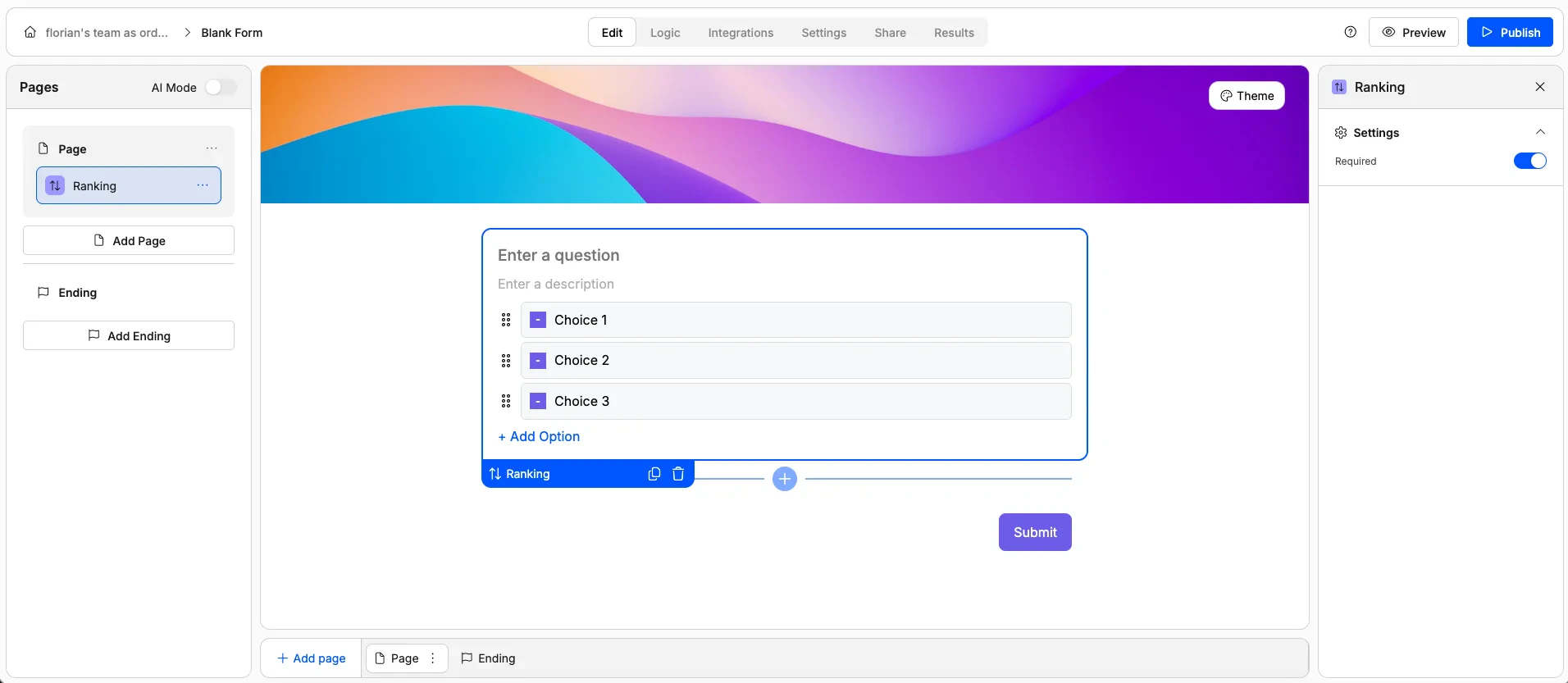
A drag-and-drop element where respondents reorder items by preference or priority.
**Use it for:** Prioritisation exercises, feature rankings, or preference ordering.
**Options:**
* Mark as required
## Rating Elements
These elements let respondents express a score or level of satisfaction.
A drag-and-drop element where respondents reorder items by preference or priority.
**Use it for:** Prioritisation exercises, feature rankings, or preference ordering.
**Options:**
* Mark as required
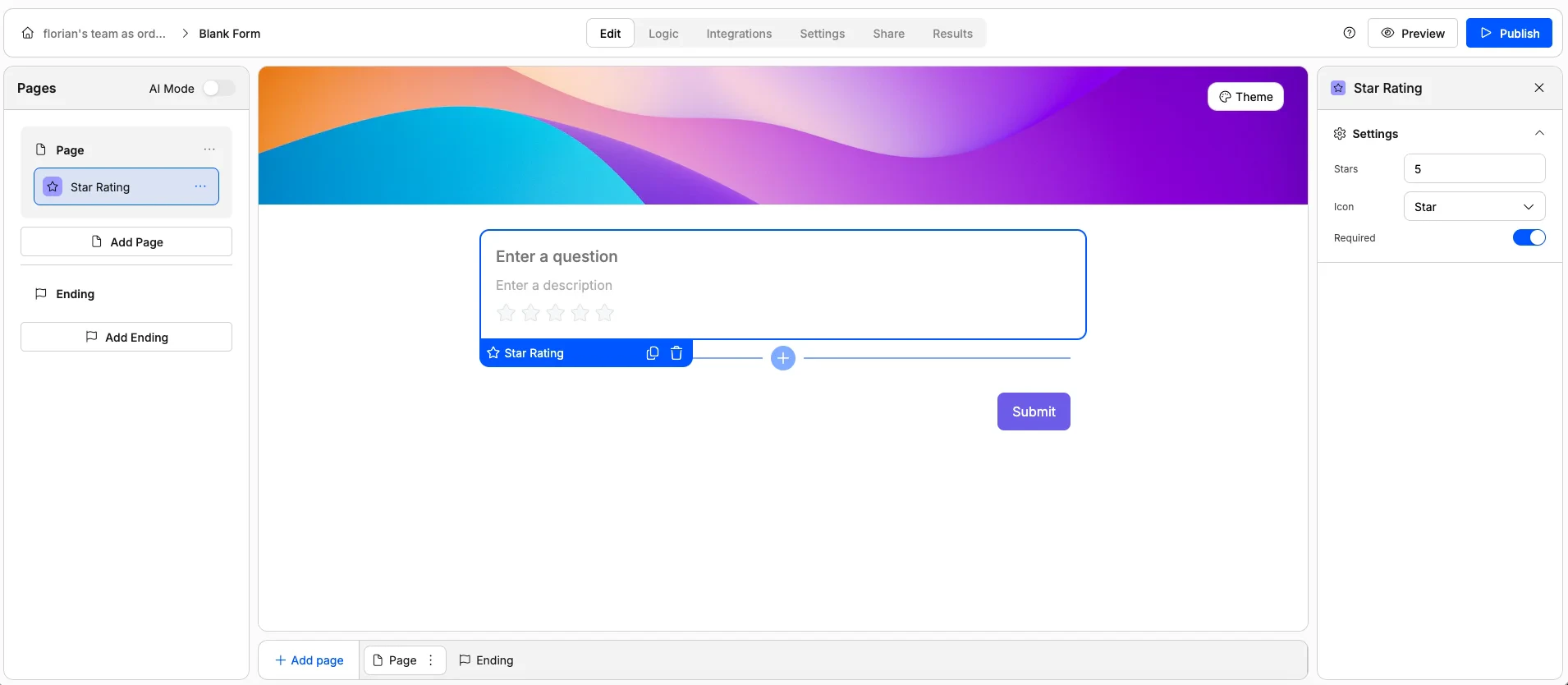
 A familiar star-based rating. Respondents click to select a number of stars.
**Use it for:** Product reviews, experience ratings, satisfaction scores, or any quick quality assessment.
**Options:**
* Mark as required
* Set the number of stars (e.g. 5 or 10)
* Change the icon (use hearts, thumbs up, or other icons instead of stars)
A familiar star-based rating. Respondents click to select a number of stars.
**Use it for:** Product reviews, experience ratings, satisfaction scores, or any quick quality assessment.
**Options:**
* Mark as required
* Set the number of stars (e.g. 5 or 10)
* Change the icon (use hearts, thumbs up, or other icons instead of stars)
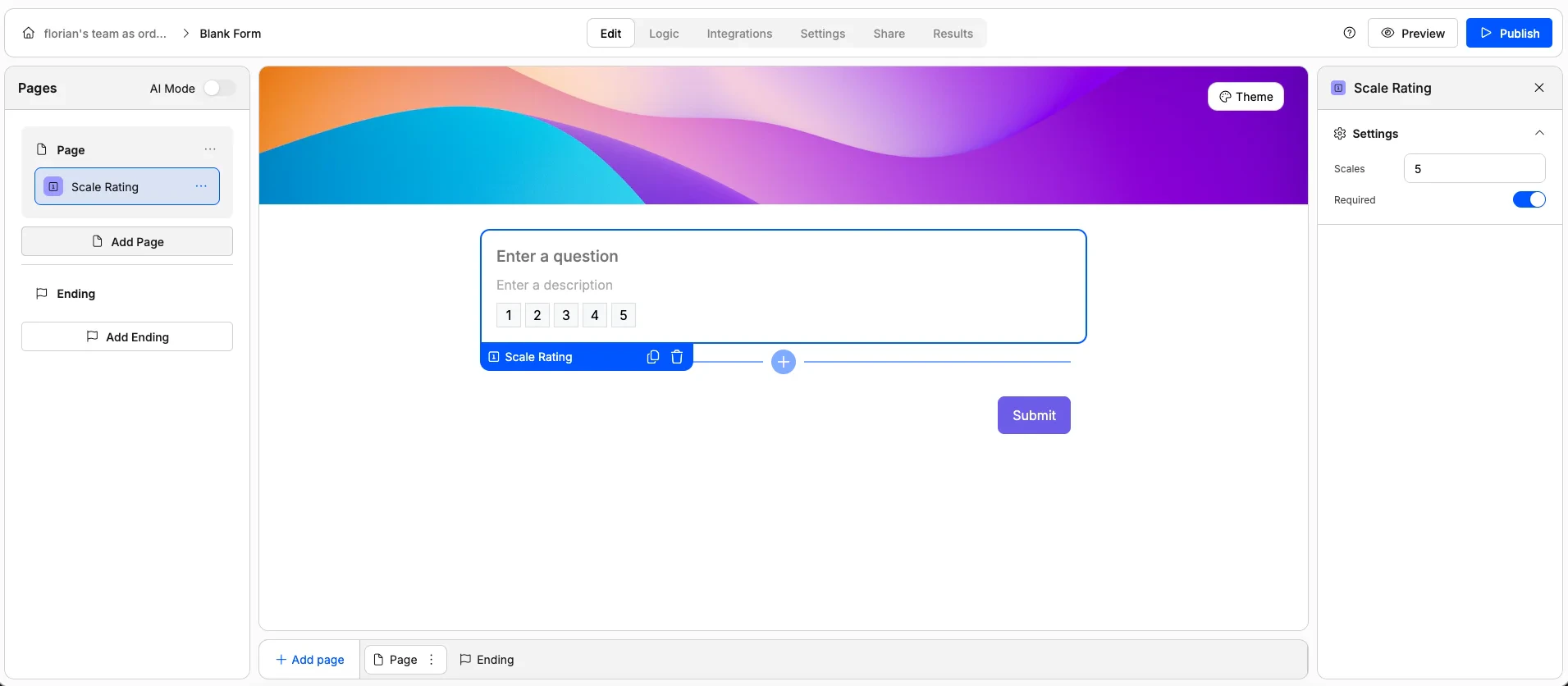
 A numeric scale where respondents pick a number (e.g. 0–10). Often used for NPS (Net Promoter Score) surveys.
**Use it for:** NPS surveys, satisfaction scores, likelihood scales, or effort scores.
**Options:**
* Mark as required
* Set the number of scale points
A numeric scale where respondents pick a number (e.g. 0–10). Often used for NPS (Net Promoter Score) surveys.
**Use it for:** NPS surveys, satisfaction scores, likelihood scales, or effort scores.
**Options:**
* Mark as required
* Set the number of scale points
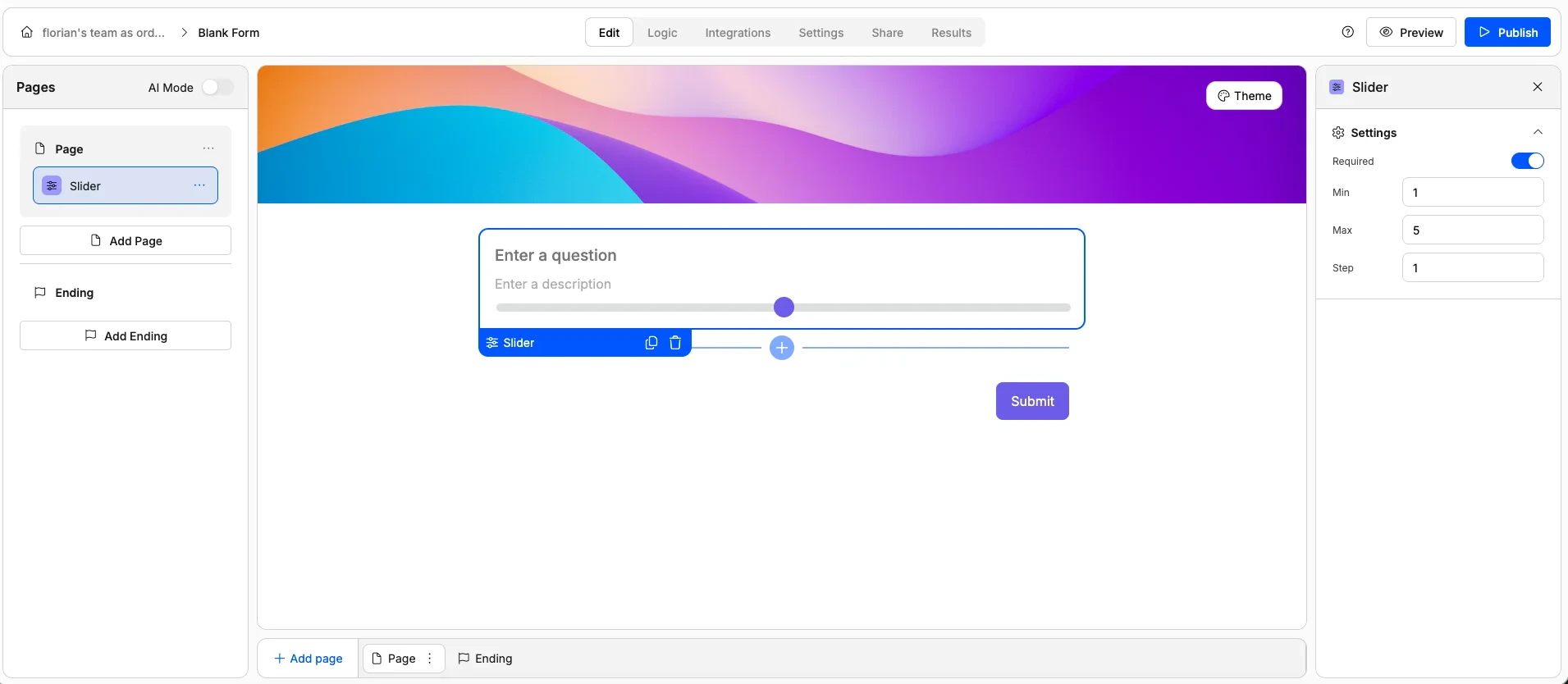
 A draggable slider for selecting a value within a defined range.
**Use it for:** Budgets, price ranges, temperature preferences, or any continuous numeric value.
**Options:**
* Set minimum and maximum values
* Set the step size (e.g. increments of 10, 100, or 500)
A draggable slider for selecting a value within a defined range.
**Use it for:** Budgets, price ranges, temperature preferences, or any continuous numeric value.
**Options:**
* Set minimum and maximum values
* Set the step size (e.g. increments of 10, 100, or 500)
 ## Display Elements
Display elements don't collect responses — they add structure, context, and media to your form.
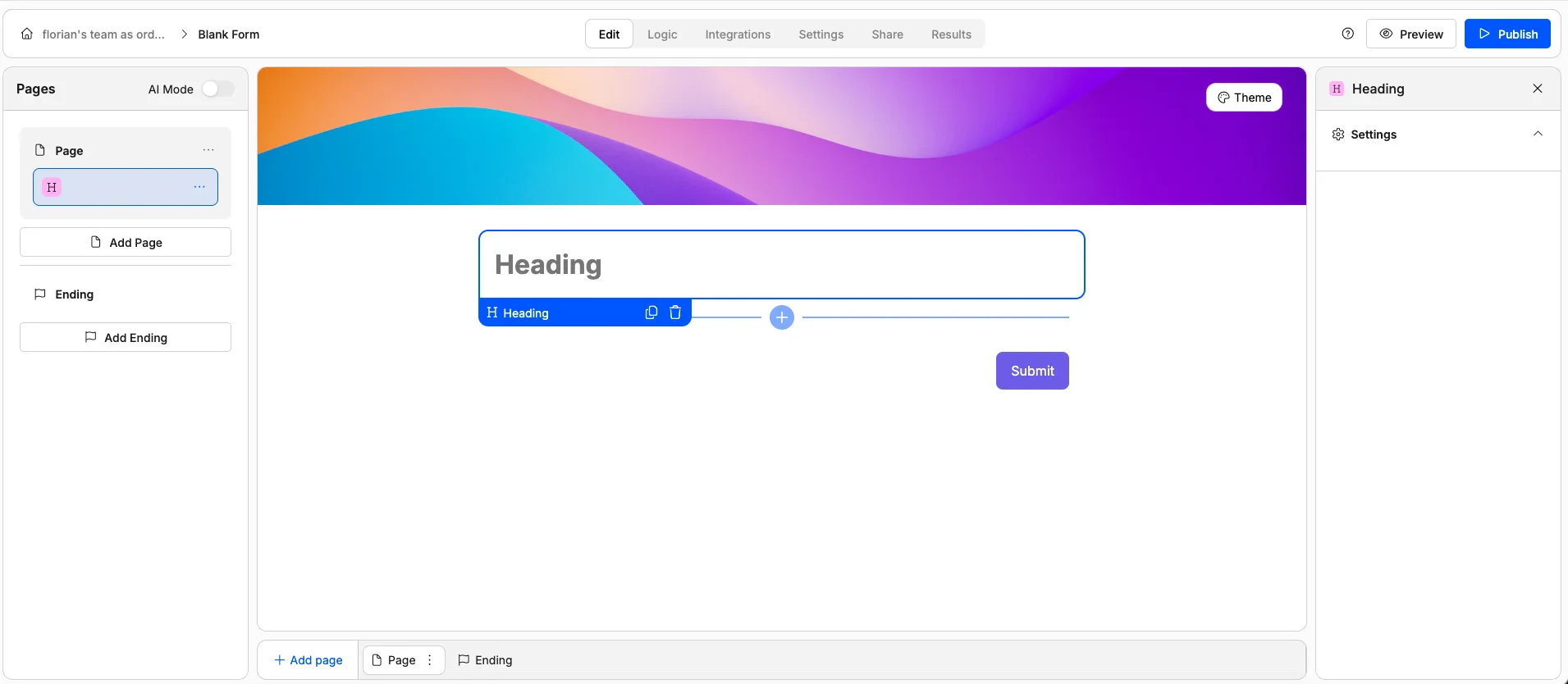
A large text heading for creating visual sections within your form.
**Use it for:** Section titles, page headers, or visual breaks between groups of questions.
## Display Elements
Display elements don't collect responses — they add structure, context, and media to your form.
A large text heading for creating visual sections within your form.
**Use it for:** Section titles, page headers, or visual breaks between groups of questions.
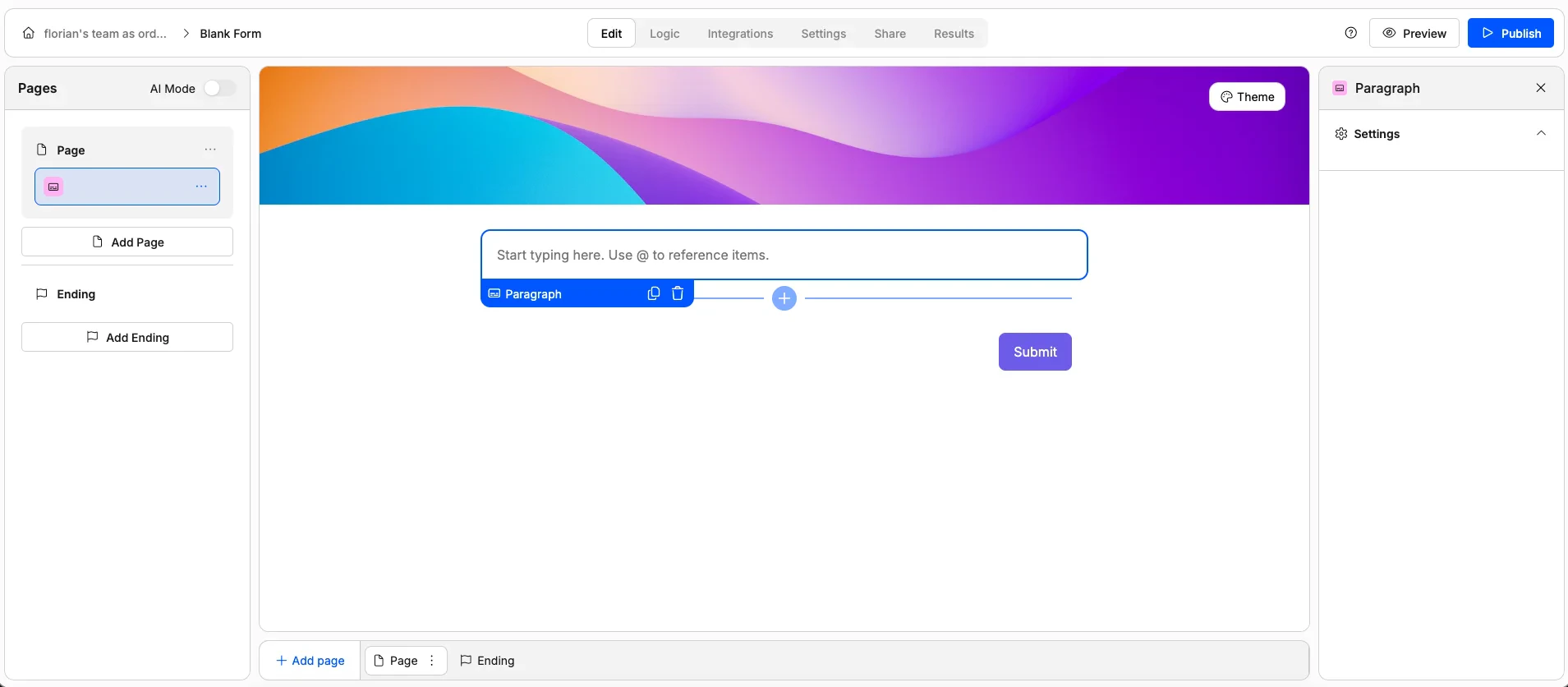
 A block of text for adding instructions, explanations, or contextual information. Supports rich text formatting and [answer piping](/features/answer-piping) to dynamically insert a respondent's earlier answers.
**Use it for:** Instructions, welcome messages, disclaimers, or personalised text using answer piping.
A block of text for adding instructions, explanations, or contextual information. Supports rich text formatting and [answer piping](/features/answer-piping) to dynamically insert a respondent's earlier answers.
**Use it for:** Instructions, welcome messages, disclaimers, or personalised text using answer piping.
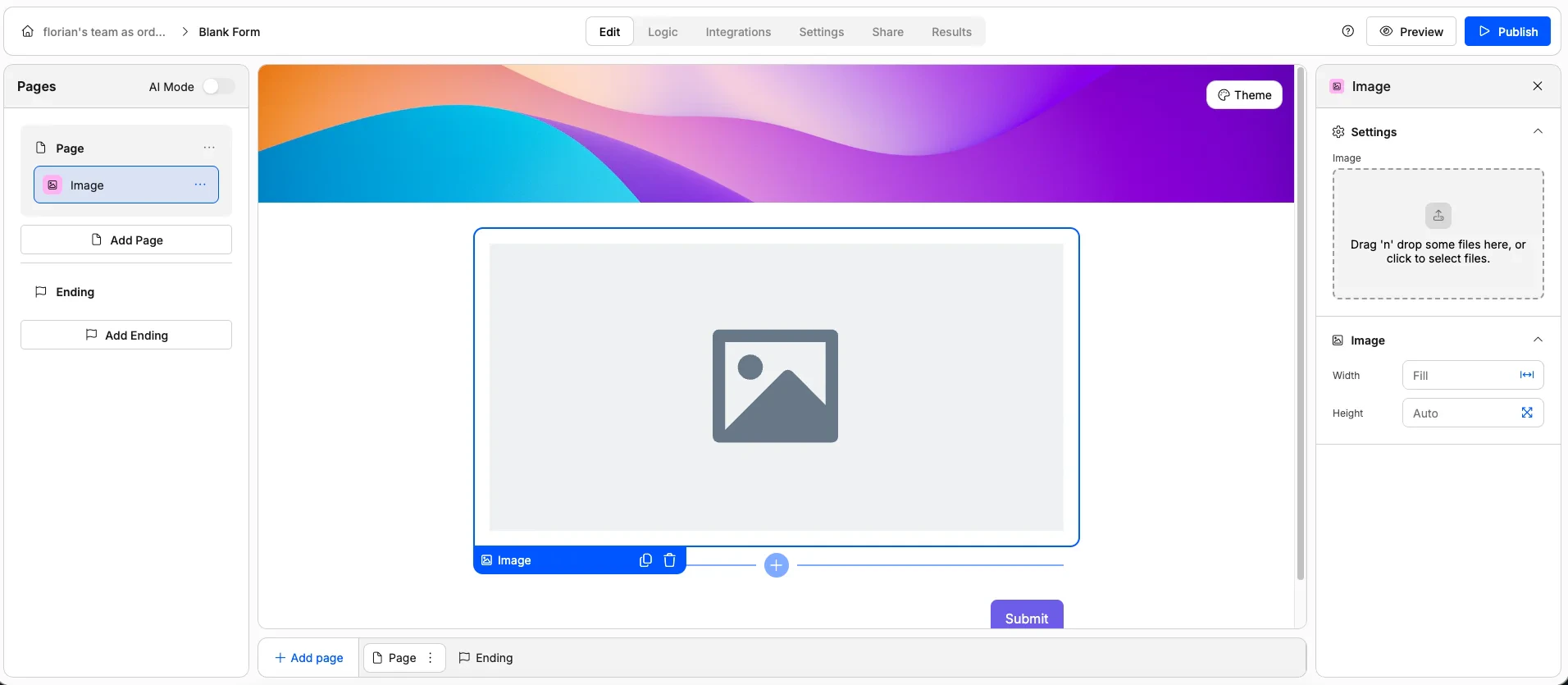
 Displays an image on the form.
**Use it for:** Reference photos, diagrams, or any visual context.
**Options:**
* Set image width and height
Displays an image on the form.
**Use it for:** Reference photos, diagrams, or any visual context.
**Options:**
* Set image width and height
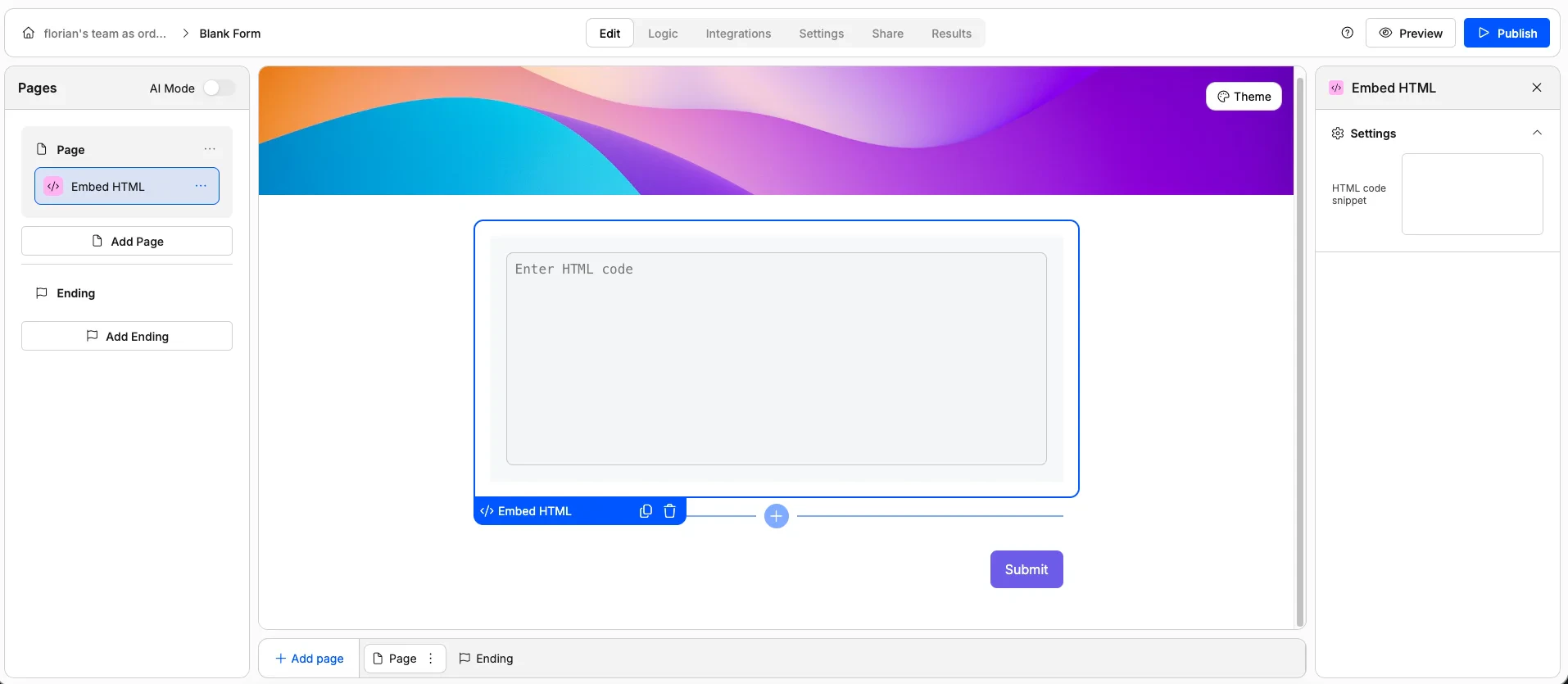
 Embeds a custom HTML snippet directly into your form.
**Use it for:** Third-party widgets, custom styling, embedded maps, or anything not covered by the other elements.
Embeds a custom HTML snippet directly into your form.
**Use it for:** Third-party widgets, custom styling, embedded maps, or anything not covered by the other elements.
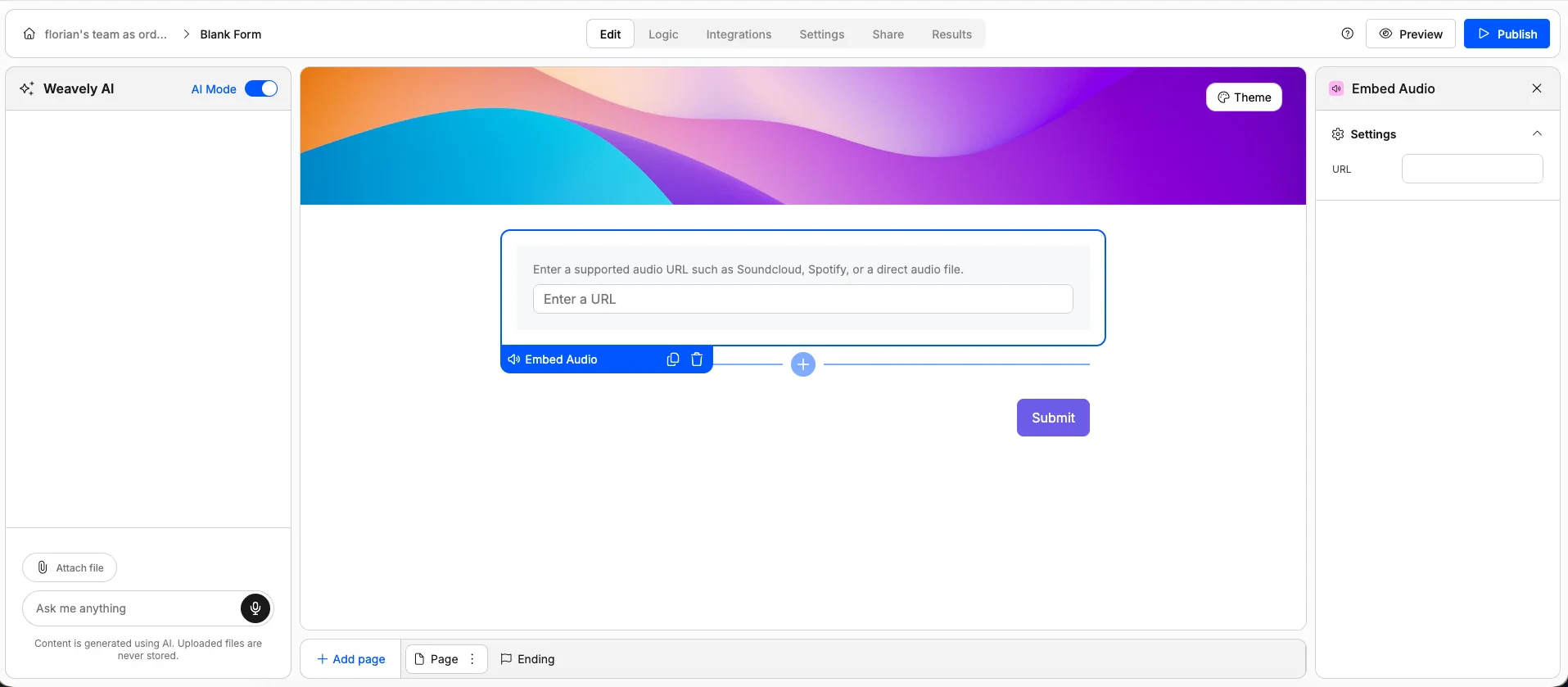
 An audio player embedded in your form.
**Use it for:** Podcasts, voice instructions, music samples, or audio feedback prompts.
An audio player embedded in your form.
**Use it for:** Podcasts, voice instructions, music samples, or audio feedback prompts.
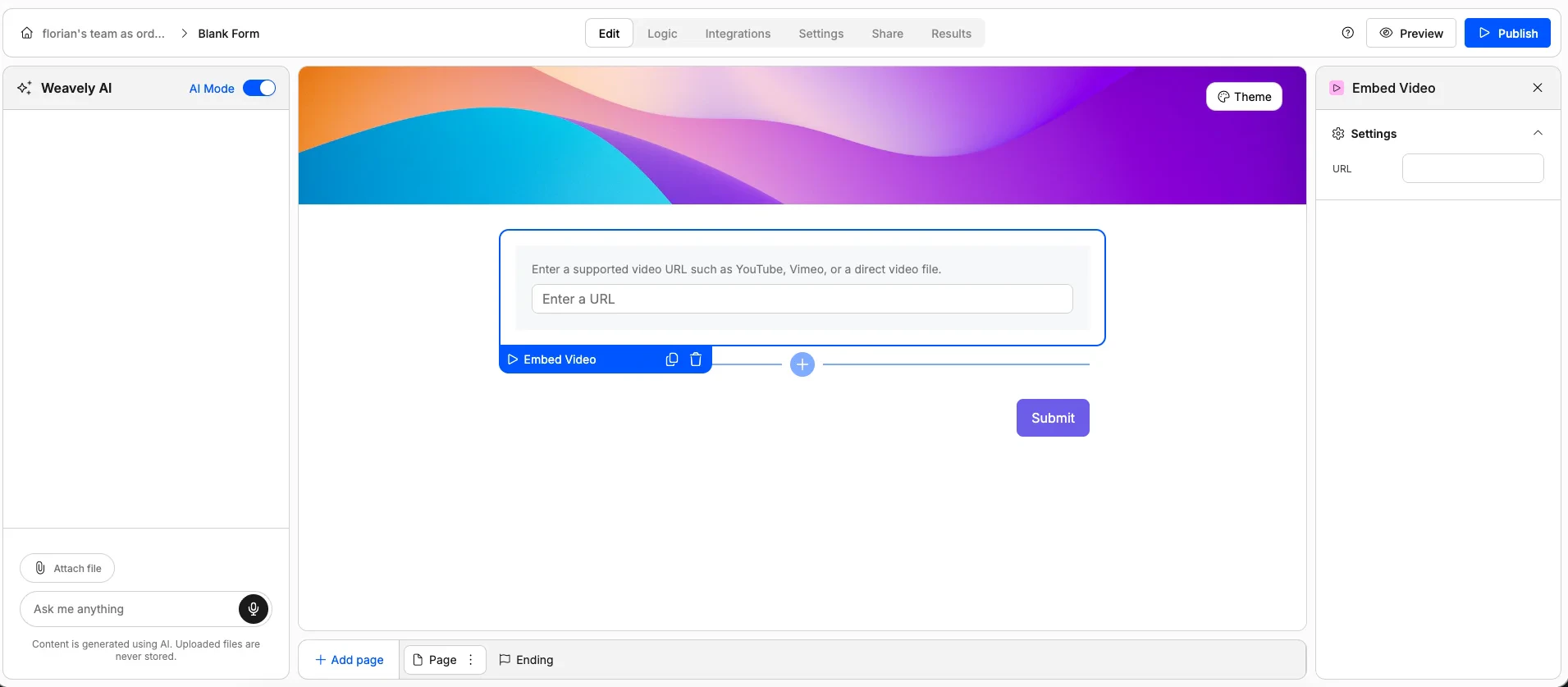
 A video player embedded in your form. Supports YouTube, Vimeo, and other hosted video URLs.
**Use it for:** Tutorial videos, product demos, welcome messages, or any video content.
A video player embedded in your form. Supports YouTube, Vimeo, and other hosted video URLs.
**Use it for:** Tutorial videos, product demos, welcome messages, or any video content.
 ## Special Elements
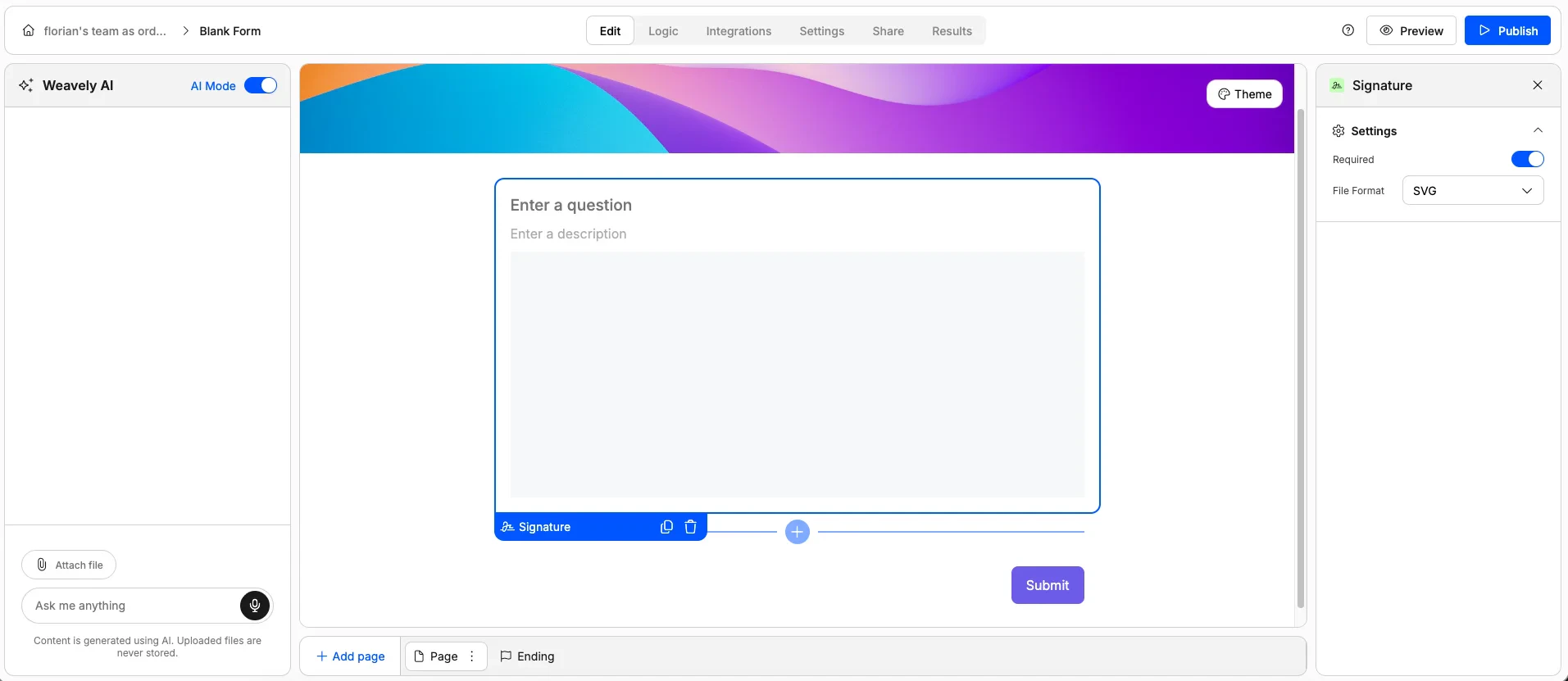
A digital signature pad where respondents draw their signature using a mouse, trackpad, or finger on mobile.
**Use it for:** Contracts, consent forms, waivers, delivery confirmations, or any document that needs a signature.
**Options:**
* Mark as required
* Set the output file format
## Special Elements
A digital signature pad where respondents draw their signature using a mouse, trackpad, or finger on mobile.
**Use it for:** Contracts, consent forms, waivers, delivery confirmations, or any document that needs a signature.
**Options:**
* Mark as required
* Set the output file format
 ***
## Related
Show or hide elements and pages based on how respondents answer.
Dynamically insert earlier answers into later questions or text.
Add custom validation rules to your form fields.
Turn your form into a scored quiz with correct answers and feedback.
***
## Related
Show or hide elements and pages based on how respondents answer.
Dynamically insert earlier answers into later questions or text.
Add custom validation rules to your form fields.
Turn your form into a scored quiz with correct answers and feedback.