> ## Documentation Index
> Fetch the complete documentation index at: https://help.weavely.ai/llms.txt
> Use this file to discover all available pages before exploring further.
# How to Invite and Manage Team Members in Weavely
> Learn how to collaborate and build forms with team members inside of Weavely.ai
{`{
"@context": "https://schema.org",
"@graph": [
{
"@type": "WebPage",
"@id": "https://help.weavely.ai/get-started/teams",
"url": "https://help.weavely.ai/get-started/teams",
"name": "How to Invite and Manage Team Members in Weavely",
"description": "Learn how to collaborate and build forms with team members inside of Weavely.ai",
"inLanguage": "en",
"isPartOf": {
"@type": "WebSite",
"@id": "https://help.weavely.ai/#website",
"name": "Weavely Help Center"
},
"breadcrumb": {
"@type": "BreadcrumbList",
"itemListElement": [
{ "@type": "ListItem", "position": 1, "name": "Get Started", "item": "https://help.weavely.ai/get-started" },
{ "@type": "ListItem", "position": 2, "name": "Team Functionality", "item": "https://help.weavely.ai/get-started/teams" }
]
},
"publisher": { "@id": "https://www.weavely.ai/#org" }
},
{
"@type": "TechArticle",
"headline": "How to Invite and Manage Team Members in Weavely",
"description": "Learn how to collaborate and build forms with team members inside of Weavely.ai",
"inLanguage": "en",
"mainEntityOfPage": { "@id": "https://help.weavely.ai/get-started/teams" },
"author": { "@id": "https://www.weavely.ai/#org" },
"publisher": { "@id": "https://www.weavely.ai/#org" }
},
{
"@type": "VideoObject",
"@id": "https://help.weavely.ai/get-started/teams#video",
"name": "How to Build Forms in Teams for Free using Weavely.ai",
"description": "Want to collaborate on forms with your team, without paying a cent? In this quick tutorial, I’ll show you how to add team members to your Weavely workspace so you can build, edit, and manage forms together.",
"inLanguage": "en",
"thumbnailUrl": [
"https://i.ytimg.com/vi/V3XWvT_yzxM/maxresdefault.jpg",
"https://i.ytimg.com/vi/V3XWvT_yzxM/hqdefault.jpg"
],
"uploadDate": "2025-06-23T00:00:00Z",
"duration": "PT2M51S",
"embedUrl": "https://www.youtube.com/embed/V3XWvT_yzxM",
"contentUrl": "https://youtu.be/V3XWvT_yzxM",
"publisher": { "@id": "https://www.weavely.ai/#org" },
"potentialAction": {
"@type": "WatchAction",
"target": "https://www.youtube.com/watch?v=V3XWvT_yzxM"
}
},
{
"@type": "Organization",
"@id": "https://www.weavely.ai/#org",
"name": "WEAVE.LY BV",
"url": "https://www.weavely.ai",
"address": {
"@type": "PostalAddress",
"streetAddress": "Herbert Hooverlaan 141",
"addressLocality": "Schaarbeek",
"postalCode": "1030",
"addressCountry": "BE"
},
"identifier": "BE0773.878.569",
"sameAs": [
"https://www.instagram.com/weavely.ai/",
"https://www.linkedin.com/company/weave-ly/",
"https://www.youtube.com/@weavely"
]
}
]
}`}
Weavely makes it easy to collaborate with others by allowing you to invite team members to your workspace. Whether you’re working on form creation, reviewing responses, or managing integrations—bringing others into your team helps speed up feedback and coordination.
This guide walks you through how to invite someone to your Weavely team, what the invitation flow looks like for them, and how to manage team access once they’ve joined.
## Accessing Team Settings
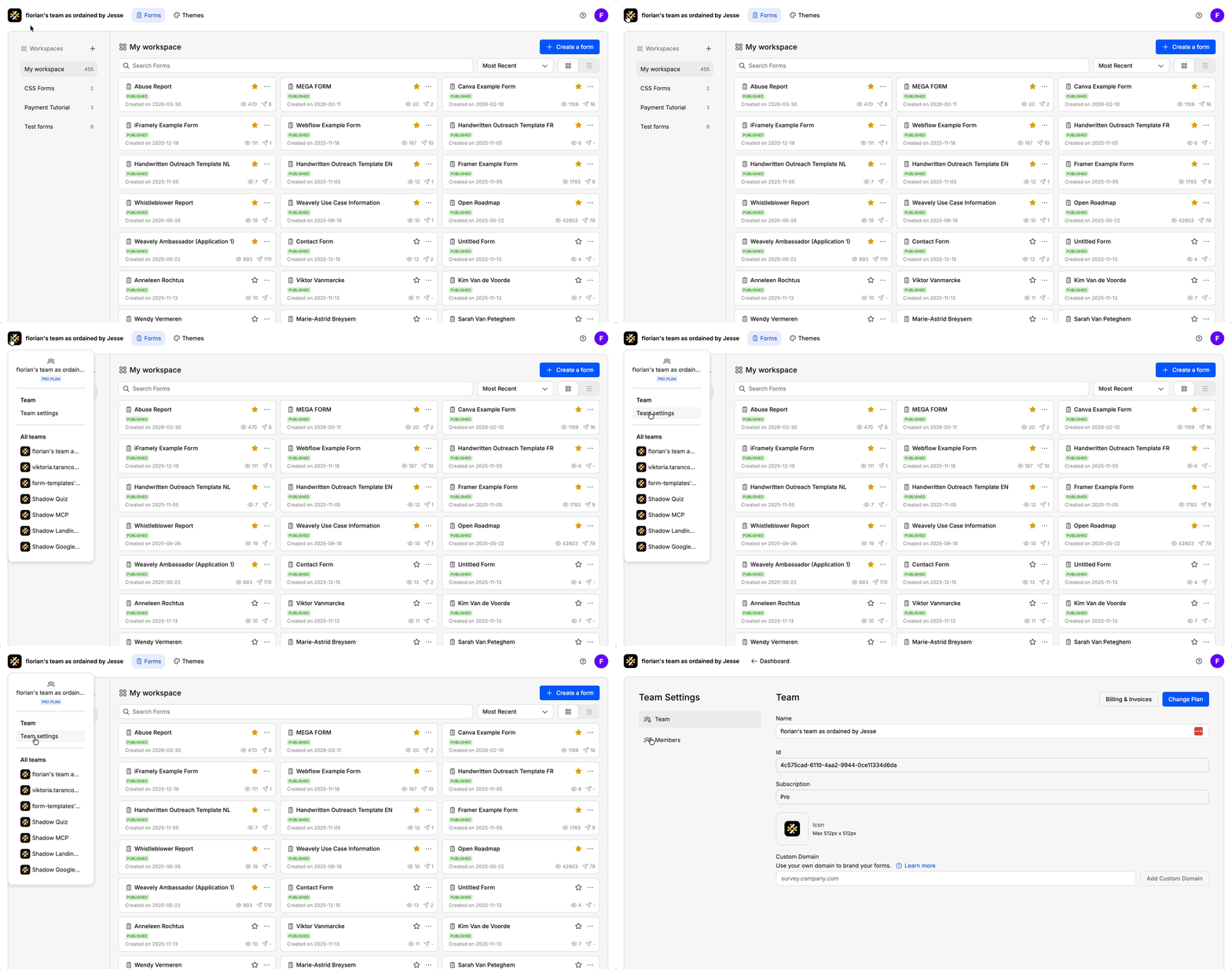
To get started, head to the **Settings** section in your Weavely dashboard. If you’re currently working in the form editor, you can return to the dashboard by clicking the **house icon** in the top-left corner. Once back in the dashboard:
* Click on **Settings** in the left-hand menu.
* Select **Team Settings**.
This is where you’ll manage your team members.
## Inviting Someone to Your Team
To invite someone, simply enter their email address in the **Team Settings** panel and press **Invite**. An invitation will be sent to that address.
The recipient will receive a straightforward email with a link to accept the invite. Once they click it, they’ll be prompted to either **sign in** or **create a new account**. It’s important that they complete this step using the **same email address** the invitation was sent to.
## Switching Between Teams
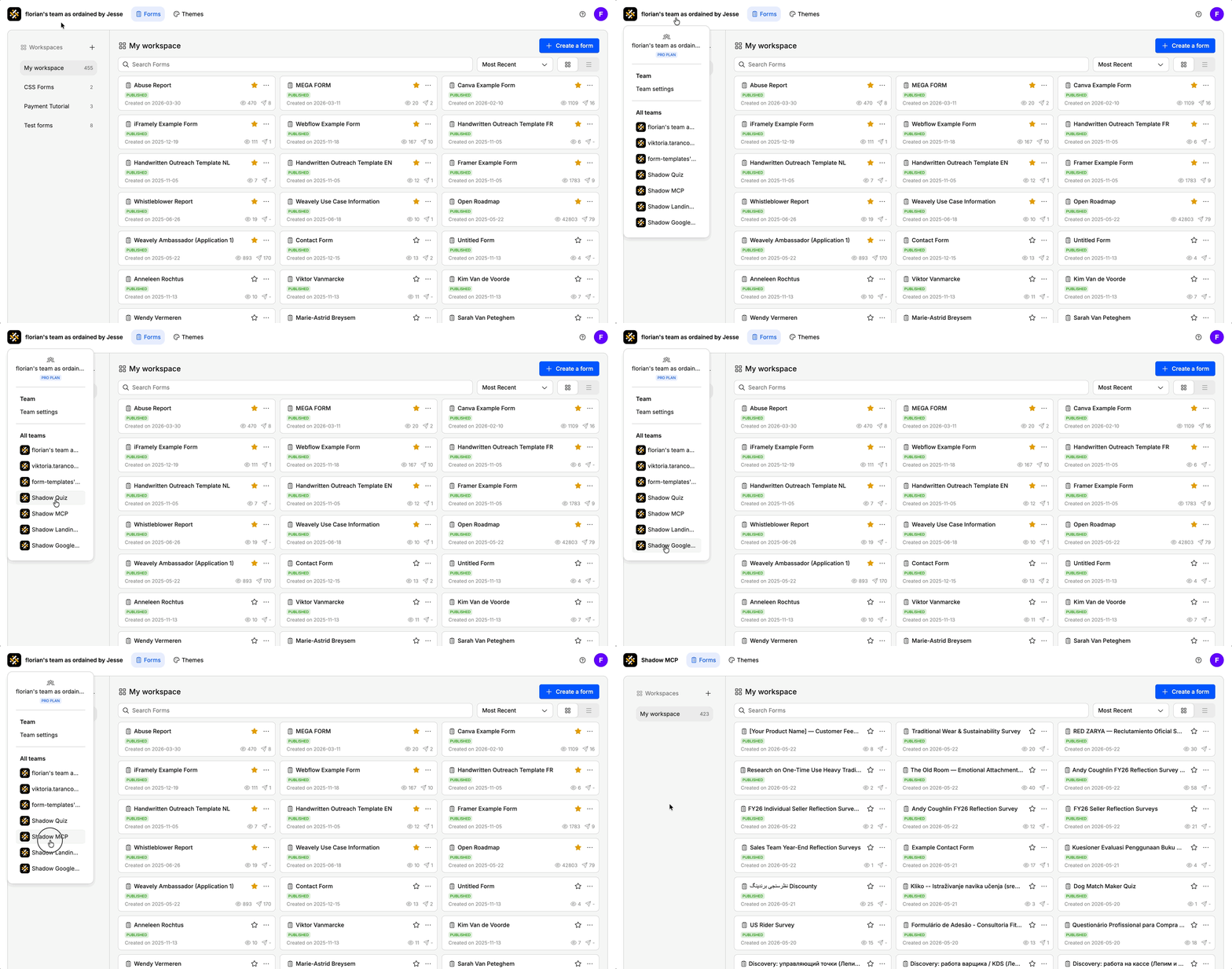
After joining, the invited user will land in their own default team, which may initially be empty. To access the shared team:
* Click the **team name** in the top-left corner.
* Select the team they were invited to.
Once they switch to the correct team, they’ll be able to view and collaborate on all shared forms.
## Collaboration Notes
Team members can:
* View and analyze form responses
* Edit form content
* Modify styling and logic
* Configure integrations
However, **real-time editing is not yet supported**. If two team members edit the same form simultaneously, the **last person to save** will overwrite the other’s changes. Be sure to coordinate when working on the same form.
## Managing Team Roles and Access
In the **Team Settings**, you’ll see a list of all current team members. From here, you can:
* **Promote a member to Owner**
* **Remove a member** from the team
This gives you full control over who can access and manage your Weavely workspace.
 To get started, head to the **Settings** section in your Weavely dashboard. If you’re currently working in the form editor, you can return to the dashboard by clicking the **house icon** in the top-left corner. Once back in the dashboard:
* Click on **Settings** in the left-hand menu.
* Select **Team Settings**.
This is where you’ll manage your team members.
## Inviting Someone to Your Team
To invite someone, simply enter their email address in the **Team Settings** panel and press **Invite**. An invitation will be sent to that address.
The recipient will receive a straightforward email with a link to accept the invite. Once they click it, they’ll be prompted to either **sign in** or **create a new account**. It’s important that they complete this step using the **same email address** the invitation was sent to.
## Switching Between Teams
After joining, the invited user will land in their own default team, which may initially be empty. To access the shared team:
* Click the **team name** in the top-left corner.
* Select the team they were invited to.
Once they switch to the correct team, they’ll be able to view and collaborate on all shared forms.
To get started, head to the **Settings** section in your Weavely dashboard. If you’re currently working in the form editor, you can return to the dashboard by clicking the **house icon** in the top-left corner. Once back in the dashboard:
* Click on **Settings** in the left-hand menu.
* Select **Team Settings**.
This is where you’ll manage your team members.
## Inviting Someone to Your Team
To invite someone, simply enter their email address in the **Team Settings** panel and press **Invite**. An invitation will be sent to that address.
The recipient will receive a straightforward email with a link to accept the invite. Once they click it, they’ll be prompted to either **sign in** or **create a new account**. It’s important that they complete this step using the **same email address** the invitation was sent to.
## Switching Between Teams
After joining, the invited user will land in their own default team, which may initially be empty. To access the shared team:
* Click the **team name** in the top-left corner.
* Select the team they were invited to.
Once they switch to the correct team, they’ll be able to view and collaborate on all shared forms.
 ## Collaboration Notes
Team members can:
* View and analyze form responses
* Edit form content
* Modify styling and logic
* Configure integrations
However, **real-time editing is not yet supported**. If two team members edit the same form simultaneously, the **last person to save** will overwrite the other’s changes. Be sure to coordinate when working on the same form.
## Managing Team Roles and Access
In the **Team Settings**, you’ll see a list of all current team members. From here, you can:
* **Promote a member to Owner**
* **Remove a member** from the team
This gives you full control over who can access and manage your Weavely workspace.
## Collaboration Notes
Team members can:
* View and analyze form responses
* Edit form content
* Modify styling and logic
* Configure integrations
However, **real-time editing is not yet supported**. If two team members edit the same form simultaneously, the **last person to save** will overwrite the other’s changes. Be sure to coordinate when working on the same form.
## Managing Team Roles and Access
In the **Team Settings**, you’ll see a list of all current team members. From here, you can:
* **Promote a member to Owner**
* **Remove a member** from the team
This gives you full control over who can access and manage your Weavely workspace.