> ## Documentation Index
> Fetch the complete documentation index at: https://help.weavely.ai/llms.txt
> Use this file to discover all available pages before exploring further.
# The Basics: Generating Forms with AI
> Learn the basics of building forms using artificial intelligence in Weavely.ai
{`{
"@context": "https://schema.org",
"@graph": [
{
"@type": "WebPage",
"@id": "https://help.weavely.ai/get-started/the-basics",
"url": "https://help.weavely.ai/get-started/the-basics",
"name": "The Basics: Generating Forms with AI",
"description": "Learn the basics of building forms using artificial intelligence in Weavely.ai",
"inLanguage": "en",
"isPartOf": {
"@type": "WebSite",
"@id": "https://help.weavely.ai/#website",
"name": "Weavely Help Center"
},
"breadcrumb": {
"@type": "BreadcrumbList",
"itemListElement": [
{
"@type": "ListItem",
"position": 1,
"name": "Get Started",
"item": "https://help.weavely.ai/get-started"
},
{
"@type": "ListItem",
"position": 2,
"name": "The Basics: Generating Forms with AI",
"item": "https://help.weavely.ai/get-started/the-basics"
}
]
},
"publisher": {
"@id": "https://www.weavely.ai/#org"
}
},
{
"@type": "TechArticle",
"headline": "The Basics: Generating Forms with AI",
"description": "Step-by-step guide to generating forms with AI in Weavely, from prompting and tweaking questions to styling, integrations, publishing, and analytics.",
"inLanguage": "en",
"author": {
"@id": "https://www.weavely.ai/#org"
},
"publisher": {
"@id": "https://www.weavely.ai/#org"
},
"mainEntityOfPage": {
"@id": "https://help.weavely.ai/get-started/the-basics"
}
},
{
"@type": "VideoObject",
"@id": "https://www.youtube.com/watch?v=UuNhu_u4EWo",
"name": "How to Generate Forms with AI for Free (weavely.ai tutorial)",
"description": "New to Weavely? This quick tutorial walks you through how to build your first AI-generated form, customize it, and publish it in minutes.",
"thumbnailUrl": [
"https://i.ytimg.com/vi/UuNhu_u4EWo/hqdefault.jpg"
],
"embedUrl": "https://www.youtube.com/embed/UuNhu_u4EWo",
"contentUrl": "https://www.youtube.com/watch?v=UuNhu_u4EWo",
"uploadDate": "2025-11-19T00:00:00Z",
"duration": "PT5M31S",
"publisher": {
"@id": "https://www.weavely.ai/#org"
},
"potentialAction": {
"@type": "WatchAction",
"target": "https://www.youtube.com/watch?v=UuNhu_u4EWo"
}
},
{
"@type": "Organization",
"@id": "https://www.weavely.ai/#org",
"name": "WEAVE.LY BV",
"url": "https://www.weavely.ai",
"address": {
"@type": "PostalAddress",
"streetAddress": "Herbert Hooverlaan 141",
"addressLocality": "Schaarbeek",
"postalCode": "1030",
"addressCountry": "BE"
},
"identifier": "BE0773.878.569",
"sameAs": [
"https://www.instagram.com/weavely.ai/",
"https://www.linkedin.com/company/weave-ly/",
"https://www.youtube.com/@weavely"
]
}
]
}`}
This article distills the key moves from our “Quick Guide” video into a written walkthrough.
Follow along once and you’ll be spinning up branded, multi-page forms on autopilot.
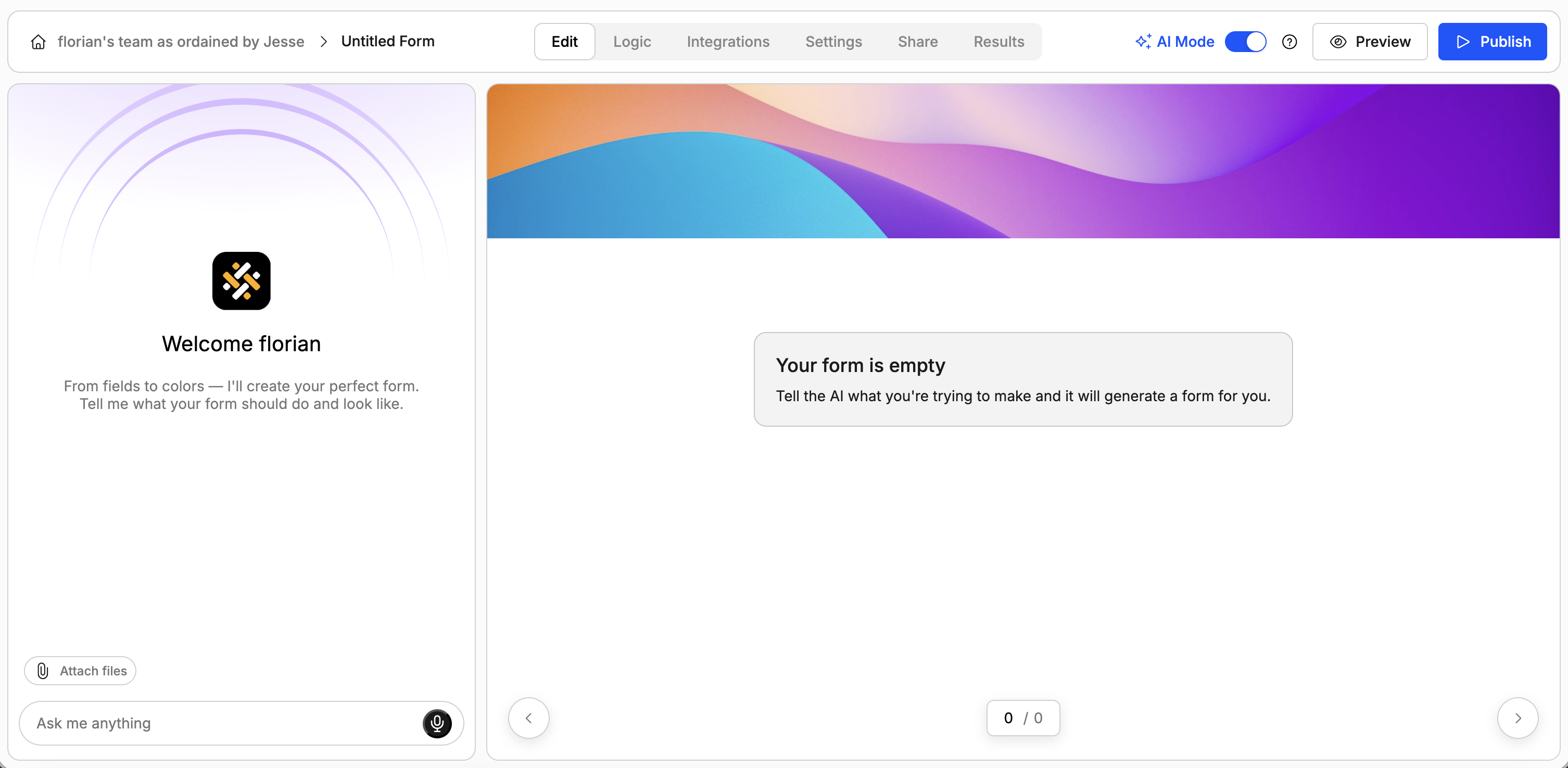
You generate forms in Weavely by leaving a prompt which specifies what your form is about. Optionally you can also speak to our AI by holding the microphone button in the bottom right corner of the prompt area.
Besides giving our AI the context it needs in text format you can also upload .pdf, .png or .jpg files with additional information. Here are some examples you can get started with:
* A document with draft questions
* A pitch deck of your product
* A document containing customer information
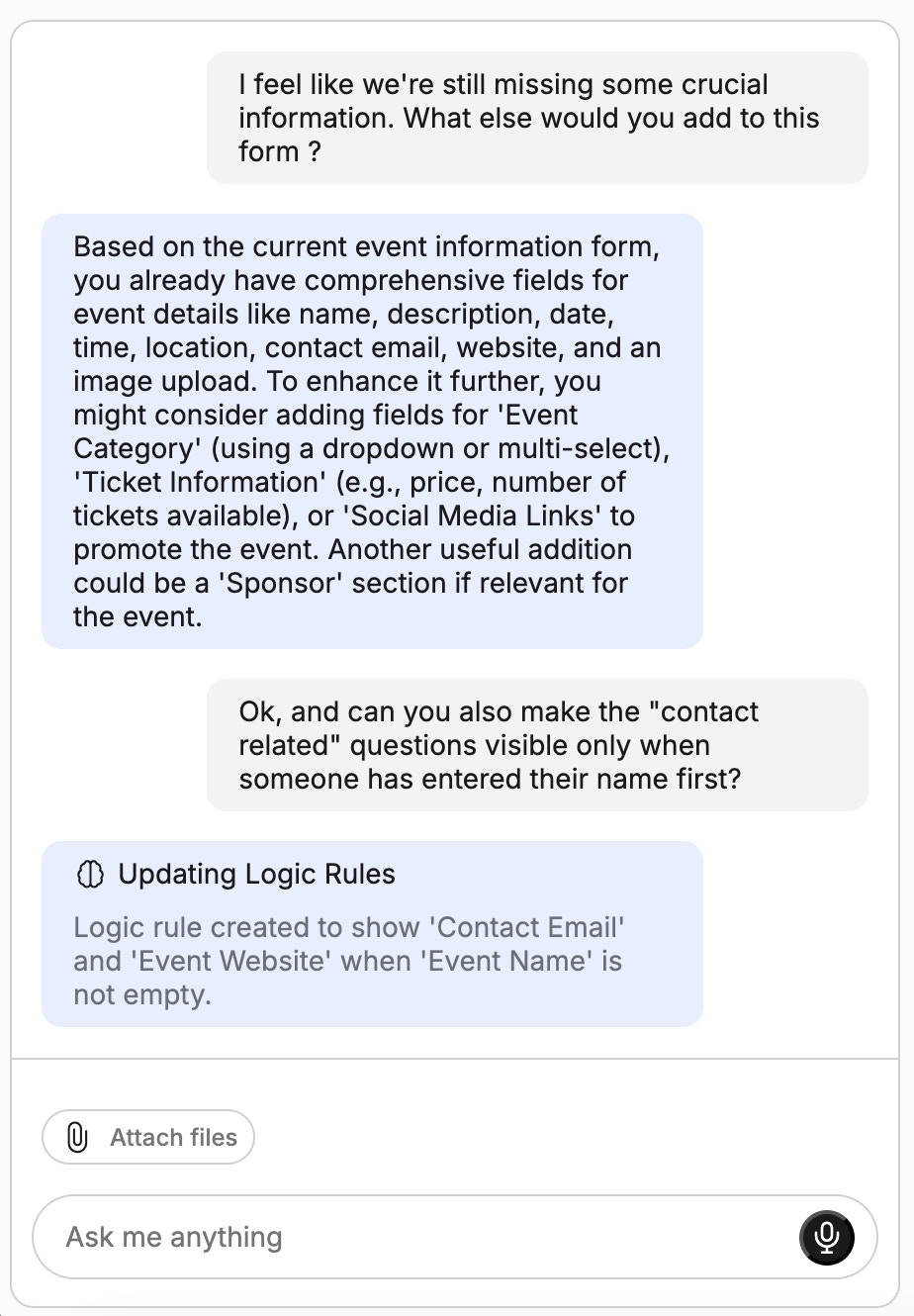

You can continue tweaking your form by chatting to our AI. More precisely, you can:
* Change existing questions
* Add new questions and pages
* Reorder elements (questions, pages)
* Add conditional logic rules (e.g. hide/show form elements)
You can specify the desired style with a prompt or by uploading a screenshot. In the latter case our AI will match the color styles and font (if detected).
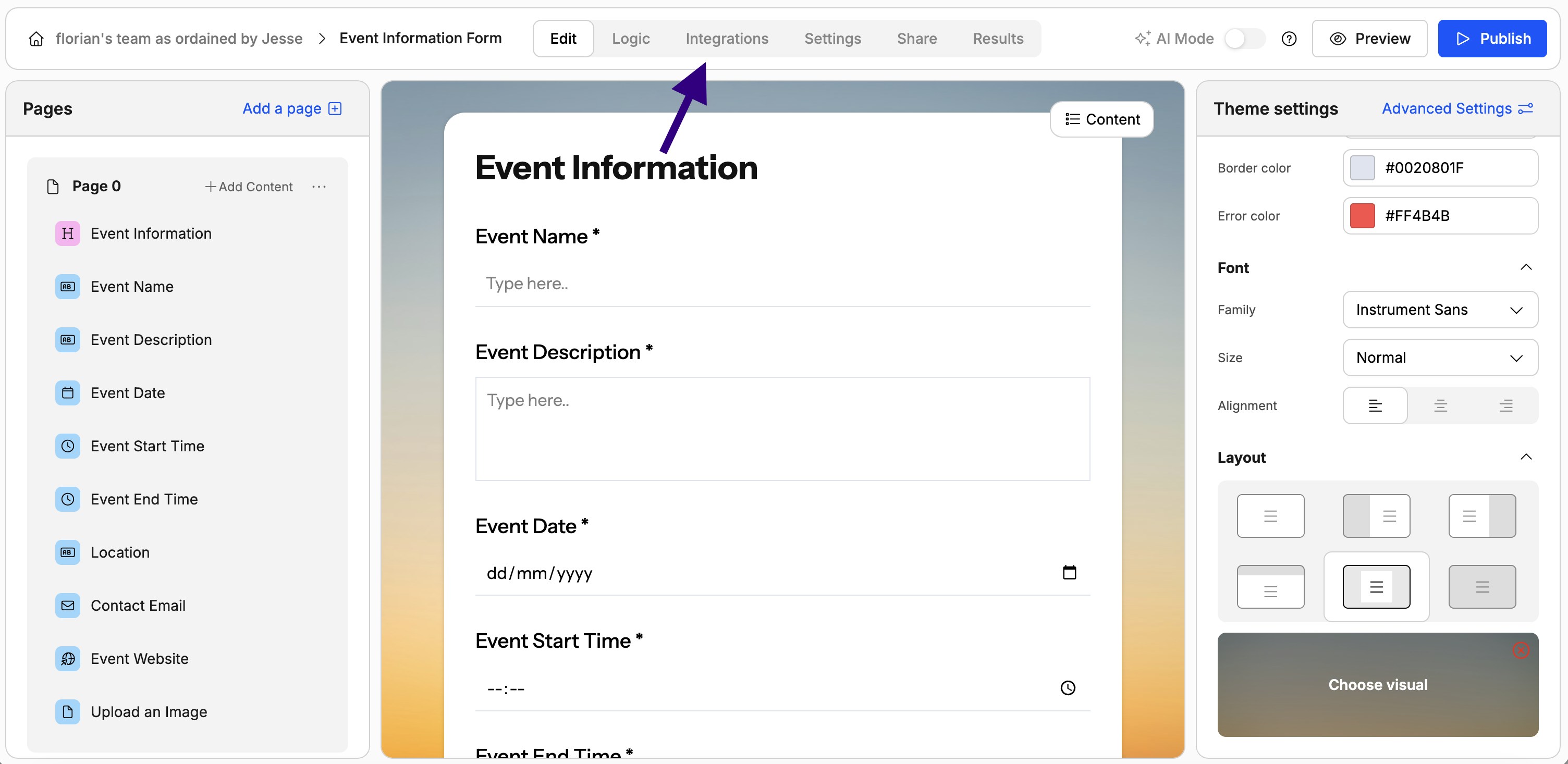
Integrations are currently only available outside of AI mode. You won't be able to ask AI to set up an integration for you (yet).
Data collected by Weavely forms will be safely stored on our servers and accessible from within your form editor (see Step 6). However, you might want to forward your data to a third-party system (e.g. Google Sheets), set up e-mail notifications, or automate a workflow based on responses (e.g. using Zapier or Make). You can do all of this from within the *Integrations* tab in the form editor.
Publishing is currently only available outside of AI mode. You won't be able to ask AI to publish your form for you.
Once you're satisfied with the way your form works and looks, you're ready to publish it and collect responses! You can either share your form as a standalone web form using the provided editor or [embed it into your website](/features/embeddings). We also offer a wide range of integrations with [website builders](https://help.weavely.ai/guides/examples-cover).
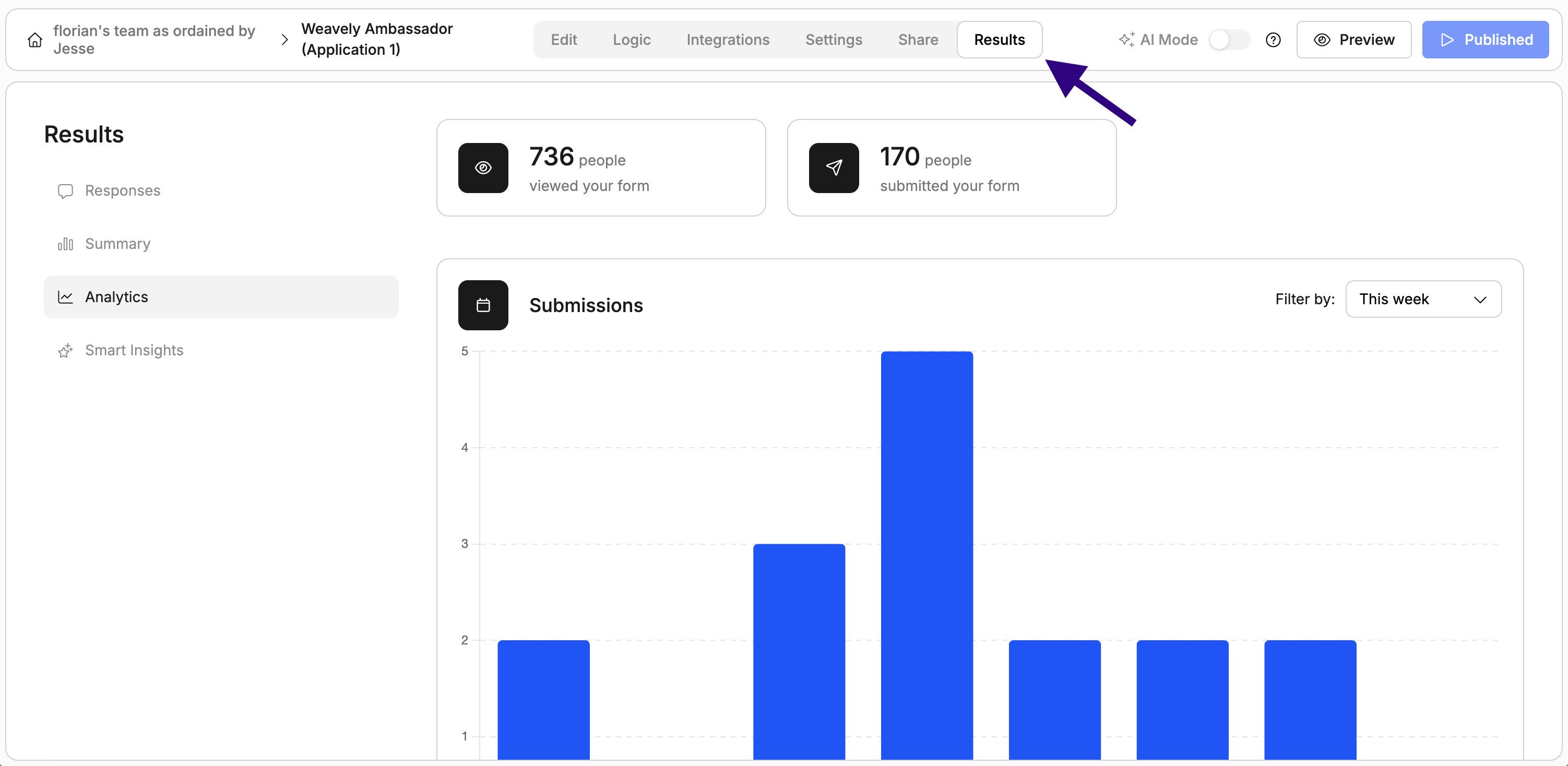
Weavely offers you form analytics on four levels:
1. A general overview of the individual responses received by your form.
2. A summary, for each form element, of the responses received. Depending on the element's type this will be a different visual (e.g. a pie-chart for multiple-choice questions).
3. Analytics about your form's performance in general (i.e. amount of views on your form, and total responses received).
4. Smart insights, which use AI to generate reports tailored to your report and which you can tweak through prompting as well.
 Weavely offers you form analytics on four levels:
1. A general overview of the individual responses received by your form.
2. A summary, for each form element, of the responses received. Depending on the element's type this will be a different visual (e.g. a pie-chart for multiple-choice questions).
3. Analytics about your form's performance in general (i.e. amount of views on your form, and total responses received).
4. Smart insights, which use AI to generate reports tailored to your report and which you can tweak through prompting as well.
Weavely offers you form analytics on four levels:
1. A general overview of the individual responses received by your form.
2. A summary, for each form element, of the responses received. Depending on the element's type this will be a different visual (e.g. a pie-chart for multiple-choice questions).
3. Analytics about your form's performance in general (i.e. amount of views on your form, and total responses received).
4. Smart insights, which use AI to generate reports tailored to your report and which you can tweak through prompting as well.