> ## Documentation Index
> Fetch the complete documentation index at: https://help.weavely.ai/llms.txt
> Use this file to discover all available pages before exploring further.
# Workspaces
{`{
"@context": "https://schema.org",
"@graph": [
{
"@type": "WebPage",
"@id": "https://help.weavely.ai/get-started/workspaces",
"url": "https://help.weavely.ai/get-started/workspaces",
"name": "Workspaces",
"description": "Group related forms together with workspaces to keep your Weavely dashboard organized by client, project, or campaign.",
"inLanguage": "en",
"publisher": { "@id": "https://www.weavely.ai/#org" }
},
{
"@type": "TechArticle",
"@id": "https://help.weavely.ai/get-started/workspaces#article",
"headline": "Workspaces",
"description": "Group related forms together with workspaces to keep your Weavely dashboard organized by client, project, or campaign.",
"inLanguage": "en",
"mainEntityOfPage": { "@id": "https://help.weavely.ai/get-started/workspaces" },
"author": { "@id": "https://www.weavely.ai/#org" },
"publisher": { "@id": "https://www.weavely.ai/#org" }
},
{
"@type": "VideoObject",
"@id": "https://help.weavely.ai/get-started/workspaces#video",
"name": "How to organize your forms with Weavely workspaces",
"description": "Tired of scrolling through a long list of forms in your Weavely dashboard? Workspaces let you group related forms together, like folders, so you can keep client work, projects, or campaigns neatly separated. In this quick tutorial I walk through everything you need to know about Weavely's workspaces feature.",
"url": "https://youtu.be/5gQKY9tgtQU",
"contentUrl": "https://youtu.be/5gQKY9tgtQU",
"embedUrl": "https://www.youtube.com/embed/5gQKY9tgtQU",
"duration": "PT1M27S",
"uploadDate": "2026-05-18T00:00:00+00:00",
"thumbnailUrl": [
"https://i.ytimg.com/vi/5gQKY9tgtQU/hqdefault.jpg",
"https://i.ytimg.com/vi/5gQKY9tgtQU/maxresdefault.jpg"
],
"publisher": { "@id": "https://www.weavely.ai/#org" },
"potentialAction": {
"@type": "WatchAction",
"target": "https://youtu.be/5gQKY9tgtQU"
}
},
{
"@type": "Organization",
"@id": "https://www.weavely.ai/#org",
"name": "Weavely",
"url": "https://www.weavely.ai"
}
]
}`}
If you've built more than a handful of forms in Weavely, scrolling through them every time you need one gets old fast. **Workspaces** let you group related forms together, think folders for your forms, so your dashboard stays clean and you can move between projects, clients, or campaigns in a single click.
This guide walks through everything you need to know.
## What is a workspace?
A workspace is a container that holds a set of forms. You can have as many workspaces as you like — for example, one per client, one per campaign, or one per use case (lead gen, events, feedback). Every form lives inside exactly one workspace at a time, and you can move forms between workspaces whenever you want.
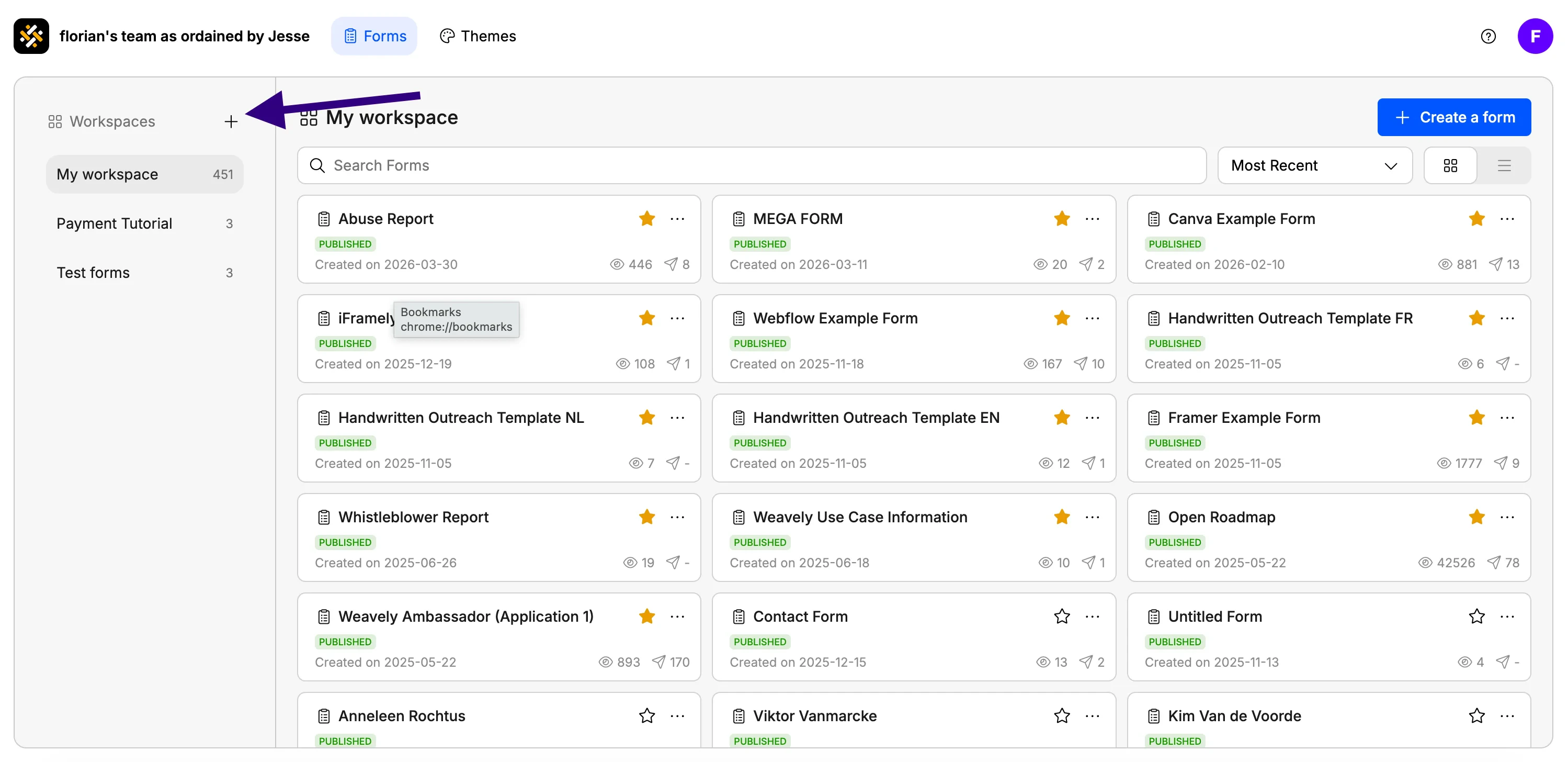
You'll find the workspaces menu on the **left side of your Weavely dashboard**.
## Create a new workspace
Sign in to Weavely. The workspaces menu sits on the left side of the dashboard.
The button is at the top of the workspaces menu.
Give it a descriptive name. You can rename it later if needed.
Click **Create**. The new workspace appears in the left menu and opens automatically.
## Add forms to a workspace
There are two ways to put a form into a workspace.
### Create a new form inside the workspace
When you're inside a workspace and click **Create new form**, the new form automatically lands in that workspace, no extra step needed. This works whether you start from a blank form, a template, or by prompting Weavely's AI.
### Move existing forms with drag and drop
Already have forms scattered around? Reorganizing is quick:
For example, your default workspace.
Grab the card you want to move.
Drop it on the workspace name in the left menu. The form moves immediately.
## Rename a workspace
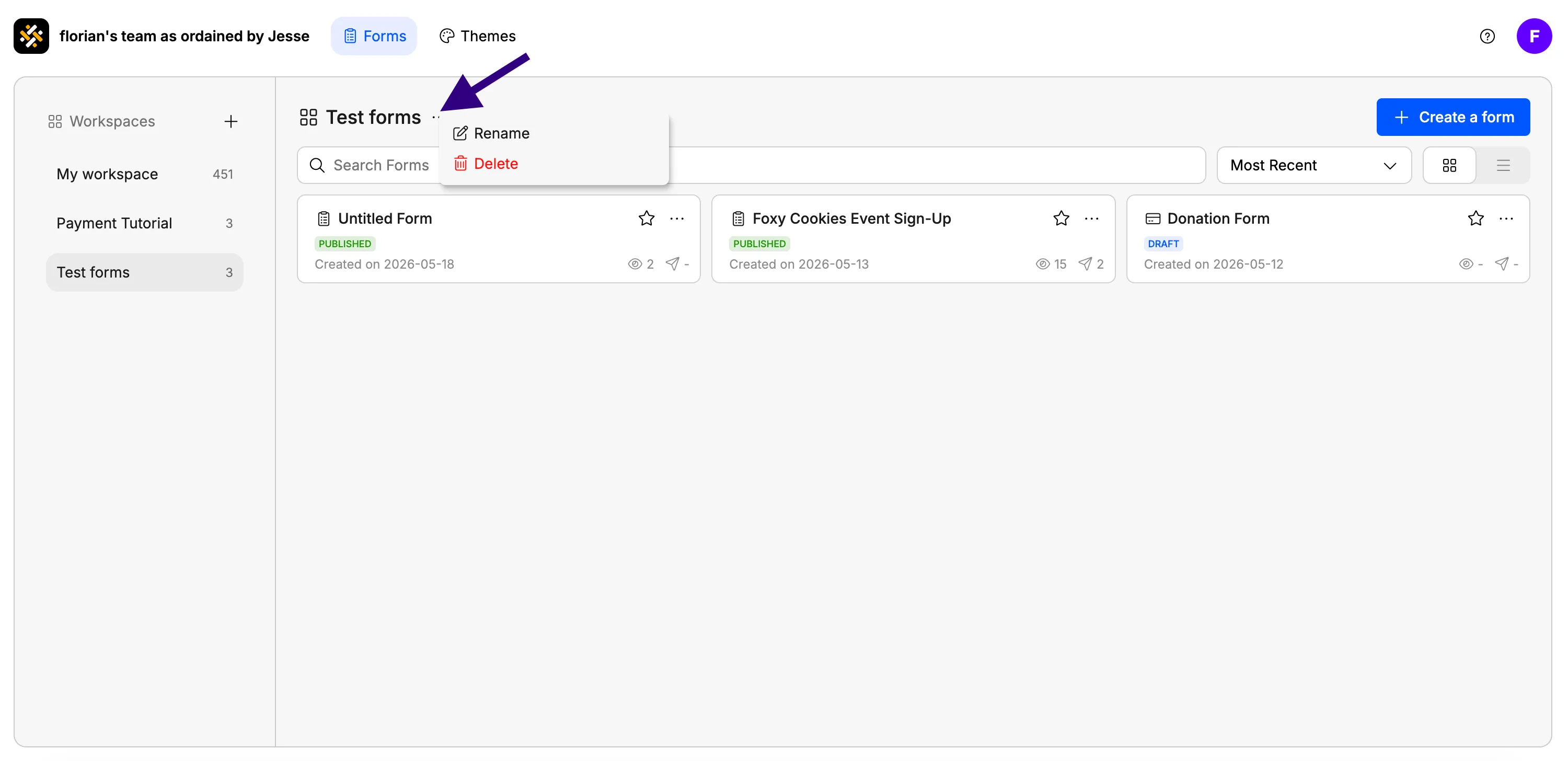
If you made a typo or your project's scope changed, renaming takes two clicks:
Click the workspace name in the left menu.
It sits at the top of the workspace view.
Type the new name and confirm.
## Delete a workspace
**Deleting a workspace also deletes every form inside it.** This action is permanent and cannot be undone. Move any forms you want to keep into another workspace *before* deleting.
To delete a workspace:
Read the confirmation pop-up carefully, it lists what will be removed.
Once confirmed, the workspace and all the forms it contains are gone.
## Tips for staying organized
* **One workspace per client or project.** This is the most common setup for agencies and freelancers.
* **Use clear names.** "Acme — onboarding" reads better than "Workspace 3" when you have a dozen of them.
* **Reorganize as you go.** Workspaces aren't permanent. Move forms around whenever your work shifts.
* **Review quarterly.** A quick check of which workspaces are still active keeps your dashboard fast and easy to scan.
 ## Create a new workspace
 If you made a typo or your project's scope changed, renaming takes two clicks: