> ## Documentation Index
> Fetch the complete documentation index at: https://help.weavely.ai/llms.txt
> Use this file to discover all available pages before exploring further.
# How to Add a File-Upload Form to Framer with Weavely
> Add a file upload element to your form in Framer to effortlessly collect document from website visitors. Available for free!
{`{
"@context": "https://schema.org",
"@graph": [
{
"@type": "WebPage",
"@id": "https://help.weavely.ai/guides/embeds/framer-file-upload",
"url": "https://help.weavely.ai/guides/embeds/framer-file-upload",
"name": "How to Add a File-Upload Form to Framer with Weavely",
"description": "Add a file upload element to your form in Framer to effortlessly collect documents from website visitors. Available for free!",
"inLanguage": "en",
"isPartOf": {
"@type": "WebSite",
"@id": "https://help.weavely.ai/#website",
"name": "Weavely Help Center"
},
"breadcrumb": {
"@type": "BreadcrumbList",
"itemListElement": [
{
"@type": "ListItem",
"position": 1,
"name": "Guides",
"item": "https://help.weavely.ai/guides"
},
{
"@type": "ListItem",
"position": 2,
"name": "Framer (File Upload)",
"item": "https://help.weavely.ai/guides/embeds/framer-file-upload"
}
]
},
"publisher": { "@id": "https://www.weavely.ai/#org" }
},
{
"@type": "TechArticle",
"headline": "How to Add a File-Upload Form to Framer with Weavely",
"description": "Step-by-step guide on creating an AI-powered form with a file upload field and embedding it into a Framer site using the Weavely plugin.",
"inLanguage": "en",
"author": { "@id": "https://www.weavely.ai/#org" },
"publisher": { "@id": "https://www.weavely.ai/#org" },
"mainEntityOfPage": {
"@id": "https://help.weavely.ai/guides/embeds/framer-file-upload"
}
},
{
"@type": "VideoObject",
"@id": "https://www.youtube.com/watch?v=BrPJ0m7r6zk",
"name": "How to Add File Uploads to Forms in Framer (Using Weavely AI)",
"description": "Tutorial showing how to use Weavely’s AI form builder to create forms with file upload fields and embed them into Framer using the official plugin.",
"thumbnailUrl": [
"https://i.ytimg.com/vi/BrPJ0m7r6zk/hqdefault.jpg"
],
"embedUrl": "https://www.youtube.com/embed/BrPJ0m7r6zk",
"contentUrl": "https://www.youtube.com/watch?v=BrPJ0m7r6zk",
"uploadDate": "2025-11-21T00:00:00Z",
"duration": "PT3M32S",
"publisher": { "@id": "https://www.weavely.ai/#org" },
"potentialAction": {
"@type": "WatchAction",
"target": "https://www.youtube.com/watch?v=BrPJ0m7r6zk"
}
},
{
"@type": "Organization",
"@id": "https://www.weavely.ai/#org",
"name": "WEAVE.LY BV",
"url": "https://www.weavely.ai",
"address": {
"@type": "PostalAddress",
"streetAddress": "Herbert Hooverlaan 141",
"addressLocality": "Schaarbeek",
"postalCode": "1030",
"addressCountry": "BE"
},
"identifier": "BE0773.878.569",
"sameAs": [
"https://www.instagram.com/weavely.ai/",
"https://www.linkedin.com/company/weave-ly/",
"https://www.youtube.com/@weavely"
]
}
]
}`}
Want to add a file upload element to a form on your Framer website? With Weavely's AI form builder and the official Framer plugin, it's fast and effortless.
To create a custom form, head over to [weavely.ai](https://www.weavely.ai) and click the “Start for Free” button.
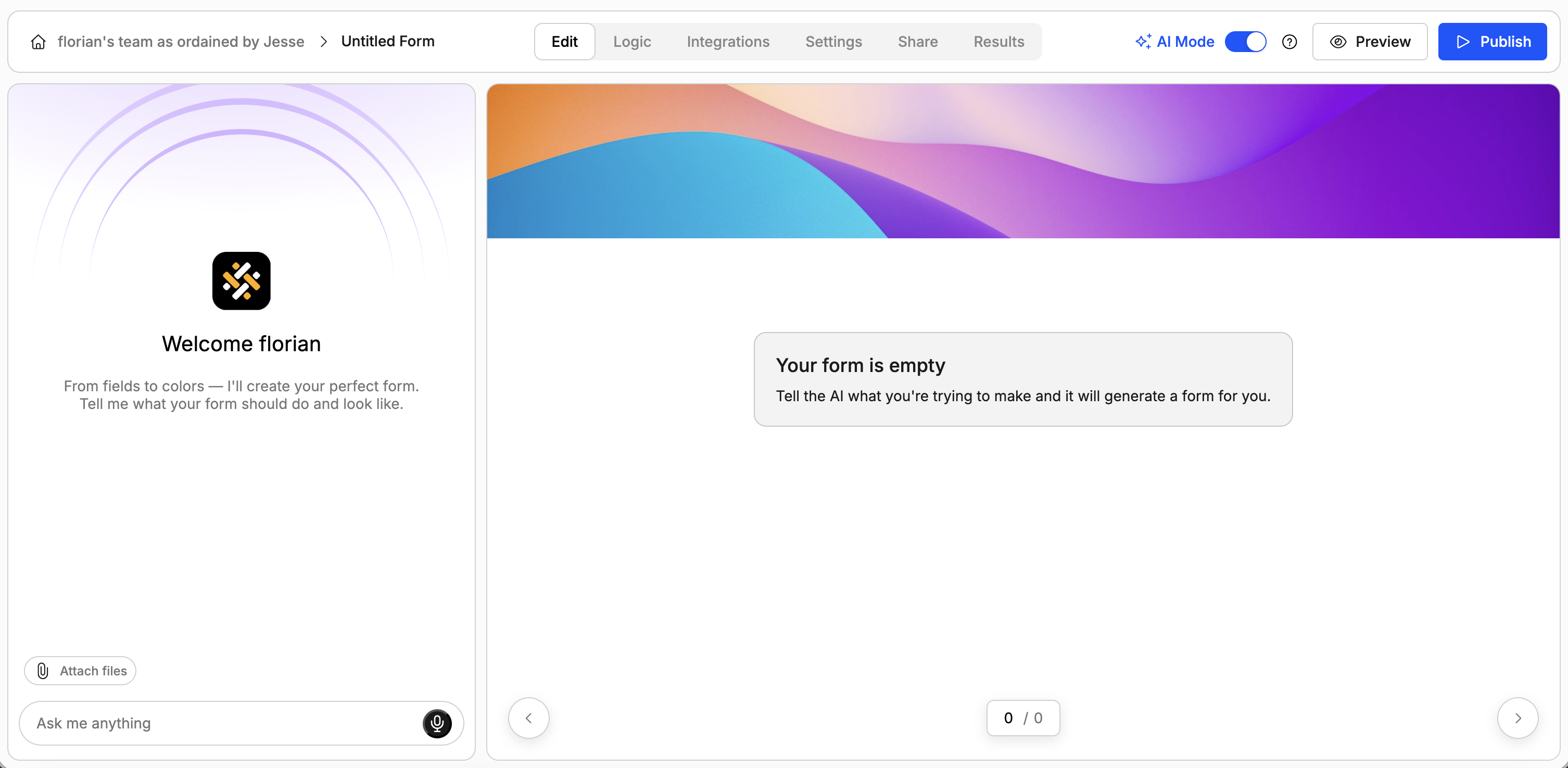
Inside the editor:
* On the left, you’ll see a chat-style interface to generate forms with AI.
* On the right, you’ll see the form being built in real-time.
You can:

* Describe your form in plain language (e.g., “I need a contact form for my web agency. Make it somewhat funny.”). The AI will generate questions, pages, and even a visual theme.
* Ask the AI to tweak questions, reorder elements or add pages.
* Ask the AI to add conditional logic rules (e.g. show/hide questions or pages).
* Ask the AI to change the design of the form.
Of course you can also access all of this functionality outside of the AI editor by toggling "manual mode" in the top bar.
This step might be redundant, depending on how you prompted AI in the first step. In case your form doesn't contain a file upload element after Step 1, just go ahead and ask the AI to add it. For example:
> Add a file upload element so my respondents can upload their portfolio to my website.
Once you're satisfied with your form, go ahead and press the big blue *"Publish"* button at the top right of the screen. Don't forget to copy the form's URL, you'll need it in the next step 😉
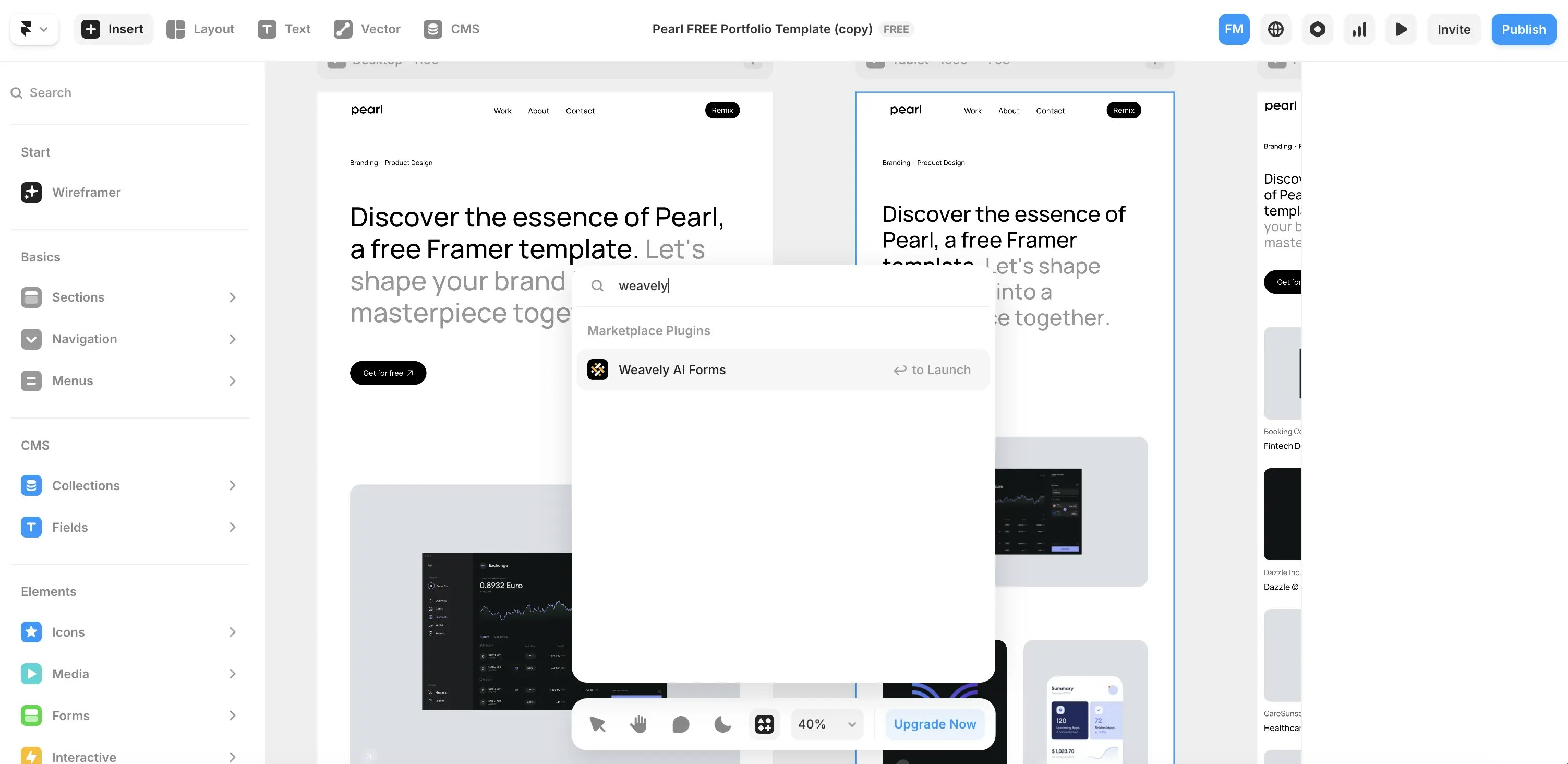
Open your Framer project and search for the **Weavely** plugin in the plugin menu.
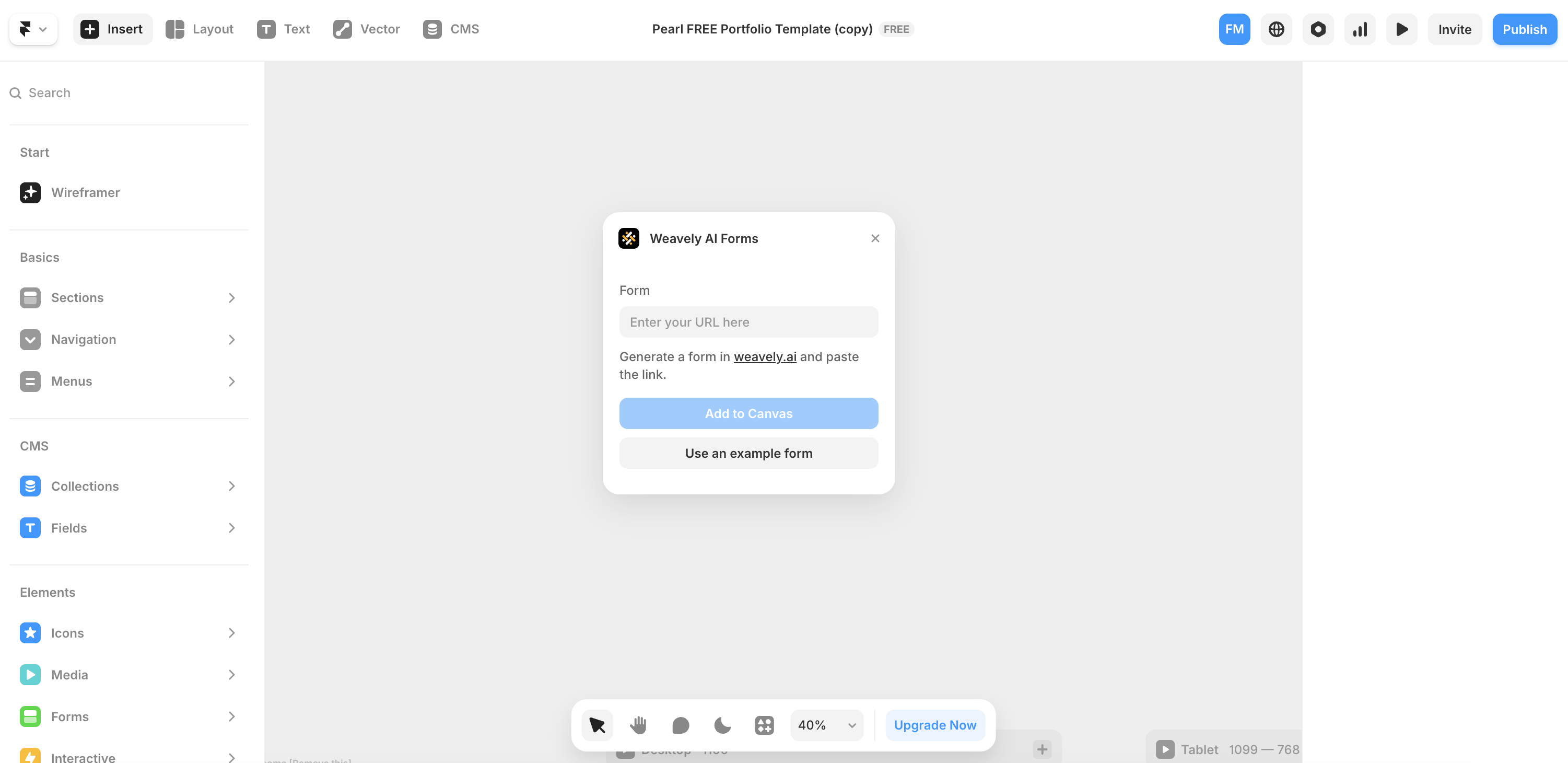
Once opened, the plugin will ask for a **form URL**. This is where you paste the URL of any published Weavely form. When added, press "Add to Canvas" and the form will render directly on your Framer canvas ... ready to publish!
 You can:
* Describe your form in plain language (e.g., “I need a contact form for my web agency. Make it somewhat funny.”). The AI will generate questions, pages, and even a visual theme.
* Ask the AI to tweak questions, reorder elements or add pages.
* Ask the AI to add conditional logic rules (e.g. show/hide questions or pages).
* Ask the AI to change the design of the form.
Of course you can also access all of this functionality outside of the AI editor by toggling "manual mode" in the top bar.
You can:
* Describe your form in plain language (e.g., “I need a contact form for my web agency. Make it somewhat funny.”). The AI will generate questions, pages, and even a visual theme.
* Ask the AI to tweak questions, reorder elements or add pages.
* Ask the AI to add conditional logic rules (e.g. show/hide questions or pages).
* Ask the AI to change the design of the form.
Of course you can also access all of this functionality outside of the AI editor by toggling "manual mode" in the top bar.
 Once opened, the plugin will ask for a **form URL**. This is where you paste the URL of any published Weavely form. When added, press "Add to Canvas" and the form will render directly on your Framer canvas ... ready to publish!