> ## Documentation Index
> Fetch the complete documentation index at: https://help.weavely.ai/llms.txt
> Use this file to discover all available pages before exploring further.
# How to Add a Form with Conditional Logic to Your Framer Website
> Embed a custom AI-powered form with conditional logic into your Framer site using Weavely. Fully responsive and easy to set up in minutes.
{`{
"@context": "https://schema.org",
"@graph": [
{
"@type": "WebPage",
"@id": "https://help.weavely.ai/guides/embeds/framer-logic",
"url": "https://help.weavely.ai/guides/embeds/framer-logic",
"name": "How to Add a Form with Conditional Logic to Your Framer Website",
"description": "Embed a custom AI-powered form with conditional logic into your Framer site using Weavely. Fully responsive and easy to set up in minutes.",
"inLanguage": "en",
"isPartOf": {
"@type": "WebSite",
"@id": "https://help.weavely.ai/#website",
"name": "Weavely Help Center"
},
"breadcrumb": {
"@type": "BreadcrumbList",
"itemListElement": [
{
"@type": "ListItem",
"position": 1,
"name": "Guides",
"item": "https://help.weavely.ai/guides"
},
{
"@type": "ListItem",
"position": 2,
"name": "Framer (Logic)",
"item": "https://help.weavely.ai/guides/embeds/framer-logic"
}
]
},
"publisher": {
"@id": "https://www.weavely.ai/#org"
}
},
{
"@type": "TechArticle",
"headline": "How to Add a Form with Conditional Logic to Your Framer Website",
"description": "Learn how to embed an AI-generated form with conditional logic—hide/show rules, skip-page flows, and dynamic paths—directly inside your Framer site using the official Weavely plugin.",
"inLanguage": "en",
"author": {
"@id": "https://www.weavely.ai/#org"
},
"publisher": {
"@id": "https://www.weavely.ai/#org"
},
"mainEntityOfPage": {
"@id": "https://help.weavely.ai/guides/embeds/framer-logic"
}
},
{
"@type": "VideoObject",
"@id": "https://www.youtube.com/watch?v=Iw2BaQ5z3oc",
"name": "Forms with Conditional Logic (Hide/Show) in Framer",
"description": "Tutorial showing how to embed a Weavely AI form with conditional logic—hide/show rules, skip-page flows, and dynamic user paths—into Framer using the official plugin.",
"thumbnailUrl": [
"https://i.ytimg.com/vi/Iw2BaQ5z3oc/hqdefault.jpg"
],
"embedUrl": "https://www.youtube.com/embed/Iw2BaQ5z3oc",
"contentUrl": "https://www.youtube.com/watch?v=Iw2BaQ5z3oc",
"uploadDate": "2025-11-20T00:00:00Z",
"duration": "PT4M14S",
"publisher": {
"@id": "https://www.weavely.ai/#org"
},
"potentialAction": {
"@type": "WatchAction",
"target": "https://www.youtube.com/watch?v=Iw2BaQ5z3oc"
}
},
{
"@type": "Organization",
"@id": "https://www.weavely.ai/#org",
"name": "WEAVE.LY BV",
"url": "https://www.weavely.ai",
"address": {
"@type": "PostalAddress",
"streetAddress": "Herbert Hooverlaan 141",
"addressLocality": "Schaarbeek",
"postalCode": "1030",
"addressCountry": "BE"
},
"identifier": "BE0773.878.569",
"sameAs": [
"https://www.instagram.com/weavely.ai/",
"https://www.linkedin.com/company/weave-ly/",
"https://www.youtube.com/@weavely"
]
}
]
}`}
Want to add smarter forms to your Framer site? In this guide, we’ll walk through how to use [Weavely.ai](https://www.weavely.ai), an AI-native form builder, to create a form with conditional logic (e.g. showing and hiding form elements, skipping pages, etc.) and embed it in your Framer project using the official Weavely AI Forms plugin.
To create a custom form, head over to [weavely.ai](https://www.weavely.ai) and click the “Start for Free” button.
Inside the editor:
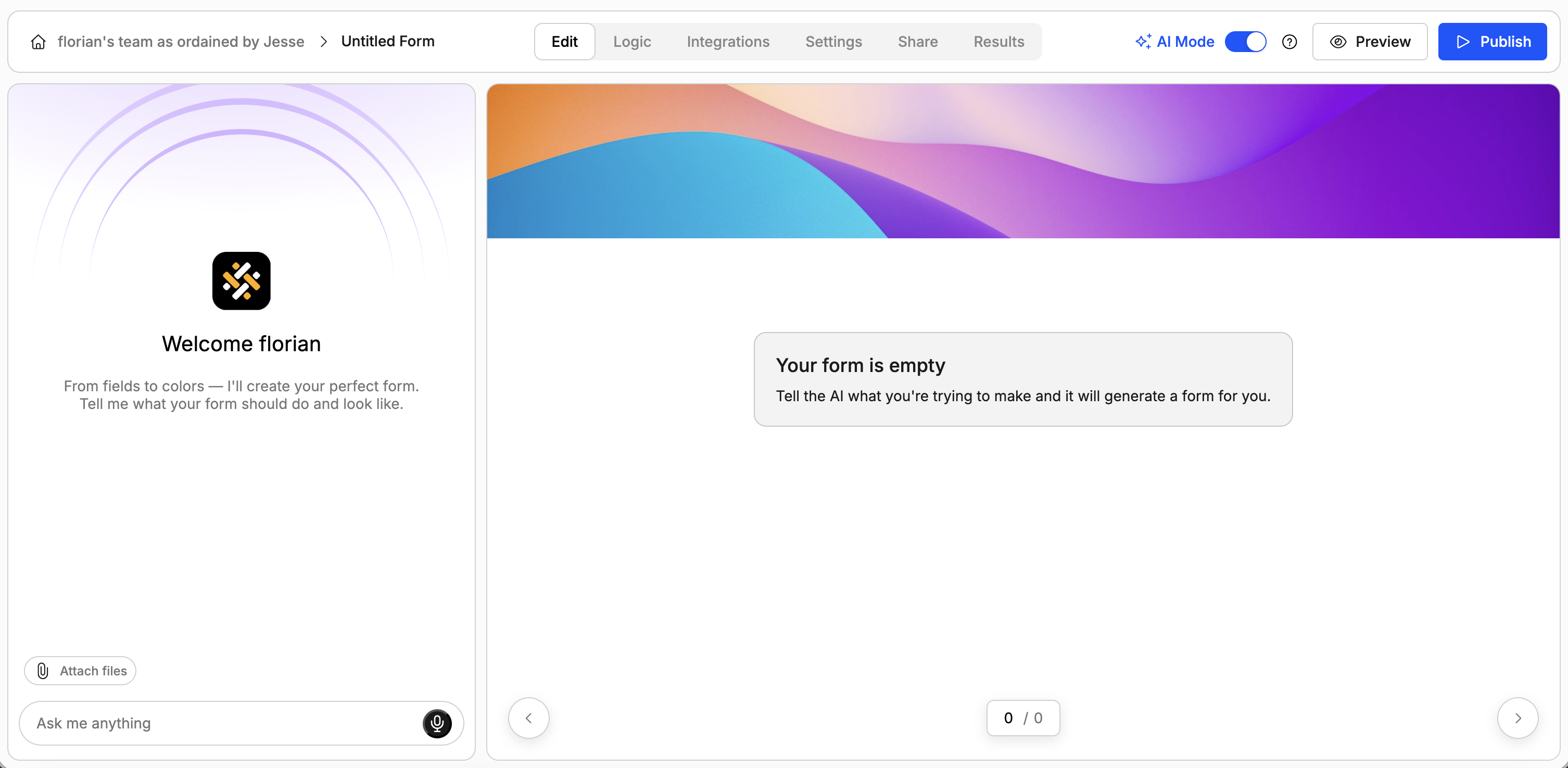

* On the left, you’ll see a chat-style interface to generate forms with AI.
* On the right, you’ll see the form being built in real-time.
You can:
* Describe your form in plain language (e.g., “I need a contact form for my web agency. Make it somewhat funny.”). The AI will generate questions, pages, and even a visual theme.
* Ask the AI to tweak questions, reorder elements or add pages.
* Ask the AI to change the design of the form.
Of course you can also access all of this functionality outside of the AI editor by toggling "manual mode" in the top bar.
Similarly to building your form, you can add conditional logic simply by prompting the AI to do so in the chat. For example:
> Only make question X visible if the user has typed an answer for question Y.
Or even
> Skip page 2 if the user has responded "No" to question X on page 1.
You can also manually add these conditional logic rules or tweak the ones generated by AI. [Here's a short tutorial on how to do this](/features/skip-logic).
Once you're satisfied with your form, go ahead and press the big blue *"Publish"* button at the top right of the screen. Don't forget to copy the form's URL, you'll need it in the next step 😉
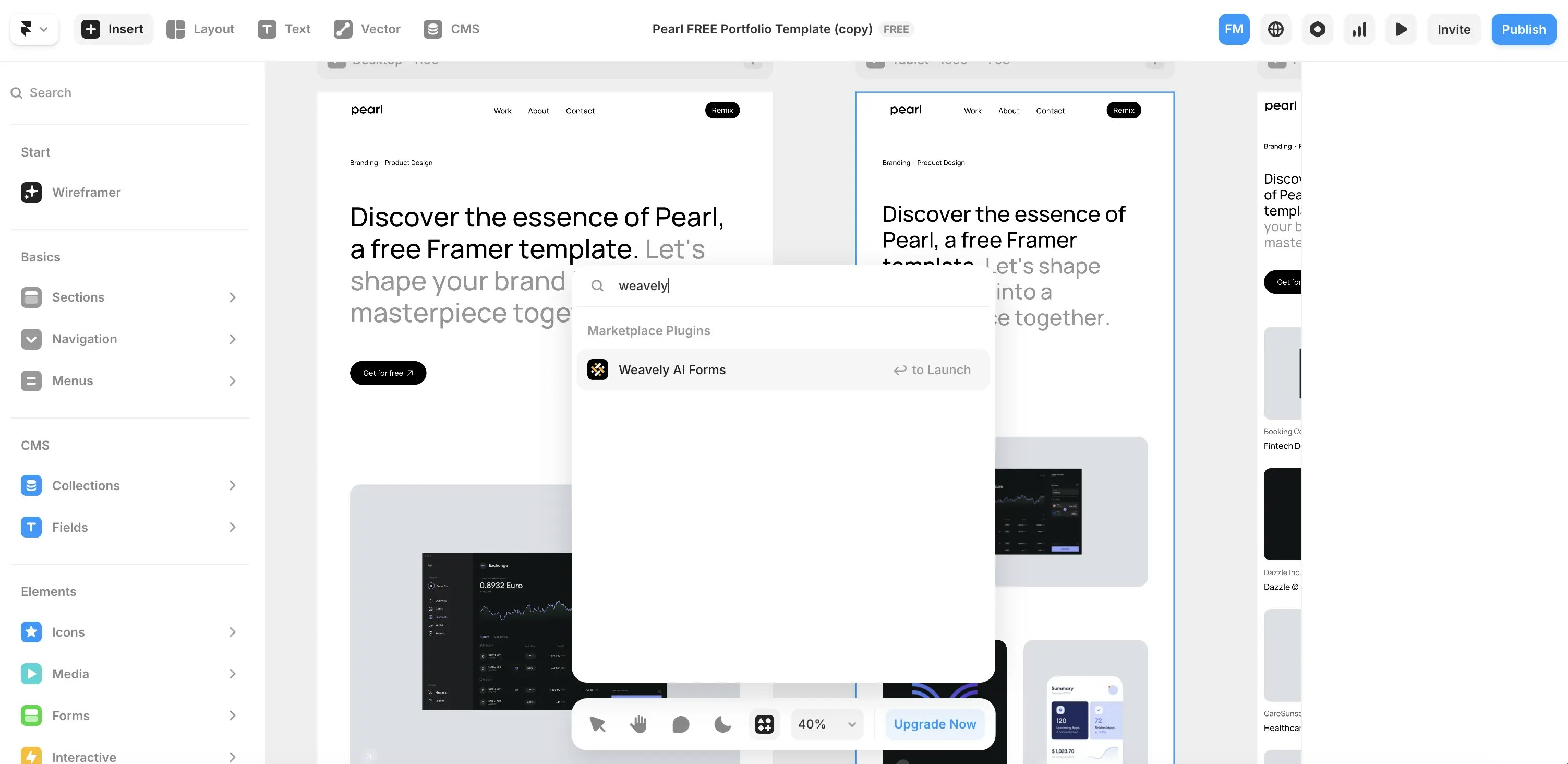
Open your Framer project and search for the **Weavely** plugin in the plugin menu.
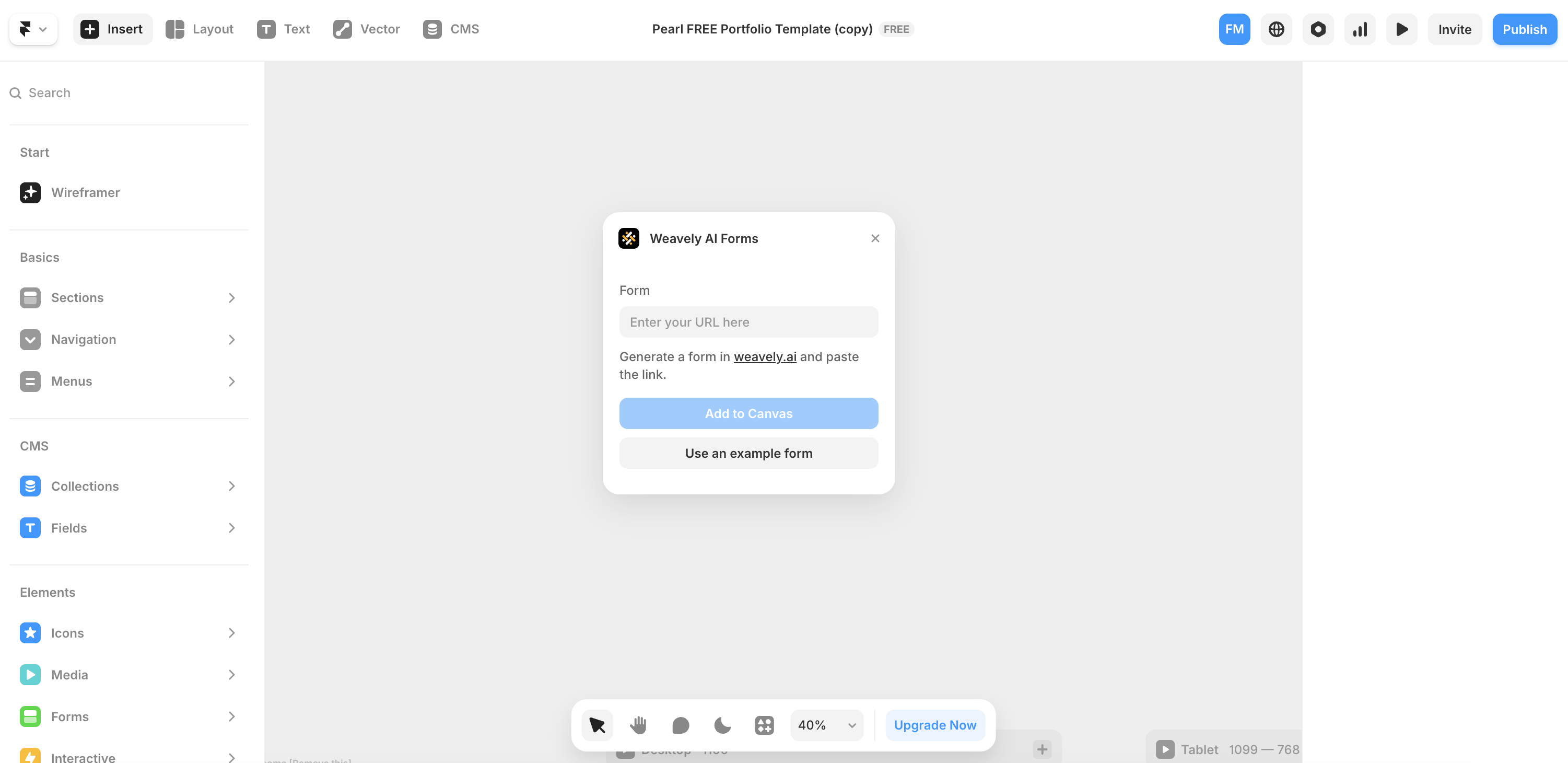
Once opened, the plugin will ask for a **form URL**. This is where you paste the URL of any published Weavely form. When added, press "Add to Canvas" and the form will render directly on your Framer canvas ... ready to publish!
 You can:
* Describe your form in plain language (e.g., “I need a contact form for my web agency. Make it somewhat funny.”). The AI will generate questions, pages, and even a visual theme.
* Ask the AI to tweak questions, reorder elements or add pages.
* Ask the AI to change the design of the form.
Of course you can also access all of this functionality outside of the AI editor by toggling "manual mode" in the top bar.
You can:
* Describe your form in plain language (e.g., “I need a contact form for my web agency. Make it somewhat funny.”). The AI will generate questions, pages, and even a visual theme.
* Ask the AI to tweak questions, reorder elements or add pages.
* Ask the AI to change the design of the form.
Of course you can also access all of this functionality outside of the AI editor by toggling "manual mode" in the top bar.
 Once opened, the plugin will ask for a **form URL**. This is where you paste the URL of any published Weavely form. When added, press "Add to Canvas" and the form will render directly on your Framer canvas ... ready to publish!