> ## Documentation Index
> Fetch the complete documentation index at: https://help.weavely.ai/llms.txt
> Use this file to discover all available pages before exploring further.
# AI-Generated Forms for Framer
> Want to add interactive, AI-powered forms directly into your Framer website? With the Weavely plugin, you can easily embed custom forms into Framer.
{`{
"@context": "https://schema.org",
"@graph": [
{
"@type": "WebPage",
"@id": "https://help.weavely.ai/guides/embeds/framer",
"url": "https://help.weavely.ai/guides/embeds/framer",
"name": "AI-Generated Forms for Framer",
"description": "Want to add interactive, AI-powered forms directly into your Framer website? With the Weavely plugin, you can easily embed custom forms into Framer.",
"inLanguage": "en",
"isPartOf": {
"@type": "WebSite",
"@id": "https://help.weavely.ai/#website",
"name": "Weavely Help Center"
},
"breadcrumb": {
"@type": "BreadcrumbList",
"itemListElement": [
{
"@type": "ListItem",
"position": 1,
"name": "Guides",
"item": "https://help.weavely.ai/guides"
},
{
"@type": "ListItem",
"position": 2,
"name": "Embeds",
"item": "https://help.weavely.ai/guides/embeds"
},
{
"@type": "ListItem",
"position": 3,
"name": "Framer",
"item": "https://help.weavely.ai/guides/embeds/framer"
}
]
},
"publisher": {
"@id": "https://www.weavely.ai/#org"
}
},
{
"@type": "TechArticle",
"headline": "AI-Generated Forms for Framer",
"description": "Learn how to embed AI-powered Weavely forms into your Framer website using the official plugin. Generate forms with AI and publish them instantly.",
"inLanguage": "en",
"author": {
"@id": "https://www.weavely.ai/#org"
},
"publisher": {
"@id": "https://www.weavely.ai/#org"
},
"mainEntityOfPage": {
"@id": "https://help.weavely.ai/guides/embeds/framer"
}
},
{
"@type": "VideoObject",
"@id": "https://www.youtube.com/watch?v=F4H1Jdj0_ls",
"name": "How to use AI to Generate Custom Forms in Framer",
"description": "Learn how to use the official Weavely plugin for Framer to embed AI-generated forms and customize them instantly.",
"thumbnailUrl": [
"https://i.ytimg.com/vi/F4H1Jdj0_ls/hqdefault.jpg"
],
"embedUrl": "https://www.youtube.com/embed/F4H1Jdj0_ls",
"contentUrl": "https://www.youtube.com/watch?v=F4H1Jdj0_ls",
"uploadDate": "2025-11-20T00:00:00Z",
"duration": "PT3M47S",
"publisher": {
"@id": "https://www.weavely.ai/#org"
},
"potentialAction": {
"@type": "WatchAction",
"target": "https://www.youtube.com/watch?v=F4H1Jdj0_ls"
}
},
{
"@type": "Organization",
"@id": "https://www.weavely.ai/#org",
"name": "WEAVE.LY BV",
"url": "https://www.weavely.ai",
"address": {
"@type": "PostalAddress",
"streetAddress": "Herbert Hooverlaan 141",
"addressLocality": "Schaarbeek",
"postalCode": "1030",
"addressCountry": "BE"
},
"identifier": "BE0773.878.569",
"sameAs": [
"https://www.instagram.com/weavely.ai/",
"https://www.linkedin.com/company/weave-ly/",
"https://www.youtube.com/@weavely"
]
}
]
}`}
This guide will walk you through using the **Weavely.ai** plugin to add forms to your Framer site, generate new forms using AI, and adjust everything to match your site’s style.
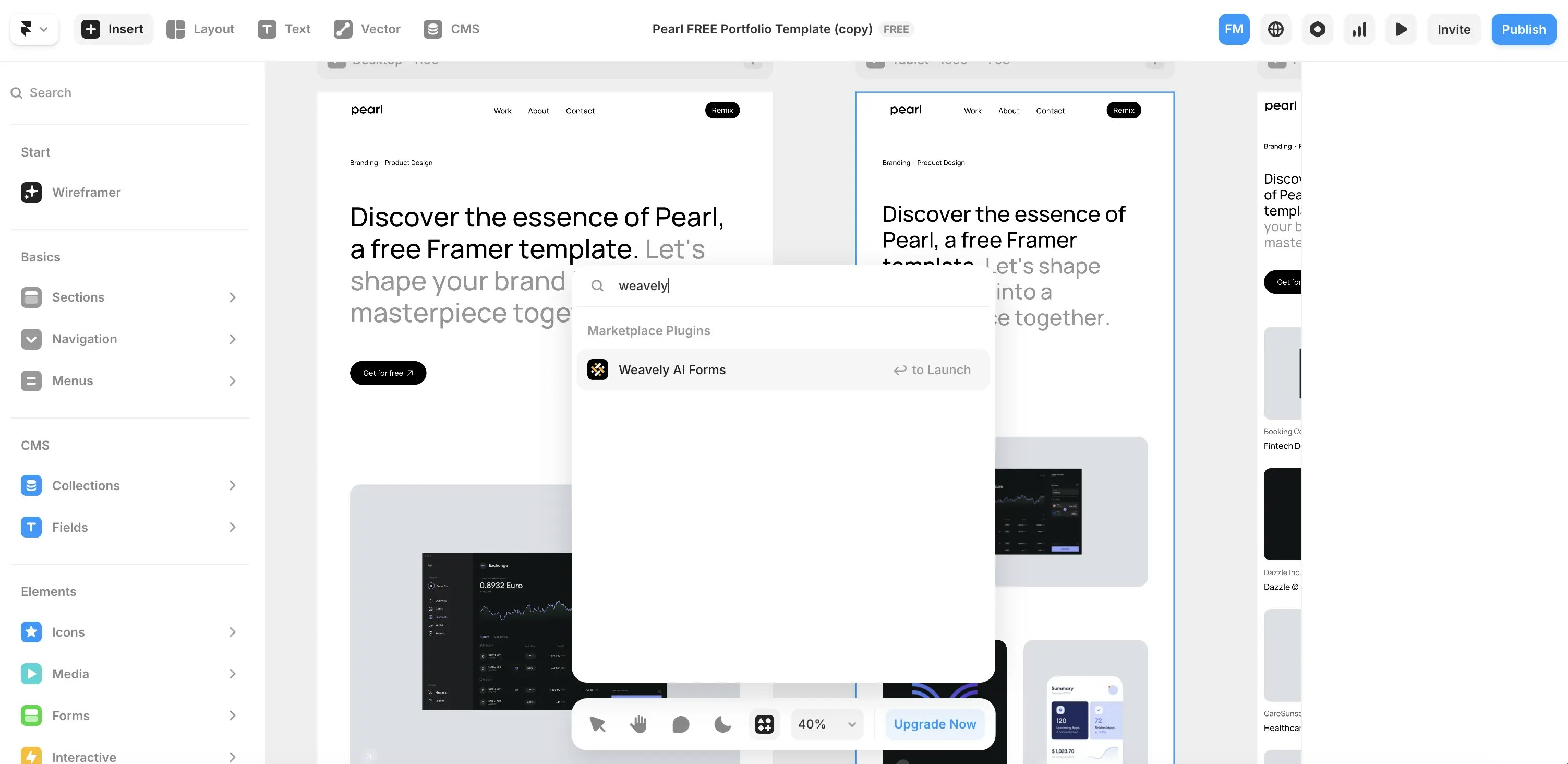
Open your Framer project and search for the **Weavely** plugin in the plugin menu.
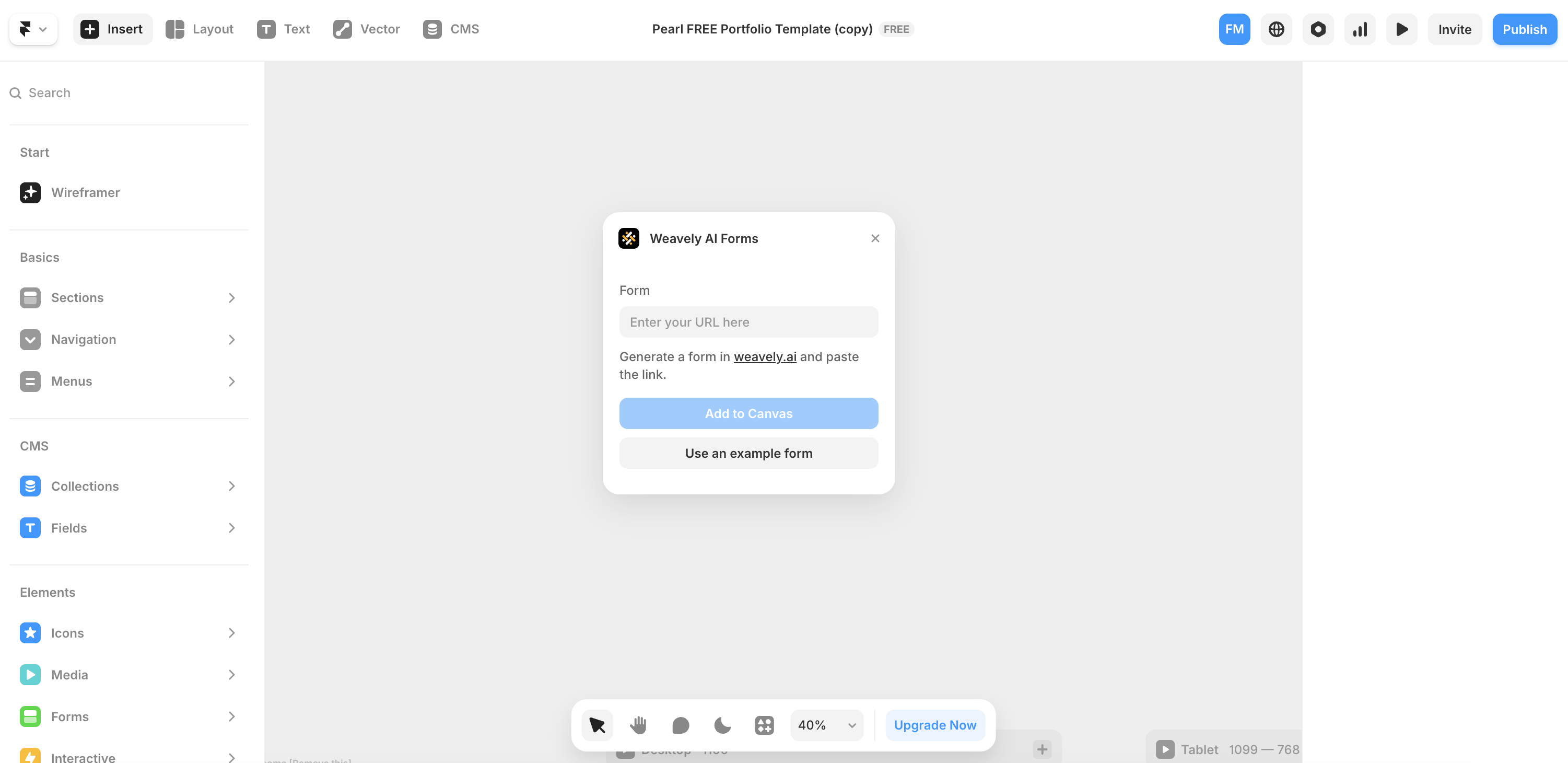
Once opened, the plugin will ask for a **form URL**. This is where you paste the URL of any published Weavely form. When added, the form will render directly on your Framer canvas ... ready to publish!

Alternatively, you can also embed an example form if you first want to see how it works. Don't worry, you can definitely design better-looking forms than this one 😉
To create a custom form, head over to [weavely.ai](https://www.weavely.ai) and click the “Start for Free” button.
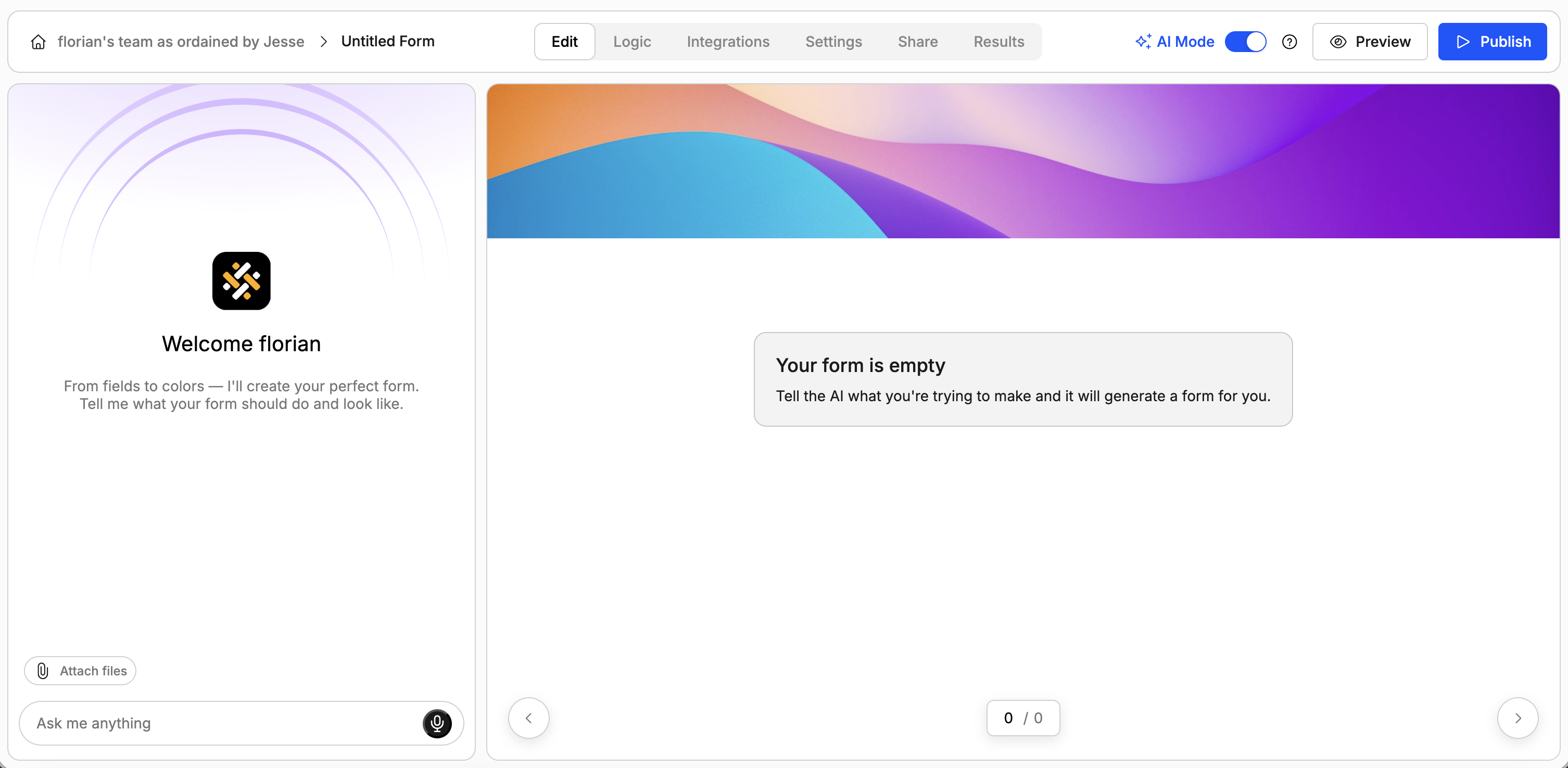
Inside the editor:
* On the left, you’ll see a chat-style interface to generate forms with AI.
* On the right, you’ll see the form being built in real-time.
You can:
* Describe your form in plain language (e.g., “I need a contact form for my web agency. Make it somewhat funny.”). The AI will generate questions, pages, and even a visual theme.
* Ask the AI to tweak questions, reorder elements or add pages.
* Ask the AI to add conditional logic rules (e.g. show/hide questions or pages).
* Ask the AI to change the design of the form.
Of course you can also access all of this functionality outside of the AI editor by toggling "manual mode" in the top bar.
Return to Framer and paste the published form’s URL into the Weavely plugin. The form will appear on the canvas as a component.
Simply drag-and-drop the component into your design and publish your Framer site. The form is now live and ready to accept responses!
## 📈 What Happens After Visitors Submit?
Once embedded, Weavely handles all form logic and data collection. You can:
* View **responses and analytics** directly inside Weavely.
* **Integrate** with tools like Google Sheets, Notion, Salesforce, HubSpot or get email notifications.
* Apply **conditional logic**, customize design, or edit questions anytime.
Check out our [Help Center](https://help.weavely.ai/) section for an overview of our features and how to use them.
 Once opened, the plugin will ask for a **form URL**. This is where you paste the URL of any published Weavely form. When added, the form will render directly on your Framer canvas ... ready to publish!
 Alternatively, you can also embed an example form if you first want to see how it works. Don't worry, you can definitely design better-looking forms than this one 😉
 You can:
* Describe your form in plain language (e.g., “I need a contact form for my web agency. Make it somewhat funny.”). The AI will generate questions, pages, and even a visual theme.
* Ask the AI to tweak questions, reorder elements or add pages.
* Ask the AI to add conditional logic rules (e.g. show/hide questions or pages).
* Ask the AI to change the design of the form.
Of course you can also access all of this functionality outside of the AI editor by toggling "manual mode" in the top bar.
You can:
* Describe your form in plain language (e.g., “I need a contact form for my web agency. Make it somewhat funny.”). The AI will generate questions, pages, and even a visual theme.
* Ask the AI to tweak questions, reorder elements or add pages.
* Ask the AI to add conditional logic rules (e.g. show/hide questions or pages).
* Ask the AI to change the design of the form.
Of course you can also access all of this functionality outside of the AI editor by toggling "manual mode" in the top bar.