> ## Documentation Index
> Fetch the complete documentation index at: https://help.weavely.ai/llms.txt
> Use this file to discover all available pages before exploring further.
# How to Embed a Custom AI Form into Google Sites
> Learn how to embed a custom AI-generated form into your Google Sites page using Weavely.
{`{
"@context": "https://schema.org",
"@graph": [
{
"@type": "WebPage",
"@id": "https://help.weavely.ai/guides/google-sites",
"url": "https://help.weavely.ai/guides/google-sites",
"name": "How to Embed a Custom AI Form into Google Sites",
"description": "Learn how to embed a custom AI-generated form into your Google Sites page using Weavely.",
"inLanguage": "en",
"isPartOf": {
"@type": "WebSite",
"@id": "https://help.weavely.ai/#website",
"name": "Weavely Help Center"
},
"breadcrumb": {
"@type": "BreadcrumbList",
"itemListElement": [
{ "@type": "ListItem", "position": 1, "name": "Guides", "item": "https://help.weavely.ai/guides" },
{ "@type": "ListItem", "position": 2, "name": "How to Embed a Custom AI Form into Google Sites", "item": "https://help.weavely.ai/guides/google-sites" }
]
},
"publisher": { "@id": "https://www.weavely.ai/#org" }
},
{
"@type": "TechArticle",
"headline": "How to Embed a Custom AI Form into Google Sites",
"description": "Learn how to embed a custom AI-generated form into your Google Sites page using Weavely.",
"author": { "@id": "https://www.weavely.ai/#org" },
"publisher": { "@id": "https://www.weavely.ai/#org" },
"inLanguage": "en",
"mainEntityOfPage": { "@id": "https://help.weavely.ai/guides/google-sites" }
},
{
"@type": "VideoObject",
"@id": "https://help.weavely.ai/guides/google-sites#video",
"name": "Embed a Custom Web Form in Google Sites (with AI)",
"description": "Want to add a custom web form to your Google Site? In this tutorial, I’ll show you how to embed a Weavely AI-powered form into Google Sites, so you can collect leads, surveys, signups, or feedback, all with a polished, professional look.",
"thumbnailUrl": [
"https://i.ytimg.com/vi/J4ZYuvllEPM/hqdefault.jpg",
"https://i.ytimg.com/vi/J4ZYuvllEPM/sddefault.jpg"
],
"uploadDate": "2025-10-06T00:00:00Z",
"duration": "PT6M37S",
"embedUrl": "https://www.youtube.com/embed/J4ZYuvllEPM",
"contentUrl": "https://www.youtube.com/watch?v=J4ZYuvllEPM",
"potentialAction": {
"@type": "WatchAction",
"target": "https://www.youtube.com/watch?v=J4ZYuvllEPM"
},
"publisher": { "@id": "https://www.weavely.ai/#org" },
"author": { "@id": "https://www.weavely.ai/#org" }
},
{
"@type": "Organization",
"@id": "https://www.weavely.ai/#org",
"name": "WEAVE.LY BV",
"url": "https://www.weavely.ai",
"address": {
"@type": "PostalAddress",
"streetAddress": "Herbert Hooverlaan 141",
"addressLocality": "Schaarbeek",
"postalCode": "1030",
"addressCountry": "BE"
},
"identifier": "BE0773.878.569",
"sameAs": [
"https://www.instagram.com/weavely.ai/",
"https://www.linkedin.com/company/weave-ly/",
"https://www.youtube.com/@weavely"
]
}
]
}`}
Weavely makes it easy to build beautiful, logic-rich forms using AI—and just as easy to embed them into your Google Sites page. In this tutorial, we’ll walk through how to create a lead generation form and integrate it into a Google Site, with tips to make sure it looks great on both desktop and mobile.
To start, head to [Weavely.ai](https://weavely.ai) and generate your form using a natural-language prompt like:
> “I need a lead generation form for my agency website. It should qualify potential projects.”
Weavely will create a form with relevant questions automatically: project name, service interest, budget, timing, and more.
You can:
* Edit any question manually
* Add more fields or pages
* Customize the design (fonts, colors, borders, button style)
* Use Weavely’s AI styling based on your brand or website design
*All core features are free, including unlimited responses. The only paid feature is removing the “Powered by Weavely” badge.*
Once your form looks the way you want:
1. Click **Publish**.
2. Go to the **Share** tab.
3. Copy the standalone **form URL** (not embed code, just the plain URL).
You can test it in a new tab to confirm it loads the full form page. But trust us, it does 😉
1. Open your Google Sites page and navigate to the section where you want to insert the form.
2. Scroll to the bottom and click the **Embed** option from the sidebar.
3. Paste your Weavely form’s URL into the **"By URL"** tab.
4. Choose the **“Whole page”** display option.
5. Click **Insert**.
You’ll now see the live form appear inside your Google Site.
## Optimizing Layout for Desktop & Mobile
Google Sites preserves the aspect ratio of your embedded form, which can cause layout issues. Especially on mobile!
### Common Issues:
* **Scrollbars on desktop** if the form is too tall.
* **Tiny, squished forms on mobile** if the aspect ratio isn’t mobile-optimized.
### Workaround:
* Resize the embed container manually by dragging the edges.
* For **mobile**: Make the embed container **narrower and taller**.
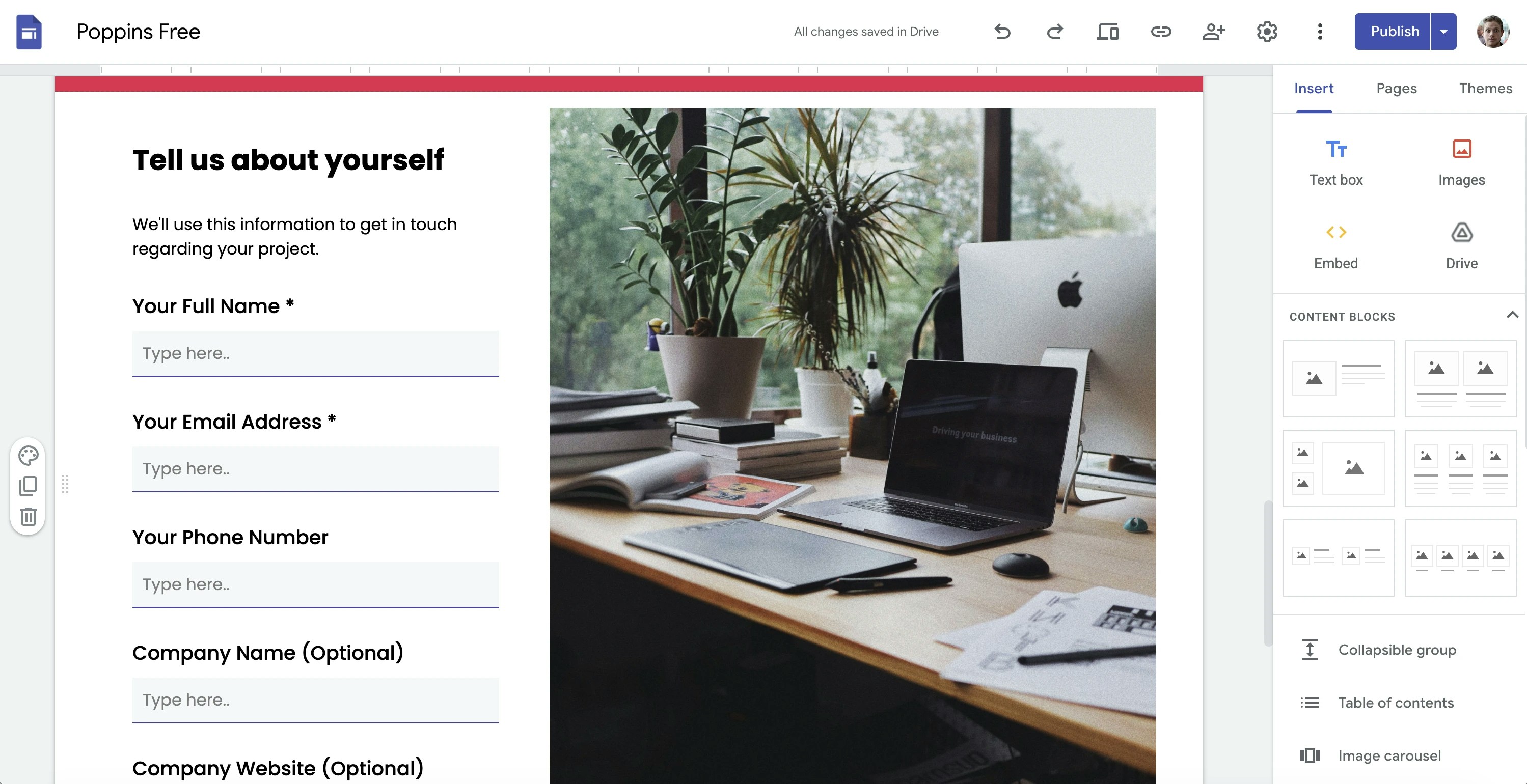
* For **desktop**: Fill horizontal space by placing an **image** next to the form.
For example, this is how we tackled the issue in our example video:
It’s a balancing act, but with a bit of tweaking, you can get a good result on both devices.
## Summary
You now have a beautifully styled, fully functional form built with Weavely’s AI, embedded directly in your Google Site with no coding required. While Google Sites has a few layout quirks, with the right tweaks your form will look great and capture leads effectively.
Need more styling flexibility or advanced logic? You can always go back to Weavely to tweak themes, add logic conditions, or connect integrations like Google Sheets, Mailchimp, and more.
 You’ll now see the live form appear inside your Google Site.
 It’s a balancing act, but with a bit of tweaking, you can get a good result on both devices.
## Summary
You now have a beautifully styled, fully functional form built with Weavely’s AI, embedded directly in your Google Site with no coding required. While Google Sites has a few layout quirks, with the right tweaks your form will look great and capture leads effectively.
Need more styling flexibility or advanced logic? You can always go back to Weavely to tweak themes, add logic conditions, or connect integrations like Google Sheets, Mailchimp, and more.
It’s a balancing act, but with a bit of tweaking, you can get a good result on both devices.
## Summary
You now have a beautifully styled, fully functional form built with Weavely’s AI, embedded directly in your Google Site with no coding required. While Google Sites has a few layout quirks, with the right tweaks your form will look great and capture leads effectively.
Need more styling flexibility or advanced logic? You can always go back to Weavely to tweak themes, add logic conditions, or connect integrations like Google Sheets, Mailchimp, and more.