> ## Documentation Index
> Fetch the complete documentation index at: https://help.weavely.ai/llms.txt
> Use this file to discover all available pages before exploring further.
# Auto-Generate Post-Meeting Surveys with n8n and Weavely
> Learn how to automatically generate tailored post-meeting surveys from your Google Meet notes using an n8n AI agent and the Weavely MCP.
{`{
"@context": "https://schema.org",
"@graph": [
{
"@type": "WebPage",
"@id": "https://help.weavely.ai/guides/use-cases/auto-generate-post-meeting-surveys-with-n8n-and-weavely",
"url": "https://help.weavely.ai/guides/use-cases/auto-generate-post-meeting-surveys-with-n8n-and-weavely",
"name": "Auto-Generate Post-Meeting Surveys with n8n and Weavely",
"description": "Learn how to automatically generate tailored post-meeting surveys from your Google Meet notes using an n8n AI agent and the Weavely MCP.",
"inLanguage": "en",
"publisher": { "@id": "https://www.weavely.ai/#org" }
},
{
"@type": "TechArticle",
"@id": "https://help.weavely.ai/guides/use-cases/auto-generate-post-meeting-surveys-with-n8n-and-weavely#article",
"headline": "Auto-Generate Post-Meeting Surveys with n8n and Weavely",
"description": "Learn how to automatically generate tailored post-meeting surveys from your Google Meet notes using an n8n AI agent and the Weavely MCP.",
"inLanguage": "en",
"mainEntityOfPage": { "@id": "https://help.weavely.ai/guides/use-cases/auto-generate-post-meeting-surveys-with-n8n-and-weavely" },
"author": { "@id": "https://www.weavely.ai/#org" },
"publisher": { "@id": "https://www.weavely.ai/#org" }
},
{
"@type": "VideoObject",
"@id": "https://help.weavely.ai/guides/use-cases/auto-generate-post-meeting-surveys-with-n8n-and-weavely#video",
"name": "Auto-Generate Post-Meeting Surveys with n8n + AI (Weavely MCP Tutorial)",
"description": "Stop forgetting to send follow-up surveys after meetings. In this tutorial I show you how to build an n8n workflow that automatically generates a tailored post-meeting survey from your Google Meet notes and sends it to all attendees with one Slack approval. Here is how the workflow works: Google Calendar trigger fires when a meeting ends, fetches the Gemini meeting notes attached to the event, AI agent reads the notes and generates 5-7 tailored survey questions, Weavely MCP builds and publishes the form automatically, sends you a Slack message to review and approve, and emails the survey link to all attendees on approval.",
"url": "https://youtu.be/xapyKQZQm7Q",
"contentUrl": "https://youtu.be/xapyKQZQm7Q",
"embedUrl": "https://www.youtube.com/embed/xapyKQZQm7Q",
"duration": "PT6M33S",
"uploadDate": "2026-04-16T00:00:00+00:00",
"thumbnailUrl": [
"https://img.youtube.com/vi/xapyKQZQm7Q/maxresdefault.jpg"
],
"publisher": { "@id": "https://www.weavely.ai/#org" },
"potentialAction": {
"@type": "WatchAction",
"target": "https://youtu.be/xapyKQZQm7Q"
}
},
{
"@type": "Organization",
"@id": "https://www.weavely.ai/#org",
"name": "Weavely",
"url": "https://www.weavely.ai"
}
]
}`}
Most meetings end with good intentions and no follow-through. A post-meeting survey is the simplest way to capture feedback while the discussion is still fresh, but nobody sends them manually because the effort is not worth it for every call.
This guide shows you how to build an n8n workflow that does it automatically. When a meeting ends, the workflow reads your Google Meet notes, generates tailored survey questions using an AI agent, builds the form via the Weavely MCP, and sends it to all attendees after a quick Slack approval.
You can also use our free template here: [https://n8n.io/workflows/15095](https://n8n.io/workflows/15095)
## What you need
* Google Workspace Business Standard or higher (required for Gemini meeting notes)
* OpenAI API key
* Weavely account — free at [weavely.ai](https://weavely.ai)
* Slack workspace connected to n8n
* Gmail account connected to n8n
## How the workflow works
The full flow looks like this:
1. Google Calendar detects when a meeting ends
2. Waits 10 minutes for Gemini to generate and attach notes to the event
3. Re-fetches the event and extracts the Gemini notes doc
4. An AI agent reads the notes and generates 5 to 7 tailored survey questions
5. The Weavely MCP builds and publishes the form
6. A Slack message is sent to the organiser with the form link and Approve / Reject buttons
7. On approval, all attendees receive a branded email with the survey link
## Set up the workflow
Start by importing the template into your n8n instance. You can find the template in the n8n template library (currently pending approval, you'll need to build this manually based on the video).
Open the **Configuration** node at the start of the workflow. Update the two values:
* `calendarId`: your Google Calendar email address (e.g. `you@yourcompany.com`)
* `slackUserId`: your Slack member ID
To find your Slack member ID, open Slack, click your name in the top left, select **Profile**, click the three dots, and choose **Copy member ID**.
Connect the following credentials in each node. n8n will prompt you the first time you open each one:
* **Google Calendar Trigger** and **Get an event**: connect your Google Calendar account
* **Get a document**: connect your Google Docs account
* **OpenAI Chat Model**: add your OpenAI API key
* **Slack**: connect your Slack workspace
* **Send a message**: connect your Gmail account
The Weavely MCP Client does not require authentication. It connects directly to `https://mcp.weavely.ai/mcp` without credentials.
For the Approve and Reject buttons to work inline in Slack (rather than opening a browser window), you need to enable Interactivity in your Slack app settings.
1. Go to [api.slack.com/apps](https://api.slack.com/apps) and open your Slack app
2. Click **Interactivity and Shortcuts** in the left sidebar
3. Toggle Interactivity on
4. Set the **Request URL** to your n8n webhook-waiting URL
Your webhook-waiting URL follows this format:
```text theme={null}
https://your-n8n-instance.com/webhook-waiting/[webhook-id]
```
You can find the exact URL in the **Send message and wait for response** node once the workflow has run at least once.
Once credentials are connected and Slack interactivity is configured, toggle the workflow to **Active** in n8n.
The workflow now fires automatically whenever a calendar event matching the word "Meeting" ends. You can change this match term in the Google Calendar Trigger node to match your own naming conventions.
## How a survey gets generated
When a meeting ends, the workflow waits 10 minutes to give Google time to generate and attach the Gemini notes doc to the calendar event. It then looks for an attachment titled **"Notes by Gemini"** on the event. If found, it reads the full document.
The AI agent receives the meeting notes alongside a prompt that instructs it to generate 5 to 7 survey questions directly based on the topics discussed. It is not asked to generate generic meeting feedback questions. The questions reflect the actual content of the meeting: decisions made, action items assigned, topics covered.
The agent then uses the Weavely MCP tools to build and publish the form automatically. A copy of the form is created in Weavely's system and a shareable link is returned.
## The Slack approval step
Once the form is ready, you receive a Slack DM with the claim link and two buttons: **Approve** and **Reject**.
Before clicking Approve, open the claim link. This brings you into Weavely where you can review the generated survey, make any edits using Weavely's AI editor if needed, and publish the form to your account. If you do not have a Weavely account yet, you will be prompted to create one for free.
Once the form is published, come back to Slack and click **Approve**. The workflow resumes and sends the survey link to all meeting attendees by email.
If the survey does not look right, click **Reject** and the workflow stops without sending anything.
## Viewing responses
After attendees fill in the survey, responses appear automatically in your [Weavely dashboard under the **Results** tab](/get-started/smart-insights-analyze-survey-results-with-ai).
From there you can:
* View responses directly in Weavely
* Export to Google Sheets, Airtable, HubSpot, or any other tool via Weavely's integrations
* Set up automated workflows using Weavely's n8n or Zapier integrations to route responses wherever you need them
## Customising the workflow
The template is designed to be a starting point. Common adjustments:
**Different calendar or meeting tool:** Swap the Google Calendar Trigger for a Calendly trigger, a Zoom webhook, or any other calendar node n8n supports. The rest of the workflow stays the same.
**Different notification channel:** Replace the Slack node with a Microsoft Teams node, a Telegram node, or an email if you prefer approvals by email.
**Different AI model:** The template uses `gpt-4.1-mini` for cost efficiency. Swap the OpenAI Chat Model node for Claude, Gemini, or any other model supported by n8n if you want different output quality or cost characteristics.
**Adjust the survey questions:** Edit the prompt in the AI Agent node to change the number of questions, the question types, or the focus areas. The current prompt targets outcomes, decisions, and action item clarity.
**No Gemini notes:** If your Google Workspace plan does not include Gemini meeting notes, you can still use this workflow. Remove the **Filter Meeting Notes File** and **Get a document** nodes, and pass the meeting title and attendee list directly to the AI Agent instead. The questions will be less tailored but still useful for recurring meetings with predictable content.
 The full flow looks like this:
1. Google Calendar detects when a meeting ends
2. Waits 10 minutes for Gemini to generate and attach notes to the event
3. Re-fetches the event and extracts the Gemini notes doc
4. An AI agent reads the notes and generates 5 to 7 tailored survey questions
5. The Weavely MCP builds and publishes the form
6. A Slack message is sent to the organiser with the form link and Approve / Reject buttons
7. On approval, all attendees receive a branded email with the survey link
## Set up the workflow
Start by importing the template into your n8n instance. You can find the template in the n8n template library (currently pending approval, you'll need to build this manually based on the video).
The full flow looks like this:
1. Google Calendar detects when a meeting ends
2. Waits 10 minutes for Gemini to generate and attach notes to the event
3. Re-fetches the event and extracts the Gemini notes doc
4. An AI agent reads the notes and generates 5 to 7 tailored survey questions
5. The Weavely MCP builds and publishes the form
6. A Slack message is sent to the organiser with the form link and Approve / Reject buttons
7. On approval, all attendees receive a branded email with the survey link
## Set up the workflow
Start by importing the template into your n8n instance. You can find the template in the n8n template library (currently pending approval, you'll need to build this manually based on the video).
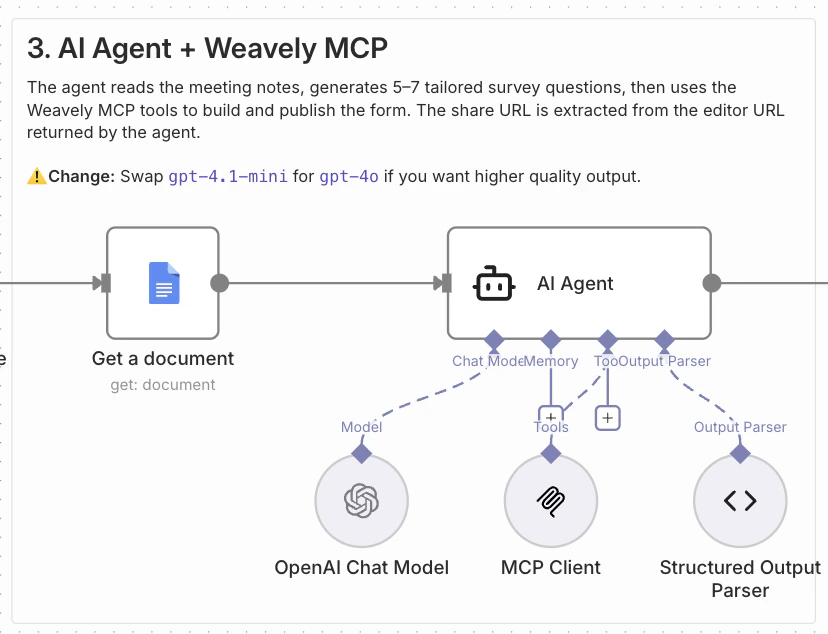 When a meeting ends, the workflow waits 10 minutes to give Google time to generate and attach the Gemini notes doc to the calendar event. It then looks for an attachment titled **"Notes by Gemini"** on the event. If found, it reads the full document.
The AI agent receives the meeting notes alongside a prompt that instructs it to generate 5 to 7 survey questions directly based on the topics discussed. It is not asked to generate generic meeting feedback questions. The questions reflect the actual content of the meeting: decisions made, action items assigned, topics covered.
The agent then uses the Weavely MCP tools to build and publish the form automatically. A copy of the form is created in Weavely's system and a shareable link is returned.
## The Slack approval step
When a meeting ends, the workflow waits 10 minutes to give Google time to generate and attach the Gemini notes doc to the calendar event. It then looks for an attachment titled **"Notes by Gemini"** on the event. If found, it reads the full document.
The AI agent receives the meeting notes alongside a prompt that instructs it to generate 5 to 7 survey questions directly based on the topics discussed. It is not asked to generate generic meeting feedback questions. The questions reflect the actual content of the meeting: decisions made, action items assigned, topics covered.
The agent then uses the Weavely MCP tools to build and publish the form automatically. A copy of the form is created in Weavely's system and a shareable link is returned.
## The Slack approval step
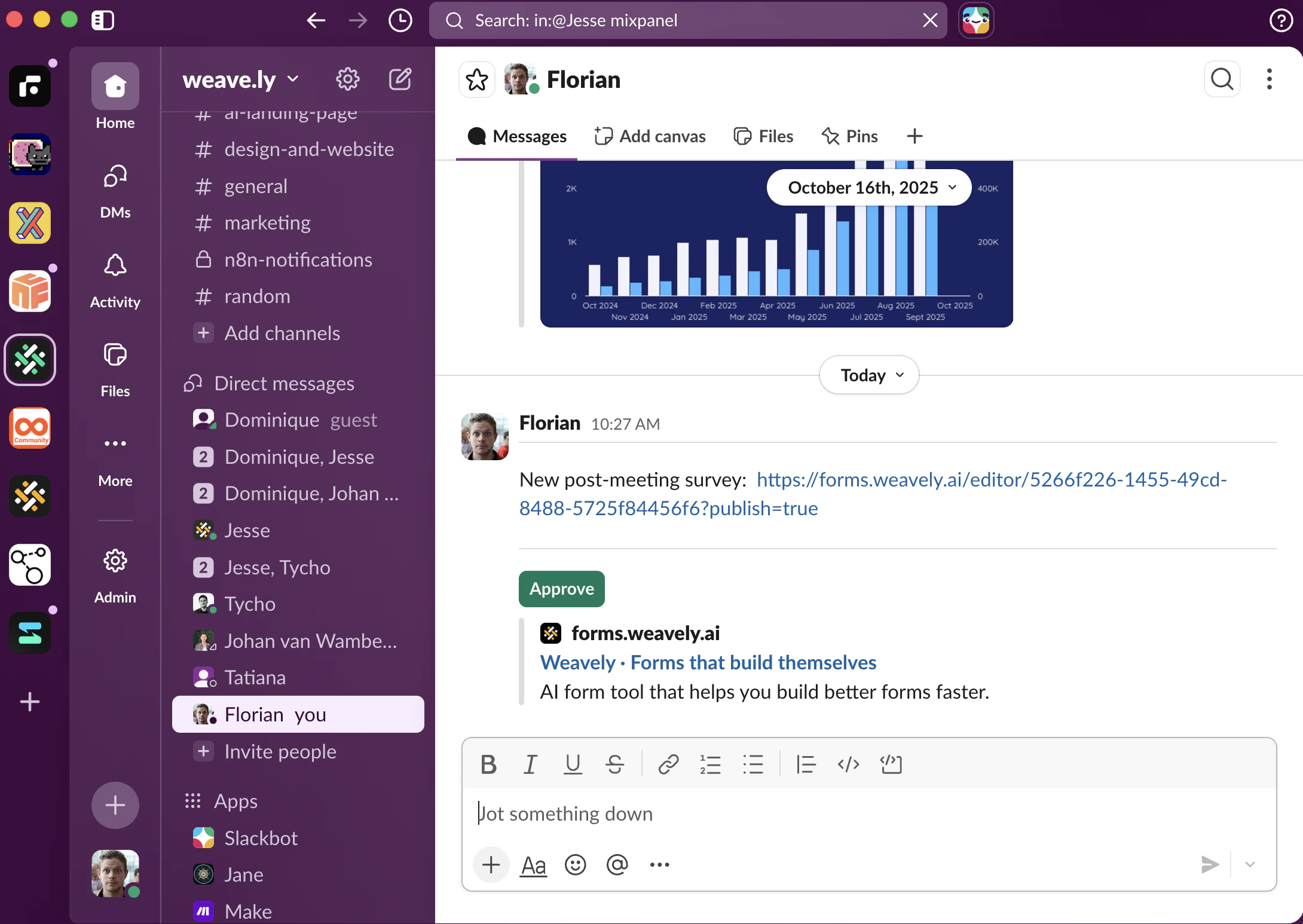 Once the form is ready, you receive a Slack DM with the claim link and two buttons: **Approve** and **Reject**.
Before clicking Approve, open the claim link. This brings you into Weavely where you can review the generated survey, make any edits using Weavely's AI editor if needed, and publish the form to your account. If you do not have a Weavely account yet, you will be prompted to create one for free.
Once the form is published, come back to Slack and click **Approve**. The workflow resumes and sends the survey link to all meeting attendees by email.
If the survey does not look right, click **Reject** and the workflow stops without sending anything.
## Viewing responses
After attendees fill in the survey, responses appear automatically in your [Weavely dashboard under the **Results** tab](/get-started/smart-insights-analyze-survey-results-with-ai).
From there you can:
* View responses directly in Weavely
* Export to Google Sheets, Airtable, HubSpot, or any other tool via Weavely's integrations
* Set up automated workflows using Weavely's n8n or Zapier integrations to route responses wherever you need them
## Customising the workflow
The template is designed to be a starting point. Common adjustments:
**Different calendar or meeting tool:** Swap the Google Calendar Trigger for a Calendly trigger, a Zoom webhook, or any other calendar node n8n supports. The rest of the workflow stays the same.
**Different notification channel:** Replace the Slack node with a Microsoft Teams node, a Telegram node, or an email if you prefer approvals by email.
**Different AI model:** The template uses `gpt-4.1-mini` for cost efficiency. Swap the OpenAI Chat Model node for Claude, Gemini, or any other model supported by n8n if you want different output quality or cost characteristics.
**Adjust the survey questions:** Edit the prompt in the AI Agent node to change the number of questions, the question types, or the focus areas. The current prompt targets outcomes, decisions, and action item clarity.
**No Gemini notes:** If your Google Workspace plan does not include Gemini meeting notes, you can still use this workflow. Remove the **Filter Meeting Notes File** and **Get a document** nodes, and pass the meeting title and attendee list directly to the AI Agent instead. The questions will be less tailored but still useful for recurring meetings with predictable content.
Once the form is ready, you receive a Slack DM with the claim link and two buttons: **Approve** and **Reject**.
Before clicking Approve, open the claim link. This brings you into Weavely where you can review the generated survey, make any edits using Weavely's AI editor if needed, and publish the form to your account. If you do not have a Weavely account yet, you will be prompted to create one for free.
Once the form is published, come back to Slack and click **Approve**. The workflow resumes and sends the survey link to all meeting attendees by email.
If the survey does not look right, click **Reject** and the workflow stops without sending anything.
## Viewing responses
After attendees fill in the survey, responses appear automatically in your [Weavely dashboard under the **Results** tab](/get-started/smart-insights-analyze-survey-results-with-ai).
From there you can:
* View responses directly in Weavely
* Export to Google Sheets, Airtable, HubSpot, or any other tool via Weavely's integrations
* Set up automated workflows using Weavely's n8n or Zapier integrations to route responses wherever you need them
## Customising the workflow
The template is designed to be a starting point. Common adjustments:
**Different calendar or meeting tool:** Swap the Google Calendar Trigger for a Calendly trigger, a Zoom webhook, or any other calendar node n8n supports. The rest of the workflow stays the same.
**Different notification channel:** Replace the Slack node with a Microsoft Teams node, a Telegram node, or an email if you prefer approvals by email.
**Different AI model:** The template uses `gpt-4.1-mini` for cost efficiency. Swap the OpenAI Chat Model node for Claude, Gemini, or any other model supported by n8n if you want different output quality or cost characteristics.
**Adjust the survey questions:** Edit the prompt in the AI Agent node to change the number of questions, the question types, or the focus areas. The current prompt targets outcomes, decisions, and action item clarity.
**No Gemini notes:** If your Google Workspace plan does not include Gemini meeting notes, you can still use this workflow. Remove the **Filter Meeting Notes File** and **Get a document** nodes, and pass the meeting title and attendee list directly to the AI Agent instead. The questions will be less tailored but still useful for recurring meetings with predictable content.