> ## Documentation Index
> Fetch the complete documentation index at: https://help.weavely.ai/llms.txt
> Use this file to discover all available pages before exploring further.
# How to Generate PDF Reports from Form Responses with AI
> Generate dynamic PDF reports from AI‑powered form responses. Turn survey submissions into professional PDF reports automatically with Weavely.
{`{
"@context": "https://schema.org",
"@graph": [
{
"@type": "WebPage",
"@id": "https://help.weavely.ai/guides/pdf-reports",
"url": "https://help.weavely.ai/guides/pdf-reports",
"name": "How to Generate PDF Reports from Form Responses with AI",
"description": "Generate dynamic PDF reports from AI-powered form responses. Turn survey submissions into professional PDF reports automatically with Weavely.",
"inLanguage": "en",
"isPartOf": {
"@type": "WebSite",
"@id": "https://help.weavely.ai/#website",
"name": "Weavely Help Center"
},
"breadcrumb": {
"@type": "BreadcrumbList",
"itemListElement": [
{ "@type": "ListItem", "position": 1, "name": "Guides", "item": "https://help.weavely.ai/guides" },
{ "@type": "ListItem", "position": 2, "name": "PDF reports", "item": "https://help.weavely.ai/guides/pdf-reports" }
]
},
"publisher": { "@id": "https://www.weavely.ai/#org" }
},
{
"@type": "TechArticle",
"headline": "How to Generate PDF Reports from Form Responses with AI",
"description": "Learn how to capture responses with Weavely, generate branded PDFs using Google Docs & Drive, and email them automatically via Make.com.",
"inLanguage": "en",
"author": { "@id": "https://www.weavely.ai/#org" },
"publisher": { "@id": "https://www.weavely.ai/#org" },
"mainEntityOfPage": { "@id": "https://help.weavely.ai/guides/pdf-reports" }
},
{
"@type": "VideoObject",
"@id": "https://help.weavely.ai/guides/pdf-reports#video",
"name": "Generate PDF Reports from Form Responses with AI for Free (Weavely + Make.com)",
"description": "Turn form or survey responses into beautiful, automated PDF reports, in minutes. This tutorial shows how to use Weavely.ai and Make.com to generate fully customized PDF reports from online form submissions.",
"thumbnailUrl": [
"https://i.ytimg.com/vi/Q-ASaEU3htg/hqdefault.jpg",
"https://i.ytimg.com/vi/Q-ASaEU3htg/sddefault.jpg"
],
"uploadDate": "2025-10-21T00:00:00Z",
"duration": "PT6M16S",
"embedUrl": "https://www.youtube.com/embed/Q-ASaEU3htg",
"contentUrl": "https://www.youtube.com/watch?v=Q-ASaEU3htg",
"potentialAction": {
"@type": "WatchAction",
"target": "https://www.youtube.com/watch?v=Q-ASaEU3htg"
},
"publisher": { "@id": "https://www.weavely.ai/#org" },
"author": { "@id": "https://www.weavely.ai/#org" }
},
{
"@type": "Organization",
"@id": "https://www.weavely.ai/#org",
"name": "WEAVE.LY BV",
"url": "https://www.weavely.ai",
"address": {
"@type": "PostalAddress",
"streetAddress": "Herbert Hooverlaan 141",
"addressLocality": "Schaarbeek",
"postalCode": "1030",
"addressCountry": "BE"
},
"identifier": "BE0773.878.569",
"sameAs": [
"https://www.instagram.com/weavely.ai/",
"https://www.linkedin.com/company/weave-ly/",
"https://www.youtube.com/@weavely"
]
}
]
}`}
Weavely lets you create powerful AI-generated forms. In this guide, we’ll show you how to take your form submissions, turn them into a beautifully formatted PDF, and automatically email that PDF either to the respondent or to yourself, all for free using [Make](https://www.make.com/).
## 🛠 Tools You’ll Need
* [**Weavely**](https://weavely.ai/) – Our AI-native form builder.
* [**Make**](https://make.com) – A no-code automation platform with a generous free tier.
* **Google Docs & Drive** – To create the PDF template and store documents.
* **Gmail** – Or any email service connected via Make.
Build your form using Weavely. You can use the AI prompt or build manually.
> Example: A contact form collecting name, email, phone number, and company.
Make sure your form includes an email field if you want to email the response to the user. For a quick overview of how Weavely works, check out our ["getting started" tutorial](https://help.weavely.ai/get-started/the-basics).
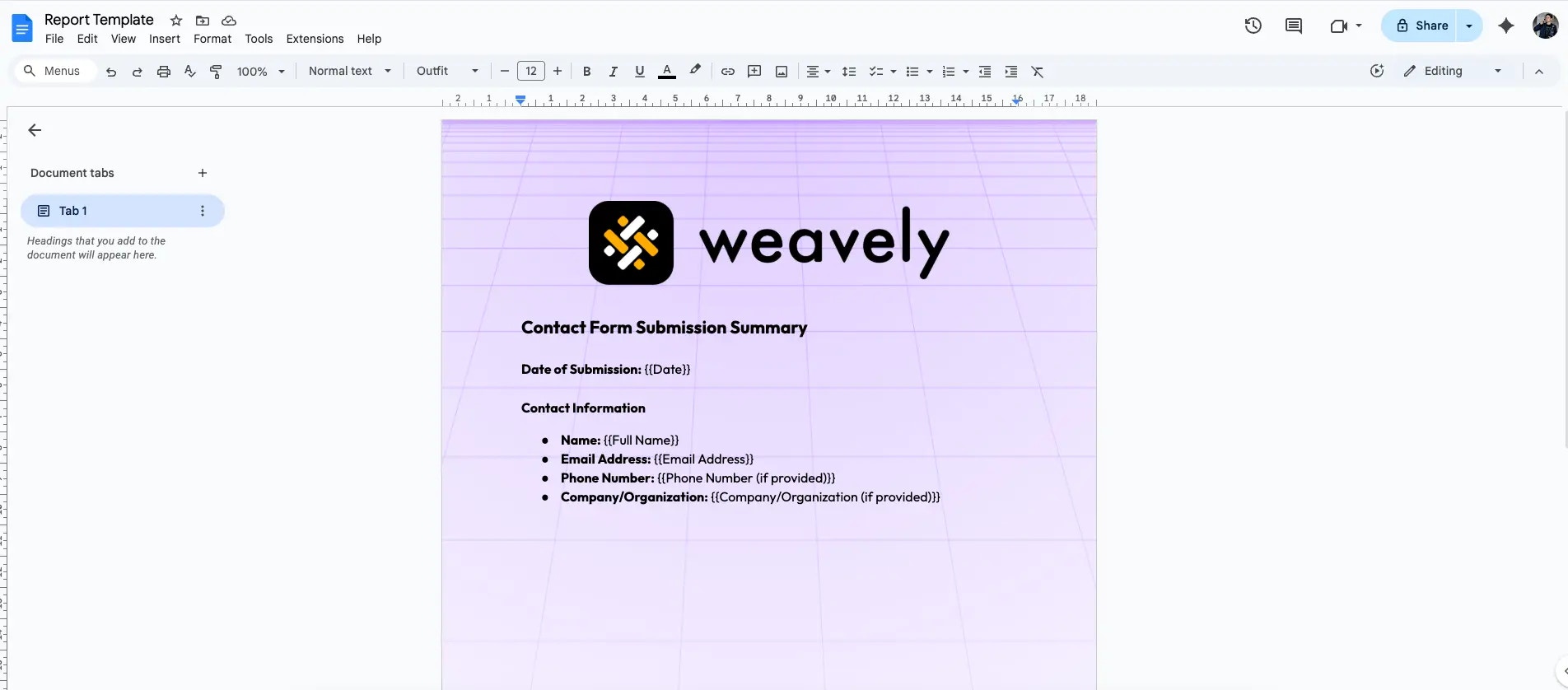
In Google Docs, create a template for the PDF. Use **double curly braces** to define placeholders for dynamic values, as follows:
```
Date: {{date}}
Name: {{full_name}}
Email: {{email}}
Company: {{company}}
```
For example, here's the template we created for our video tutorial.
Create a new scenario in Make. You'll need four modules in this scenario.
### Module 1: Watch Weavely Form Submissions
This module will trigger the automation when a new form response is submitted.
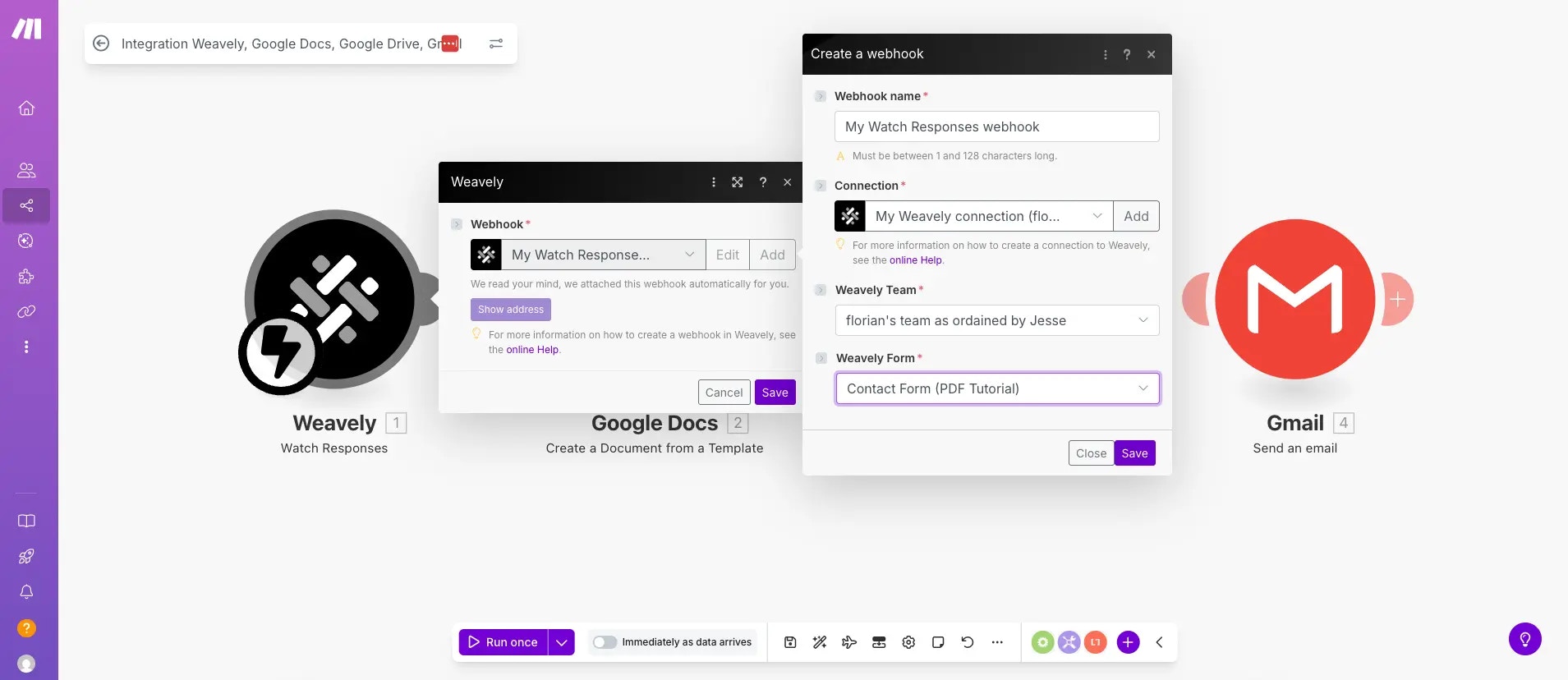
* Add: `Weavely > Watch Form Submission`
* Connect your Weavely account (follow the wizard).
* Select the correct **team** and **form**.
You can read our [dedicated tutorial](/integrations/make) if you need help setting up the Weavely module in Make.
### Module 2: Create Document from Template
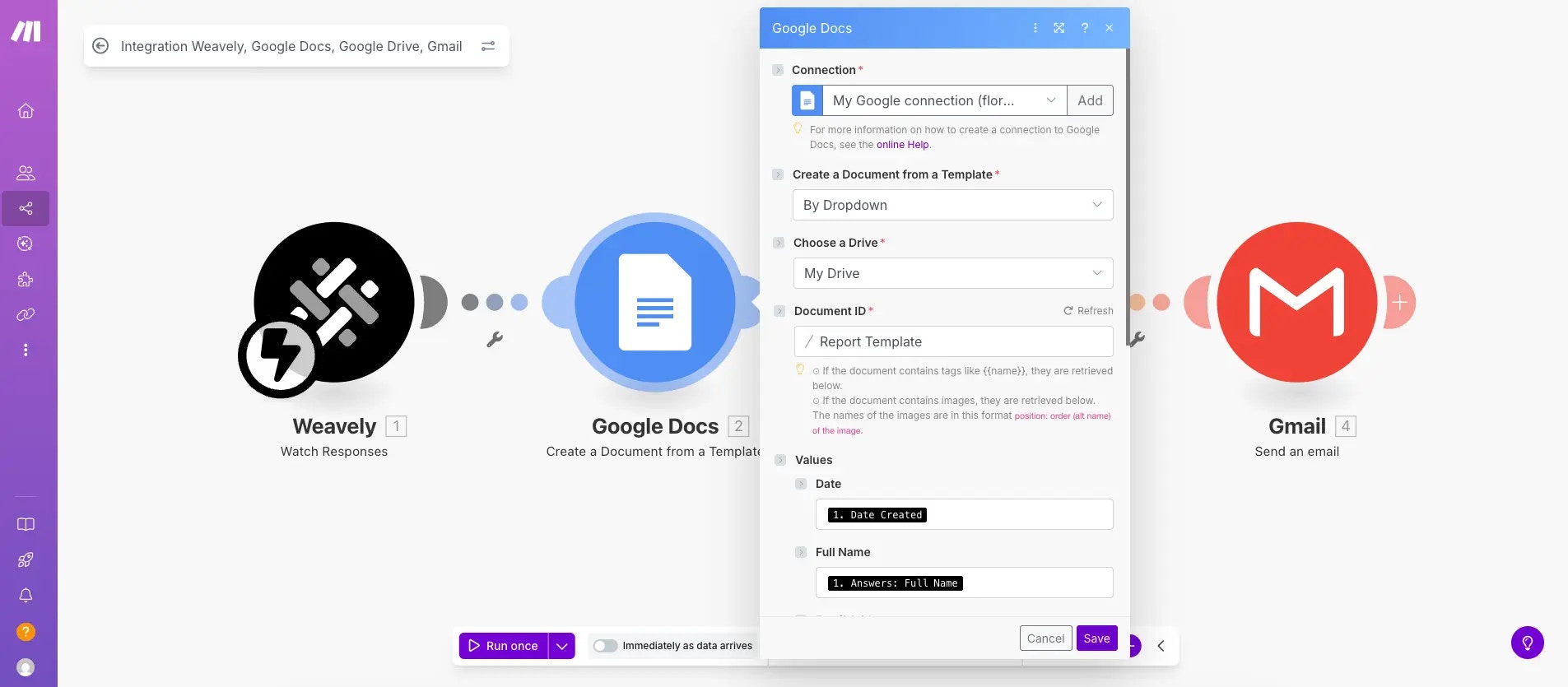
* Add: `Google Docs > Create Document from Template`
* Connect your Google account.
* Choose your template document from Drive.
* Map the template placeholders to your form values:
* `{{date}}` → `Submission Date`
* `{{full_name}}` → `Full Name`
* `{{email}}` → `Email`
* `{{company}}` → `Company`
* Set a document name (e.g., `"Contact Form Submission"`).
* Choose the folder where the document will be saved.
### Module 3: Download a File
To convert the Google doc you created with module 2 into a PDF you'll need the Google Drive "Download a File" module.
* Add: `Google Drive > Download a File`
* Use the document ID from the previous module.
* Enable: `Convert Google Document to format → PDF`.
### Module 4: Send Email with Attachment
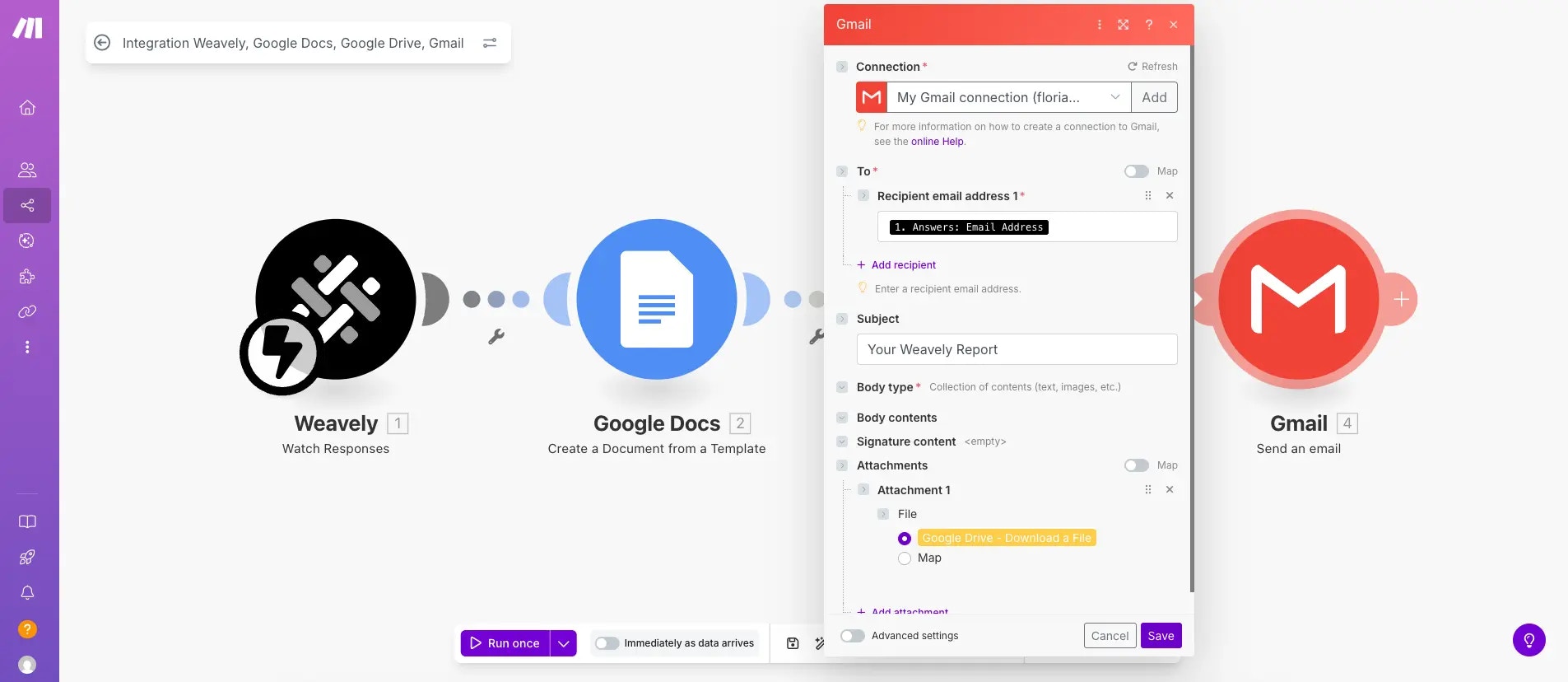
Finally, you'll need to send the report to someone. This could be yourself, or a respondent.
* Add: `Gmail > Send Email` (or another mail service).
* To: Use the respondent’s email address (from the Weavely response) or your own.
* Subject: `"Your Weavely Report"`
* Body: Optional – you can leave this blank or customize it.
* Attachment: The PDF file from the previous module.
1. Run your scenario.
2. Submit the form.
3. Check your email inbox – you (or the respondent) should receive a PDF.
The PDF will contain the form data, and any missing fields will be left blank.
## Summary
With Weavely and Make, you can:
* Generate a form with AI to capture data
* Use that data to populate dynamic templates
* Generate branded PDF reports
* Automatically email those reports to users or teammates
Perfect for reports, confirmations, receipts, onboarding forms, and more!
 ### Module 2: Create Document from Template
* Add: `Google Docs > Create Document from Template`
* Connect your Google account.
* Choose your template document from Drive.
* Map the template placeholders to your form values:
* `{{date}}` → `Submission Date`
* `{{full_name}}` → `Full Name`
* `{{email}}` → `Email`
* `{{company}}` → `Company`
* Set a document name (e.g., `"Contact Form Submission"`).
* Choose the folder where the document will be saved.
### Module 2: Create Document from Template
* Add: `Google Docs > Create Document from Template`
* Connect your Google account.
* Choose your template document from Drive.
* Map the template placeholders to your form values:
* `{{date}}` → `Submission Date`
* `{{full_name}}` → `Full Name`
* `{{email}}` → `Email`
* `{{company}}` → `Company`
* Set a document name (e.g., `"Contact Form Submission"`).
* Choose the folder where the document will be saved.
 ### Module 3: Download a File
To convert the Google doc you created with module 2 into a PDF you'll need the Google Drive "Download a File" module.
* Add: `Google Drive > Download a File`
* Use the document ID from the previous module.
* Enable: `Convert Google Document to format → PDF`.
### Module 3: Download a File
To convert the Google doc you created with module 2 into a PDF you'll need the Google Drive "Download a File" module.
* Add: `Google Drive > Download a File`
* Use the document ID from the previous module.
* Enable: `Convert Google Document to format → PDF`.
.webp?fit=max&auto=format&n=yUIPQ3jD9Rhdw9YI&q=85&s=25efd6bd46c6ca89263b3349824f4458) ### Module 4: Send Email with Attachment
Finally, you'll need to send the report to someone. This could be yourself, or a respondent.
* Add: `Gmail > Send Email` (or another mail service).
* To: Use the respondent’s email address (from the Weavely response) or your own.
* Subject: `"Your Weavely Report"`
* Body: Optional – you can leave this blank or customize it.
* Attachment: The PDF file from the previous module.
### Module 4: Send Email with Attachment
Finally, you'll need to send the report to someone. This could be yourself, or a respondent.
* Add: `Gmail > Send Email` (or another mail service).
* To: Use the respondent’s email address (from the Weavely response) or your own.
* Subject: `"Your Weavely Report"`
* Body: Optional – you can leave this blank or customize it.
* Attachment: The PDF file from the previous module.