> ## Documentation Index
> Fetch the complete documentation index at: https://help.weavely.ai/llms.txt
> Use this file to discover all available pages before exploring further.
# Send Form Responses to Airtable
> Weavely's Airtable integration lets you connect your form to a table and automatically send new responses as rows.
{`{
"@context": "https://schema.org",
"@graph": [
{
"@type": "WebPage",
"@id": "https://help.weavely.ai/integrations/airtable",
"url": "https://help.weavely.ai/integrations/airtable",
"name": "Send Form Responses to Airtable",
"description": "Weavely's Airtable integration lets you connect your form to a table and automatically send new responses as rows.",
"inLanguage": "en",
"isPartOf": {
"@type": "WebSite",
"@id": "https://help.weavely.ai/#website",
"name": "Weavely Help Center"
},
"breadcrumb": {
"@type": "BreadcrumbList",
"itemListElement": [
{ "@type": "ListItem", "position": 1, "name": "Integrations", "item": "https://help.weavely.ai/integrations" },
{ "@type": "ListItem", "position": 2, "name": "Airtable", "item": "https://help.weavely.ai/integrations/airtable" }
]
},
"publisher": { "@id": "https://www.weavely.ai/#org" }
},
{
"@type": "TechArticle",
"headline": "Send Form Responses to Airtable",
"description": "Connect Weavely forms to Airtable and map fields so new submissions are added as rows automatically.",
"inLanguage": "en",
"author": { "@id": "https://www.weavely.ai/#org" },
"publisher": { "@id": "https://www.weavely.ai/#org" },
"mainEntityOfPage": { "@id": "https://help.weavely.ai/integrations/airtable" }
},
{
"@type": "VideoObject",
"@id": "https://help.weavely.ai/integrations/airtable#video",
"name": "AI Form Data to Airtable: Weave.ly Tutorial",
"description": "Want to collect lead information directly into Airtable, without copy-pasting anything?\\n\\nIn this quick tutorial, I show you how to connect Weavely.ai to Salesforce.",
"thumbnailUrl": [
"https://i.ytimg.com/vi/B8W6K6XU0Bc/hqdefault.jpg",
"https://i.ytimg.com/vi/B8W6K6XU0Bc/sddefault.jpg"
],
"uploadDate": "2025-05-12T00:00:00Z",
"duration": "PT2M3S",
"embedUrl": "https://www.youtube.com/embed/B8W6K6XU0Bc",
"contentUrl": "https://www.youtube.com/watch?v=B8W6K6XU0Bc",
"potentialAction": {
"@type": "WatchAction",
"target": "https://www.youtube.com/watch?v=B8W6K6XU0Bc"
},
"publisher": { "@id": "https://www.weavely.ai/#org" },
"author": { "@id": "https://www.weavely.ai/#org" }
},
{
"@type": "Organization",
"@id": "https://www.weavely.ai/#org",
"name": "WEAVE.LY BV",
"url": "https://www.weavely.ai",
"address": {
"@type": "PostalAddress",
"streetAddress": "Herbert Hooverlaan 141",
"addressLocality": "Schaarbeek",
"postalCode": "1030",
"addressCountry": "BE"
},
"identifier": "BE0773.878.569",
"sameAs": [
"https://www.instagram.com/weavely.ai/",
"https://www.linkedin.com/company/weave-ly/",
"https://www.youtube.com/@weavely"
]
}
]
}`}
## Step 1: Open the Integrations Tab
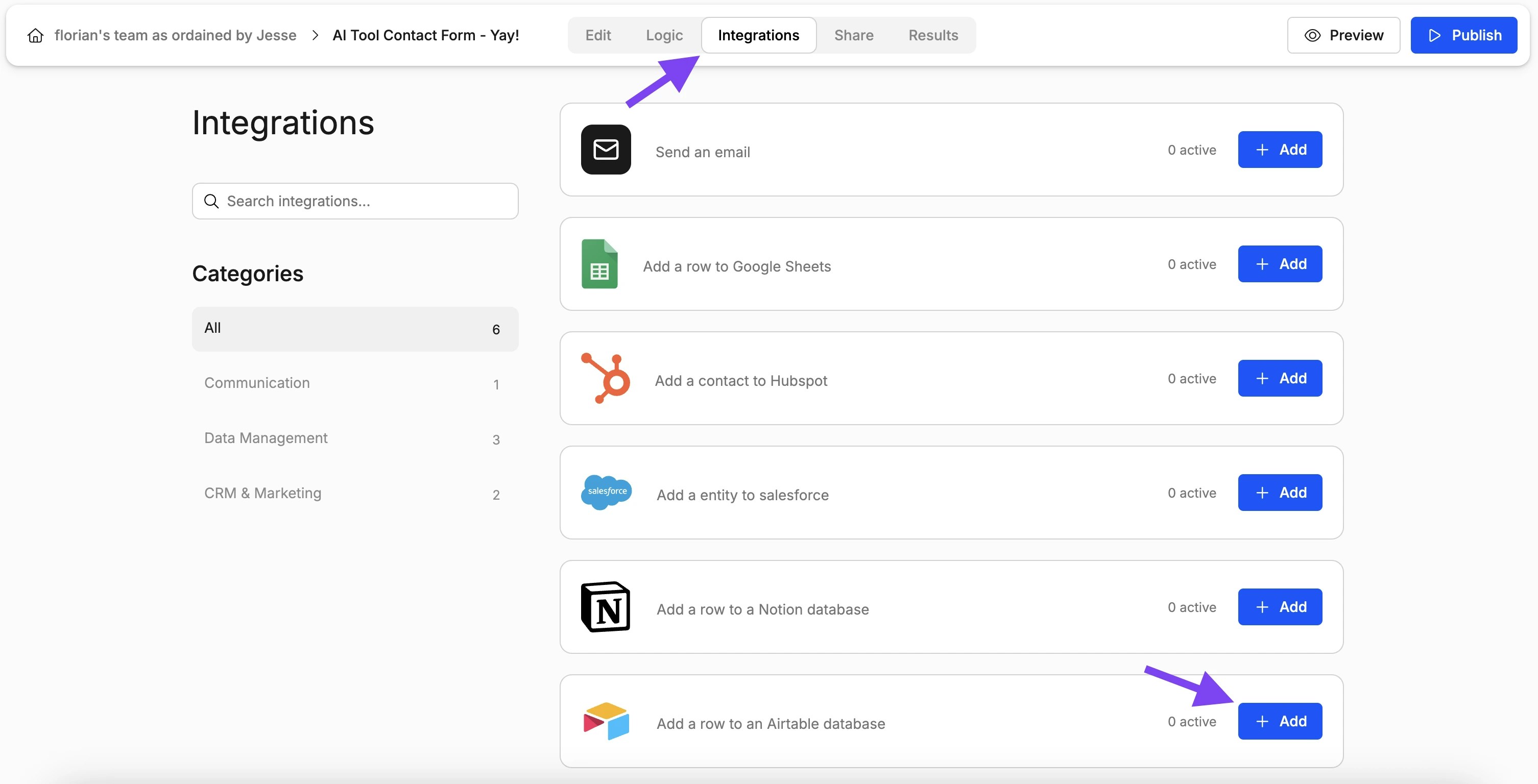
With the editor open, navigate to the *Integrations* tab and select the *Airtable* integration as shown below.
## Step 2: Link Your Airtable Account
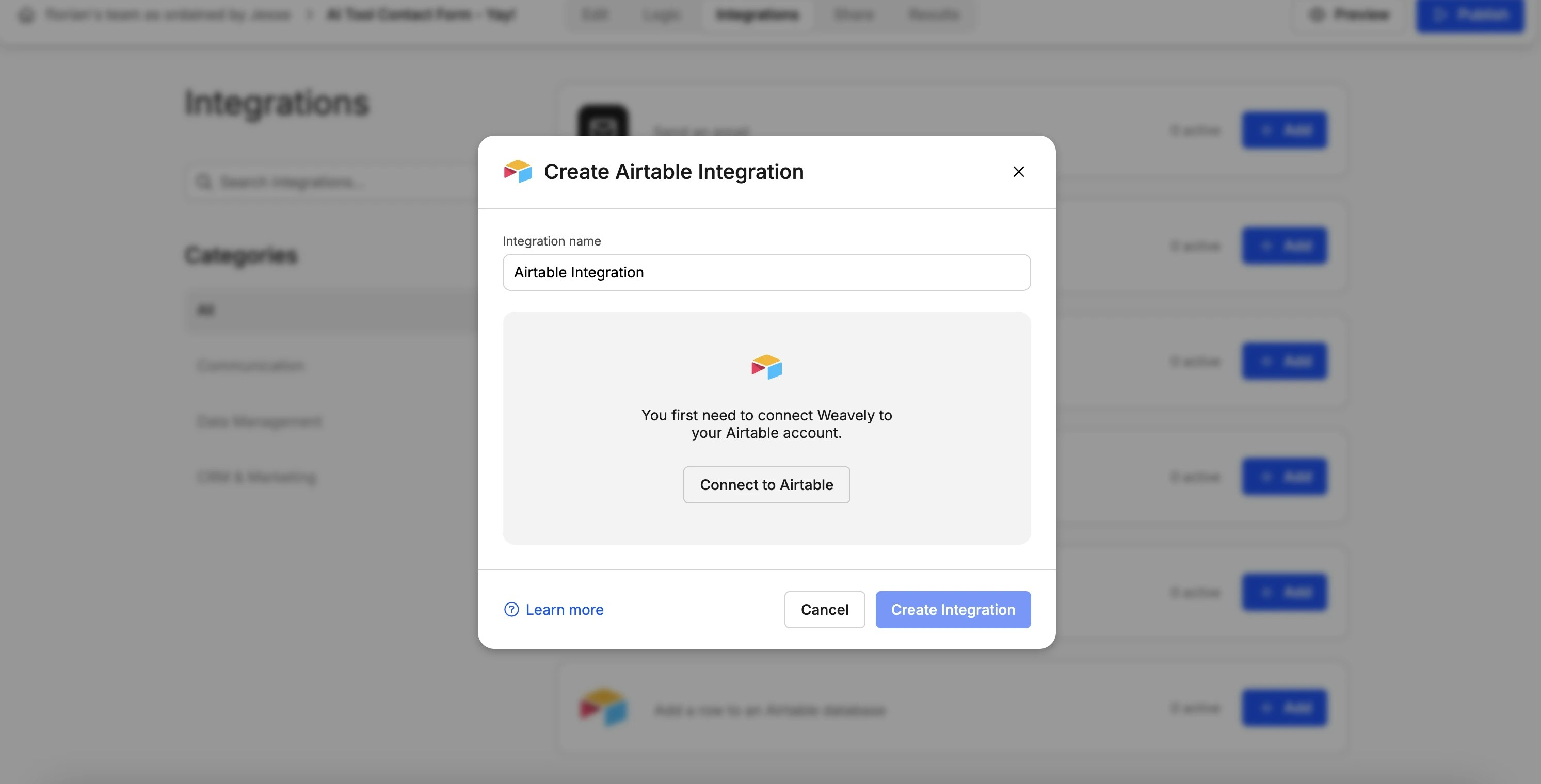
Is this the first time you set up a Airtable integration? Then Weavely will first guide you through the steps to connect your Airtable account to Weavely. Just press *"Connect to Airtable"* to get started.
## Step 3: Map Form Fields to Table Columns
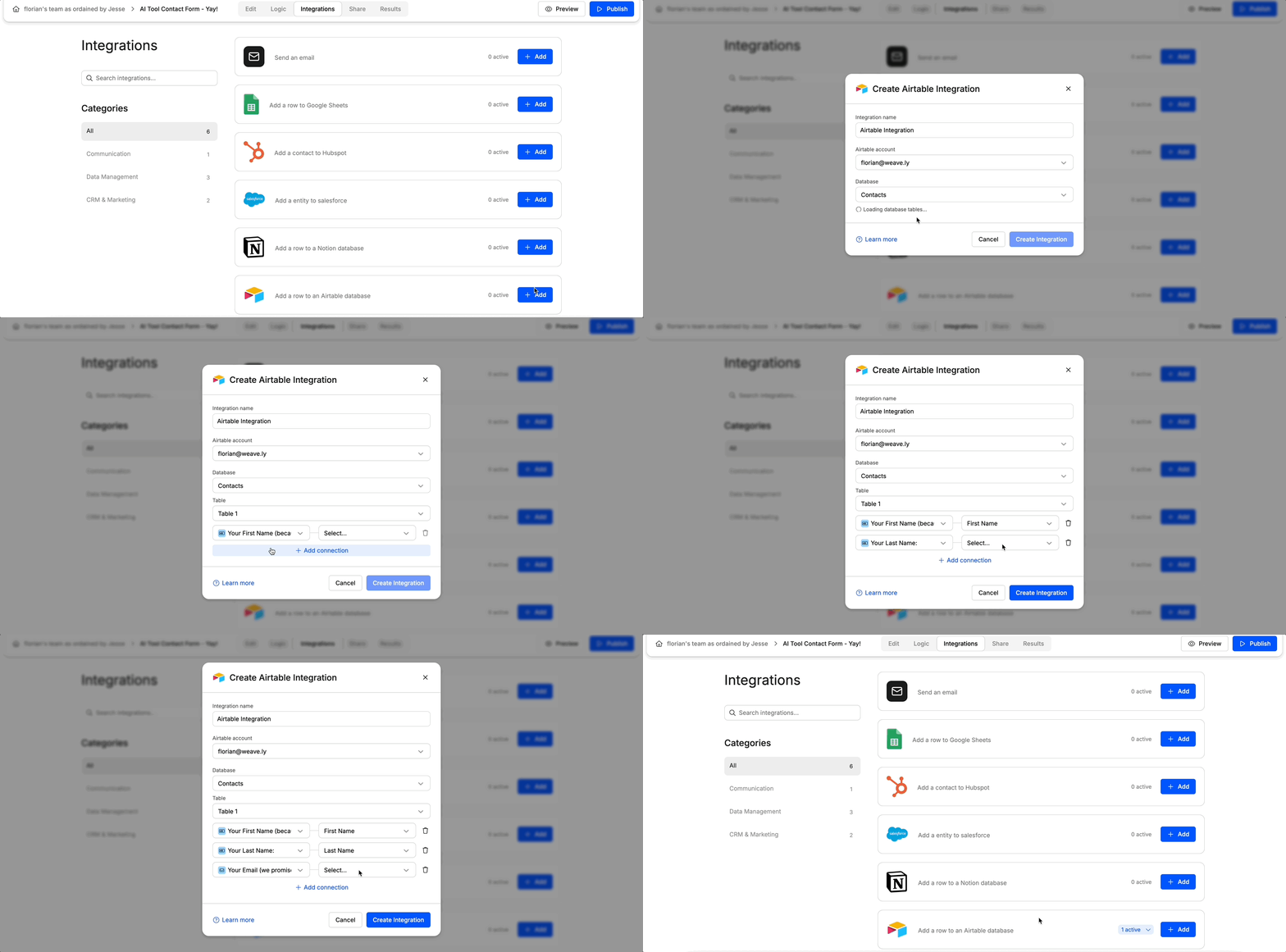
Once you've connected your Airtable account you'll be able to set up the integration for your form. In a first step you'll need to select the base and the table in which you want to collect submissions. In a second step you can specify how fields of your form correspond to table columns. The gif below showcases both these steps.
## **Changing Your Airtable Account or Resetting Your Connection**
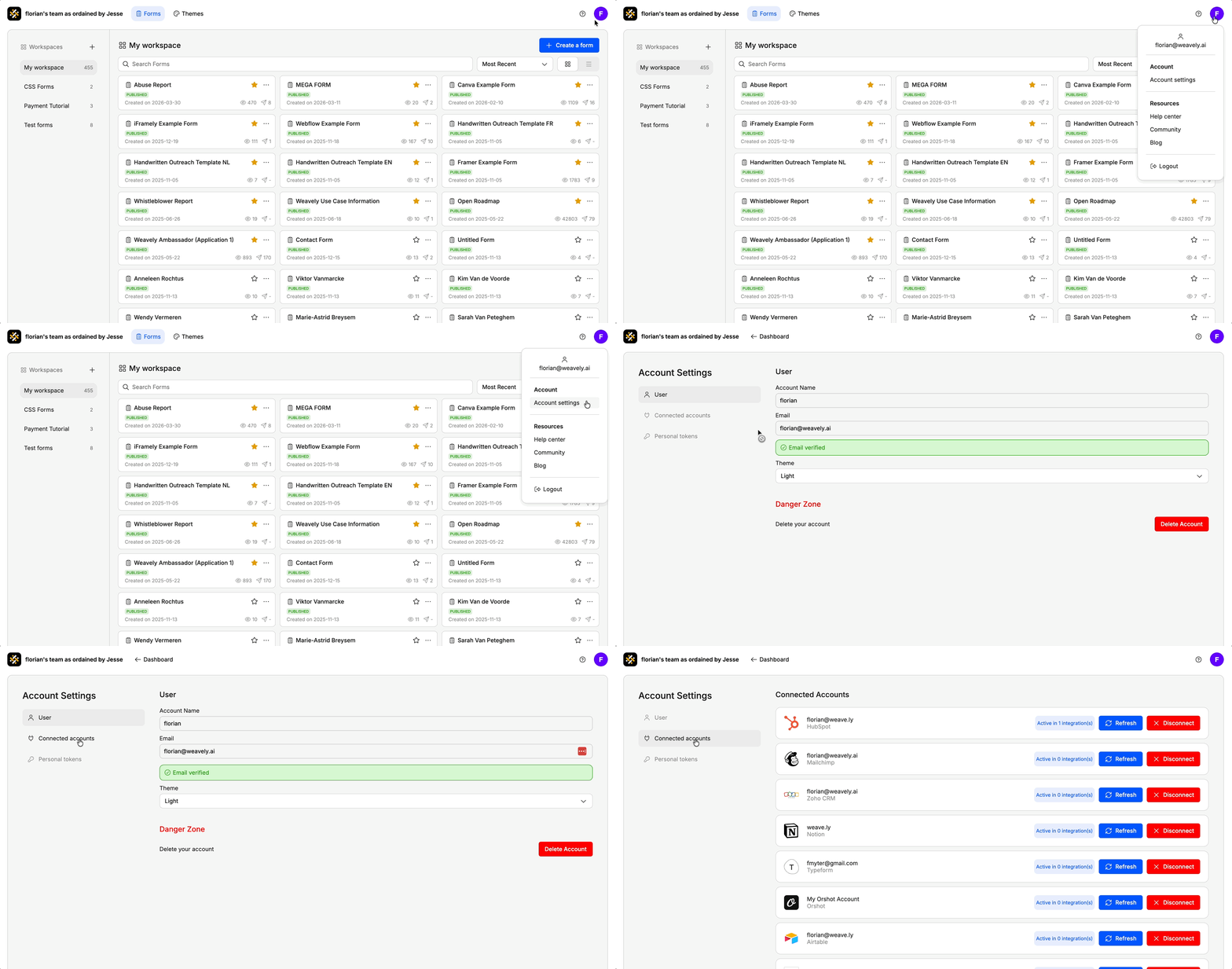
If you ever need to reset your connection with Airtable, for instance to switch to a different account or reauthorize access, you can do so from your Weavely dashboard. Go to **Settings → Connected Accounts** and click the red **“Disconnect”** button next to Airtable. You can then reconnect with the correct account.
 ## Step 2: Link Your Airtable Account
Is this the first time you set up a Airtable integration? Then Weavely will first guide you through the steps to connect your Airtable account to Weavely. Just press *"Connect to Airtable"* to get started.
## Step 2: Link Your Airtable Account
Is this the first time you set up a Airtable integration? Then Weavely will first guide you through the steps to connect your Airtable account to Weavely. Just press *"Connect to Airtable"* to get started.
 ## Step 3: Map Form Fields to Table Columns
Once you've connected your Airtable account you'll be able to set up the integration for your form. In a first step you'll need to select the base and the table in which you want to collect submissions. In a second step you can specify how fields of your form correspond to table columns. The gif below showcases both these steps.
## Step 3: Map Form Fields to Table Columns
Once you've connected your Airtable account you'll be able to set up the integration for your form. In a first step you'll need to select the base and the table in which you want to collect submissions. In a second step you can specify how fields of your form correspond to table columns. The gif below showcases both these steps.
 ## **Changing Your Airtable Account or Resetting Your Connection**
If you ever need to reset your connection with Airtable, for instance to switch to a different account or reauthorize access, you can do so from your Weavely dashboard. Go to **Settings → Connected Accounts** and click the red **“Disconnect”** button next to Airtable. You can then reconnect with the correct account.
## **Changing Your Airtable Account or Resetting Your Connection**
If you ever need to reset your connection with Airtable, for instance to switch to a different account or reauthorize access, you can do so from your Weavely dashboard. Go to **Settings → Connected Accounts** and click the red **“Disconnect”** button next to Airtable. You can then reconnect with the correct account.