> ## Documentation Index
> Fetch the complete documentation index at: https://help.weavely.ai/llms.txt
> Use this file to discover all available pages before exploring further.
# Create a form from a Google Doc
> Use the Weavely Google Docs add-on to turn any document into a ready-to-share form, without leaving Google Docs.
{`{
"@context": "https://schema.org",
"@graph": [
{
"@type": "WebPage",
"@id": "https://help.weavely.ai/integrations/google-doc-add-on",
"url": "https://help.weavely.ai/integrations/google-doc-add-on",
"name": "Create a form from a Google Doc",
"description": "Use the Weavely Google Docs add-on to turn any document into a ready-to-share form, without leaving Google Docs.",
"inLanguage": "en",
"publisher": { "@id": "https://www.weavely.ai/#org" }
},
{
"@type": "TechArticle",
"@id": "https://help.weavely.ai/integrations/google-doc-add-on#article",
"headline": "Create a form from a Google Doc",
"description": "Use the Weavely Google Docs add-on to turn any document into a ready-to-share form, without leaving Google Docs.",
"inLanguage": "en",
"mainEntityOfPage": { "@id": "https://help.weavely.ai/integrations/google-doc-add-on" },
"author": { "@id": "https://www.weavely.ai/#org" },
"publisher": { "@id": "https://www.weavely.ai/#org" }
},
{
"@type": "VideoObject",
"@id": "https://help.weavely.ai/integrations/google-doc-add-on#video",
"name": "Turn Any Google Doc Into a Form in Seconds, Free Google Docs Add-on",
"description": "Turn any Google Doc into a working form in seconds, for free. This tutorial shows how the Weavely Google Docs add-on reads your doc's content and builds a ready-to-share form with AI, no copy-pasting or manual form building. If you've searched for how to convert a Google Doc to a Google Form, this is the fastest route: write or brainstorm your questions in a Google Doc, hit Generate, and Weavely turns it into a shareable form, question types and all. Then fine-tune everything just by chatting with the AI.",
"url": "https://youtu.be/c3-WJYe5xIA",
"contentUrl": "https://youtu.be/c3-WJYe5xIA",
"embedUrl": "https://www.youtube.com/embed/c3-WJYe5xIA",
"duration": "PT5M57S",
"uploadDate": "2026-06-11",
"thumbnailUrl": ["https://i.ytimg.com/vi/c3-WJYe5xIA/maxresdefault.jpg"],
"publisher": { "@id": "https://www.weavely.ai/#org" },
"potentialAction": {
"@type": "WatchAction",
"target": "https://youtu.be/c3-WJYe5xIA"
}
},
{
"@type": "Organization",
"@id": "https://www.weavely.ai/#org",
"name": "Weavely",
"url": "https://www.weavely.ai"
}
]
}`}
The Weavely Google Docs add-on lets you turn the questions in any Google Doc into a working form, right from inside the document. There is no copy-pasting and no manual form building: you open your doc, click a button, and Weavely's AI reads the content and builds the form for you in seconds.
This guide walks through the whole process, from installing the add-on to publishing and sharing your form.
You will need a Google account and a Google Doc that contains the questions or content you want to turn into a form. A free Weavely account is needed to publish, and you can create one during the publish step.
## Install and generate
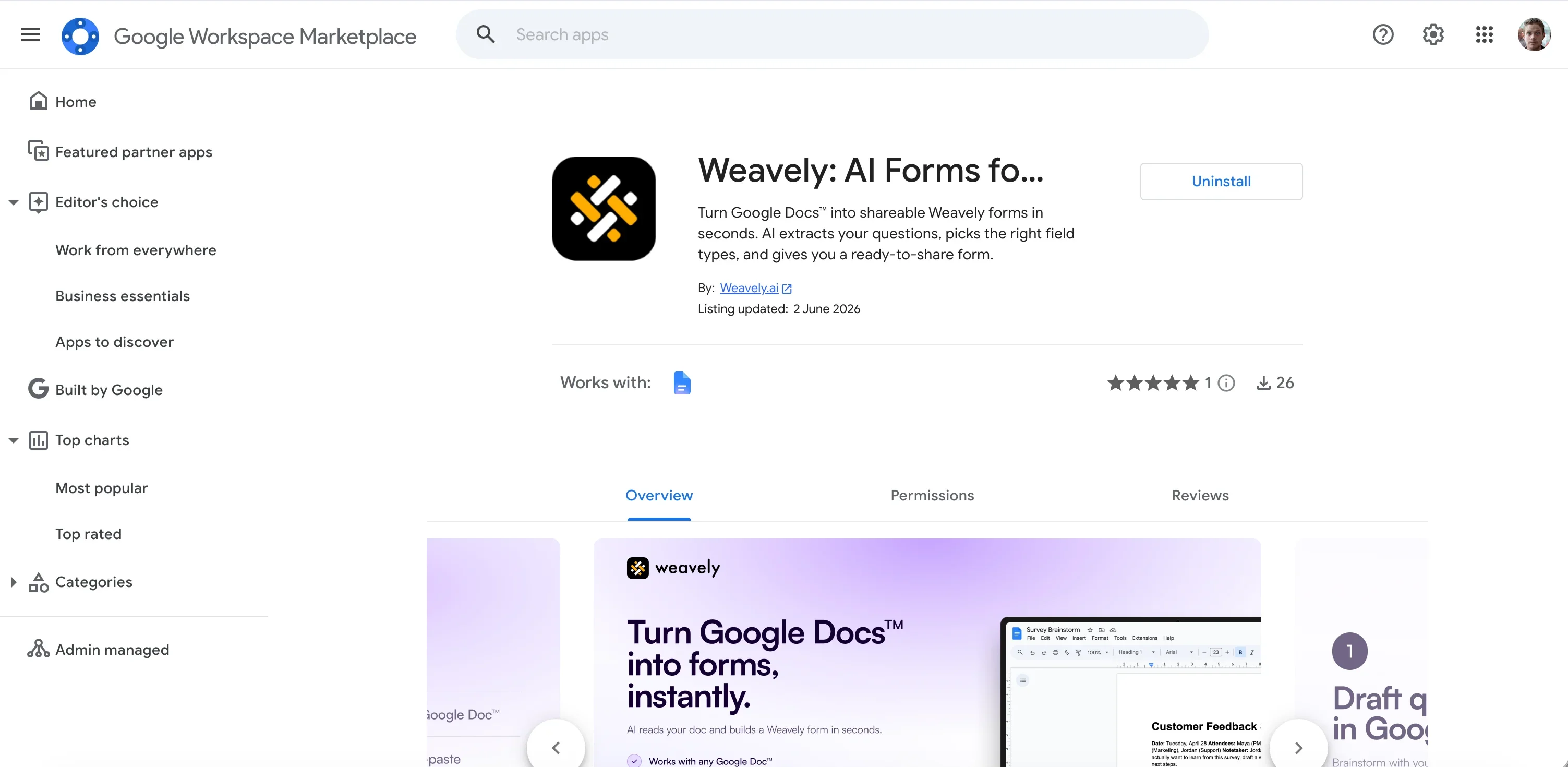
Open the [Google Workspace Marketplace](https://workspace.google.com/marketplace/app/weavely_ai_forms_for_google_docs/790333446949?flow_type=2) and search for **Weavely** or **AI forms for Google Docs**. Open the listing, click **Install**, sign in with your Google account, and approve the permissions screen.
Once installed, the add-on is available across your Google Docs.
Weavely asks for permission on a **per-file basis**. It only reads the specific document you open it in, not your entire Google Drive.
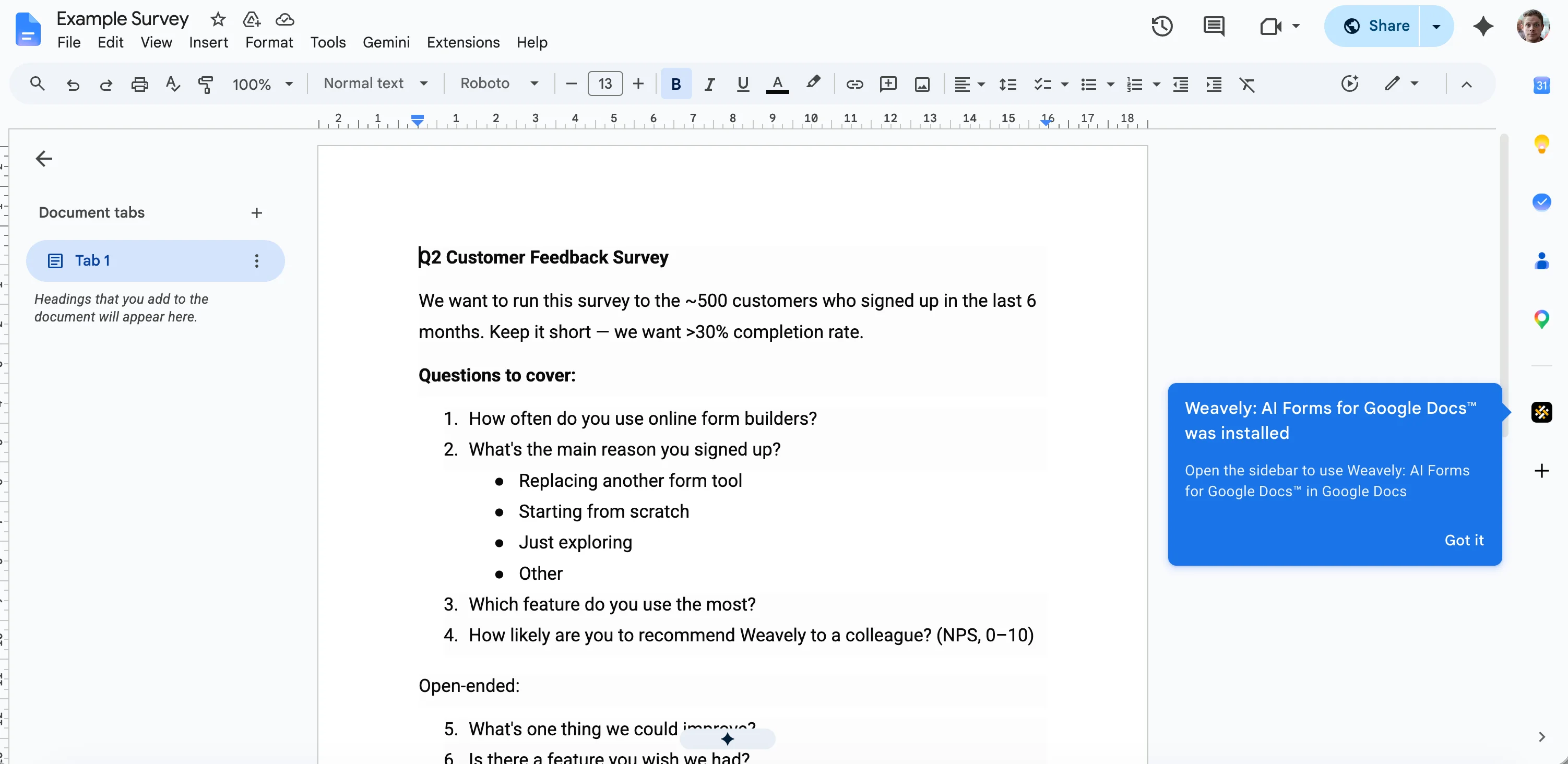
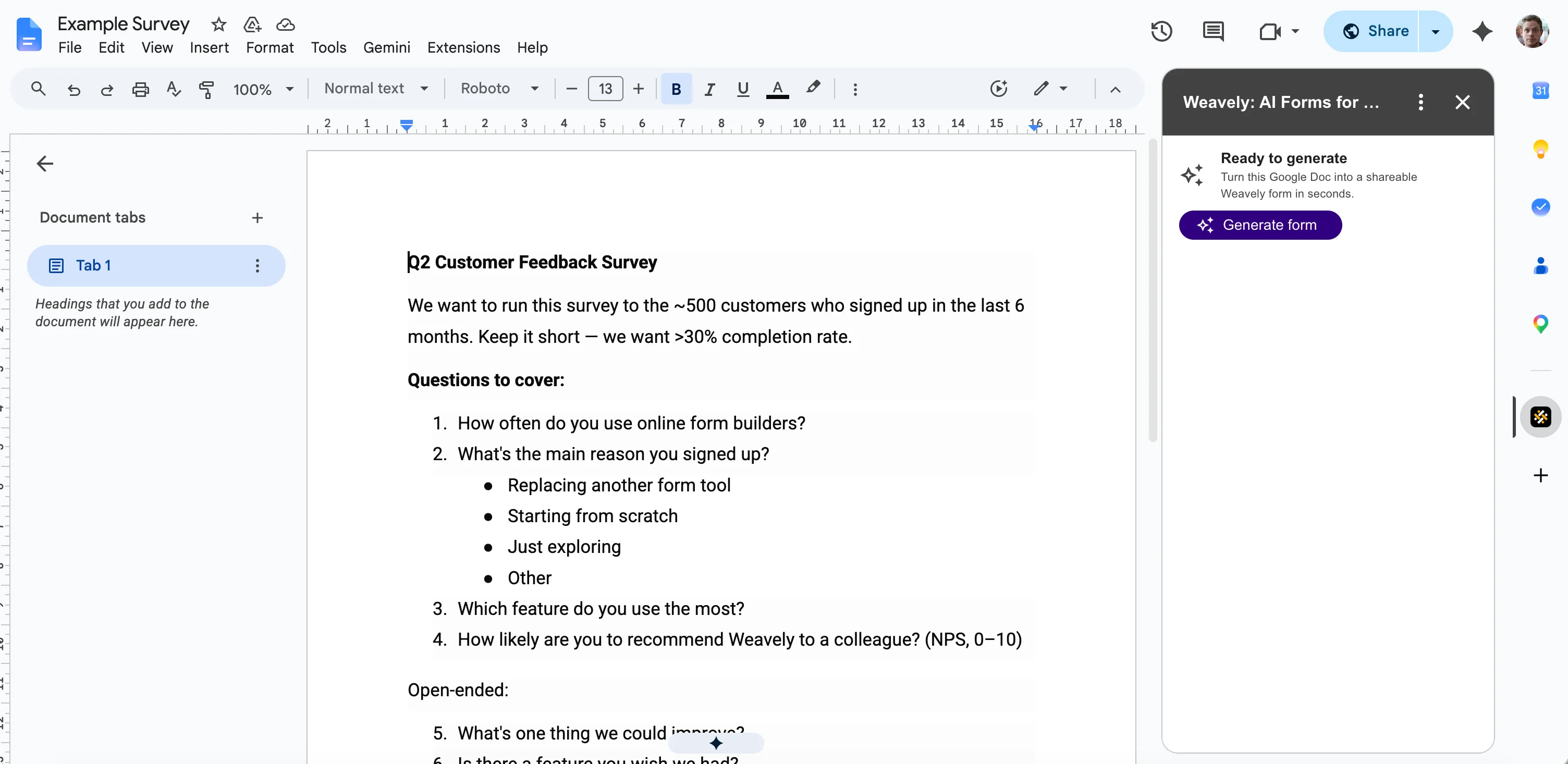
Open the Google Doc that contains your questions, then click the **Weavely icon** in the right-hand sidebar to open the add-on panel.
Almost any document works: a survey brainstorm, a list of quiz questions, a product brief, or rough notes. The more clearly your questions are written, the better the result, but you do not need a specific format.
Click the **Generate form** button. Weavely reads through your document, pulls the title and any context you have written, and turns each question into the most suitable field type (multiple choice, dropdown, rating scale, short answer, and so on).
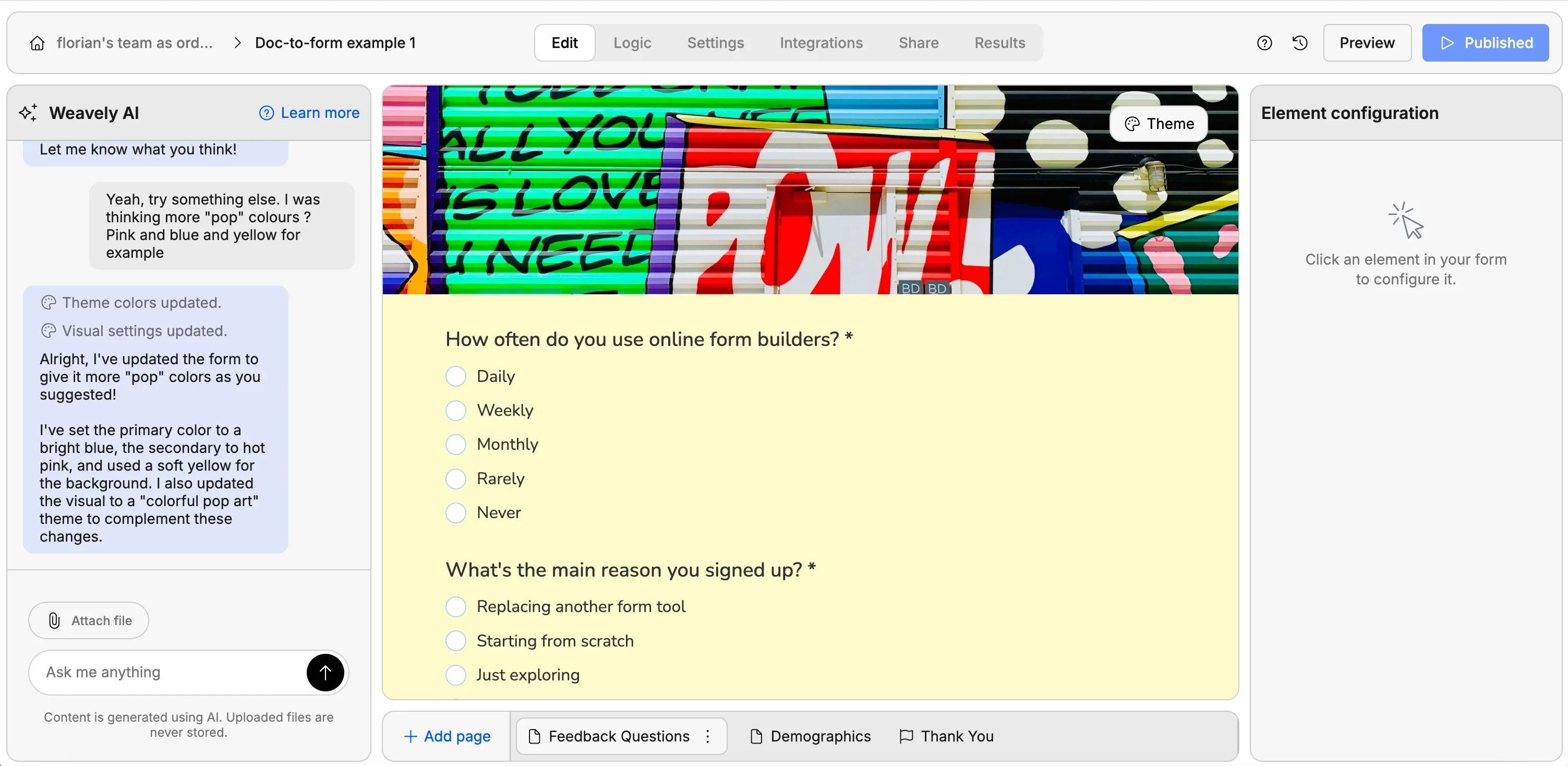
This usually takes a few seconds. When it finishes, you will see your generated form in the panel, ready to review.
Weavely chooses field types automatically. If you wrote something like "rate this from 1 to 5" in your doc, it will create a rating field. You can change any of these in the next step.
Anything you want to change, just describe it in plain language. For example, type "change the recommend score to a 1 to 10 scale instead of 1 to 5" and the field updates instantly.
You can also add **conditional logic** the same way. Ask something like "only show the follow-up question when someone selects a low score," and Weavely wires it up for you. There is no logic builder to configure.
When you are happy with the form, click **Publish**. You will get a shareable link you can send to anyone.
If you are not signed in to Weavely yet, you will be prompted to create a free account first. The free plan includes unlimited forms and unlimited responses.