> ## Documentation Index
> Fetch the complete documentation index at: https://help.weavely.ai/llms.txt
> Use this file to discover all available pages before exploring further.
# Send Form Responses to Google Sheets
> Weavely's Google Sheets integration lets you connect your form to a spreadsheet and automatically send new responses as rows.
{`{
"@context": "https://schema.org",
"@graph": [
{
"@type": "WebPage",
"@id": "https://help.weavely.ai/integrations/google-sheets",
"url": "https://help.weavely.ai/integrations/google-sheets",
"name": "Send Form Responses to Google Sheets",
"description": "Weavely's Google Sheets integration lets you connect your form to a spreadsheet and automatically send new responses as rows.",
"inLanguage": "en",
"isPartOf": {
"@type": "WebSite",
"@id": "https://help.weavely.ai/#website",
"name": "Weavely Help Center"
},
"breadcrumb": {
"@type": "BreadcrumbList",
"itemListElement": [
{ "@type": "ListItem", "position": 1, "name": "Integrations", "item": "https://help.weavely.ai/integrations" },
{ "@type": "ListItem", "position": 2, "name": "Google Sheets", "item": "https://help.weavely.ai/integrations/google-sheets" }
]
},
"publisher": { "@id": "https://www.weavely.ai/#org" }
},
{
"@type": "TechArticle",
"headline": "Send Form Responses to Google Sheets",
"description": "Weavely's Google Sheets integration lets you connect your form to a spreadsheet and automatically send new responses as rows.",
"inLanguage": "en",
"author": { "@id": "https://www.weavely.ai/#org" },
"publisher": { "@id": "https://www.weavely.ai/#org" },
"mainEntityOfPage": { "@id": "https://help.weavely.ai/integrations/google-sheets" }
},
{
"@type": "VideoObject",
"name": "AI Form Data to Google Sheets: Weave.ly Tutorial",
"description": "Want your form responses to flow straight into a spreadsheet, without copy-pasting anything? In this quick tutorial, I show you how to connect Weavely.ai to Google Sheets so submissions show up in real-time.\\n\\nWhether you’re building a waitlist, feedback tracker, or a lead capture tool, this integration makes data handling effortless.",
"uploadDate": "2025-05-09T00:00:00Z",
"duration": "PT2M9S",
"embedUrl": "https://www.youtube.com/embed/IvHc5U0bLFw",
"contentUrl": "https://www.youtube.com/watch?v=IvHc5U0bLFw",
"thumbnailUrl": [
"https://i.ytimg.com/vi/IvHc5U0bLFw/hqdefault.jpg",
"https://i.ytimg.com/vi/IvHc5U0bLFw/sddefault.jpg"
],
"potentialAction": {
"@type": "WatchAction",
"target": "https://www.youtube.com/watch?v=IvHc5U0bLFw"
},
"publisher": { "@id": "https://www.weavely.ai/#org" },
"author": { "@id": "https://www.weavely.ai/#org" }
},
{
"@type": "Organization",
"@id": "https://www.weavely.ai/#org",
"name": "WEAVE.LY BV",
"url": "https://www.weavely.ai",
"address": {
"@type": "PostalAddress",
"streetAddress": "Herbert Hooverlaan 141",
"addressLocality": "Schaarbeek",
"postalCode": "1030",
"addressCountry": "BE"
},
"identifier": "BE0773.878.569",
"sameAs": [
"https://www.instagram.com/weavely.ai/",
"https://www.linkedin.com/company/weave-ly/",
"https://www.youtube.com/@weavely"
]
}
]
}`}
## Step 1: Open the Integrations Tab
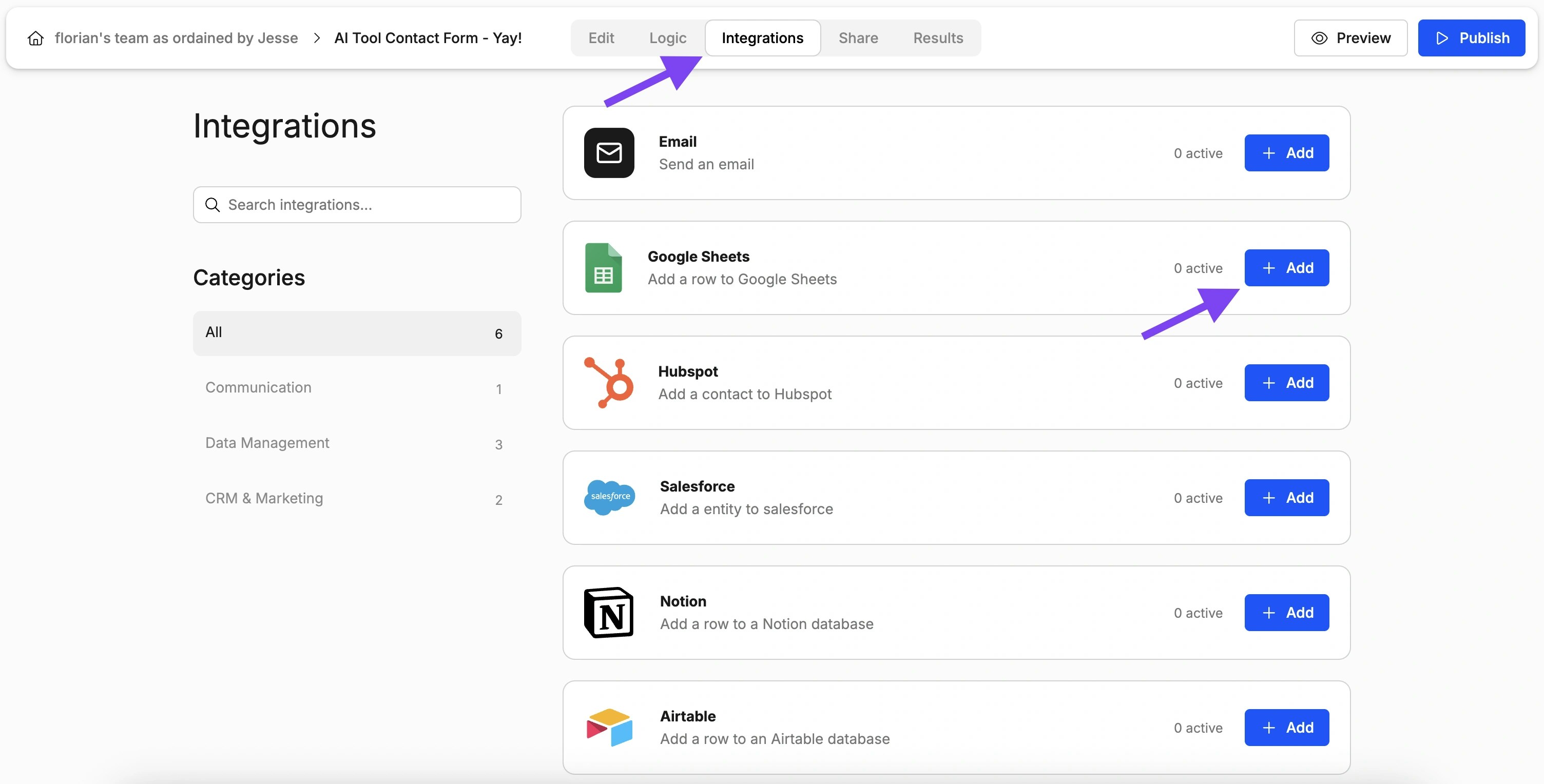
With the editor open, navigate to the *Integrations* tab and select the *Google Sheets* integration as shown below.
## Step 2: Link Your Google Account
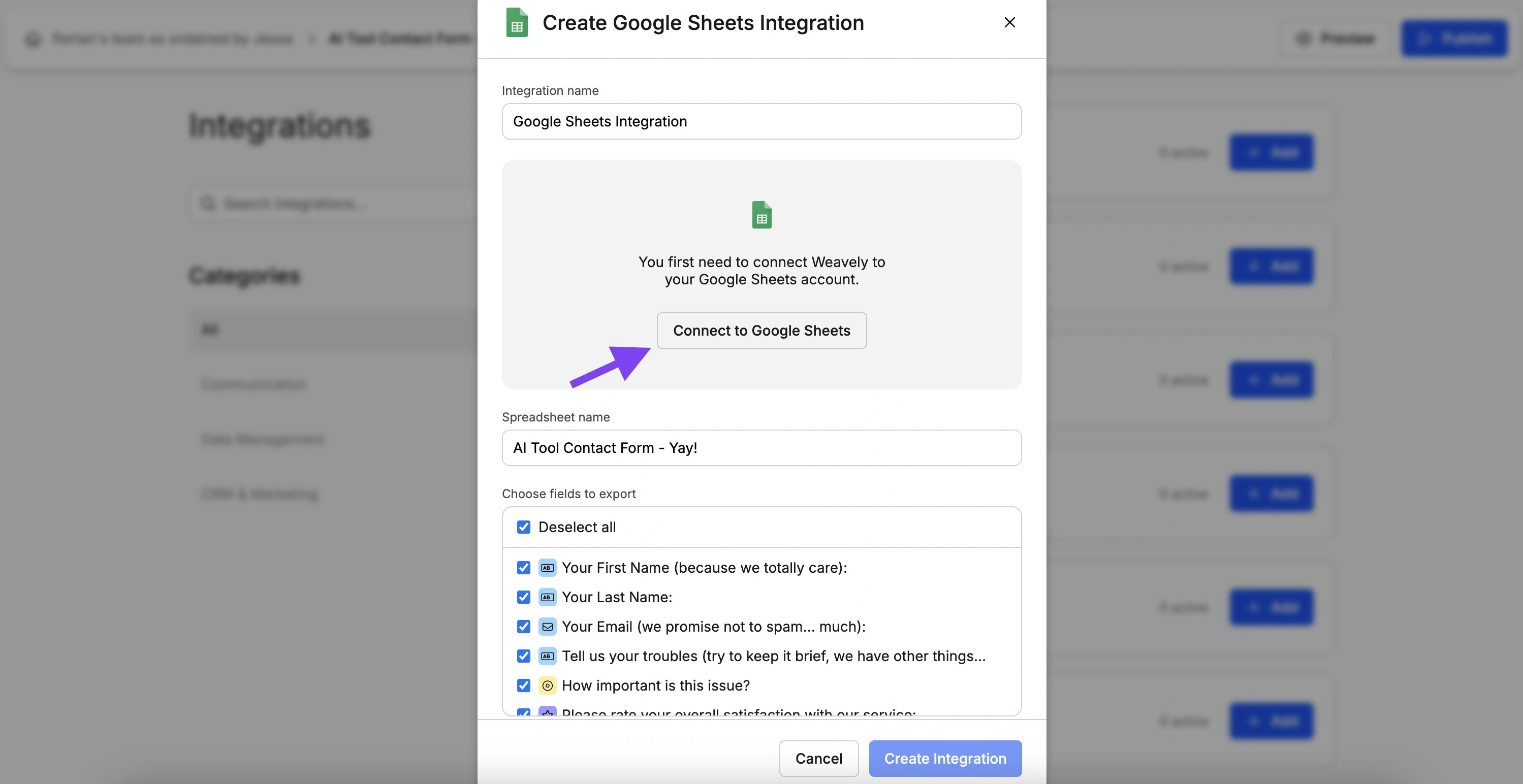
Is this the first time you set up a Google Sheets integration? Then Weavely will first guide you through the steps to connect your Google account to Weavely. Just press *"Connect to Google Sheets"* to get started.
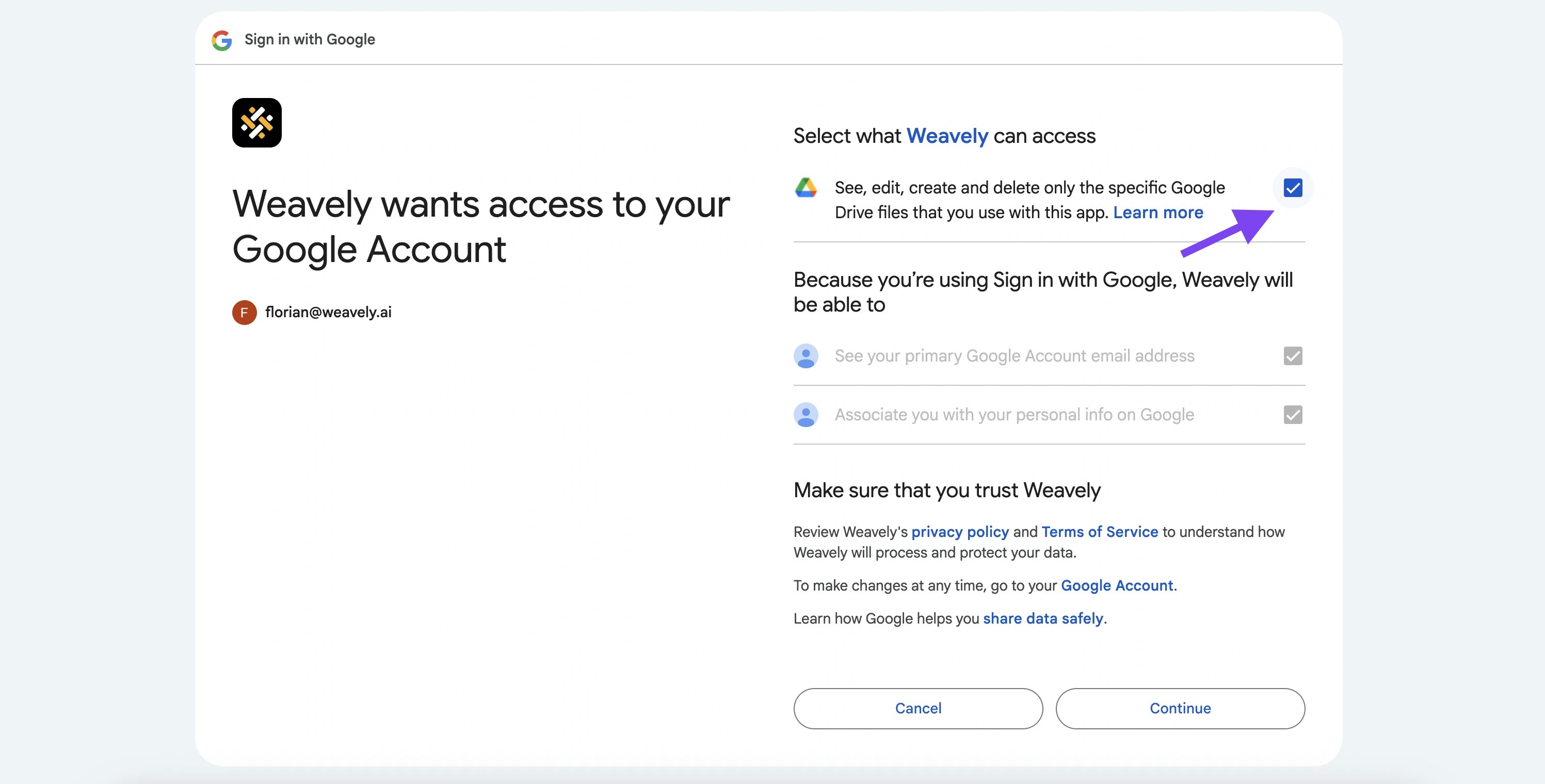
The next steps are self explanatory, you've probably used them before if you've ever connected a Google account to something. Make sure to give Weavely the rights it needs by checking the permissions checkbox though:
## Step 3: Select Form Fields
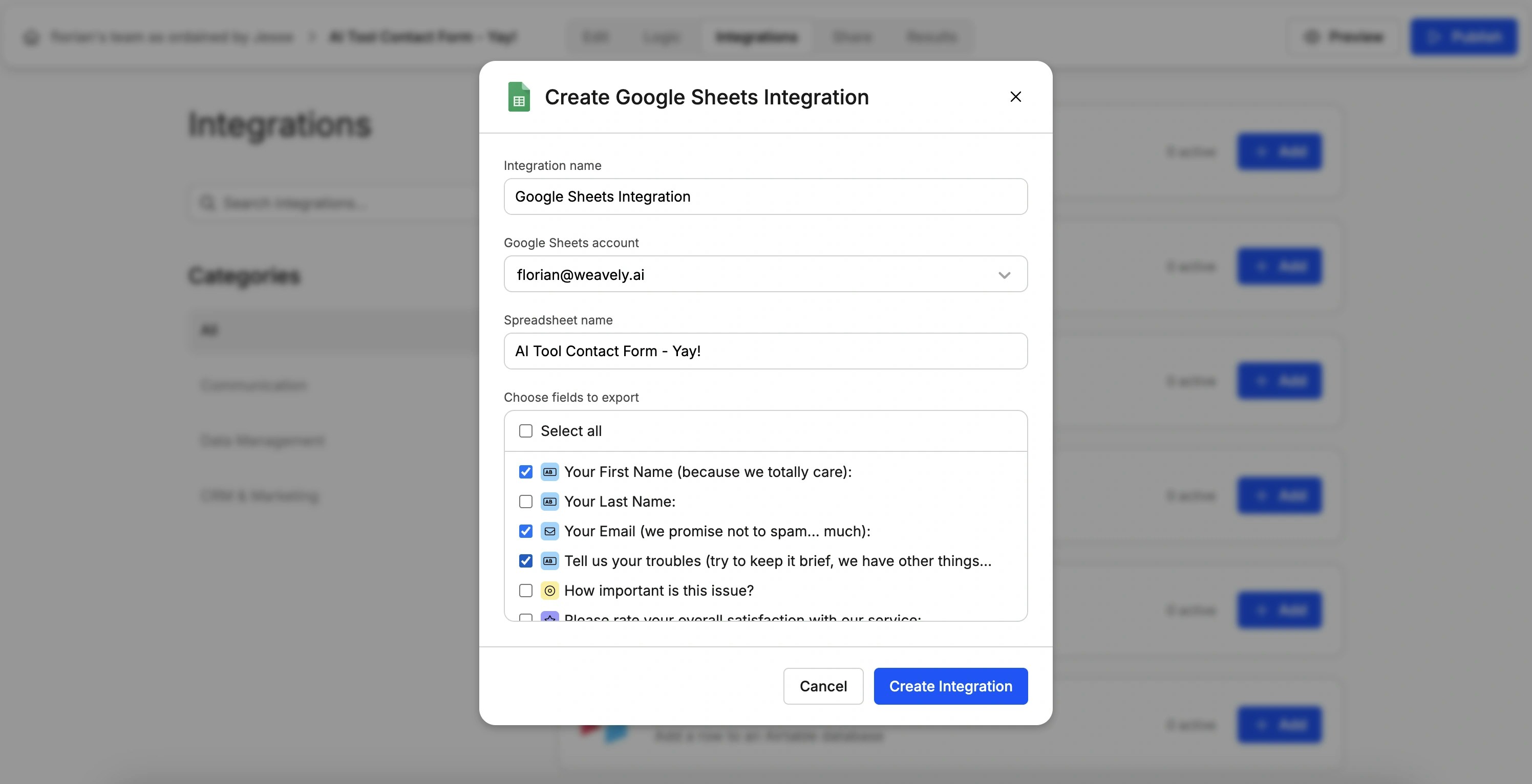
By default Weavely will create a new Google Sheet for you which has a column for every form field in your form. You can also choose to only import a selection of form fields into your Google Sheet using the checkboxes.
Changes you make to your form will not automatically update the Google Sheet you created in the previous steps. In case you need to change your form after you've setup the integration we suggest you delete the integration and create a new one.
## **Changing Your Google Sheets Account or Resetting Your Connection**
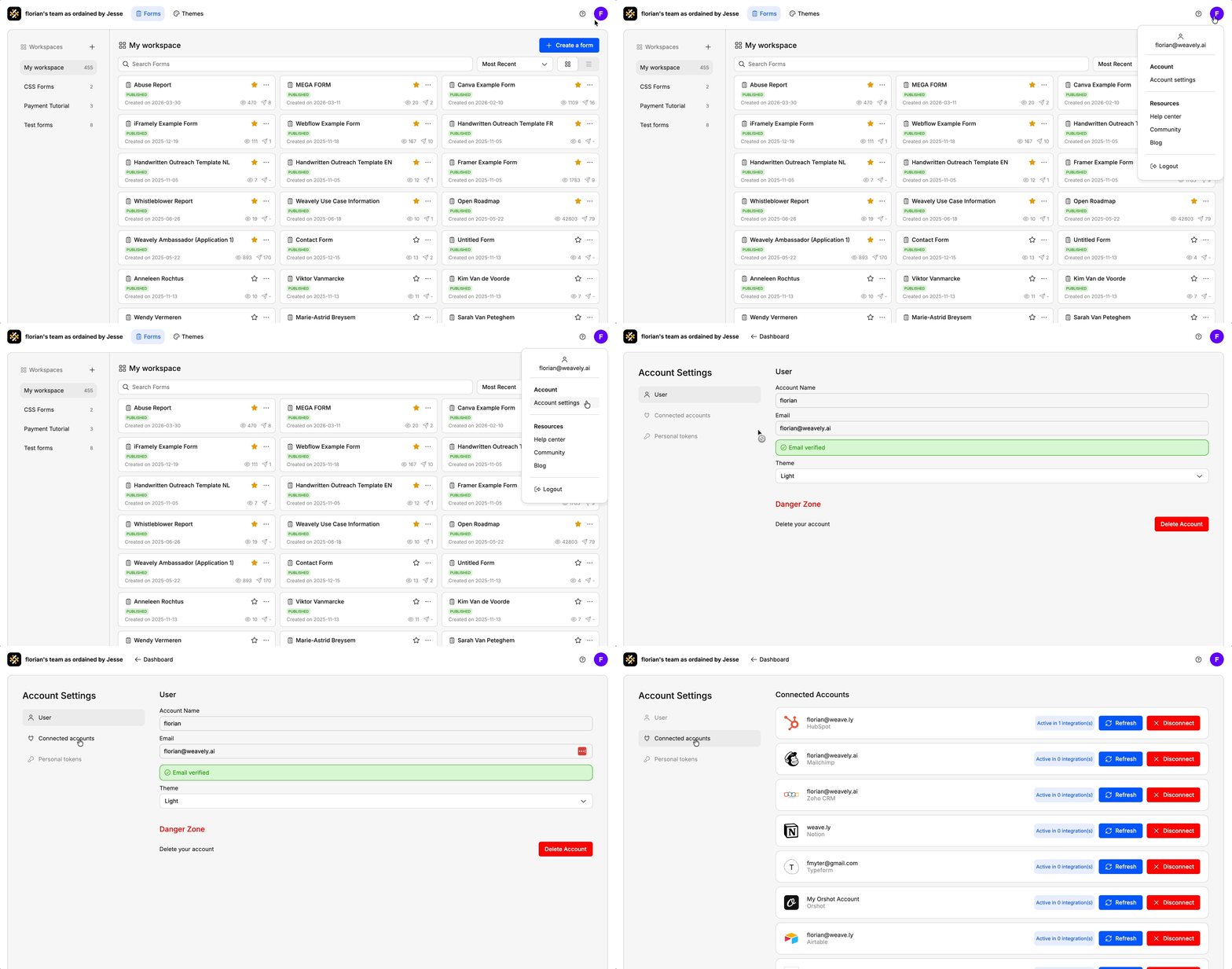
If you ever need to reset your connection with Google Sheets, for instance to switch to a different account or reauthorize access, you can do so from your Weavely dashboard. Go to **Settings → Connected Accounts** and click the red **“Disconnect”** button next to Google Sheets. You can then reconnect with the correct account.
 ## Step 2: Link Your Google Account
Is this the first time you set up a Google Sheets integration? Then Weavely will first guide you through the steps to connect your Google account to Weavely. Just press *"Connect to Google Sheets"* to get started.
## Step 2: Link Your Google Account
Is this the first time you set up a Google Sheets integration? Then Weavely will first guide you through the steps to connect your Google account to Weavely. Just press *"Connect to Google Sheets"* to get started.
 The next steps are self explanatory, you've probably used them before if you've ever connected a Google account to something. Make sure to give Weavely the rights it needs by checking the permissions checkbox though:
 ## Step 3: Select Form Fields
By default Weavely will create a new Google Sheet for you which has a column for every form field in your form. You can also choose to only import a selection of form fields into your Google Sheet using the checkboxes.
## Step 3: Select Form Fields
By default Weavely will create a new Google Sheet for you which has a column for every form field in your form. You can also choose to only import a selection of form fields into your Google Sheet using the checkboxes.