> ## Documentation Index
> Fetch the complete documentation index at: https://help.weavely.ai/llms.txt
> Use this file to discover all available pages before exploring further.
# Send Weavely Form Leads to Mailchimp
> Grow your email list with every form submission with Weavely AI’s Mailchimp integration.
{`{
"@context": "https://schema.org",
"@graph": [
{
"@type": "WebPage",
"@id": "https://help.weavely.ai/integrations/mailchimp",
"url": "https://help.weavely.ai/integrations/mailchimp",
"name": "Send Weavely Form Leads to Mailchimp",
"description": "Grow your email list with every form submission with Weavely AI’s Mailchimp integration.",
"inLanguage": "en",
"isPartOf": {
"@type": "WebSite",
"@id": "https://help.weavely.ai/#website",
"name": "Weavely Help Center"
},
"breadcrumb": {
"@type": "BreadcrumbList",
"itemListElement": [
{ "@type": "ListItem", "position": 1, "name": "Integrations", "item": "https://help.weavely.ai/integrations" },
{ "@type": "ListItem", "position": 2, "name": "Mailchimp", "item": "https://help.weavely.ai/integrations/mailchimp" }
]
},
"publisher": { "@id": "https://www.weavely.ai/#org" }
},
{
"@type": "TechArticle",
"headline": "Send Weavely Form Leads to Mailchimp",
"description": "Want to automatically grow your email list with every form submission? With Weavely’s Mailchimp integration, you can instantly capture leads from your forms and add them to your Mailchimp audience.",
"inLanguage": "en",
"author": { "@id": "https://www.weavely.ai/#org" },
"publisher": { "@id": "https://www.weavely.ai/#org" },
"mainEntityOfPage": { "@id": "https://help.weavely.ai/integrations/mailchimp" }
},
{
"@type": "VideoObject",
"name": "Send AI Form Leads to Mailchimp Automatically (Newsletter Sign-Up with Weavely)",
"description": "In this tutorial, I’ll show you how to connect a Weavely AI form to Mailchimp, so every new form submission becomes a subscriber or lead in your CRM — perfect for growing your audience with zero manual work.",
"uploadDate": "2025-06-12T00:00:00Z",
"duration": "PT2M16S",
"embedUrl": "https://www.youtube.com/embed/kklTW4UtEug",
"contentUrl": "https://www.youtube.com/watch?v=kklTW4UtEug",
"thumbnailUrl": [
"https://i.ytimg.com/vi/kklTW4UtEug/hqdefault.jpg",
"https://i.ytimg.com/vi/kklTW4UtEug/sddefault.jpg"
],
"potentialAction": {
"@type": "WatchAction",
"target": "https://www.youtube.com/watch?v=kklTW4UtEug"
},
"publisher": { "@id": "https://www.weavely.ai/#org" },
"author": { "@id": "https://www.weavely.ai/#org" }
},
{
"@type": "Organization",
"@id": "https://www.weavely.ai/#org",
"name": "WEAVE.LY BV",
"url": "https://www.weavely.ai",
"address": {
"@type": "PostalAddress",
"streetAddress": "Herbert Hooverlaan 141",
"addressLocality": "Schaarbeek",
"postalCode": "1030",
"addressCountry": "BE"
},
"identifier": "BE0773.878.569",
"sameAs": [
"https://www.instagram.com/weavely.ai/",
"https://www.linkedin.com/company/weave-ly/",
"https://www.youtube.com/@weavely"
]
}
]
}`}
In this guide, we’ll walk you through how to connect a Weavely form to a Mailchimp list.
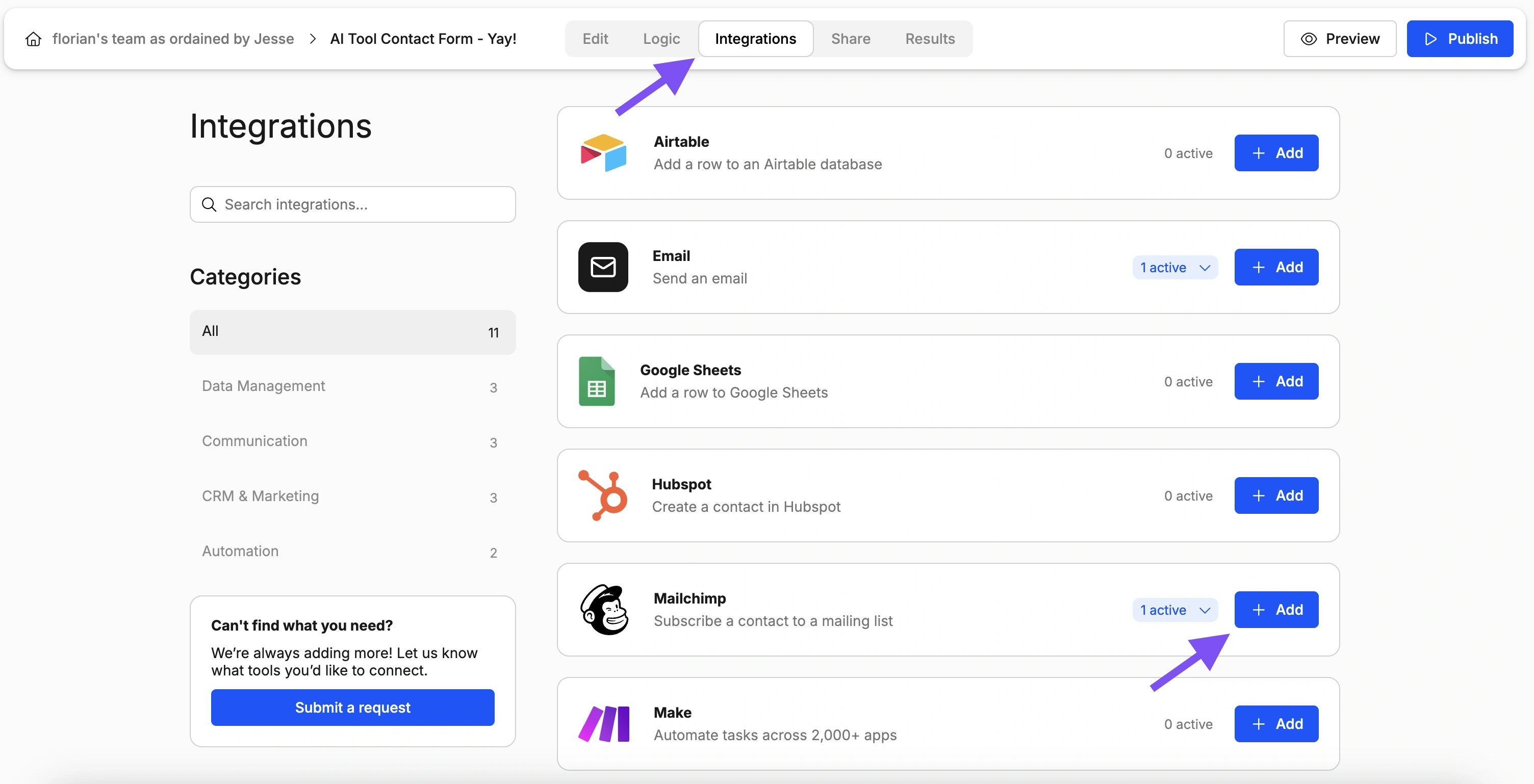
Start by opening the form you want to connect in the Weavely editor. Head over to the **Integrations** tab, where you’ll see **Mailchimp** listed among the available integrations. Click **Add**.
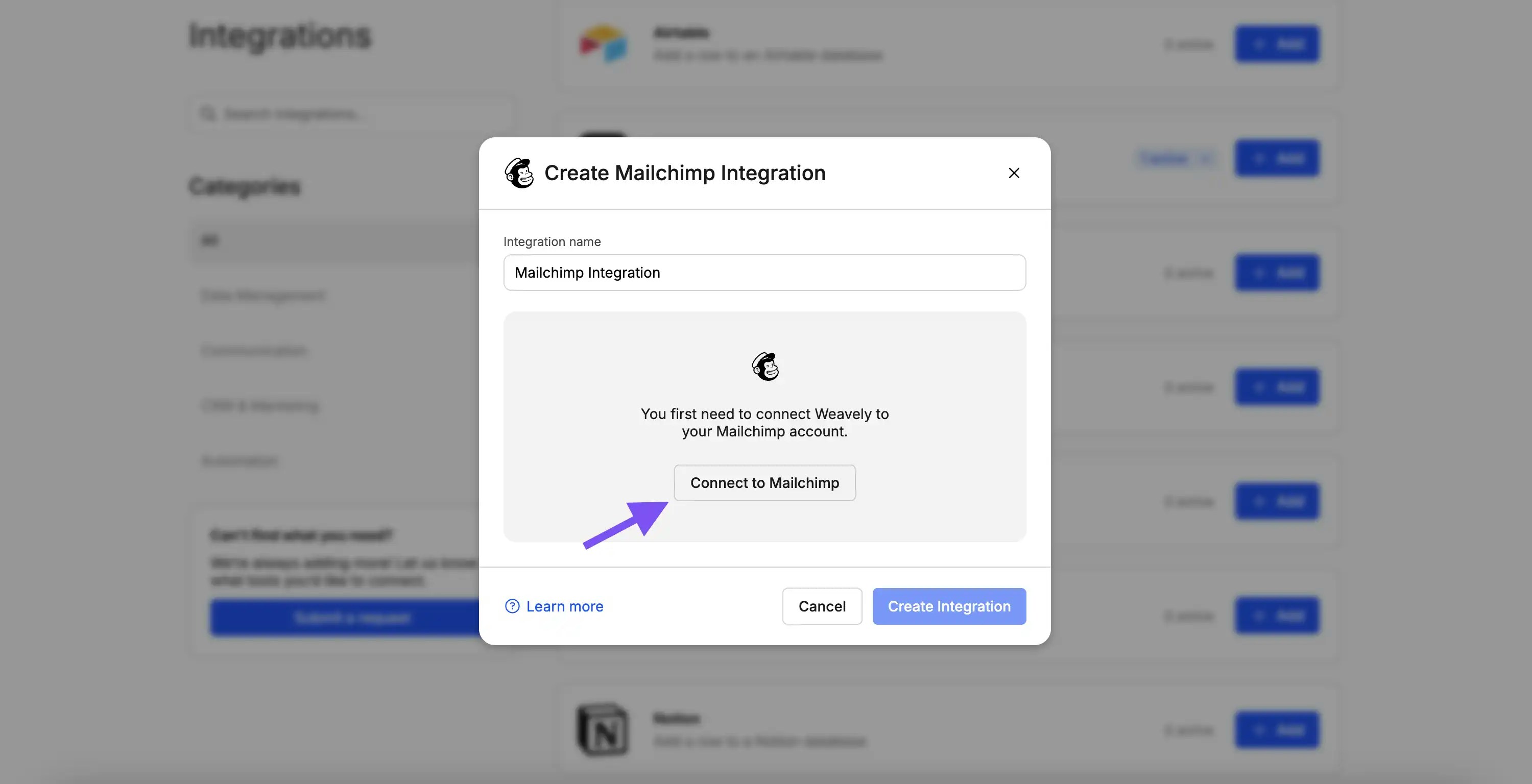
Next, you’ll be prompted to authorize the connection between your Weavely and Mailchimp accounts. Click the **Connect** button, which will redirect you to Mailchimp's login page. After logging in, Mailchimp will ask whether you trust the application, go ahead and approve the authorization by clicking **Allow**. Once complete, you’ll be redirected back into Weavely, and your accounts will now be linked.
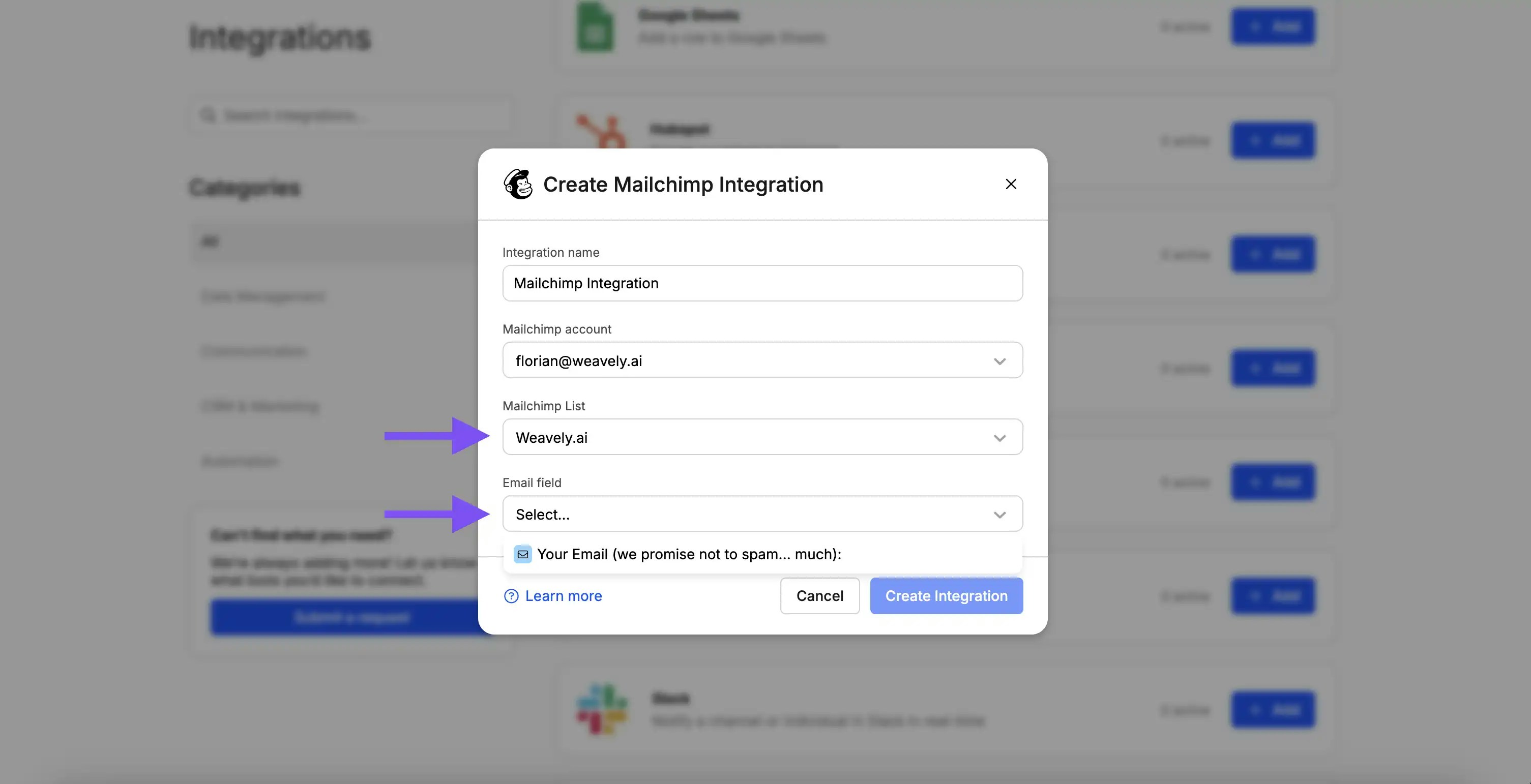
With your Mailchimp account connected, you can now configure the integration by selecting which Mailchimp list should receive the new email addresses. If you only have one list, this step is straightforward. You’ll also be asked to select the appropriate email field from your form. This is particularly useful if your form contains multiple email inputs, as it ensures the correct one is used to create the contact in Mailchimp. Once you've made your selections, press **Create Integration** to finalize the setup.
## **Changing Your Mailchimp Account or Resetting Your Connection**
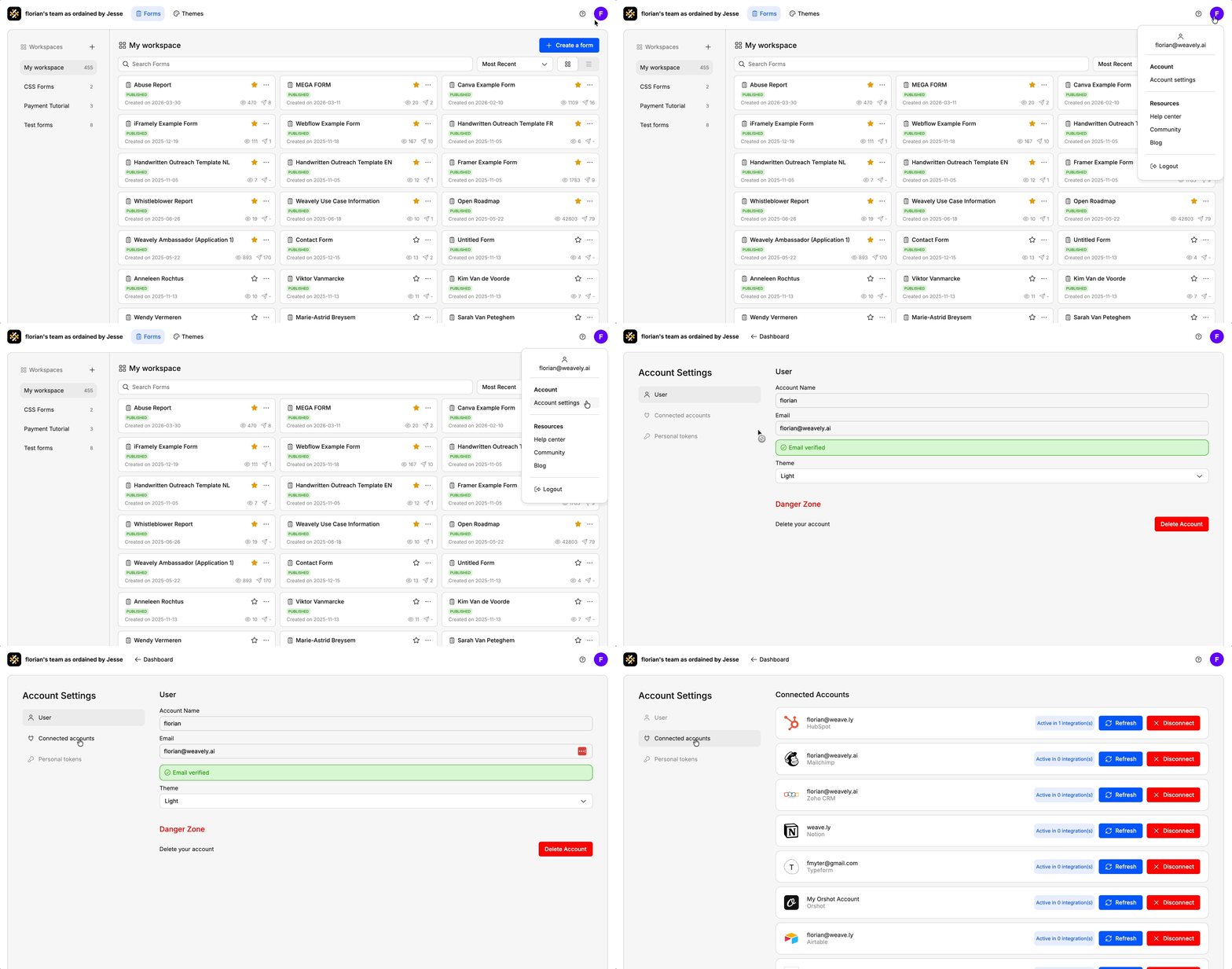
If you ever need to reset your connection with Mailchimp, for instance to switch to a different account or reauthorize access, you can do so from your Weavely dashboard. Go to **Settings → Connected Accounts** and click the red **“Disconnect”** button next to Mailchimp. You can then reconnect with the correct account.