> ## Documentation Index
> Fetch the complete documentation index at: https://help.weavely.ai/llms.txt
> Use this file to discover all available pages before exploring further.
# Send Form Responses to Notion
> Weavely's Notion integration lets you connect your form to a Notion database and automatically send new responses as database entries.
{`{
"@context": "https://schema.org",
"@graph": [
{
"@type": "WebPage",
"@id": "https://help.weavely.ai/integrations/notion",
"url": "https://help.weavely.ai/integrations/notion",
"name": "Send Form Responses to Notion",
"description": "Weavely's Notion integration lets you connect your form to a Notion database and automatically send new responses as database entries.",
"inLanguage": "en",
"isPartOf": {
"@type": "WebSite",
"@id": "https://help.weavely.ai/#website",
"name": "Weavely Help Center"
},
"breadcrumb": {
"@type": "BreadcrumbList",
"itemListElement": [
{ "@type": "ListItem", "position": 1, "name": "Integrations", "item": "https://help.weavely.ai/integrations" },
{ "@type": "ListItem", "position": 2, "name": "Notion", "item": "https://help.weavely.ai/integrations/notion" }
]
},
"publisher": { "@id": "https://www.weavely.ai/#org" }
},
{
"@type": "TechArticle",
"headline": "Send Form Responses to Notion",
"description": "Weavely's Notion integration lets you connect your form to a Notion database and automatically send new responses as database entries.",
"inLanguage": "en",
"author": { "@id": "https://www.weavely.ai/#org" },
"publisher": { "@id": "https://www.weavely.ai/#org" },
"mainEntityOfPage": { "@id": "https://help.weavely.ai/integrations/notion" }
},
{
"@type": "VideoObject",
"name": "AI Form Data to Notion: Weave.ly Tutorial",
"description": "Want your form responses to flow straight into a Notion database, without copy-pasting anything? In this quick tutorial, I show you how to connect Weavely.ai to Notion so submissions show up in real-time.",
"uploadDate": "2025-05-12T00:00:00Z",
"duration": "PT2M29S",
"embedUrl": "https://www.youtube.com/embed/SRJroqqjNPE",
"contentUrl": "https://www.youtube.com/watch?v=SRJroqqjNPE",
"thumbnailUrl": [
"https://i.ytimg.com/vi/SRJroqqjNPE/hqdefault.jpg",
"https://i.ytimg.com/vi/SRJroqqjNPE/sddefault.jpg"
],
"potentialAction": {
"@type": "WatchAction",
"target": "https://www.youtube.com/watch?v=SRJroqqjNPE"
},
"publisher": { "@id": "https://www.weavely.ai/#org" },
"author": { "@id": "https://www.weavely.ai/#org" }
},
{
"@type": "Organization",
"@id": "https://www.weavely.ai/#org",
"name": "WEAVE.LY BV",
"url": "https://www.weavely.ai",
"address": {
"@type": "PostalAddress",
"streetAddress": "Herbert Hooverlaan 141",
"addressLocality": "Schaarbeek",
"postalCode": "1030",
"addressCountry": "BE"
},
"identifier": "BE0773.878.569",
"sameAs": [
"https://www.instagram.com/weavely.ai/",
"https://www.linkedin.com/company/weave-ly/",
"https://www.youtube.com/@weavely"
]
}
]
}`}
## Step 1: Open the Integrations Tab
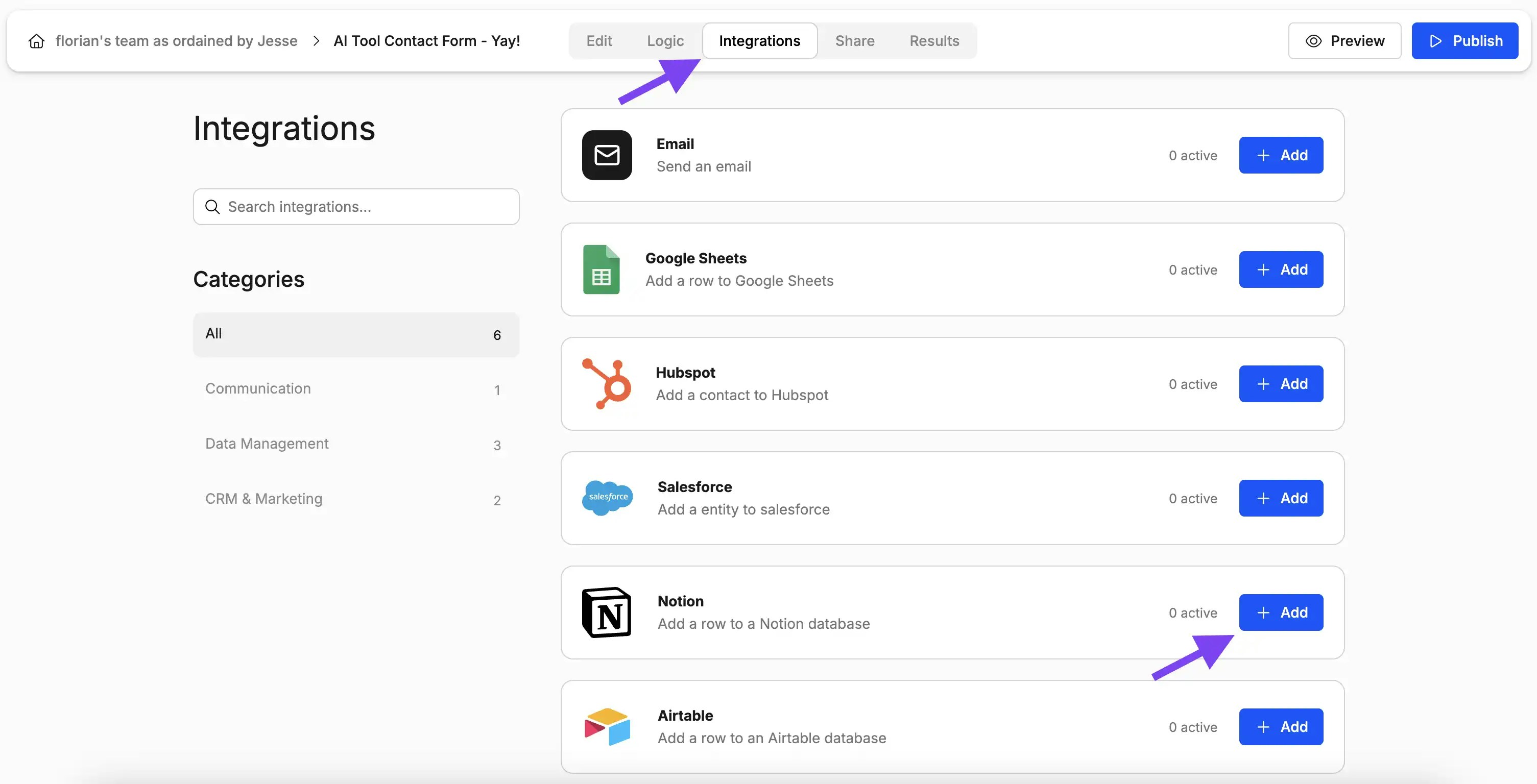
With the editor open, navigate to the *Integrations* tab and select the *Notion* integration as shown below.
## Step 2: Link Your Notion Account
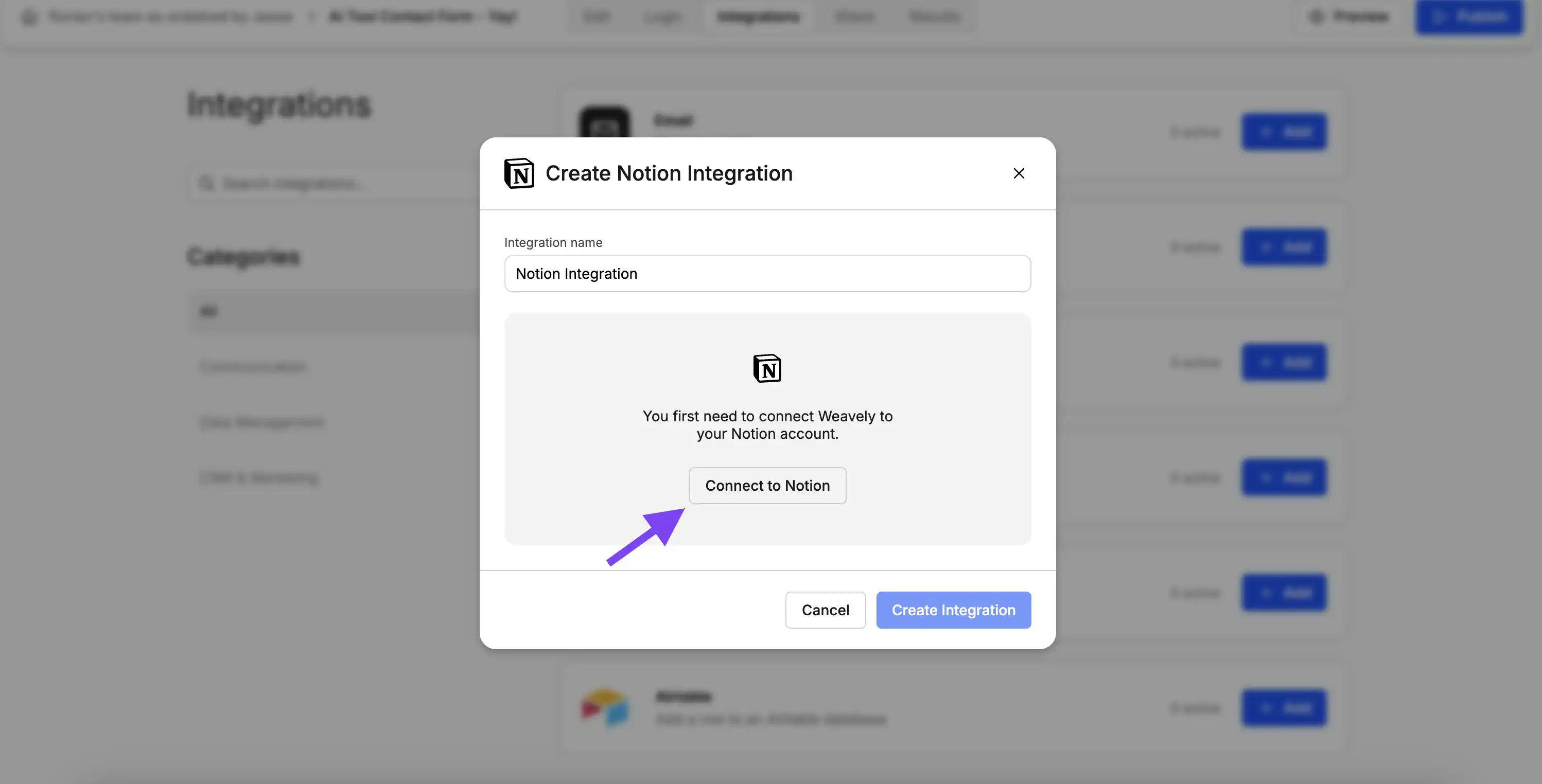
Is this the first time you set up a Notion integration? Then Weavely will first guide you through the steps to connect your Notion account to Weavely. Just press *"Connect to Notion"* to get started.
## Step 3: Map Form Fields to Database Properties
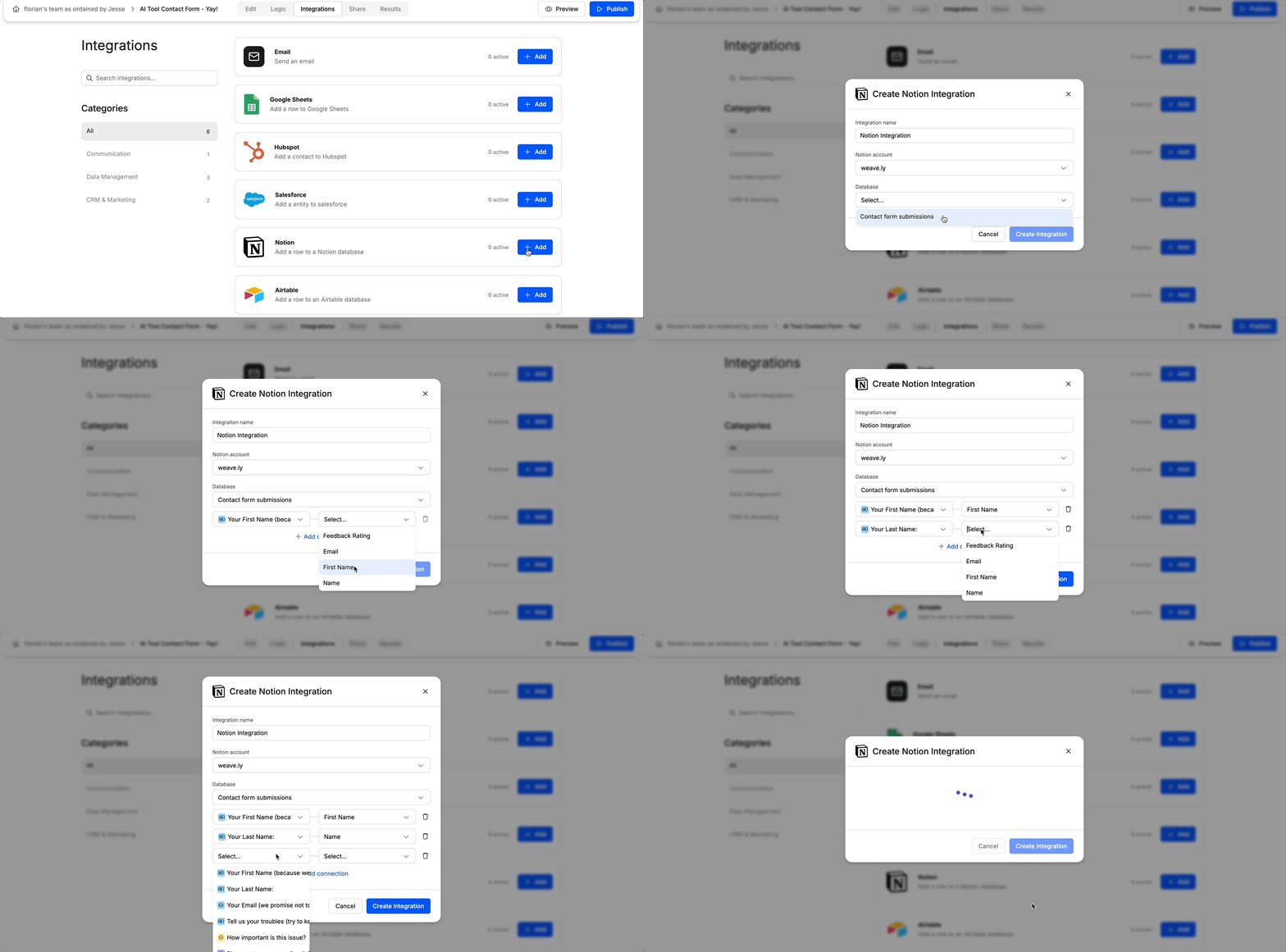
Once you've connected your Notion account you'll be able to set up the integration for your form. In a first step you'll need to select which Notion database you want the responses to go to. In a second step you can specify how fields of your form correspond to columns of your Notion database. The gif below showcases both these steps.
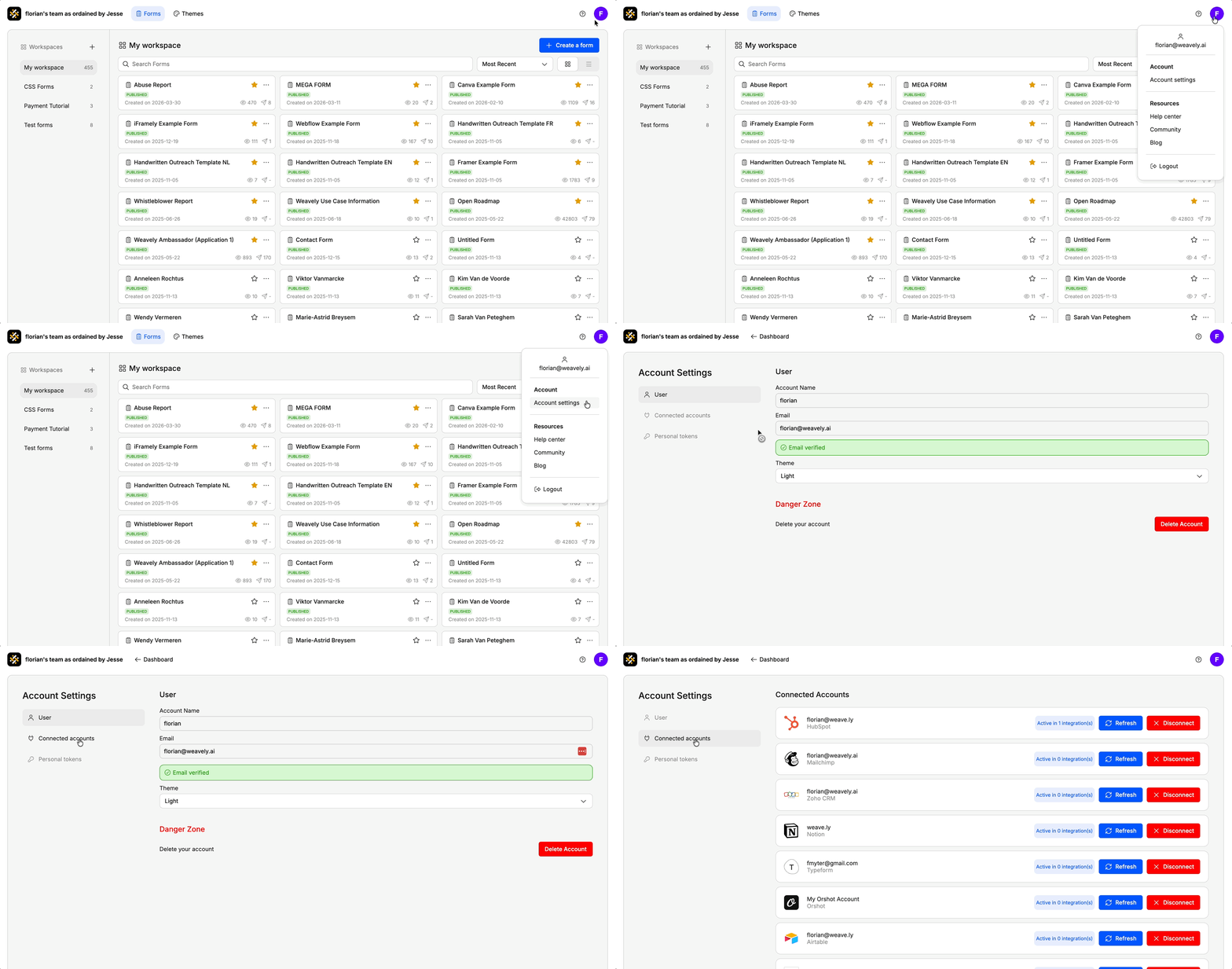
If you can't see your Notion database you might not have given Weavely permissions to the right workspace or pages within your Notion. You can repeat the process in step 2 by disconnecting your Notion account in the Weavely dashboard under *Settings -> Connected Accounts*
## **Changing Your Notion Account or Resetting Your Connection**
If you ever need to reset your connection with Notion, for instance to switch to a different account or reauthorize access, you can do so from your Weavely dashboard. Go to **Settings → Connected Accounts** and click the red **“Disconnect”** button next to Notion. You can then reconnect with the correct account.
 ## Step 2: Link Your Notion Account
Is this the first time you set up a Notion integration? Then Weavely will first guide you through the steps to connect your Notion account to Weavely. Just press *"Connect to Notion"* to get started.
## Step 2: Link Your Notion Account
Is this the first time you set up a Notion integration? Then Weavely will first guide you through the steps to connect your Notion account to Weavely. Just press *"Connect to Notion"* to get started.
 ## Step 3: Map Form Fields to Database Properties
Once you've connected your Notion account you'll be able to set up the integration for your form. In a first step you'll need to select which Notion database you want the responses to go to. In a second step you can specify how fields of your form correspond to columns of your Notion database. The gif below showcases both these steps.
## Step 3: Map Form Fields to Database Properties
Once you've connected your Notion account you'll be able to set up the integration for your form. In a first step you'll need to select which Notion database you want the responses to go to. In a second step you can specify how fields of your form correspond to columns of your Notion database. The gif below showcases both these steps.