> ## Documentation Index
> Fetch the complete documentation index at: https://help.weavely.ai/llms.txt
> Use this file to discover all available pages before exploring further.
# Automate Workflows with Zapier
> Connect Weavely to thousands of other tools through Zapier.
{`{
"@context": "https://schema.org",
"@graph": [
{
"@type": "WebPage",
"@id": "https://help.weavely.ai/integrations/zapier",
"url": "https://help.weavely.ai/integrations/zapier",
"name": "Automate Workflows with Zapier",
"description": "Connect Weavely to thousands of other tools through Zapier.",
"inLanguage": "en",
"isPartOf": {
"@type": "WebSite",
"@id": "https://help.weavely.ai/#website",
"name": "Weavely Help Center"
},
"breadcrumb": {
"@type": "BreadcrumbList",
"itemListElement": [
{ "@type": "ListItem", "position": 1, "name": "Integrations", "item": "https://help.weavely.ai/integrations" },
{ "@type": "ListItem", "position": 2, "name": "Zapier", "item": "https://help.weavely.ai/integrations/zapier" }
]
},
"publisher": { "@id": "https://www.weavely.ai/#org" }
},
{
"@type": "TechArticle",
"headline": "Automate Workflows with Zapier",
"description": "Connect Weavely to thousands of other tools through Zapier.",
"inLanguage": "en",
"author": { "@id": "https://www.weavely.ai/#org" },
"publisher": { "@id": "https://www.weavely.ai/#org" },
"mainEntityOfPage": { "@id": "https://help.weavely.ai/integrations/zapier" }
},
{
"@type": "VideoObject",
"name": "AI Form Data to Zapier: Weavely.ai Tutorial",
"description": "Connect your Weavely form to thousands of apps with Zapier! In this step-by-step tutorial, I’ll show you how to integrate Weavely AI forms with Zapier, so you can send form responses anywhere: from Google Sheets to Slack, Notion, CRMs, and more.",
"uploadDate": "2025-05-28T00:00:00Z",
"duration": "PT3M24S",
"embedUrl": "https://www.youtube.com/embed/09NBDovtg0E",
"contentUrl": "https://www.youtube.com/watch?v=09NBDovtg0E",
"thumbnailUrl": [
"https://i.ytimg.com/vi/09NBDovtg0E/hqdefault.jpg",
"https://i.ytimg.com/vi/09NBDovtg0E/sddefault.jpg"
],
"potentialAction": {
"@type": "WatchAction",
"target": "https://www.youtube.com/watch?v=09NBDovtg0E"
},
"publisher": { "@id": "https://www.weavely.ai/#org" },
"author": { "@id": "https://www.weavely.ai/#org" }
},
{
"@type": "Organization",
"@id": "https://www.weavely.ai/#org",
"name": "WEAVE.LY BV",
"url": "https://www.weavely.ai",
"address": {
"@type": "PostalAddress",
"streetAddress": "Herbert Hooverlaan 141",
"addressLocality": "Schaarbeek",
"postalCode": "1030",
"addressCountry": "BE"
},
"identifier": "BE0773.878.569",
"sameAs": [
"https://www.instagram.com/weavely.ai/",
"https://www.linkedin.com/company/weave-ly/",
"https://www.youtube.com/@weavely"
]
}
]
}`}
We're constantly adding native integrations to third-party tools. However, we can't integrate them all! If there's a tool you want to connect your Weavely form to, chances are it's already available on Zapier. Here's how to use Weavely in combination with Zapier.
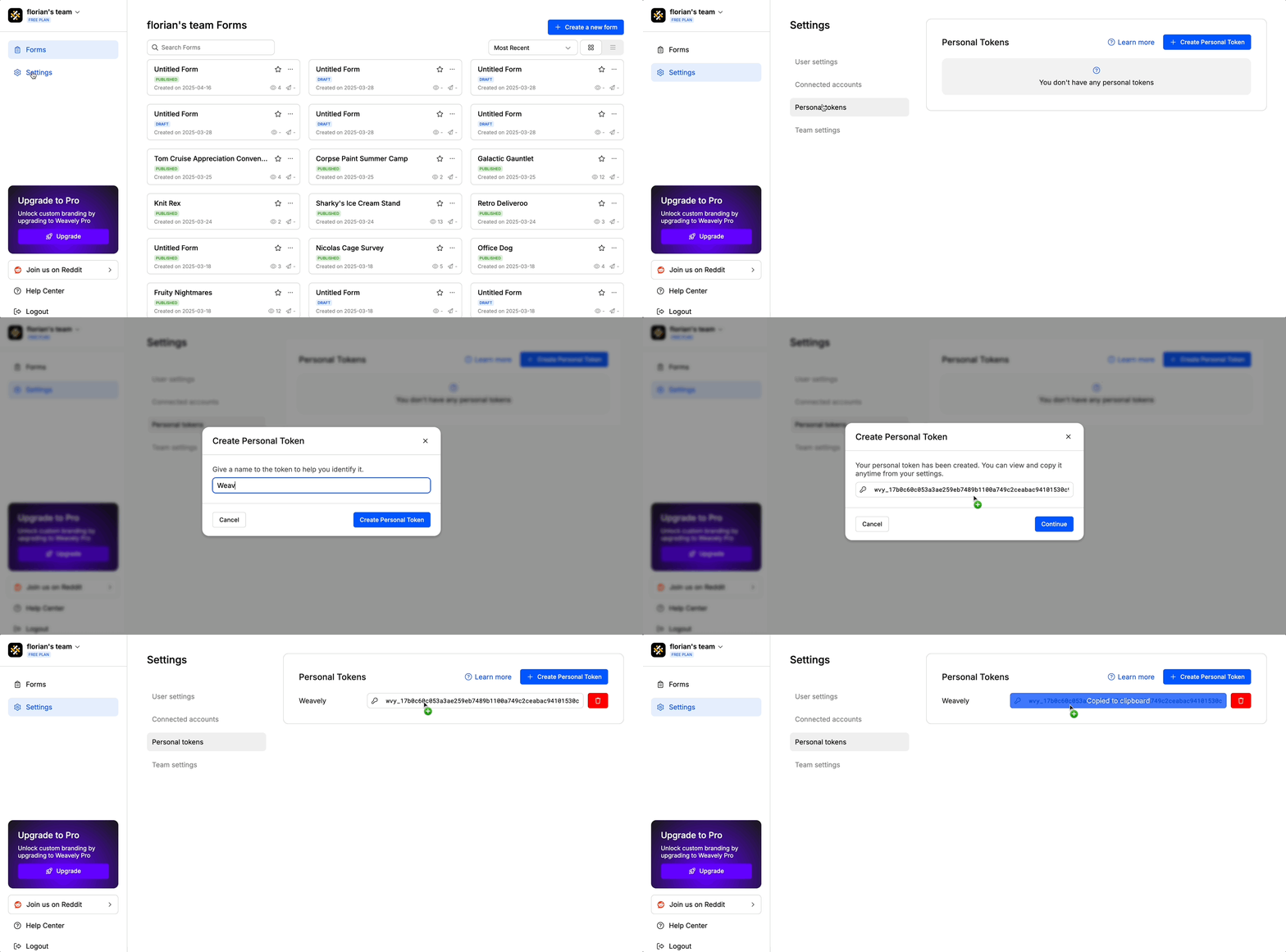
You'll need something called a *"personal token"* to connect you Weavely account to Zapier. To create this token, navigate to *Settings->Personal Tokens* in the dashboard. Once created you'll be able to copy and paste this token (i.e. a string of text) to Zapier in step 3.
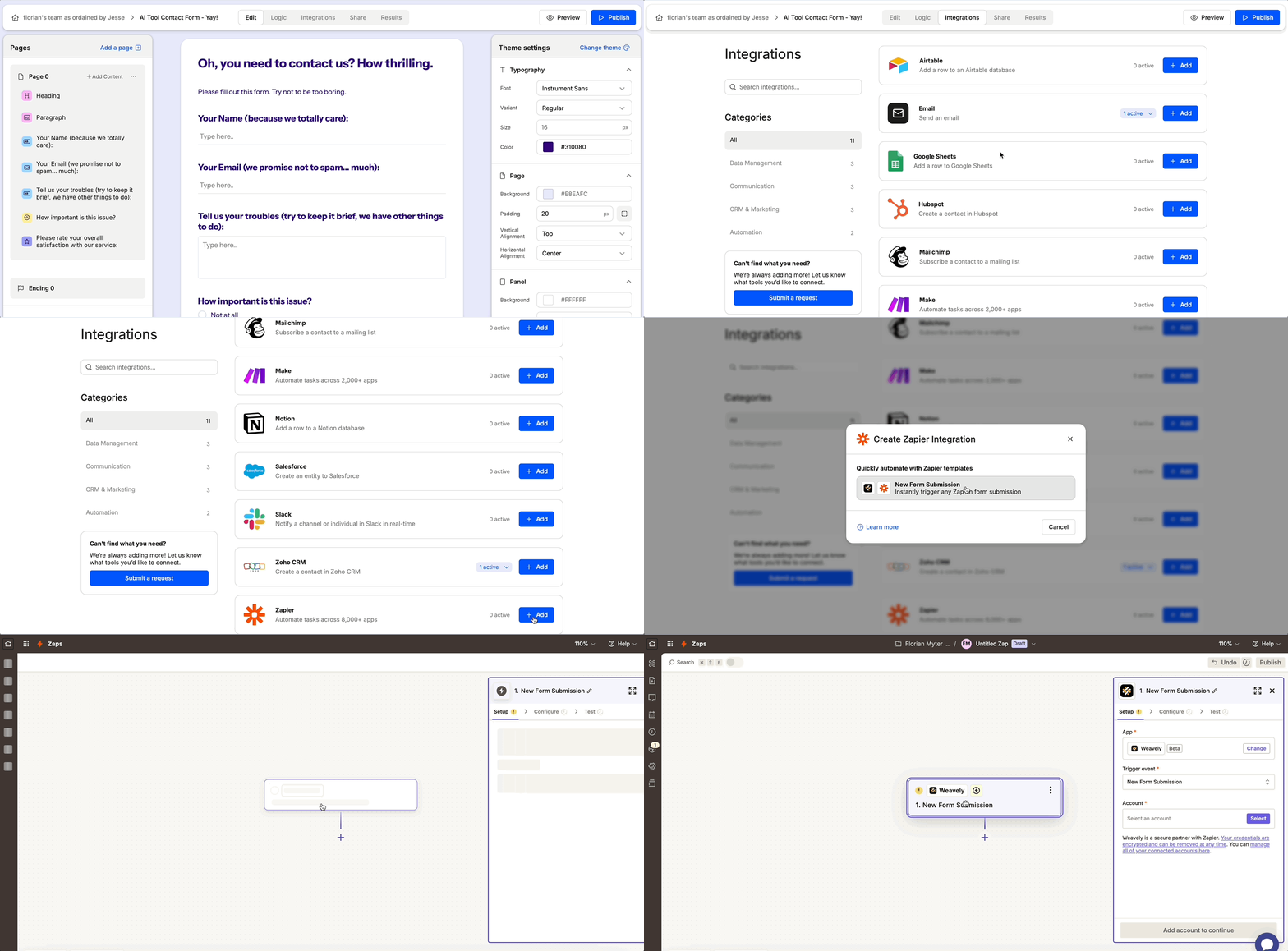
Open the form you want to include in your Zapier workflow in the Weavely dashboard. Navigate to the *Integrations* tab and hit the *"+ Add"* button next to Zapier. This will automatically create a Zapier trigger for you for that form. This trigger will fire everytime a new submission is received for that form.
Alternatively, you can also start this step from within Zapier. Just search for Weavely when creating the trigger and you'll be able to select which form you want to include in your Zapier automation through a dropdown.
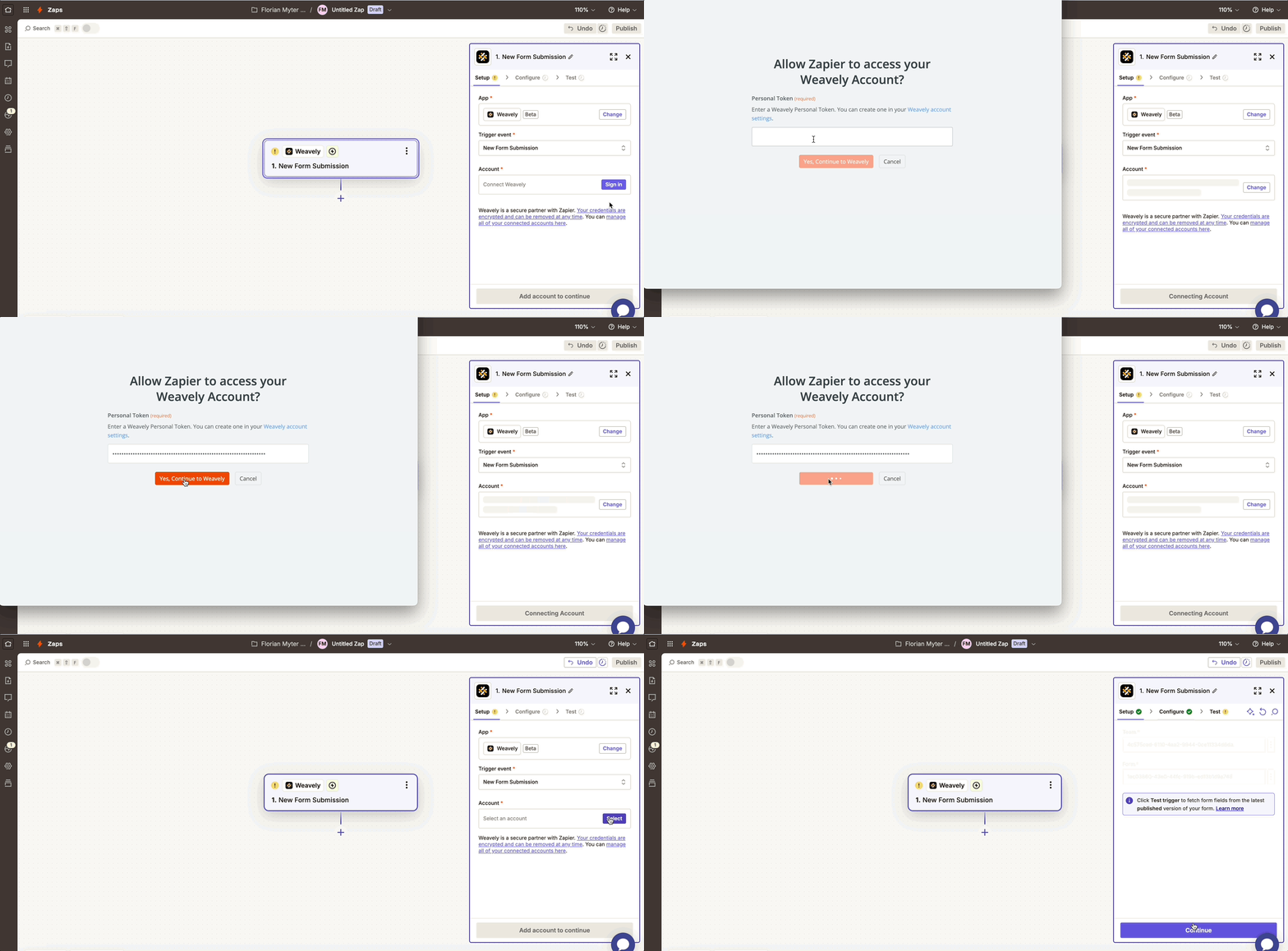
In the Zapier trigger you'll need to authenticate Weavely. You do this inside the trigger, using your personal token you created in Step 1. The gif below walks you through the steps required to authenticate.
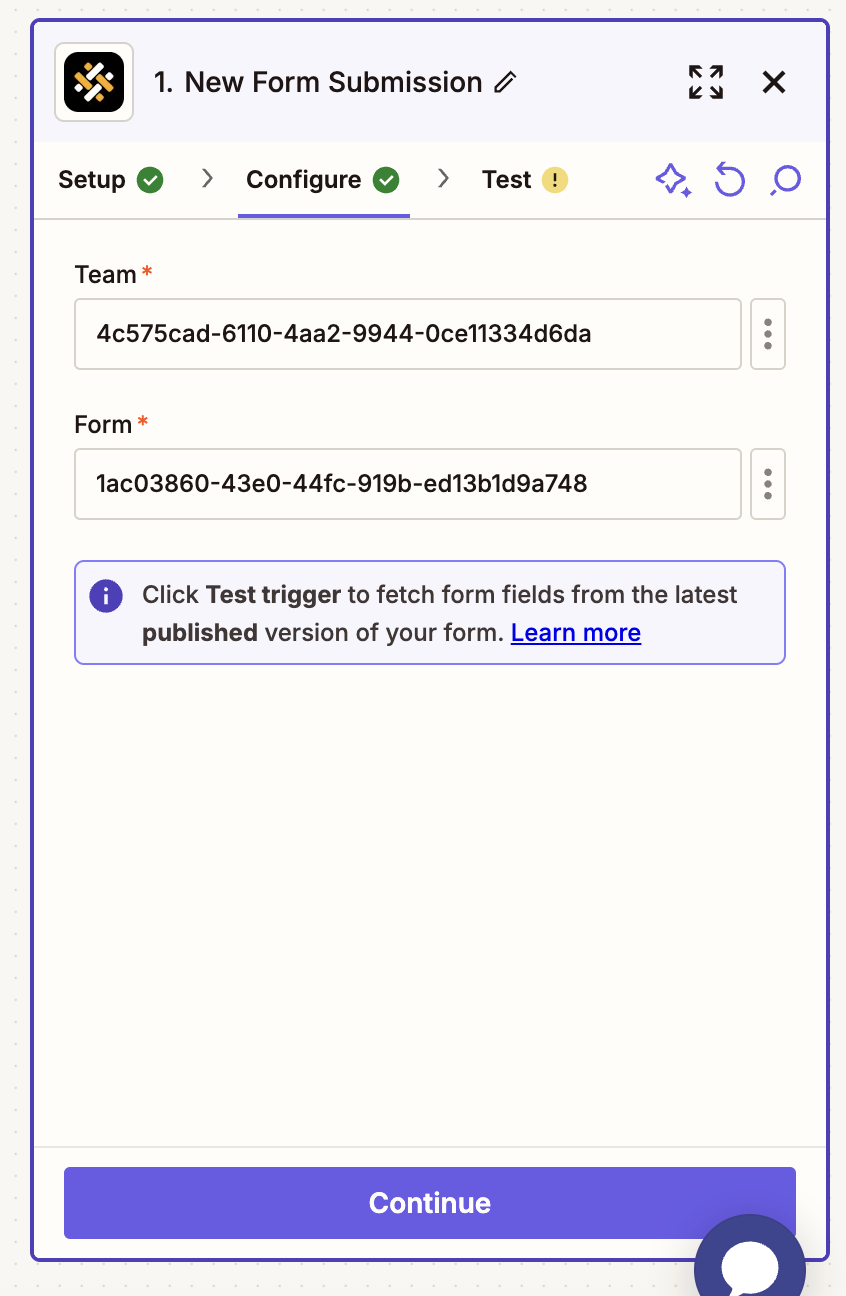
If you've followed the steps above your Weavely trigger will come pre-configured with the right form id and team id. If you've started the setup from Zapier you'll be able to select the right team and form through a dropdown.
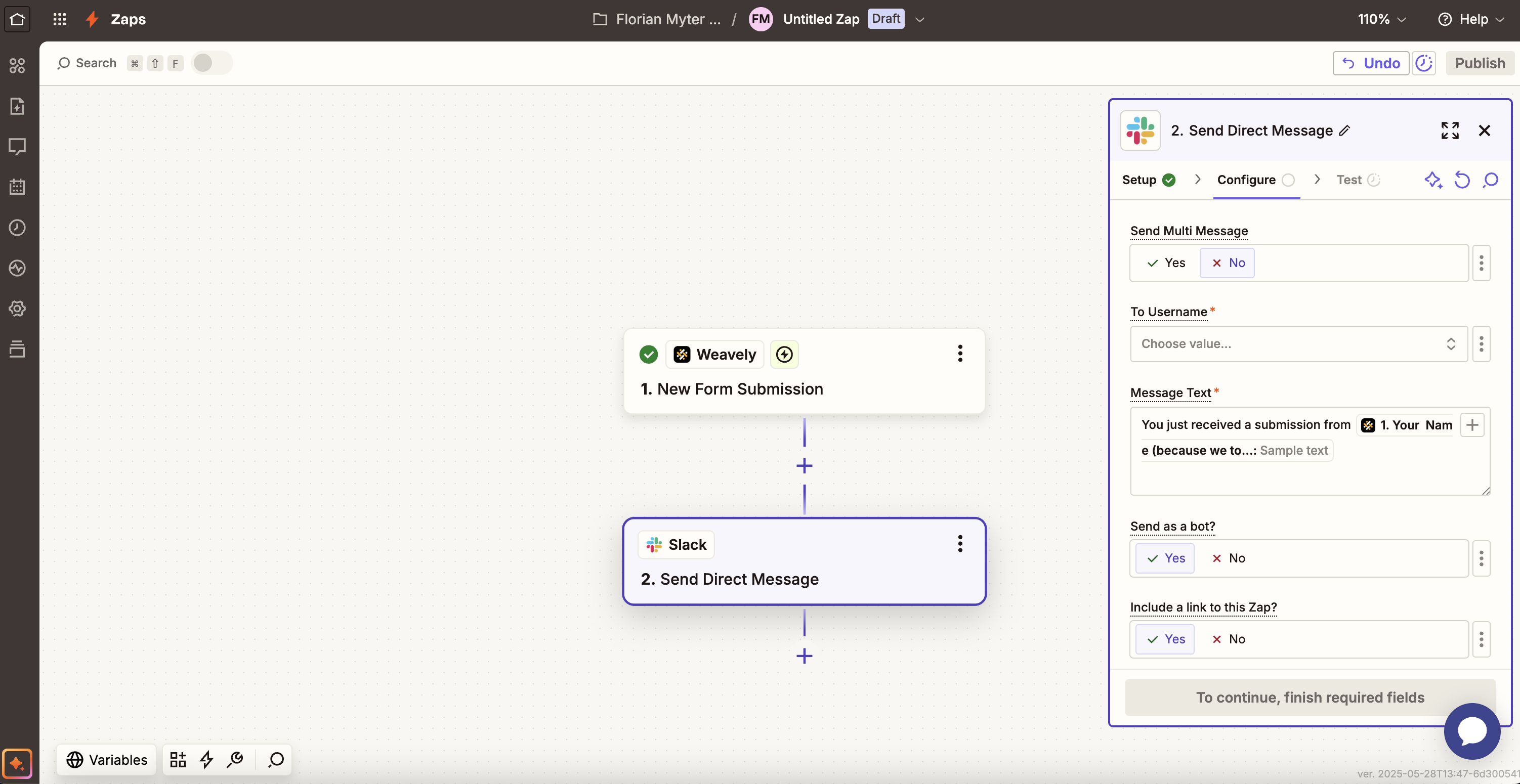
In all subsequent steps of your Zap you will be able to use parts of the submissions received by your Weavely form as *field mappings*. The image below shows the example of reusing answers given by respondents to our form to use in a Slack message.
 In all subsequent steps of your Zap you will be able to use parts of the submissions received by your Weavely form as *field mappings*. The image below shows the example of reusing answers given by respondents to our form to use in a Slack message.