> ## Documentation Index
> Fetch the complete documentation index at: https://help.weavely.ai/llms.txt
> Use this file to discover all available pages before exploring further.
# Send Form Responses to Zoho
> Weavely's Zoho integration lets you automatically create contacts in Zoho upon form submissions.
{`{
"@context": "https://schema.org",
"@graph": [
{
"@type": "WebPage",
"@id": "https://help.weavely.ai/integrations/zoho",
"url": "https://help.weavely.ai/integrations/zoho",
"name": "Send Form Responses to Zoho",
"description": "Weavely's Zoho integration lets you automatically create contacts in Zoho upon form submissions.",
"inLanguage": "en",
"isPartOf": {
"@type": "WebSite",
"@id": "https://help.weavely.ai/#website",
"name": "Weavely Help Center"
},
"breadcrumb": {
"@type": "BreadcrumbList",
"itemListElement": [
{ "@type": "ListItem", "position": 1, "name": "Integrations", "item": "https://help.weavely.ai/integrations" },
{ "@type": "ListItem", "position": 2, "name": "Zoho", "item": "https://help.weavely.ai/integrations/zoho" }
]
},
"publisher": { "@id": "https://www.weavely.ai/#org" }
},
{
"@type": "TechArticle",
"headline": "Send Form Responses to Zoho",
"description": "Learn how to connect your Weavely forms to Zoho CRM and automatically create or update contacts on each form submission.",
"inLanguage": "en",
"author": { "@id": "https://www.weavely.ai/#org" },
"publisher": { "@id": "https://www.weavely.ai/#org" },
"mainEntityOfPage": { "@id": "https://help.weavely.ai/integrations/zoho" }
},
{
"@type": "VideoObject",
"name": "AI Form Data to Zoho: Weavely.ai Tutorial",
"description": "In this quick tutorial, I’ll show you how to connect a Weavely AI form to Zoho CRM, so every submission creates or updates a contact automatically.",
"uploadDate": "2025-05-26T00:00:00Z",
"duration": "PT2M20S",
"embedUrl": "https://www.youtube.com/embed/TguQsJ1gTKo",
"contentUrl": "https://www.youtube.com/watch?v=TguQsJ1gTKo",
"thumbnailUrl": [
"https://i.ytimg.com/vi/TguQsJ1gTKo/hqdefault.jpg",
"https://i.ytimg.com/vi/TguQsJ1gTKo/sddefault.jpg"
],
"potentialAction": {
"@type": "WatchAction",
"target": "https://www.youtube.com/watch?v=TguQsJ1gTKo"
},
"publisher": { "@id": "https://www.weavely.ai/#org" },
"author": { "@id": "https://www.weavely.ai/#org" }
},
{
"@type": "Organization",
"@id": "https://www.weavely.ai/#org",
"name": "WEAVE.LY BV",
"url": "https://www.weavely.ai",
"address": {
"@type": "PostalAddress",
"streetAddress": "Herbert Hooverlaan 141",
"addressLocality": "Schaarbeek",
"postalCode": "1030",
"addressCountry": "BE"
},
"identifier": "BE0773.878.569",
"sameAs": [
"https://www.instagram.com/weavely.ai/",
"https://www.linkedin.com/company/weave-ly/",
"https://www.youtube.com/@weavely"
]
}
]
}`}
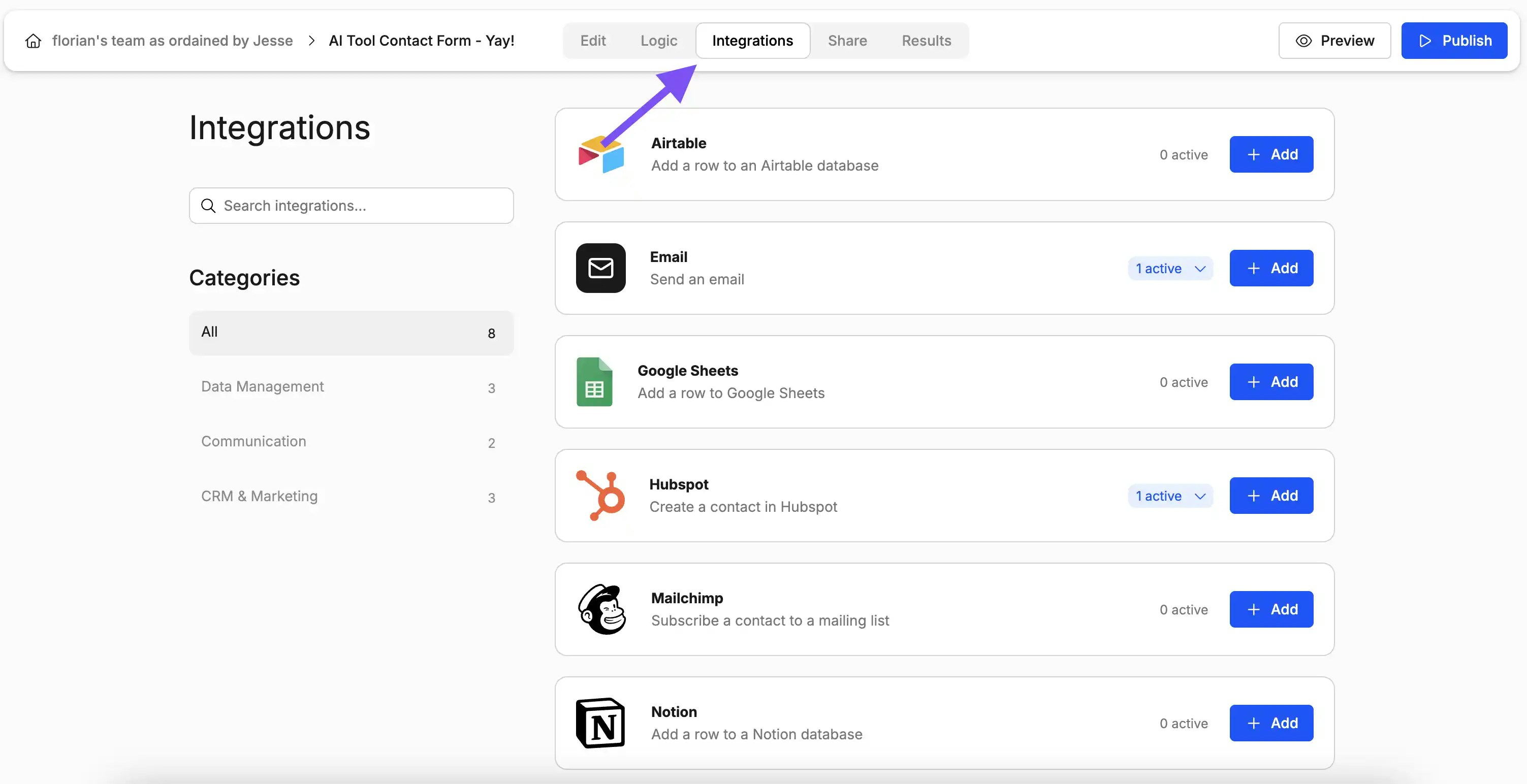
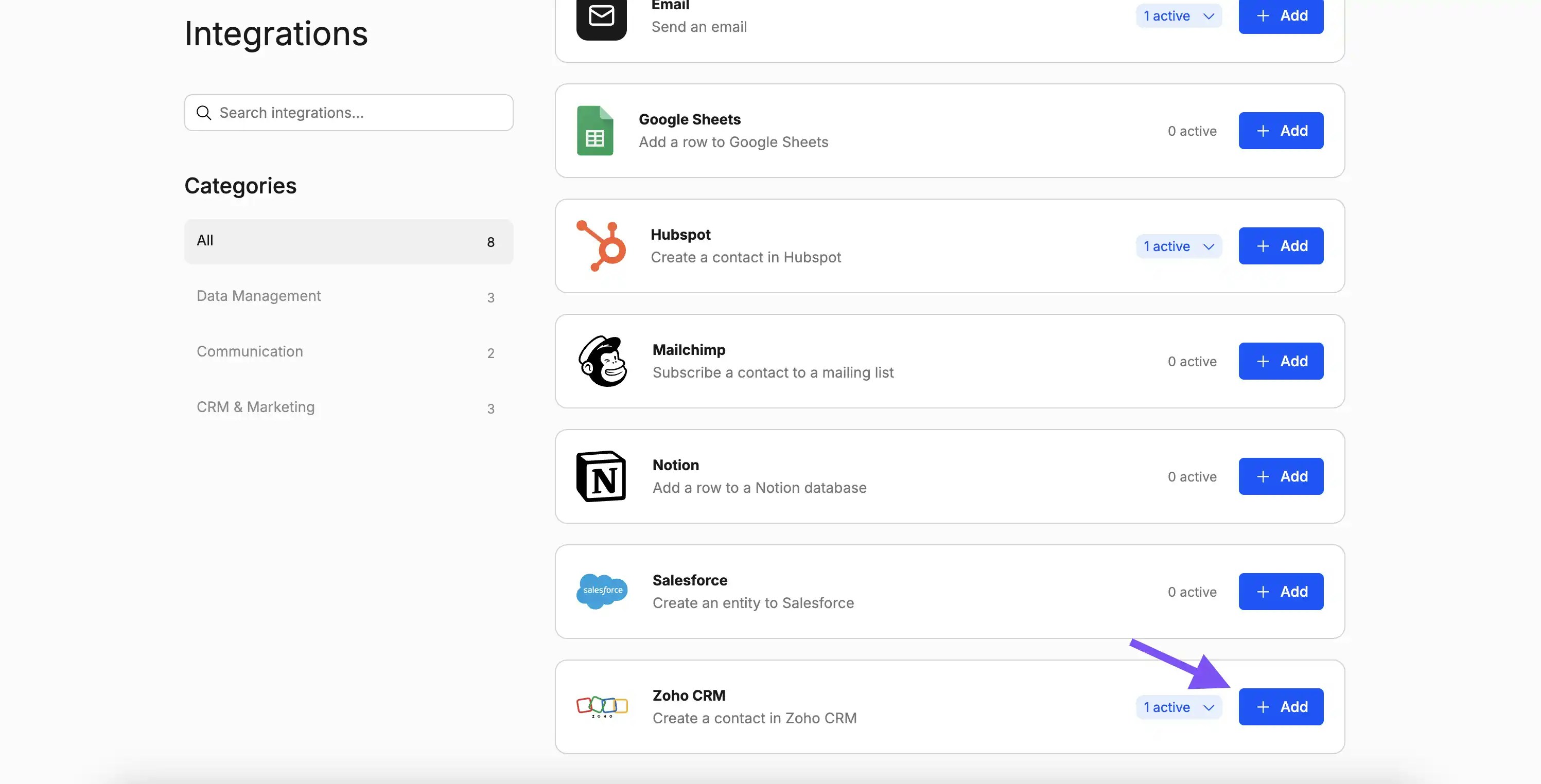
With the editor open, navigate to the *Integrations* tab and select the *Zoho* integration as shown below.
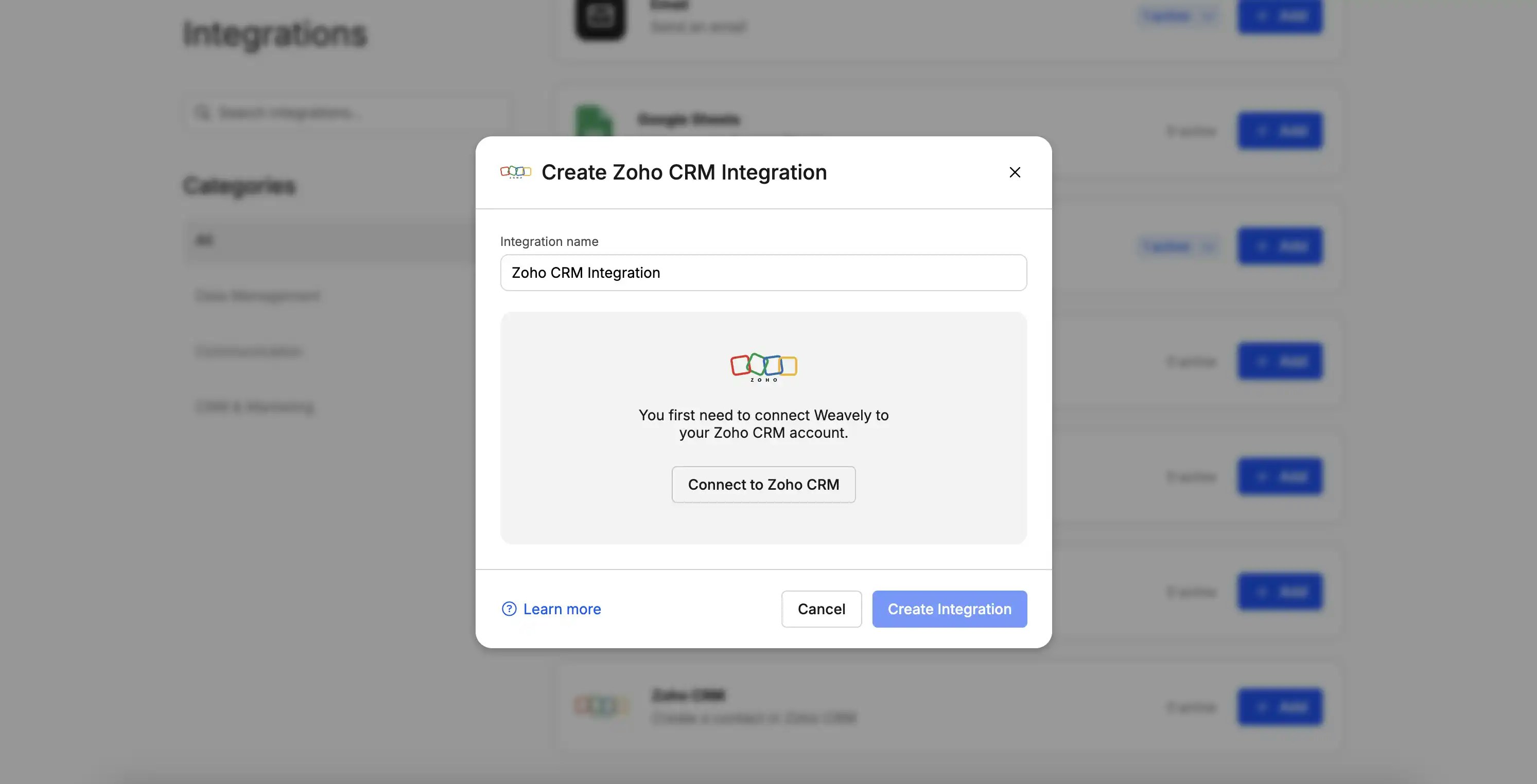
Is this the first time you set up a Zoho integration? Then Weavely will first guide you through the steps to connect your Zoho account to Weavely. Just press *"Connect to Zoho"* to get started.
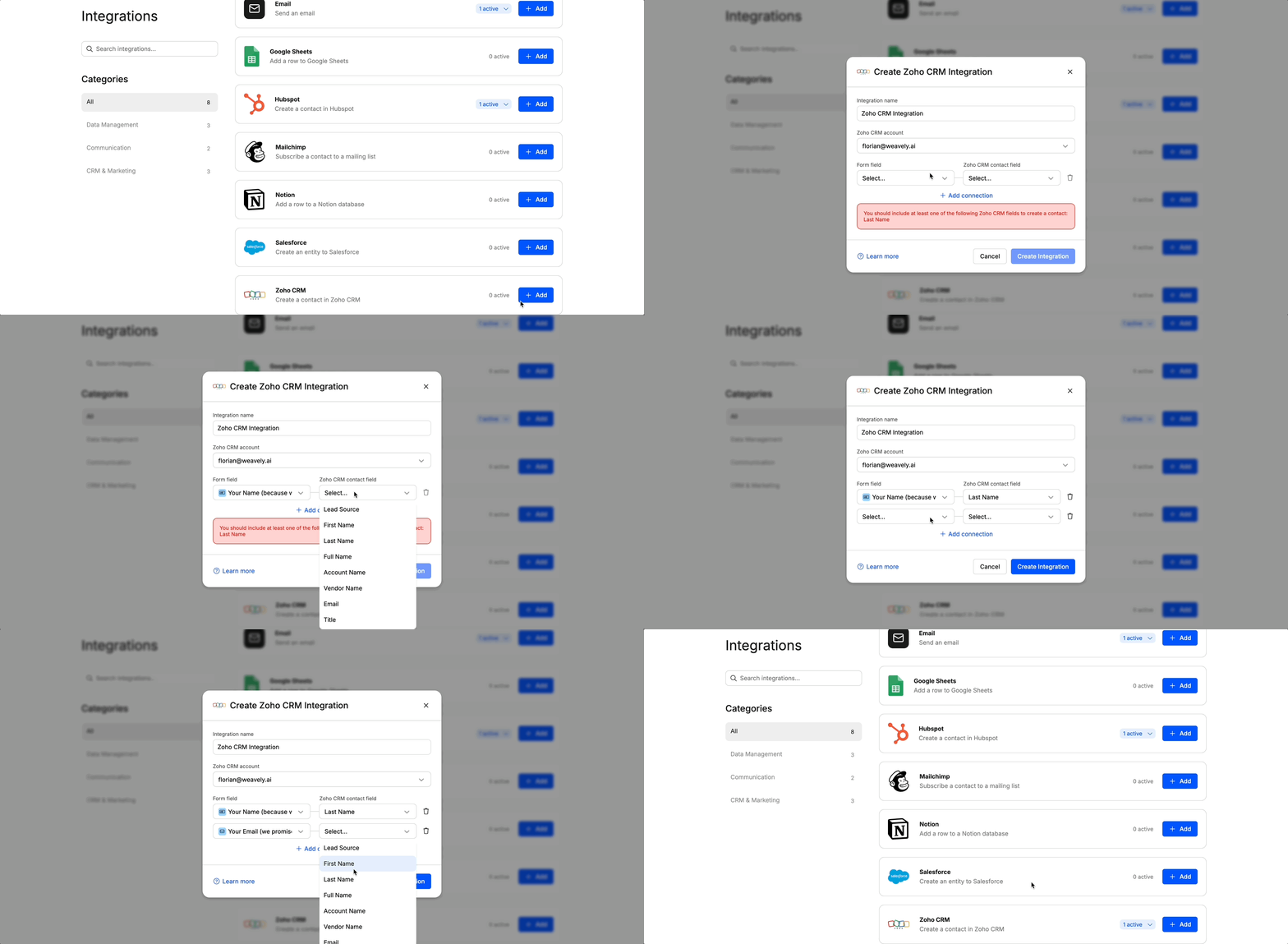
Once you've connected your Zoho account you'll be able to set up the integration for your form. You can specify which fields of your form should be used to create the new contact in Zoho as shown in the gif below. At the time of writing you can only create new contacts after a form submission. Looking to do something else? Reach out to [florian@weavely.ai](mailto:florian@weavely.ai) to tell us your use case and we'll add it to the roadmap!
To create a contact in Zoho you need to at least map a last name.
## **Changing Your Zoho Account or Resetting Your Connection**
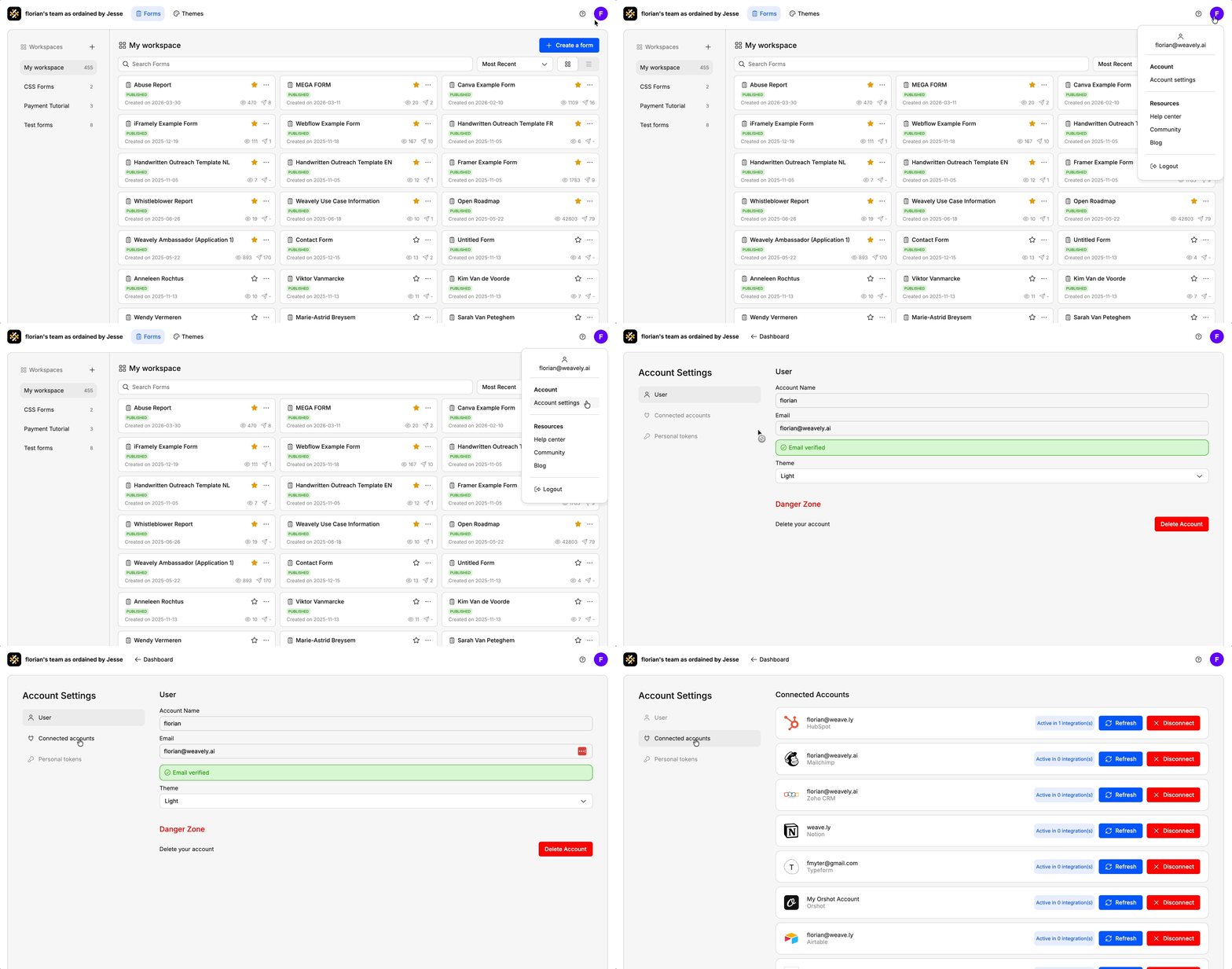
If you ever need to reset your connection with Zoho, for instance to switch to a different account or reauthorize access, you can do so from your Weavely dashboard. Go to **Settings → Connected Accounts** and click the red **“Disconnect”** button next to Zoho. You can then reconnect with the correct account.