

Collecting form responses in a spreadsheet is one of the most common automation use cases — whether it’s event registrations, lead capture, or feedback surveys. But manually copying data from forms into Google Sheets gets old fast. In this guide, you’ll learn how to build a form with AI using Weavely.ai, connect it to n8n, and have every submission automatically appear as a new row in Google Sheets.
Create Your Form with Weavely AI
Instead of manually building a form field by field, you can describe what you need and let Weavely generate it for you. Just type a prompt describing your form and Weavely will create a complete, ready-to-use form in seconds. For example: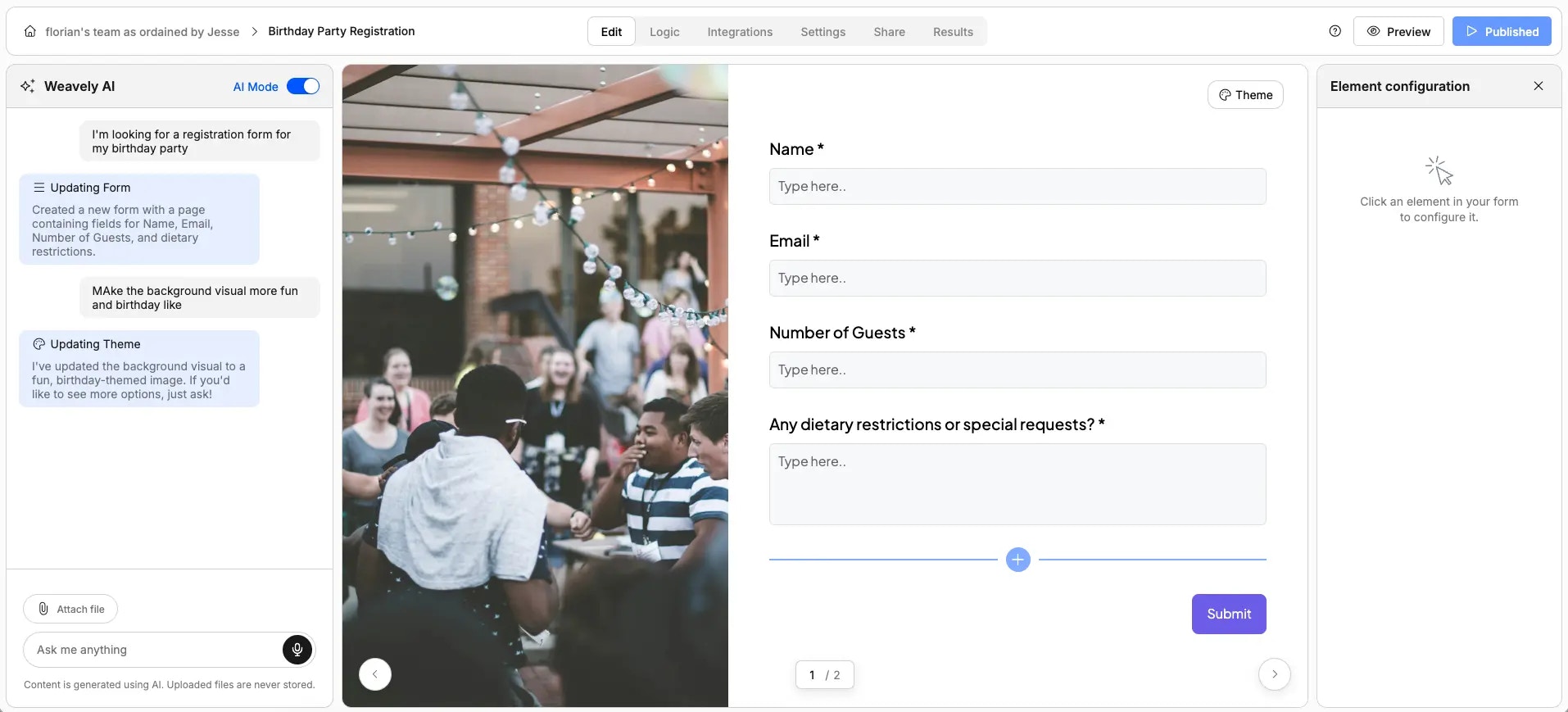
Set Up the n8n Workflow
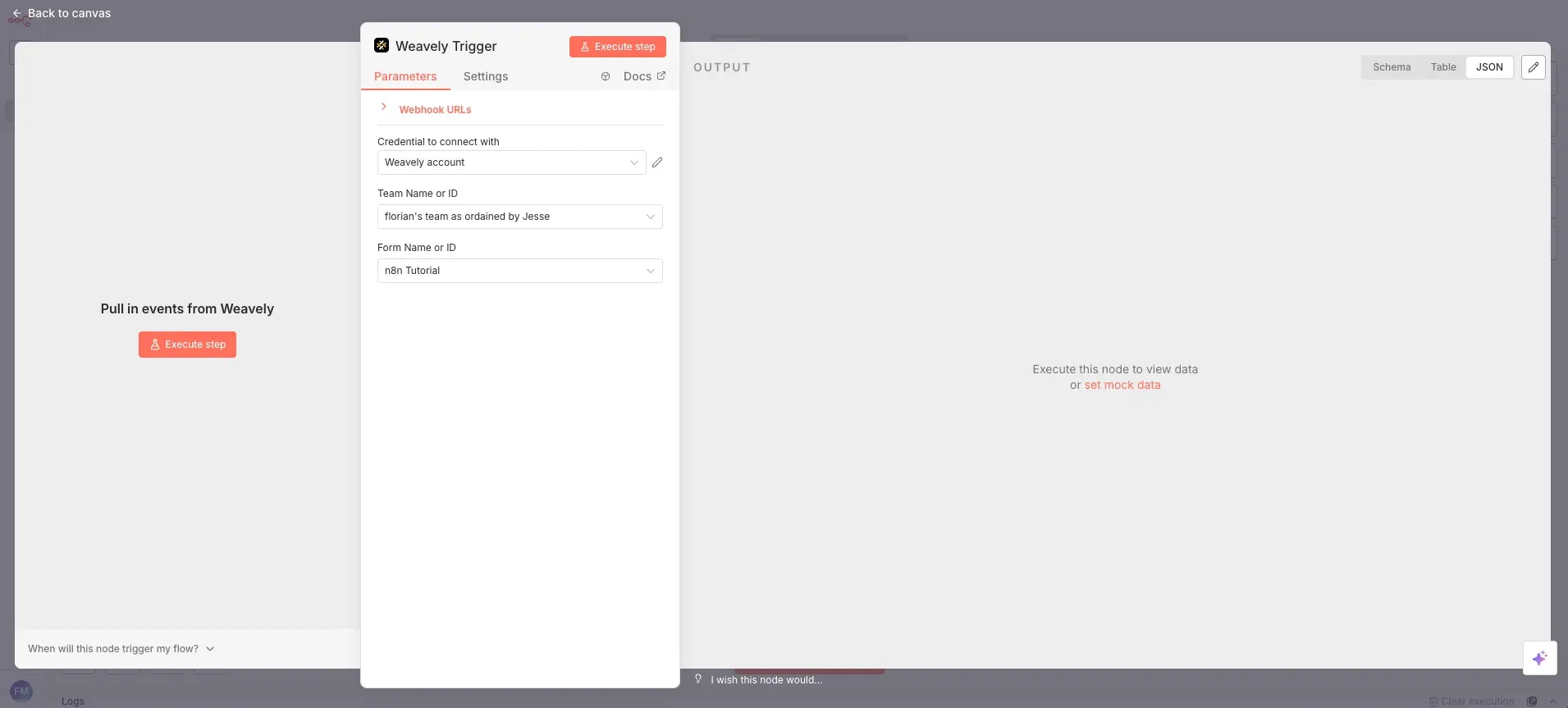
With your form ready, the next step is creating an n8n workflow that listens for new submissions. This uses the Weavely community node, a verified node you can install directly in n8n. Prerequisites: You’ll need community nodes enabled in your n8n admin panel. n8n recently made this available for cloud-hosted plans as well (still in beta at time of recording). For more detail on this step, see our n8n integration guide. Once community nodes are enabled:- Create a new workflow in n8n.
- Search for Weavely in the trigger list and add it to your workflow.
- Set up your credentials by pasting a personal token from Weavely (found under Settings → Personal Tokens in the Weavely dashboard).
- Select your team and then pick the specific form you want to monitor.
Test the Trigger
Before wiring up Google Sheets, it’s worth testing that the trigger works. Press Execute Step in n8n, then head over to your published form and submit a test response. Once submitted, n8n will pick up the response and display the output data. This includes each answer’s question label, value, and question ID. This confirms the connection is working and shows you exactly what data is available to map to your spreadsheet.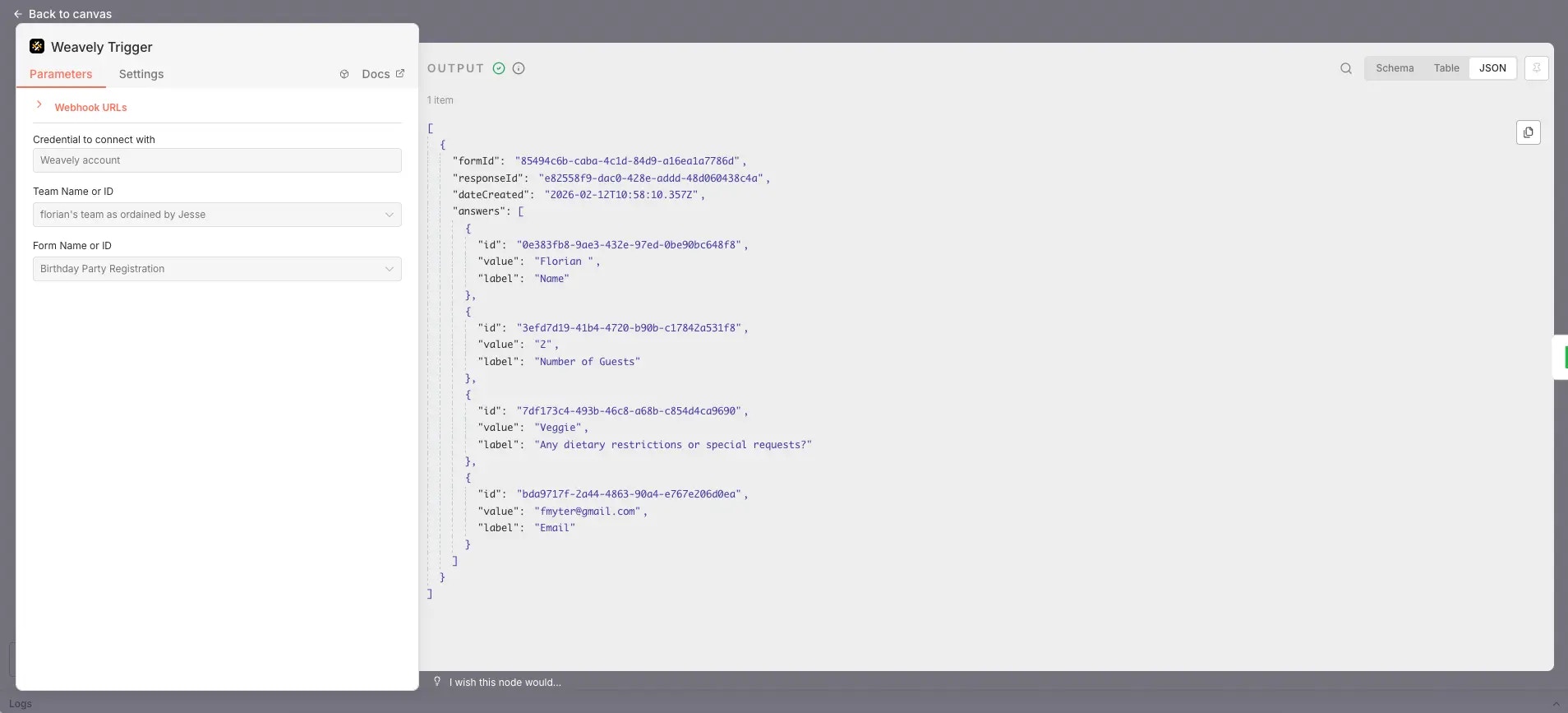
Connect Google Sheets and Map Your Columns
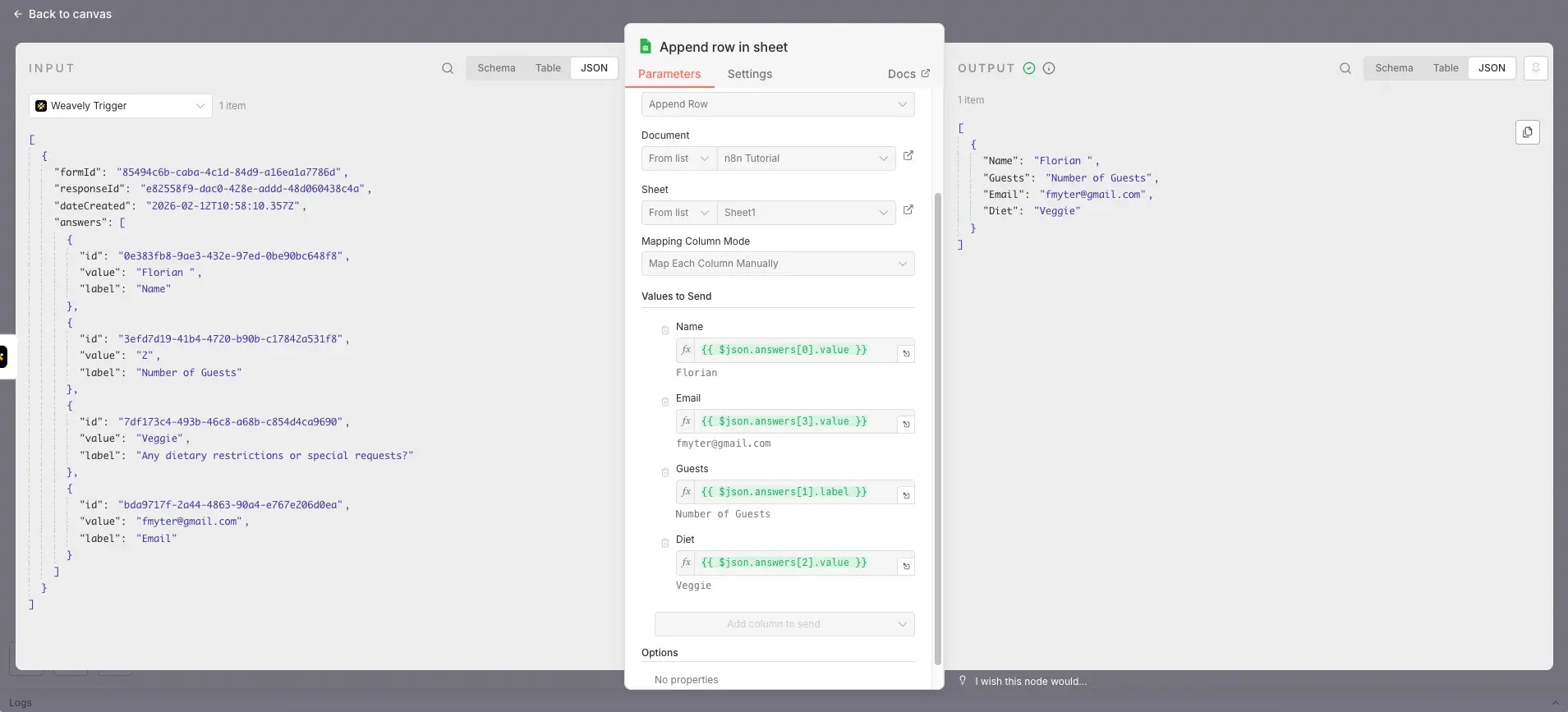
Now for the final piece: sending that form data into a Google Sheet.- Prepare a Google Sheet with columns matching your form fields (e.g. Name, Email, Guests, Diet).
- Add the built-in Google Sheets node to your n8n workflow after the Weavely trigger.
- Select your Google Sheets document and the specific sheet tab.
- n8n will fetch the column headers. From there, map each column to the corresponding form response value by dragging the fields from the Weavely trigger output.
Taking It Further
The workflow shown here is intentionally basic: form submissions go straight into Google Sheets. But because you’re using n8n, you can extend this in many ways. Add AI processing steps between the trigger and the spreadsheet, send notifications to Slack when a new response comes in, or branch the workflow to update multiple destinations at once. The Weavely trigger gives you all the form data you need; what you do with it from there is up to you.Why Use Weavely + n8n for Google Sheets?
If you just need form responses in a spreadsheet, Google Forms does the job. But that approach has limits: rigid templates, limited customization, and no automation beyond the spreadsheet itself. Combining Weavely and n8n gives you:- AI-powered form creation: describe what you need and get a complete form in seconds, instead of building it field by field.
- A real automation layer: n8n sits between your form and your spreadsheet, so you can add processing, filtering, notifications, or multi-step workflows.
- Free and unlimited: Weavely has no limits on forms or responses, and n8n’s community edition is open-source.