

Weavely is a free AI form builder with no limits on forms or responses. It works with GoDaddy Website Builder, GoDaddy WordPress sites, and any platform that supports HTML embed codes.
What you’ll need
- A Weavely account (free)
- A GoDaddy website (Website Builder or WordPress)
- About 2 minutes
Create a contact form with the AI form builder
1
Open Weavely and describe your form
Head to weavely.ai and start a new form. In the AI chat, describe what you need. Be as specific as you can, since the output quality depends on your prompt.For example: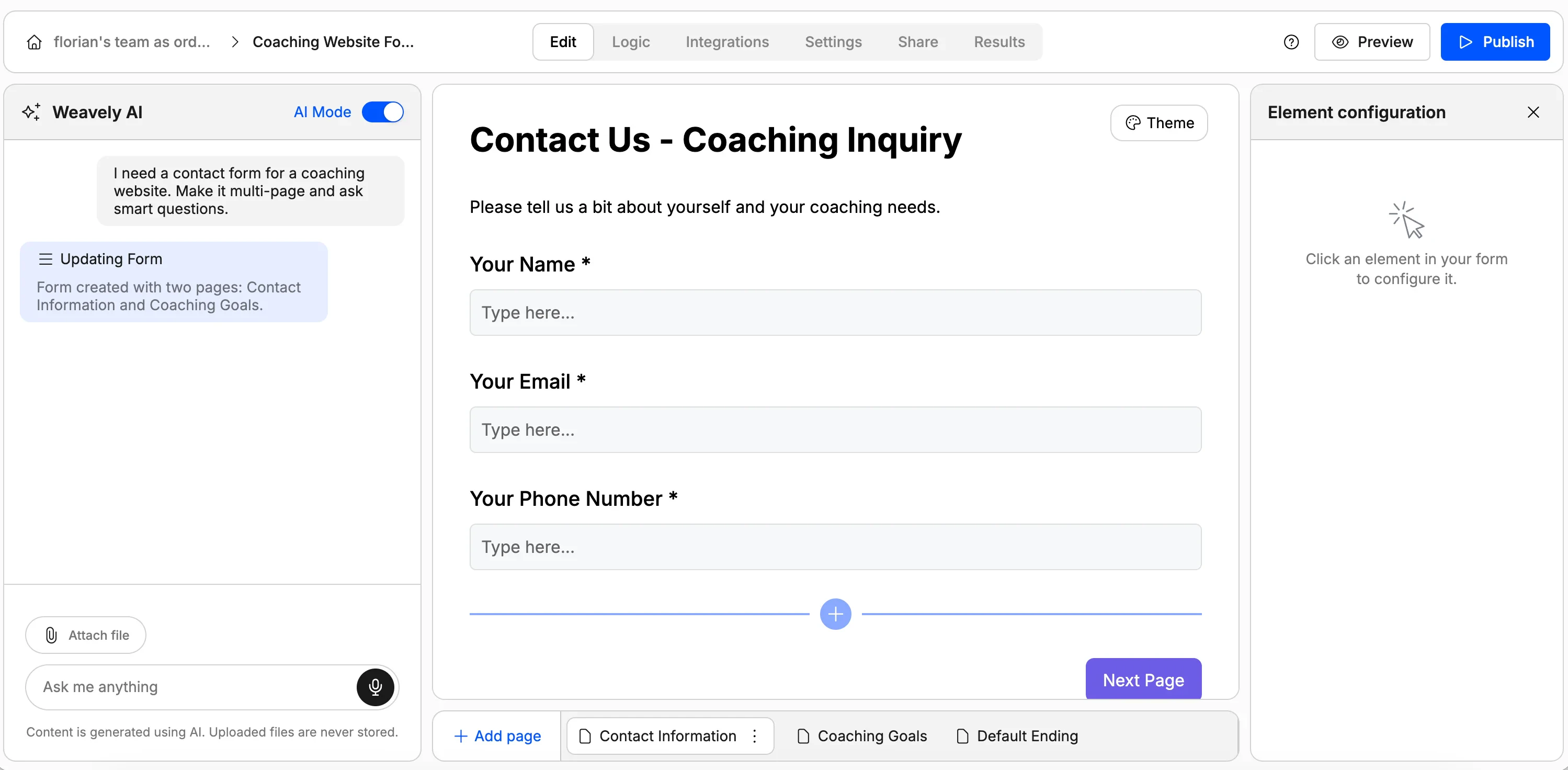
I need a contact form for a coaching website. Make it multi-page and ask smart questions about coaching goals.The AI form generator will create a complete, ready-to-use contact form in seconds, with fields for name, email, phone number, and whatever else fits your description.
2
Review and customise your form
Once the AI generates your form, review it and make any changes. You can: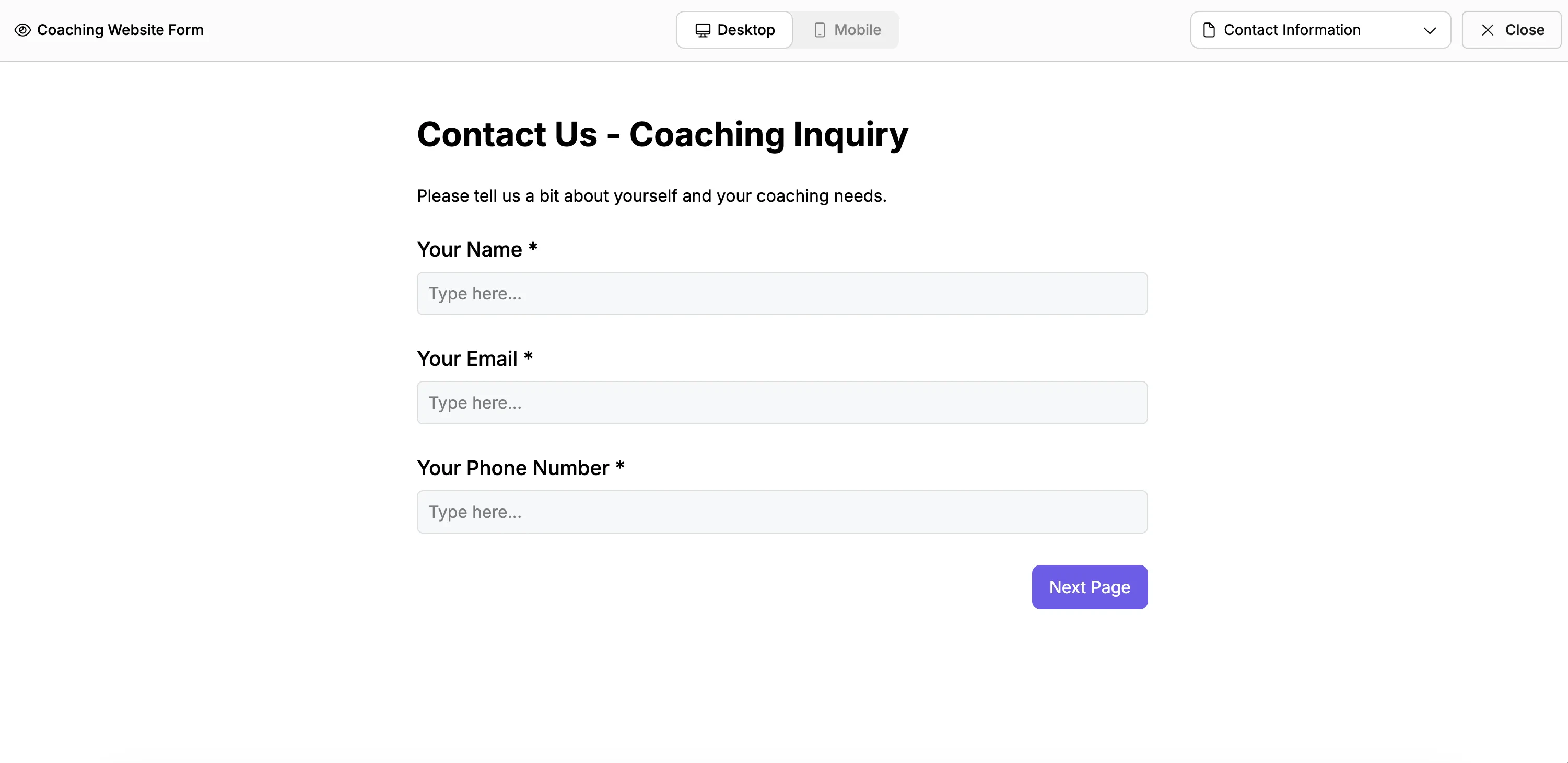
- Add or remove fields by chatting with the AI
- Rearrange pages on multi-step forms
- Adjust branding, colours, and button styles
- Toggle required fields on or off
3
Publish your form
When you’re happy with the form, click Publish in the top-right corner. This makes your form live and gives you a shareable URL.You can share that URL directly, but for embedding on your website we’ll grab the embed code in the next section.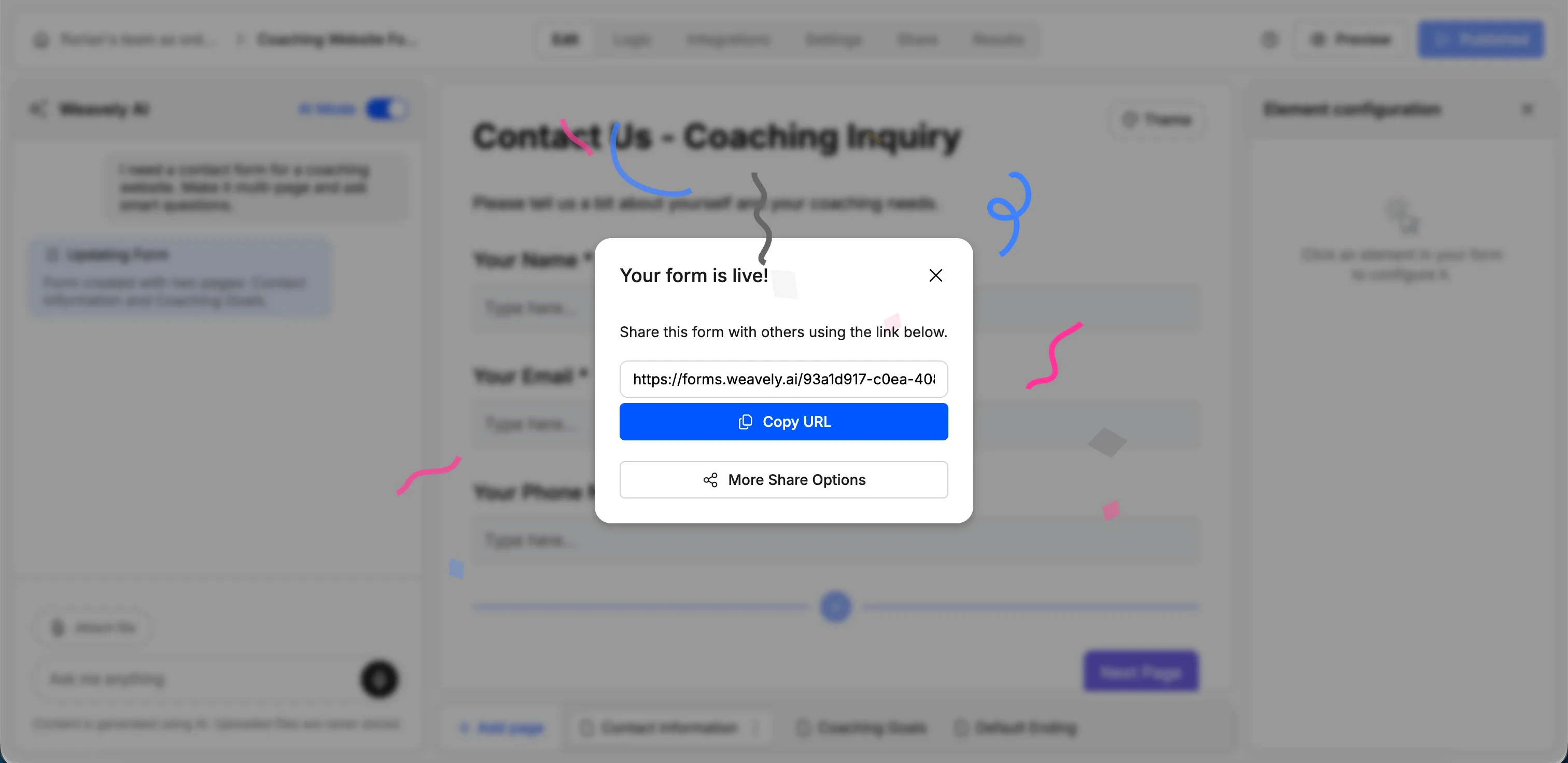
Embed the form on your GoDaddy website
1
Copy the embed code from Weavely
In the publish/share dialog, click the Embed form tab. You’ll see two snippets of code.Copy both snippets. You’ll paste them together into your website editor.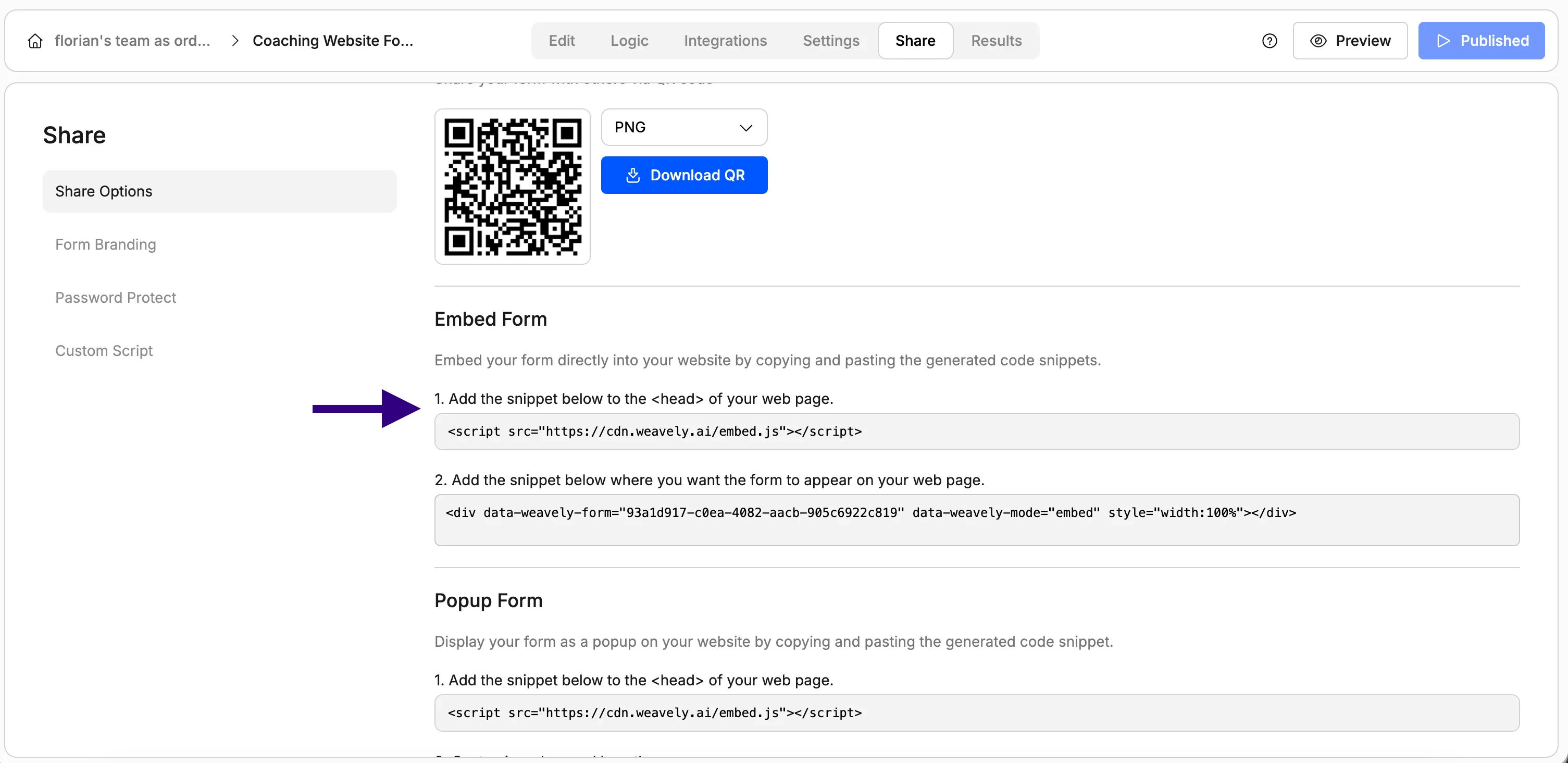
2
Add an HTML section in the GoDaddy editor
Open your website in the GoDaddy editor. Navigate to the page where you want your contact form to appear.Click Add a Section, then search for HTML. Add the HTML section to your page.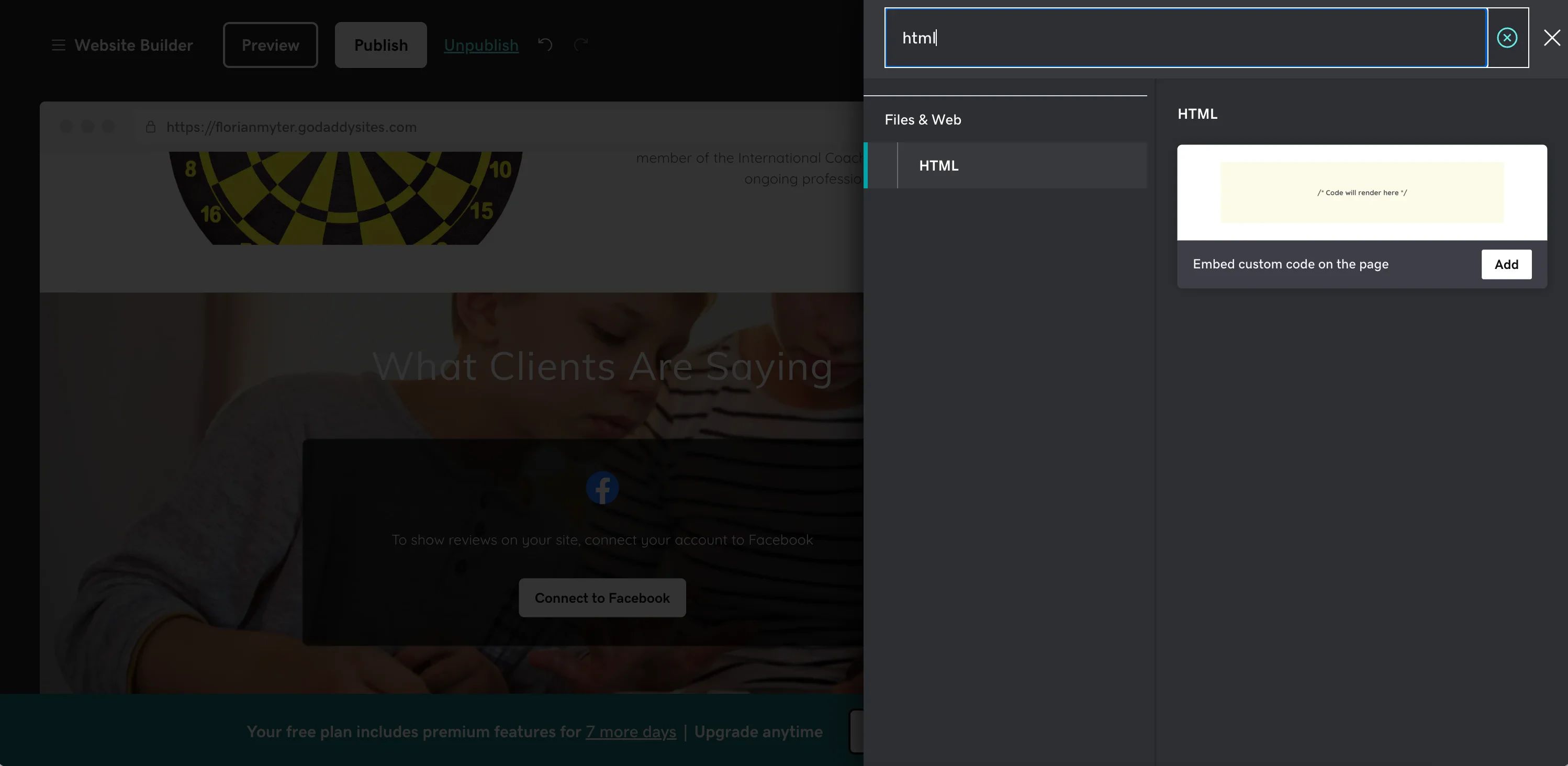
3
Paste the embed code
Click on the HTML section you just added. You’ll see a code editor box. Paste both Weavely embed snippets into this box, one after the other.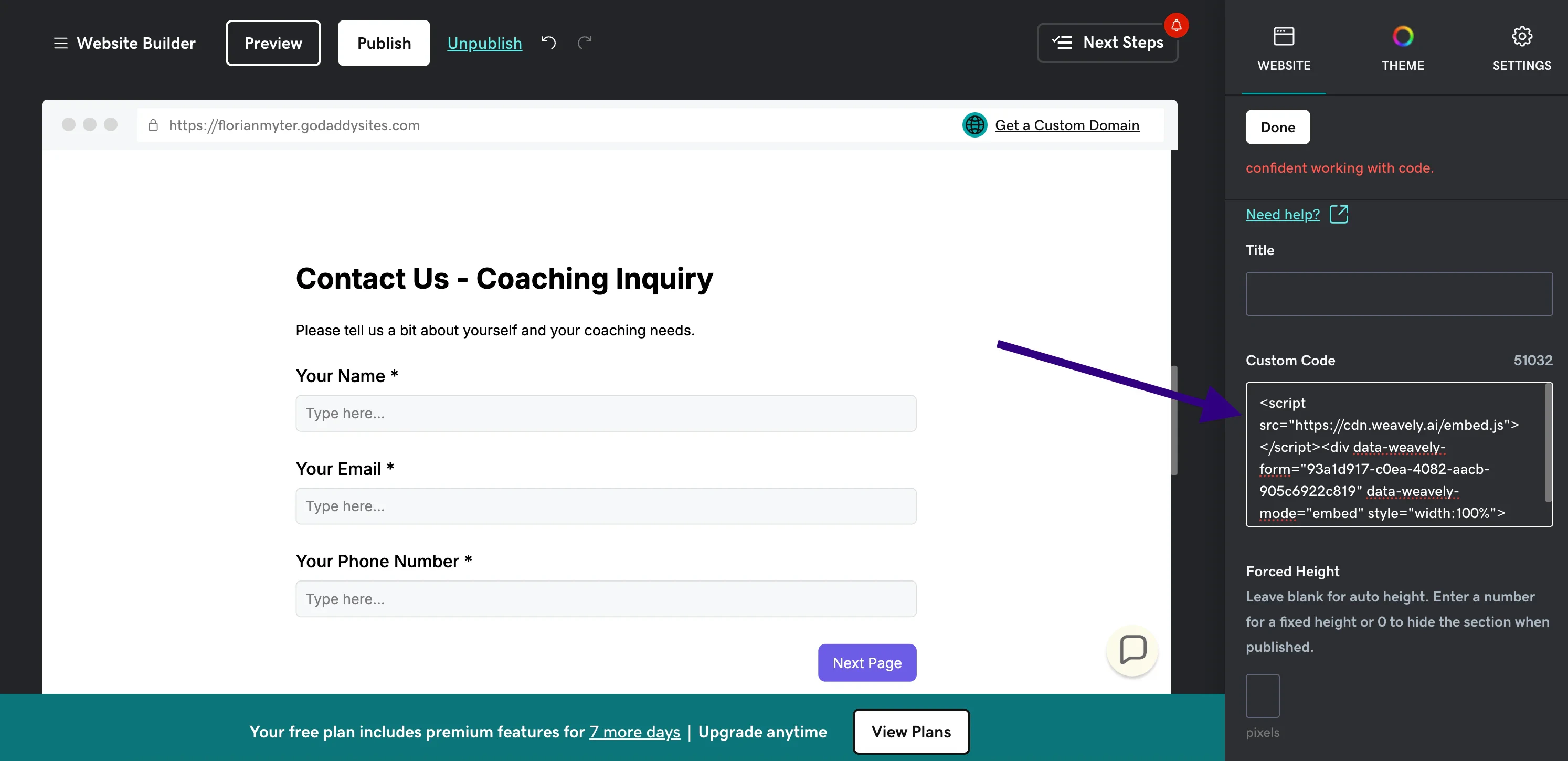
4
Publish your website
Click Publish in GoDaddy to push your changes live. Your contact form is now embedded and active on your site.Hit Preview to test it. Fill in the form and submit to make sure everything works.
Your contact form is now live. Responses are collected automatically inside Weavely.
View and manage form responses
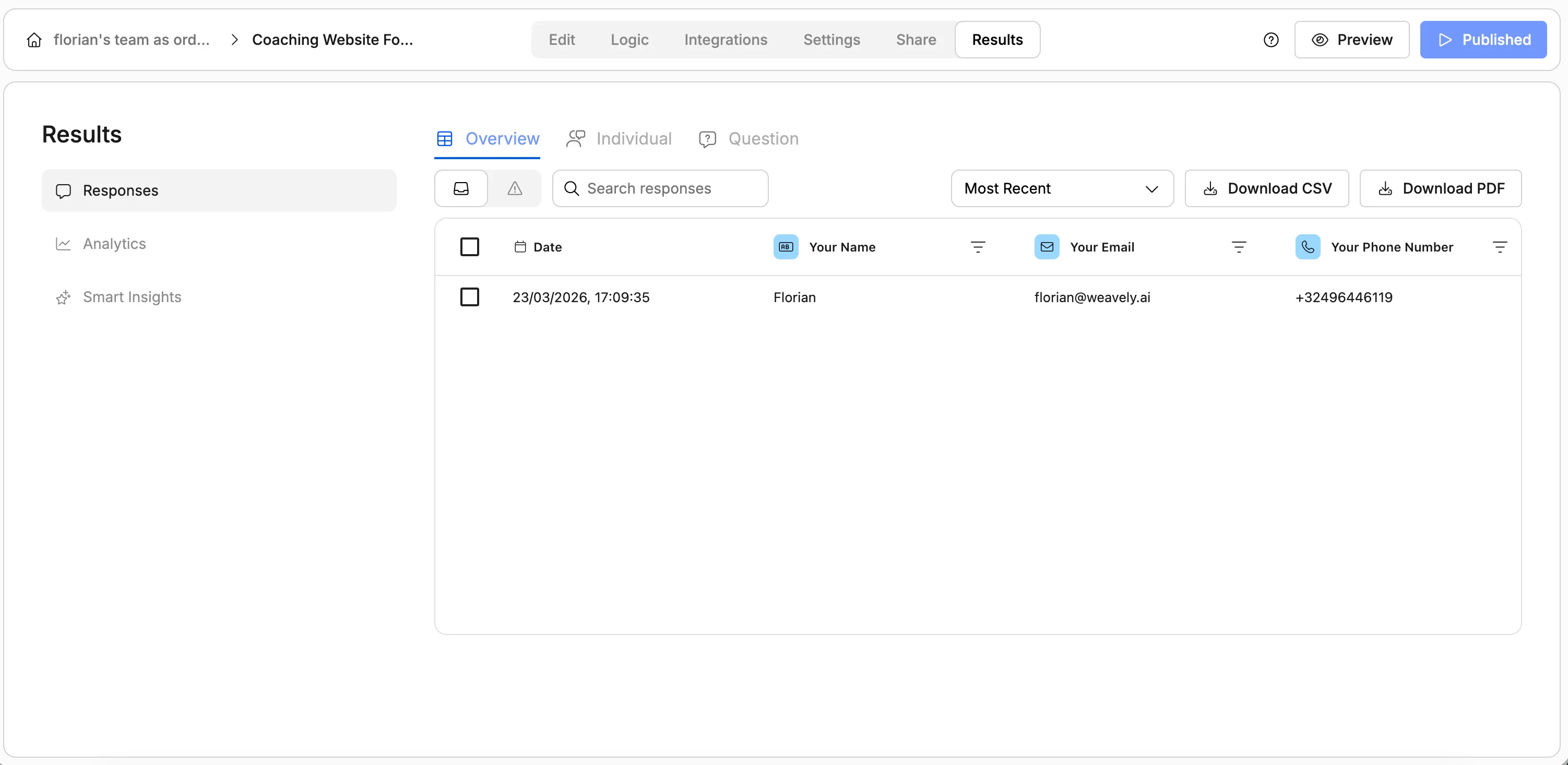
Every submission is stored inside the Weavely platform. Head to your form’s dashboard to:- View individual responses as they come in
- See analytics like completion rates, drop-off points, and trends
- Generate smart reports or download responses as PDFs
- Export data to tools you already use
Set up contact form email notifications
Most website owners want an email alert every time someone fills in their contact form. You can configure this in Weavely under the notifications settings:Get notified when someone submits your form
Get notified when someone submits your form
Go to your form’s settings and enable Submission emails. Enter the email address where you’d like to receive notifications. You’ll get an email with the full form response every time someone submits.
Send a confirmation email to the respondent
Send a confirmation email to the respondent
Enable Respondent confirmation emails to automatically let people know you received their enquiry. This builds trust and sets expectations for a reply. The email includes a summary of the data they entered.
Connect form responses to Google Sheets, Salesforce, and more
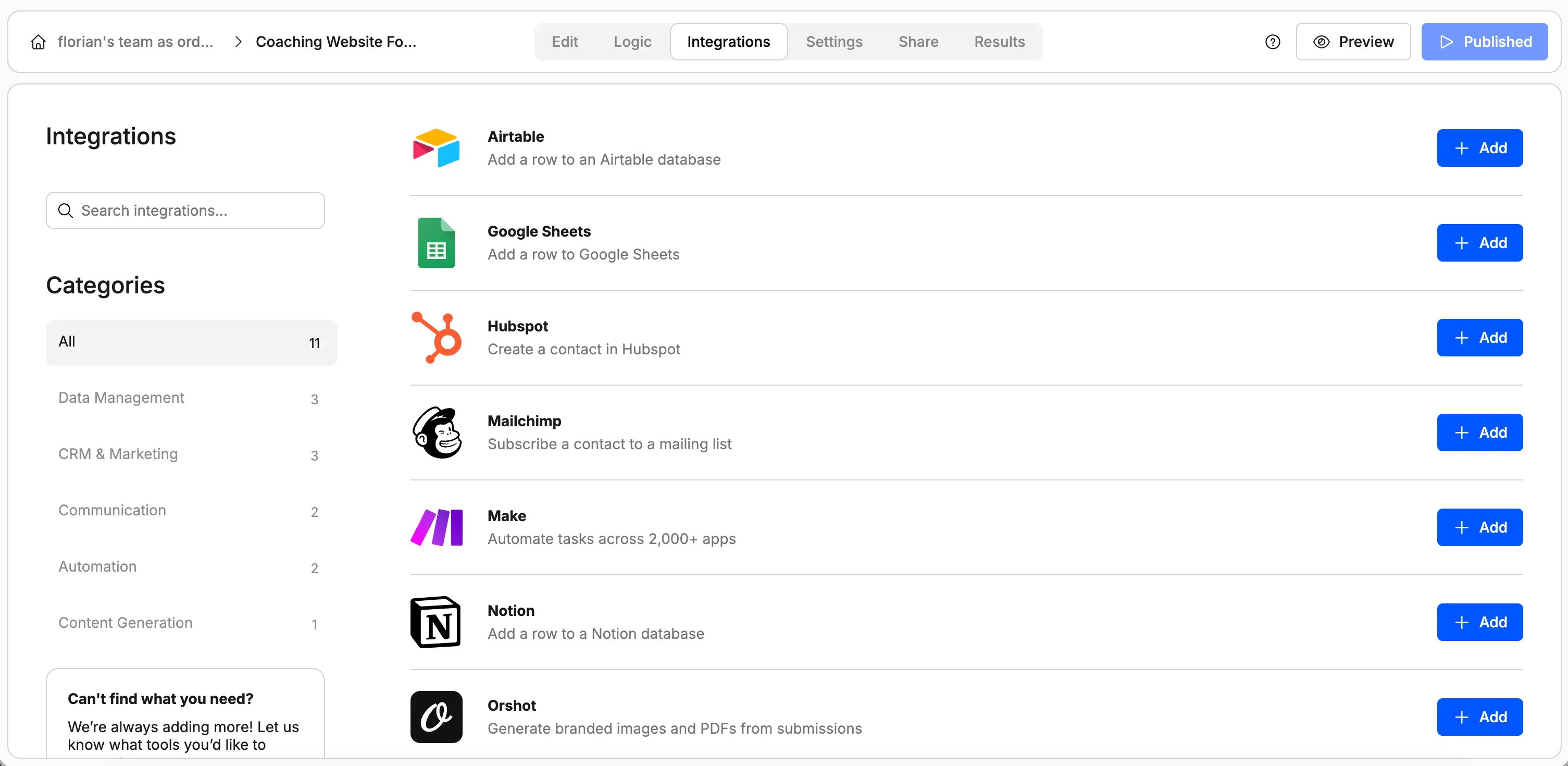
If you want responses to land in an external tool, head to the Integrations tab on your form. For example, you can send form responses to Google Sheets automatically. Weavely also connects with:- Salesforce: push leads directly into your CRM
- HubSpot: sync contacts and form data
- Notion: log responses in your workspace
- Zapier / Make / n8n: connect to thousands of other apps
Works for any form type, not just contact forms
While contact forms are the most common use case, the AI form builder can generate any type of form for your GoDaddy website. You might use it to create a registration form for an upcoming event, a feedback survey to collect opinions from customers, a booking form for appointments, or an order form for products and services. Some users also build lead generation forms with conditional logic or job application forms with file uploads. The embed process is exactly the same regardless of what you’re building: describe it, publish, paste the embed code.Frequently asked questions
Does GoDaddy have a built-in form builder?
Does GoDaddy have a built-in form builder?
GoDaddy Website Builder includes a basic contact section, but it’s limited in what you can customise. It doesn’t support multi-step forms, conditional logic, or advanced field types. Using an AI form builder like Weavely gives you much more flexibility and you can create any type of form, not just a simple contact page.
How do I add a fillable form to my GoDaddy website?
How do I add a fillable form to my GoDaddy website?
Add an HTML section to your page in the GoDaddy editor (click “Add a Section” and search for “HTML”), then paste in the embed code from your form builder. Weavely generates the embed code for you automatically, so just copy and paste both snippets. The form will be fully fillable and mobile-responsive once published.
Why is my GoDaddy contact form not sending emails?
Why is my GoDaddy contact form not sending emails?
This is usually caused by SMTP restrictions on GoDaddy’s hosting, especially if you’re using WordPress plugins like Contact Form 7. A common workaround is to use a standalone form tool like Weavely, which handles email delivery on its own servers. You can set up both submission notifications and respondent confirmations without touching any server-side email settings.
Can I embed a contact form on GoDaddy for free?
Can I embed a contact form on GoDaddy for free?
Yes. Weavely is free to use with no limits on forms or responses. You can create a contact form with AI, customise it to match your branding, embed it on your GoDaddy site, and collect unlimited responses, all without paying. The only requirement on the free plan is a small “generated by Weavely AI” badge on the form.