

Most meetings end with good intentions and no follow-through. A post-meeting survey is the simplest way to capture feedback while the discussion is still fresh, but nobody sends them manually because the effort is not worth it for every call.
This guide shows you how to build an n8n workflow that does it automatically. When a meeting ends, the workflow reads your Google Meet notes, generates tailored survey questions using an AI agent, builds the form via the Weavely MCP, and sends it to all attendees after a quick Slack approval.
You can also use our free template here: https://n8n.io/workflows/15095
What you need
- Google Workspace Business Standard or higher (required for Gemini meeting notes)
- OpenAI API key
- Weavely account — free at weavely.ai
- Slack workspace connected to n8n
- Gmail account connected to n8n
How the workflow works

- Google Calendar detects when a meeting ends
- Waits 10 minutes for Gemini to generate and attach notes to the event
- Re-fetches the event and extracts the Gemini notes doc
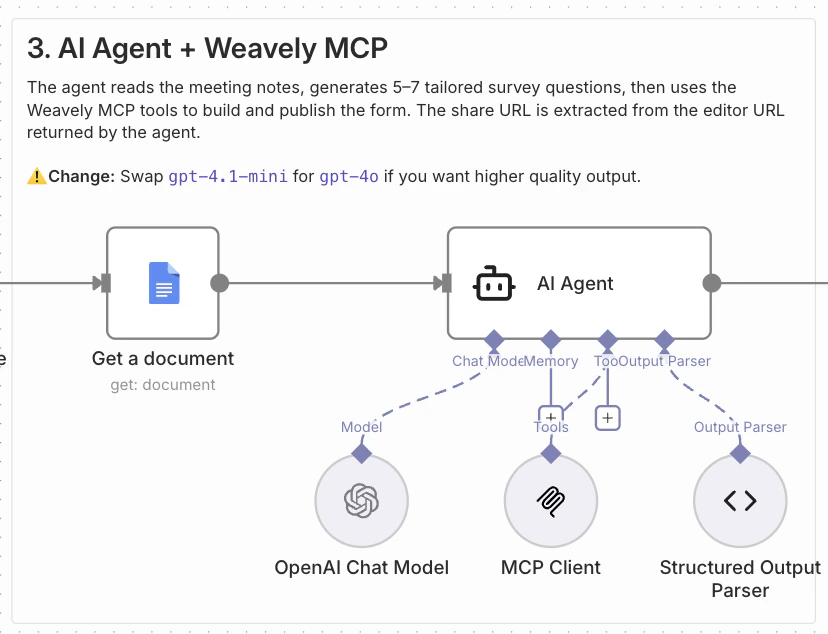
- An AI agent reads the notes and generates 5 to 7 tailored survey questions
- The Weavely MCP builds and publishes the form
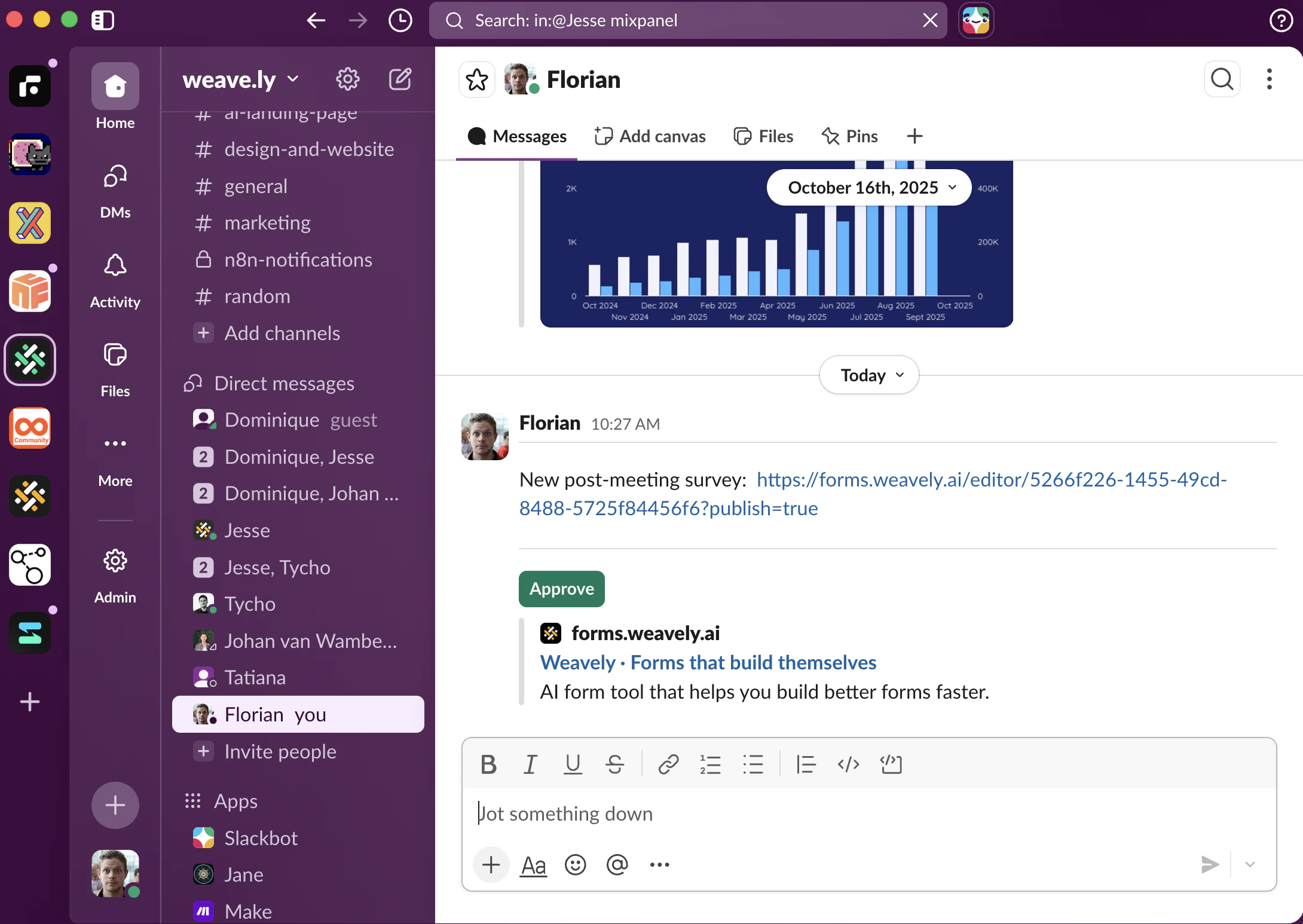
- A Slack message is sent to the organiser with the form link and Approve / Reject buttons
- On approval, all attendees receive a branded email with the survey link
Set up the workflow
Start by importing the template into your n8n instance. You can find the template in the n8n template library (currently pending approval, you’ll need to build this manually based on the video).1
Configure your calendar and Slack
Open the Configuration node at the start of the workflow. Update the two values:
calendarId: your Google Calendar email address (e.g.you@yourcompany.com)slackUserId: your Slack member ID
2
Connect your credentials
Connect the following credentials in each node. n8n will prompt you the first time you open each one:
- Google Calendar Trigger and Get an event: connect your Google Calendar account
- Get a document: connect your Google Docs account
- OpenAI Chat Model: add your OpenAI API key
- Slack: connect your Slack workspace
- Send a message: connect your Gmail account
The Weavely MCP Client does not require authentication. It connects directly to
https://mcp.weavely.ai/mcp without credentials.3
Enable Slack interactivity
For the Approve and Reject buttons to work inline in Slack (rather than opening a browser window), you need to enable Interactivity in your Slack app settings.You can find the exact URL in the Send message and wait for response node once the workflow has run at least once.
- Go to api.slack.com/apps and open your Slack app
- Click Interactivity and Shortcuts in the left sidebar
- Toggle Interactivity on
- Set the Request URL to your n8n webhook-waiting URL
4
Activate the workflow
Once credentials are connected and Slack interactivity is configured, toggle the workflow to Active in n8n.The workflow now fires automatically whenever a calendar event matching the word “Meeting” ends. You can change this match term in the Google Calendar Trigger node to match your own naming conventions.
How a survey gets generated
The Slack approval step
Viewing responses
After attendees fill in the survey, responses appear automatically in your Weavely dashboard under the Results tab. From there you can:- View responses directly in Weavely
- Export to Google Sheets, Airtable, HubSpot, or any other tool via Weavely’s integrations
- Set up automated workflows using Weavely’s n8n or Zapier integrations to route responses wherever you need them
Customising the workflow
The template is designed to be a starting point. Common adjustments: Different calendar or meeting tool: Swap the Google Calendar Trigger for a Calendly trigger, a Zoom webhook, or any other calendar node n8n supports. The rest of the workflow stays the same. Different notification channel: Replace the Slack node with a Microsoft Teams node, a Telegram node, or an email if you prefer approvals by email. Different AI model: The template usesgpt-4.1-mini for cost efficiency. Swap the OpenAI Chat Model node for Claude, Gemini, or any other model supported by n8n if you want different output quality or cost characteristics.
Adjust the survey questions: Edit the prompt in the AI Agent node to change the number of questions, the question types, or the focus areas. The current prompt targets outcomes, decisions, and action item clarity.
No Gemini notes: If your Google Workspace plan does not include Gemini meeting notes, you can still use this workflow. Remove the Filter Meeting Notes File and Get a document nodes, and pass the meeting title and attendee list directly to the AI Agent instead. The questions will be less tailored but still useful for recurring meetings with predictable content.