

Step 1: Open Your Form's Settings
- In your Weavely form editor, go to Settings.
- Scroll down to the URL Parameters section.
-
Add a new parameter, for example,
usertype.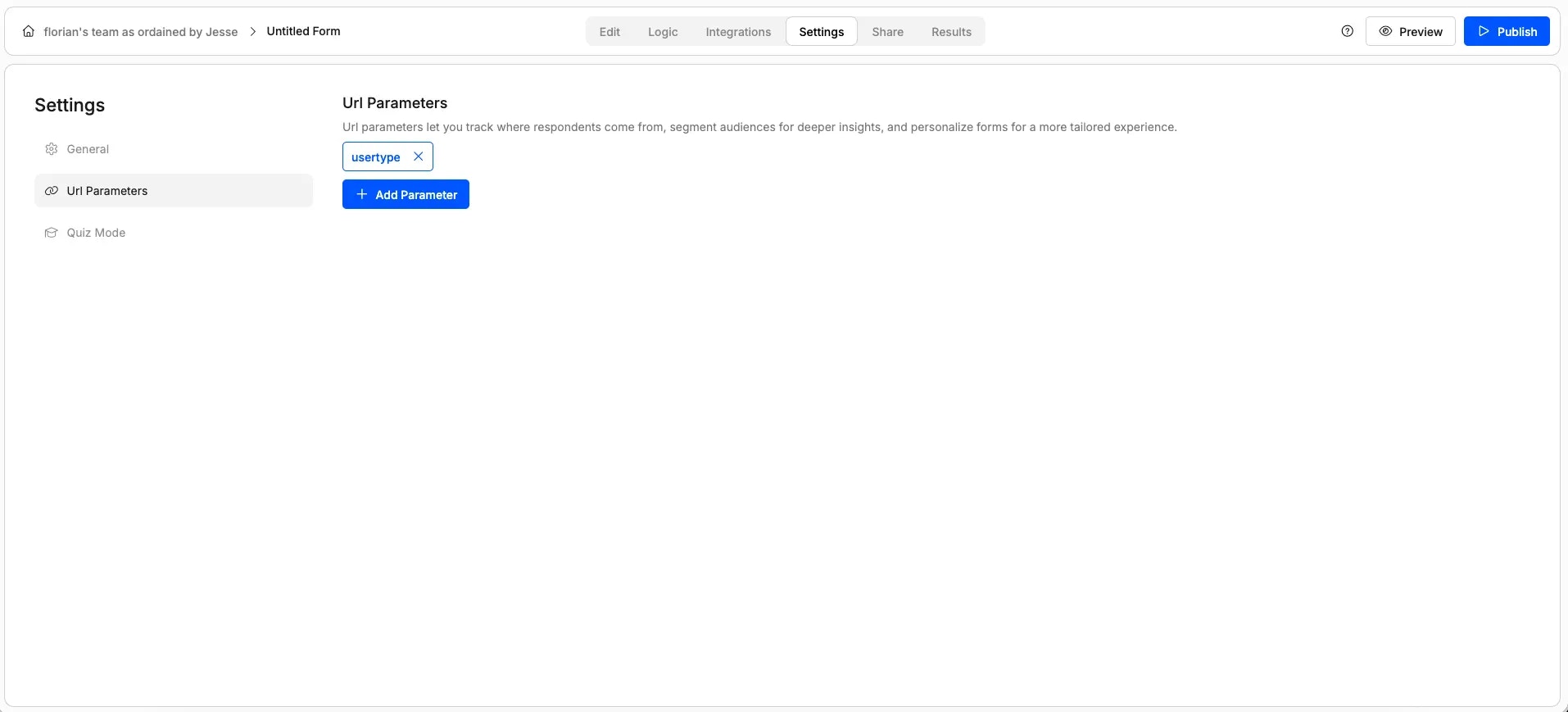
Step 2: Publish and Append the Parameter
- Click Publish on your form.
- Copy the generated form URL.
-
Append the parameter to the link using the format:
For example, using the URL parameter we created in step 1 we would add it as follows:
URL Parameters in Form Responses
Form responses will automatically specify the values you provided for URL parameters. For example, in the image below we got three responses to our form. One where the URL parameter wasn’t specified, one where?usertype=tester and one where ?usertype=power-user.
URL Parameters in Embedded Forms
In case you’re embedding your form on a website, you’ll need to add the URL parameters to the embed code. For example, say you have two url parameters: “usertype” and “ref”. You would add these to your embedded form as follows:Pro Tip: Add Multiple Parameters
You can add multiple query parameters by repeating the process in Settings → URL Parameters. Then append them to your URL using the& symbol: