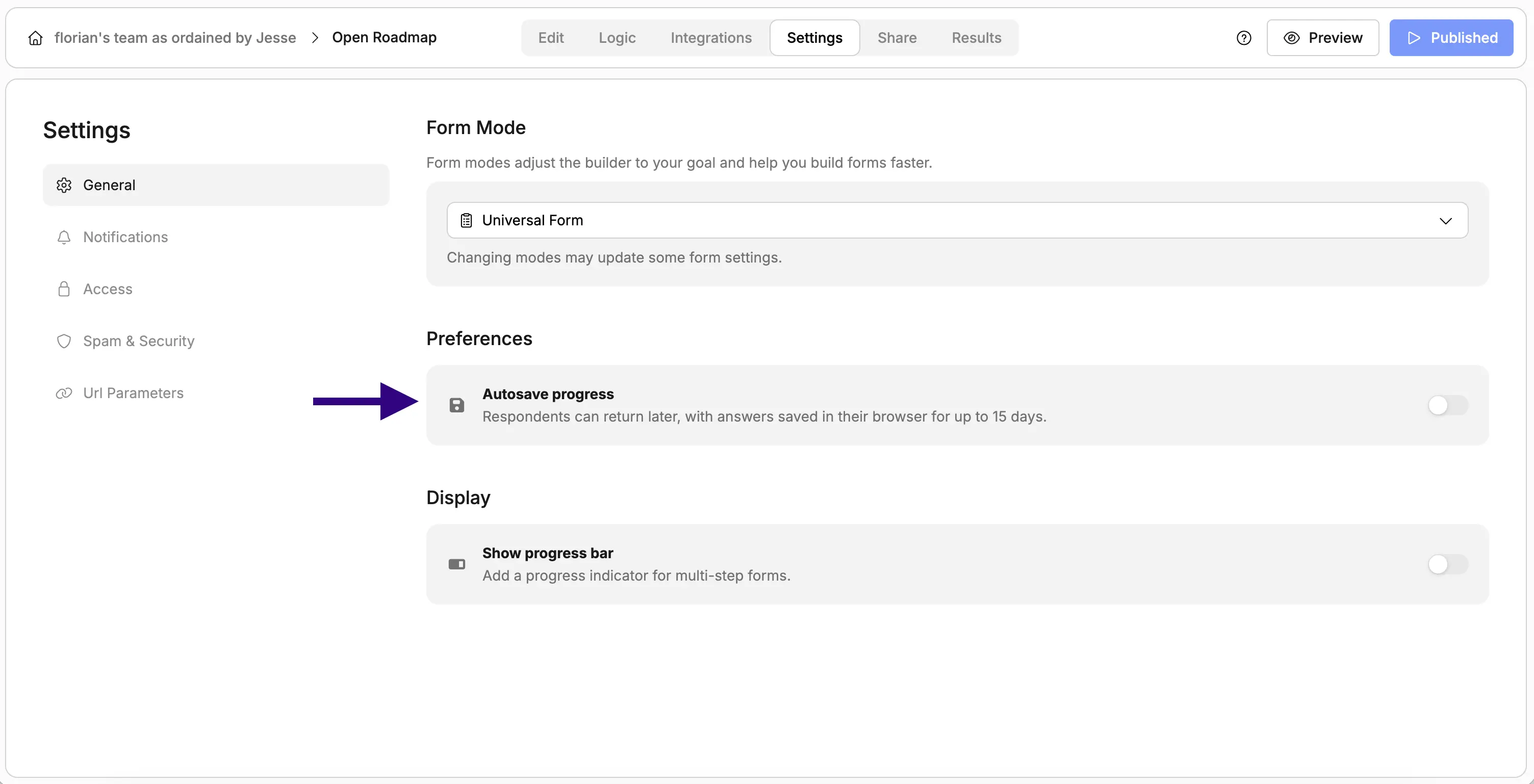
The autosave feature lets your respondents save their form responses automatically so they can leave and come back to continue filling out your form later. Their answers are stored in their browser’s local storage, so they won’t lose their progress. To enable autosave responses, open your form and navigate to the Settings section, in the General sub-section. Toggle on the “Autosave progress” option. Screenshot showing the "Autosave progress" toggle in Weavely AI When enabled, respondents can close the form at any time and their responses will be saved. When they return to the same form URL, their progress will be automatically restored so they can pick up where they left off. Note: Responses are saved locally in the respondent’s browser. If they clear their browser data or switch to a different device, their saved progress will not be available.

Frequently Asked Questions

Is autosave available on the free plan? Yes, the autosave responses feature is available to all Weavely users, including those on the free tier. Will respondents’ answers be saved if they close their browser? Yes, their responses are saved in their browser’s local storage and will be restored when they return to the form, even after closing their browser. Can respondents continue the form on a different device? No, autosaved responses are stored locally in their browser. If they switch to a different device or browser, they’ll need to start fresh. What happens if a respondent clears their browser data? Clearing browser cache and cookies will also remove their saved form progress.