

What is a workspace?
A workspace is a container that holds a set of forms. You can have as many workspaces as you like — for example, one per client, one per campaign, or one per use case (lead gen, events, feedback). Every form lives inside exactly one workspace at a time, and you can move forms between workspaces whenever you want. You’ll find the workspaces menu on the left side of your Weavely dashboard.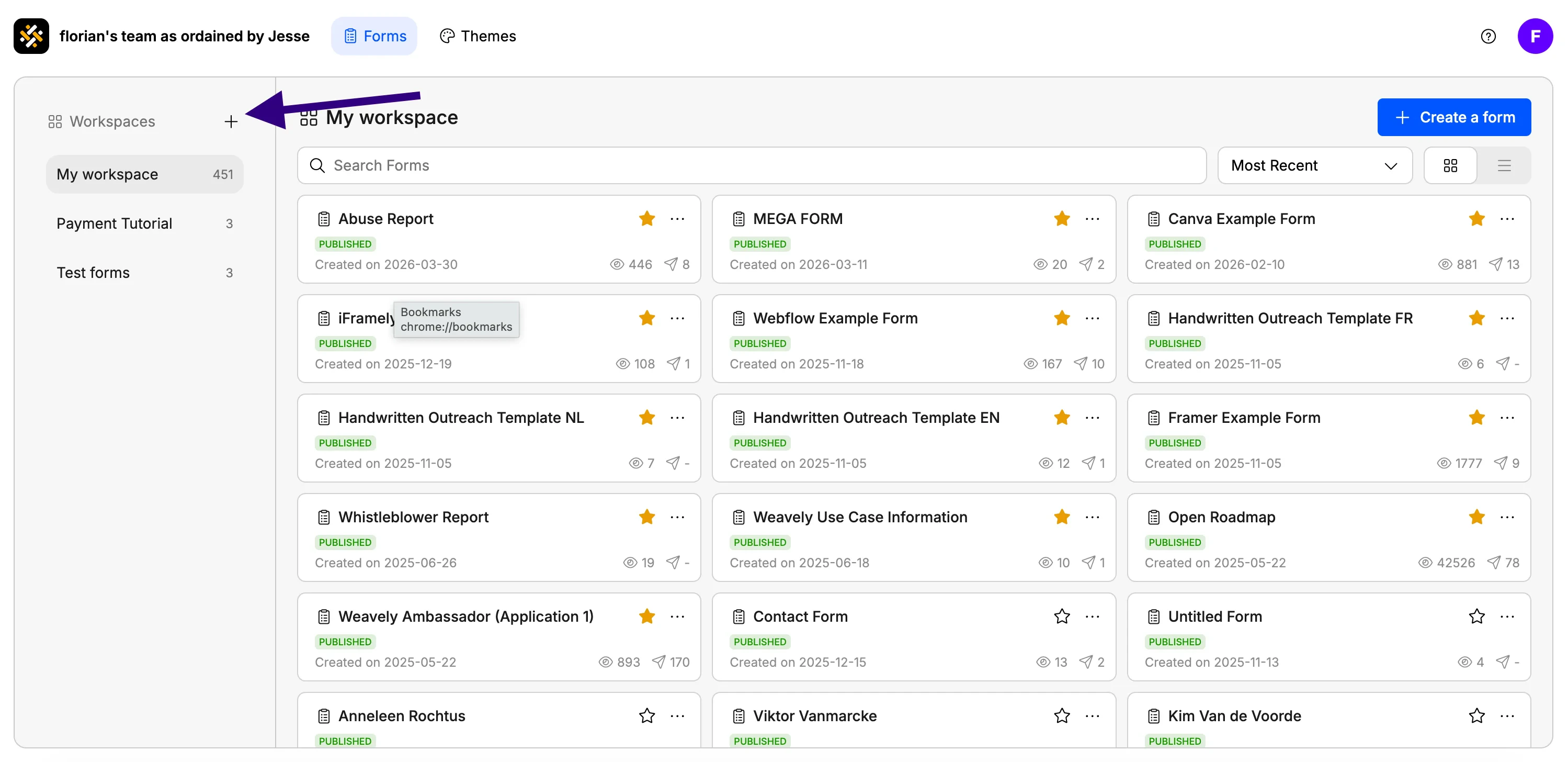
Create a new workspace
1
Open your dashboard
Sign in to Weavely. The workspaces menu sits on the left side of the dashboard.
2
Click '+'
The button is at the top of the workspaces menu.
3
Name your workspace
Give it a descriptive name. You can rename it later if needed.
4
Confirm
Click Create. The new workspace appears in the left menu and opens automatically.
Add forms to a workspace
There are two ways to put a form into a workspace.Create a new form inside the workspace
When you’re inside a workspace and click Create new form, the new form automatically lands in that workspace, no extra step needed. This works whether you start from a blank form, a template, or by prompting Weavely’s AI.Move existing forms with drag and drop
Already have forms scattered around? Reorganizing is quick:1
Open the workspace where the form currently lives
For example, your default workspace.
2
Click and hold any form card
Grab the card you want to move.
3
Drop it onto the target workspace
Drop it on the workspace name in the left menu. The form moves immediately.
Rename a workspace
1
Open the workspace
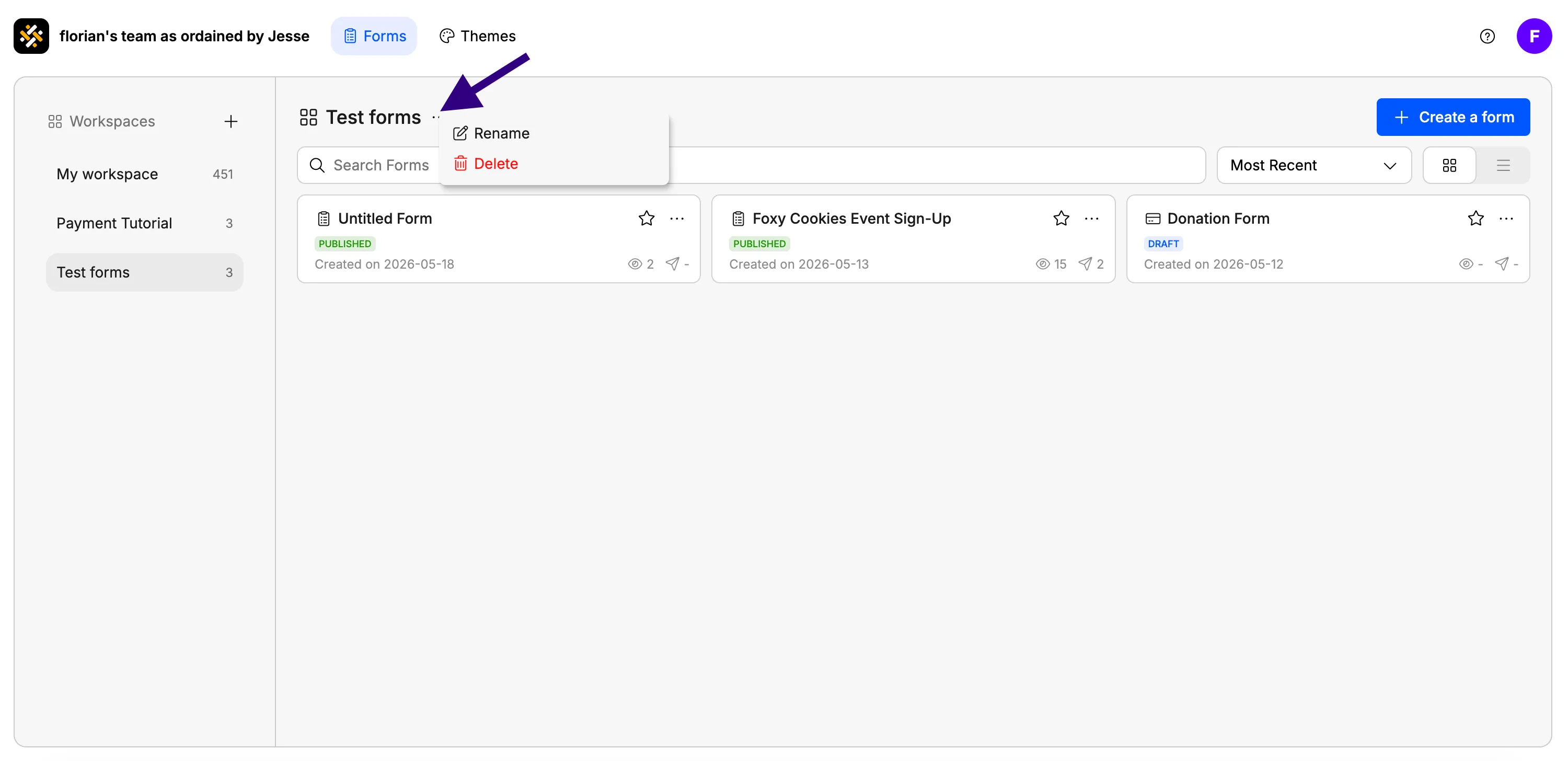
Click the workspace name in the left menu.
2
Open the three-dot menu
It sits at the top of the workspace view.
3
Select 'Rename'
Type the new name and confirm.
Delete a workspace
To delete a workspace:1
Open the workspace you want to remove
2
Open the three-dot menu at the top
3
Select 'Delete'
Read the confirmation pop-up carefully, it lists what will be removed.
4
Confirm
Once confirmed, the workspace and all the forms it contains are gone.
Tips for staying organized
- One workspace per client or project. This is the most common setup for agencies and freelancers.
- Use clear names. “Acme — onboarding” reads better than “Workspace 3” when you have a dozen of them.
- Reorganize as you go. Workspaces aren’t permanent. Move forms around whenever your work shifts.
- Review quarterly. A quick check of which workspaces are still active keeps your dashboard fast and easy to scan.