A lead qualification form assigns a single score to each respondent based on their answers, then sorts them into bands. For example cold, warm, or hot, and can show a different ending depending on the score.
Want to sort respondents into categories instead of scoring them (e.g. a personality quiz or product-match finder)? See Build a match quiz.
Steps
1
Describe the form you need
On the landing page or in the product, describe the form and what you’re trying to learn. The more specific the prompt, the better the questions.Press Generate form.
2
Review the questions Weavely generated
Weavely writes the questions and sets up the scoring automatically. For the sandal example, it produced three questions: whether the person is interested in buying new sandals, the occasions they’d wear them, and their budget. Each with answers that score differently depending on how hot or cold the lead is.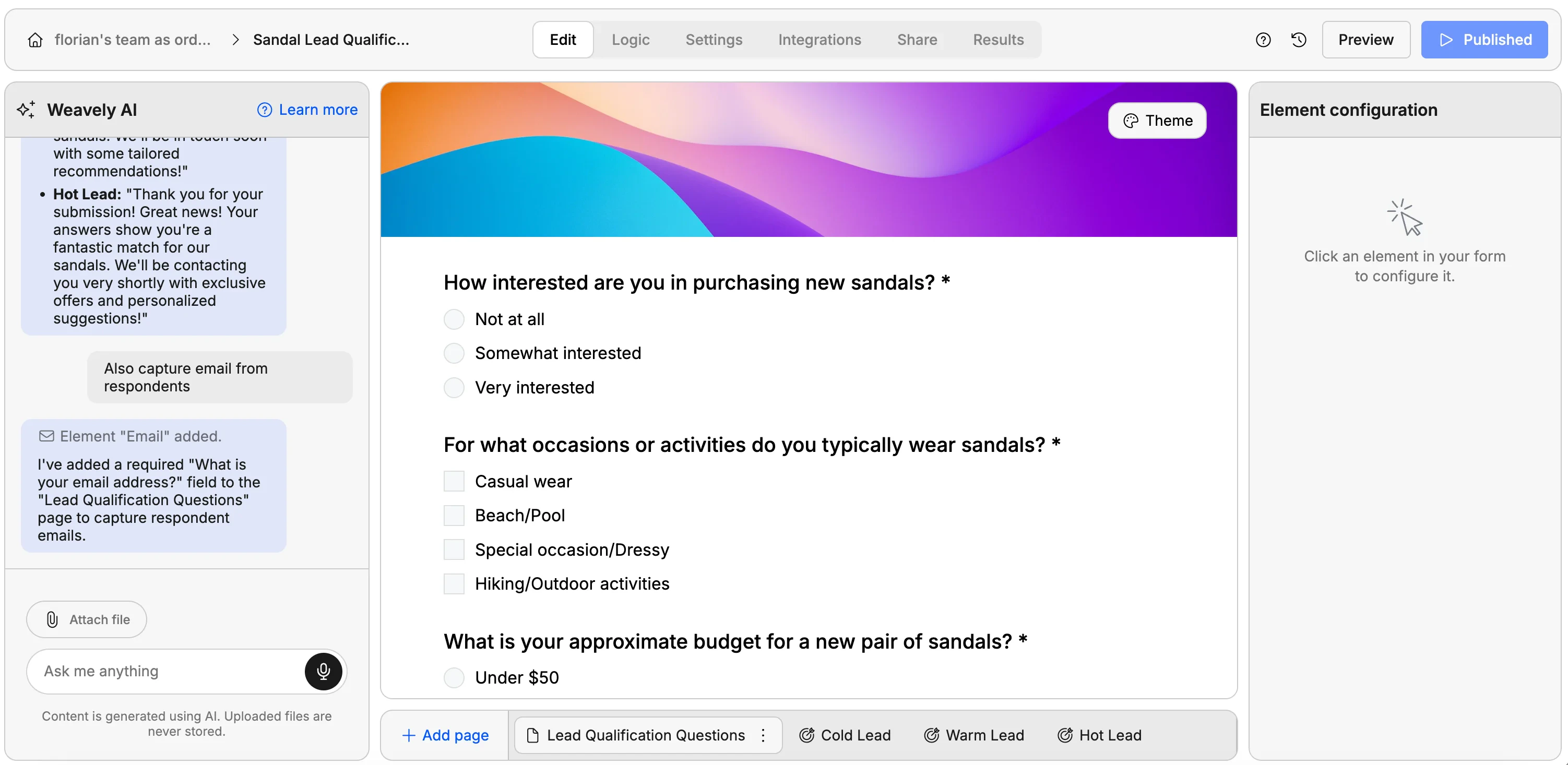
3
Check how the scoring is wired up
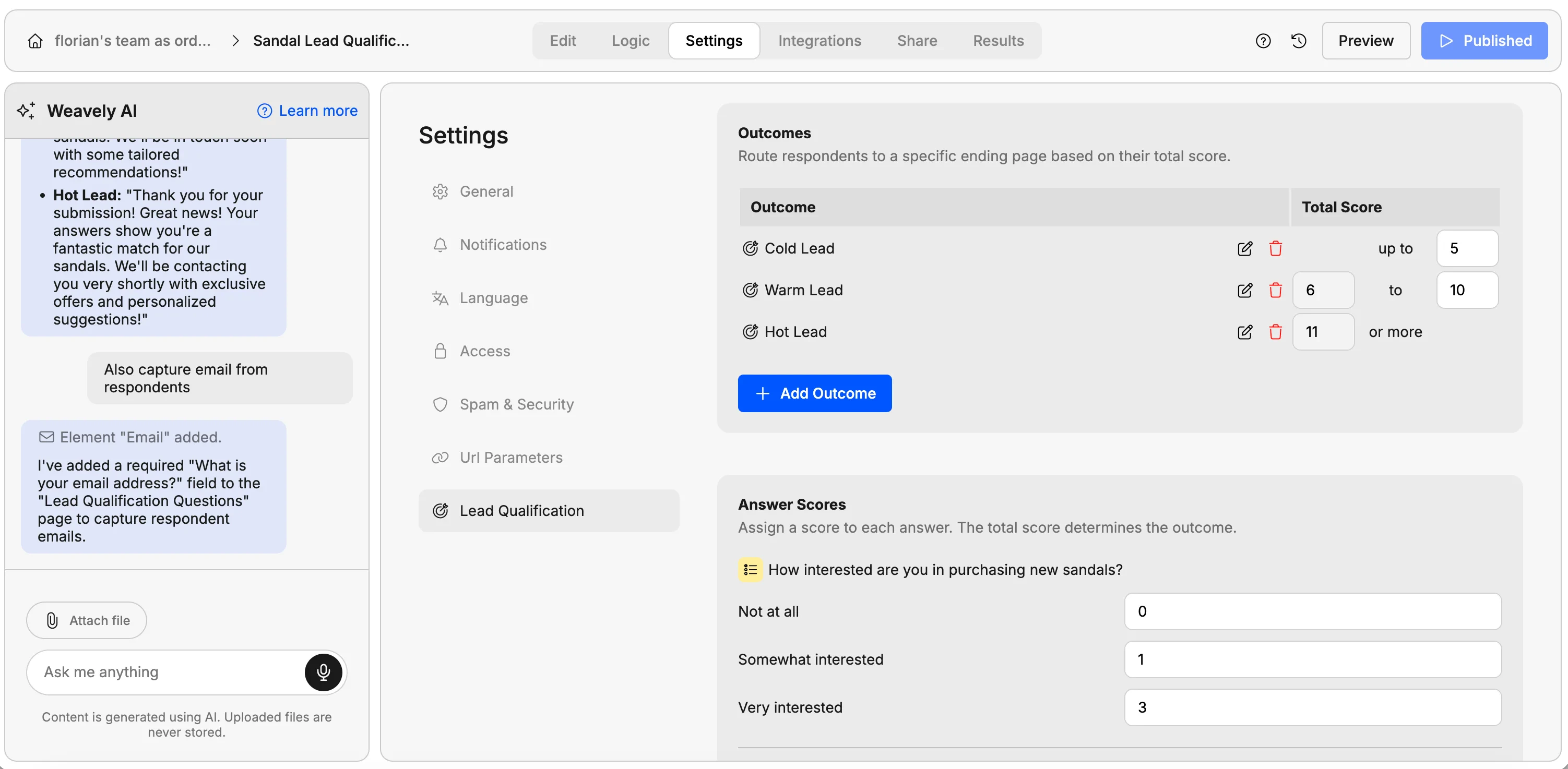
- The outcomes (e.g. cold, warm, hot) and the score required to reach each one.
- The score for every individual answer, which Weavely’s AI set for you.
4
Capture the respondent's email
To follow up with leads, add an email field — for example by asking Weavely to also capture email from respondents. The email field isn’t scored (you can’t score an email address), but it gives you a way to contact the lead.
5
Publish and test
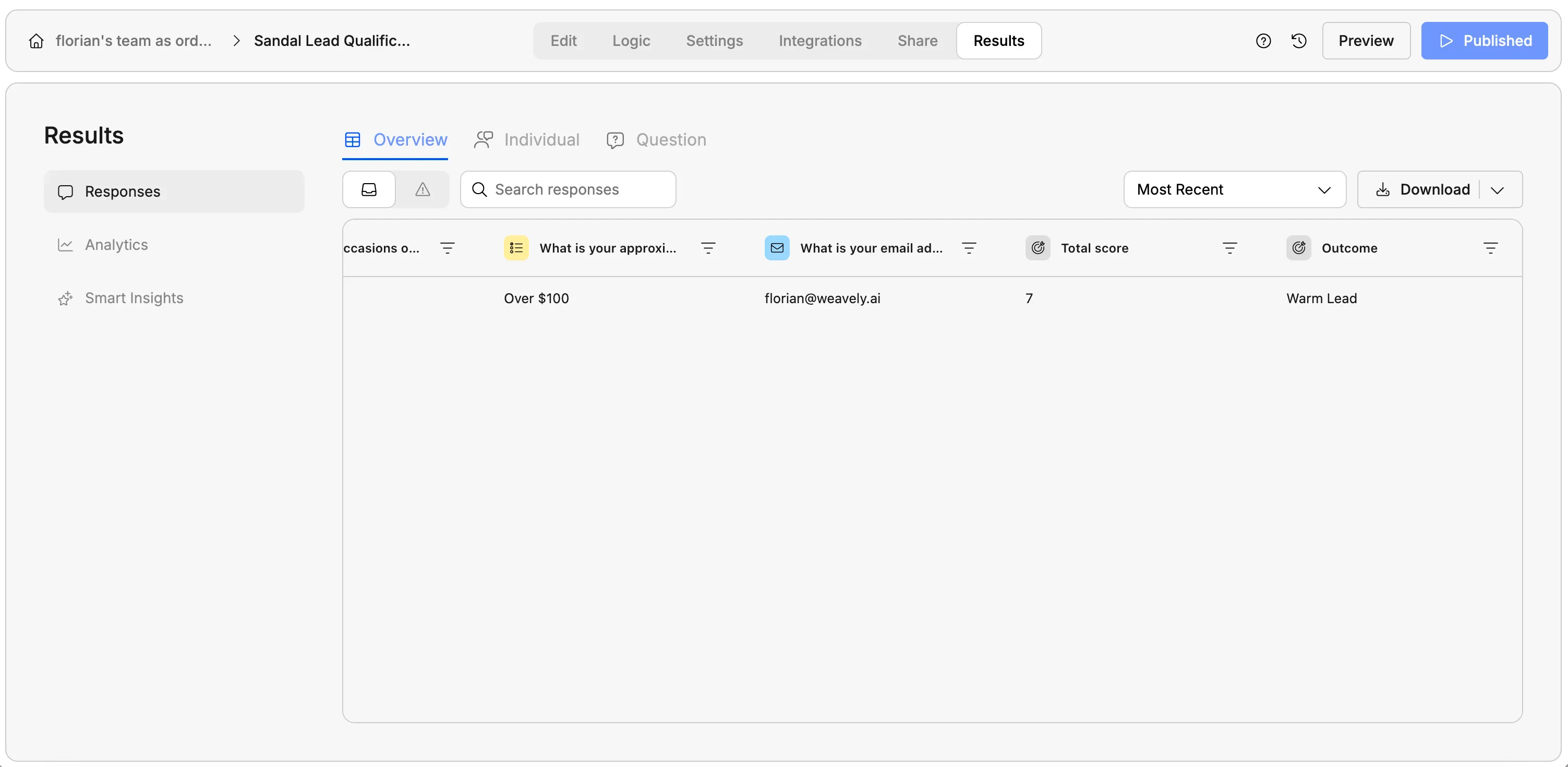
Publish the form and copy the URL. Fill it in yourself to see the result. In the sandal example, answering “very interested”, “beach”, and a budget over €100 returns a warm lead with a total score of 7, shown on the ending screen.
6
Review responses
In Results, each submission shows the respondent’s email, the answers they gave, and their outcome and total score.