

What Are Multi-Language Forms?
Multi-language forms let you add additional languages to a single form. When you add a language, Weavely’s AI automatically translates all of your form content into that language. Respondents can then switch languages using a language dropdown at the top of the form. This means you manage one form, collect all responses in one place, and let each respondent fill it in the language they’re most comfortable with.Note: This feature is different from the form language setting. The form language setting (available on the free tier) only translates Weavely’s built-in system messages like button text and error messages. Multi-language forms translate your actual content: questions, descriptions, option labels, and everything else your respondents see. See How to Change Your Form Language for more on that setting.
How to Translate Your Form into Multiple Languages
- Open your form in the Weavely editor
- Navigate to Settings in the top menu
- Under the Language section, you’ll see the option to add languages as translations
- Select a language from the dropdown, a wide range of languages are supported
- Press Translate
- Weavely’s AI will generate translations for every question, description, and option label in your form
- Review the translations on the screen and edit anything you’d like to adjust
- Save your translations
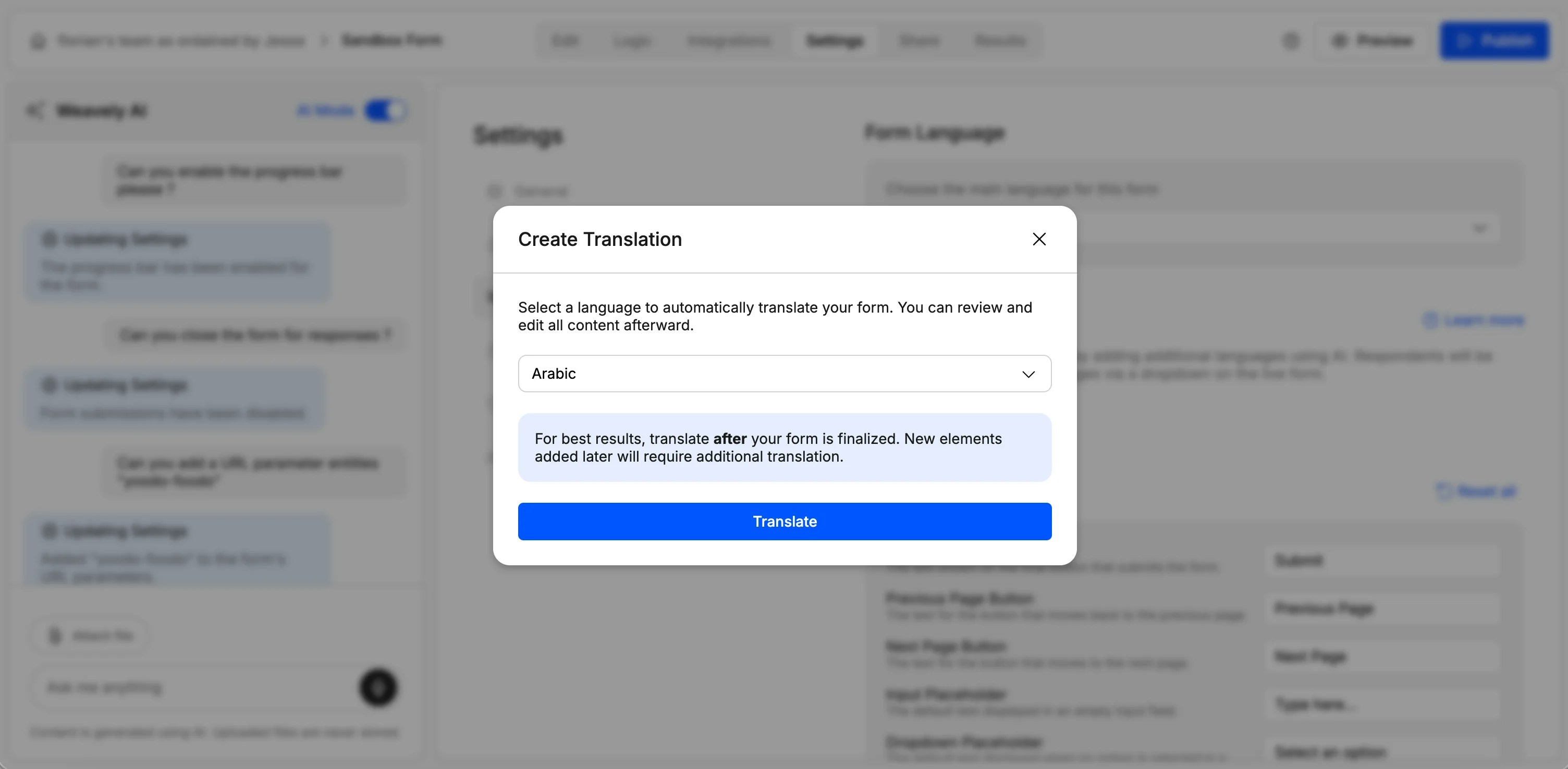
Using AI to Add Translations
You can also ask Weavely’s AI to handle the form translation through the chat interface. For example, “Translate my form into French and Spanish.” The manual settings option is there if you prefer to do it yourself or want to review each translation in detail.How Respondents Switch Languages
Once you’ve published your multilingual form, respondents will see a language dropdown at the top of the form. They can switch between any of the languages you’ve added, on any page, at any time. All form content updates instantly when they switch: questions, descriptions, option labels, radio buttons, and system messages are all displayed in the selected language.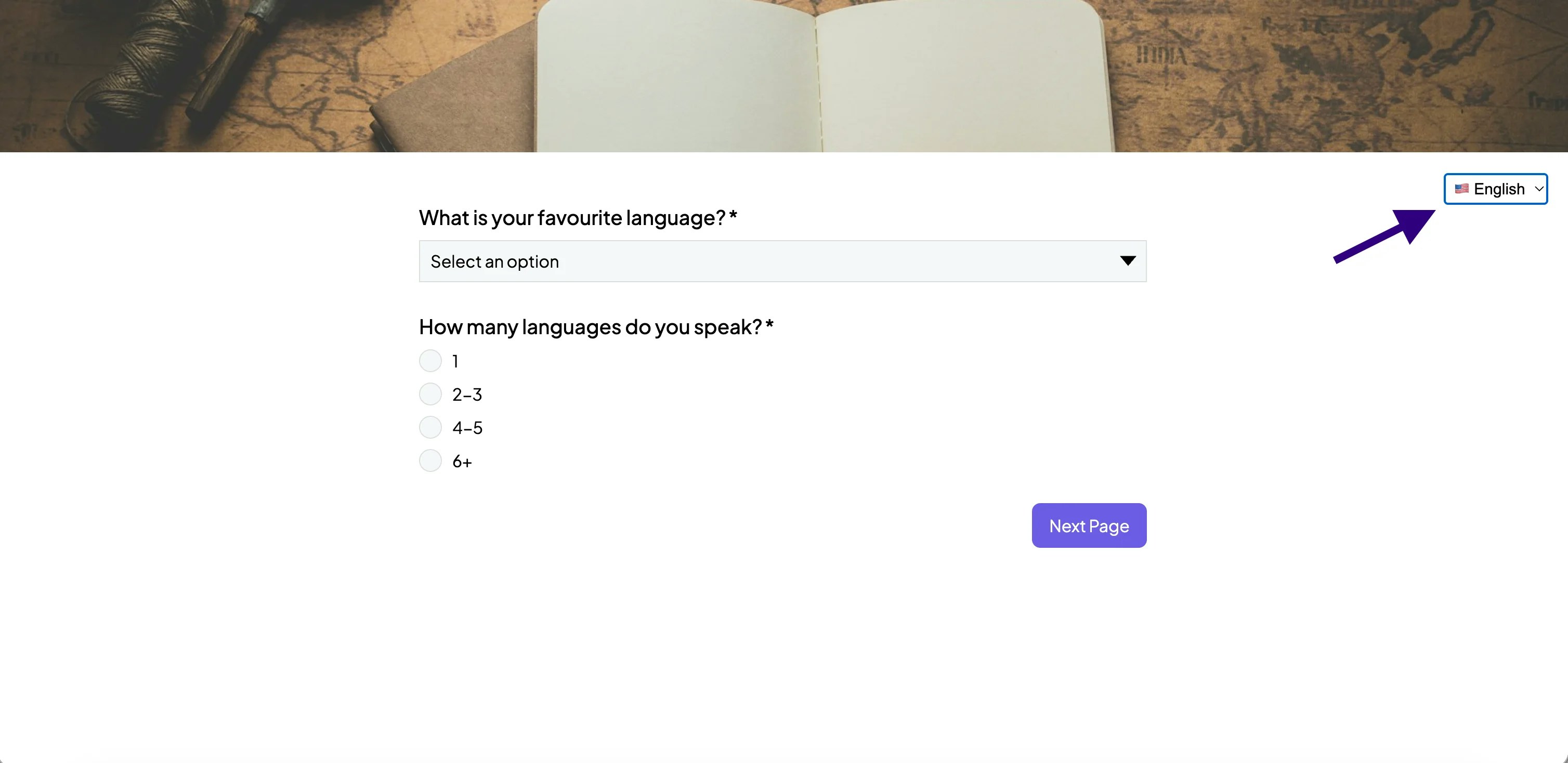
Automatic Browser Language Matching
You can also enable match browser language so your form automatically displays in the respondent’s browser language. For example, if a respondent’s browser is set to French and you’ve added a French translation, they’ll see the French version when they open the form — no manual switching needed.Reviewing and Editing Translations
After AI translation, you can edit any translated text directly. If a translation doesn’t quite match the tone or terminology you want, simply update it in the translation editor. You can also come back to edit translations at any time through Settings > Language.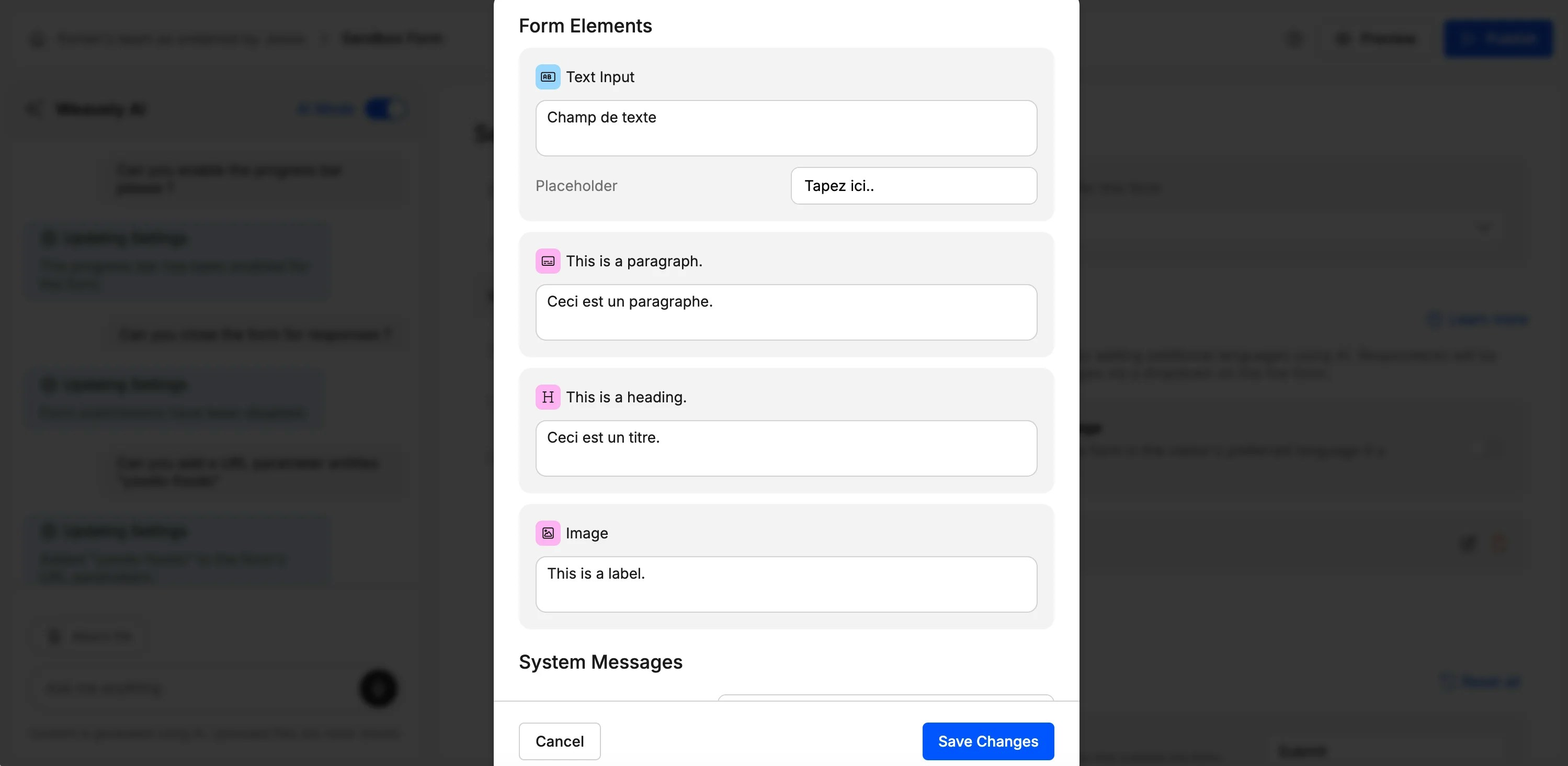
Updating Translations After Form Changes
If you add new questions or make changes to your form after translating, Weavely will flag that an update is required under the language settings. You have two options:- Manually translate the new content in the translation editor
- Re-run the AI translation by removing and re-adding the language, which will automatically include the new content