What Does the Form Language Setting Do?
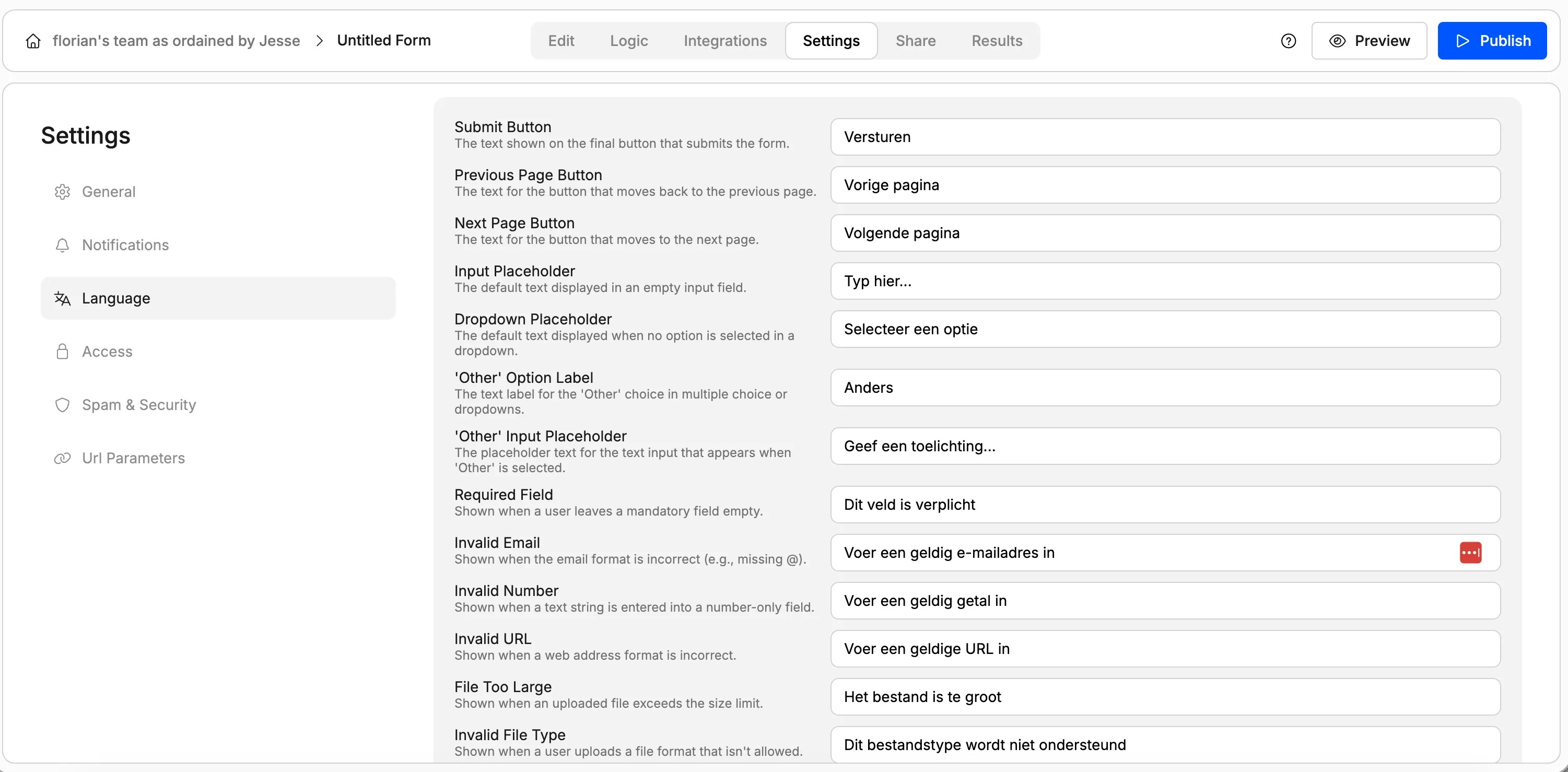
When you set your form language, Weavely automatically translates all built-in system messages in your form. This includes:- Button text: Submit, Next Page, Previous Page
- Placeholder text: “Type here…”, “Select an option”
- Validation and error messages: “This field is required”, “Please enter a valid email address”
- Default option labels: such as “Other”
- File upload messages: error and status text for file fields
Note: This feature is different from multi-language forms. The form language setting translates Weavely’s built-in system text. If you need to translate your custom questions and content into multiple languages, see How to Create Multi-Language Forms.
How to Change Your Form Language
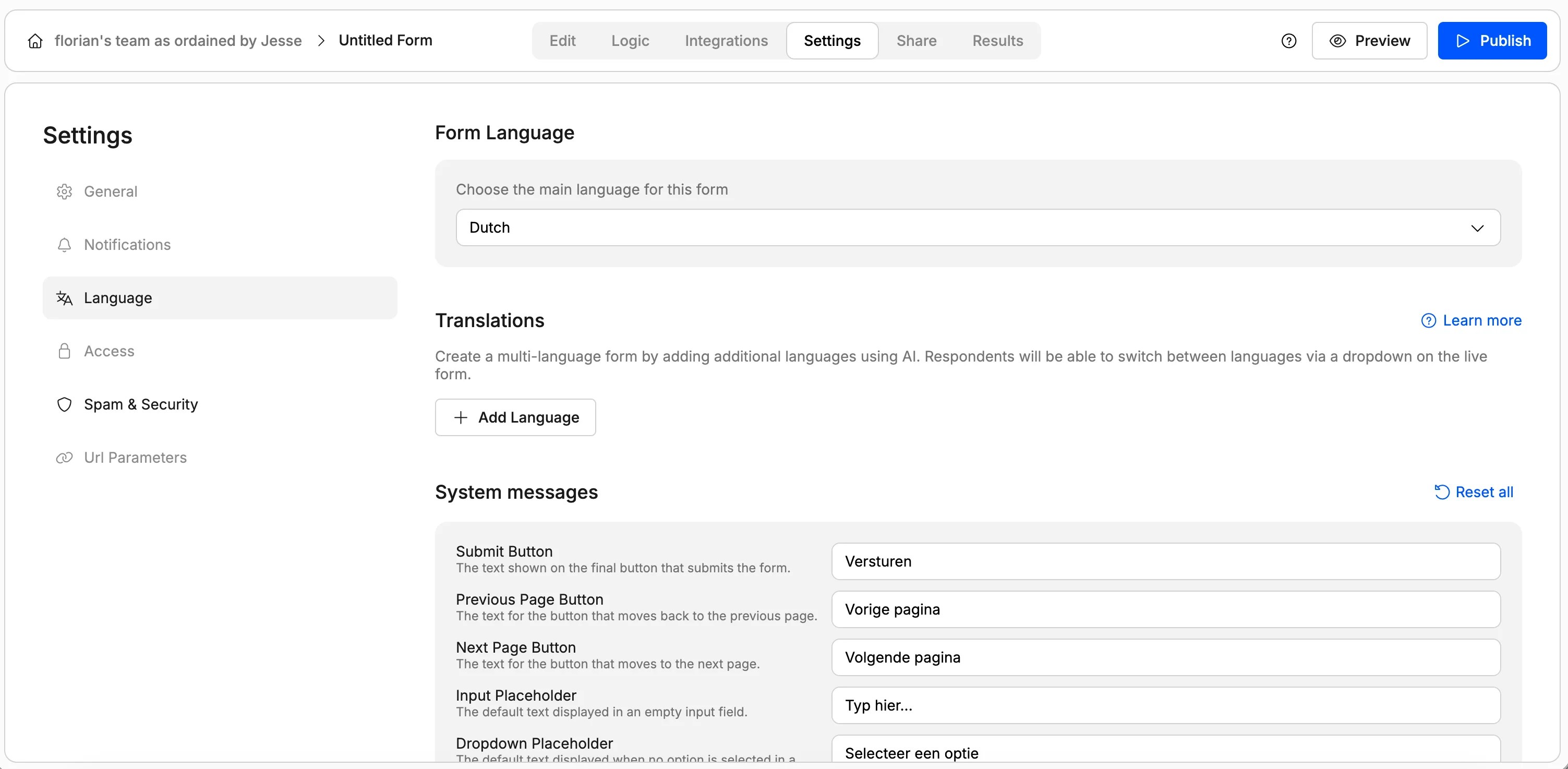
- Open your form in the Weavely editor
- Navigate to Settings in the top menu
- Click on the Language subsection
- Select your desired language from the list
- Your form’s system messages are now automatically translated
Using AI to Change the Form Language
You can also ask Weavely’s AI to set the form language through the chat interface. For example, “Set my form language to French.” The manual settings option is there if you prefer to do it yourself or want to know where the setting lives.Editing Translated System Messages
If you’re not happy with a translation or want to use specific wording, you can manually edit any system message directly in the form editor. Simply click on the text you want to change, update it, and the form will reflect your edit. This gives you full control! Use the automatic translation as a starting point, then fine-tune any text to match your exact needs.