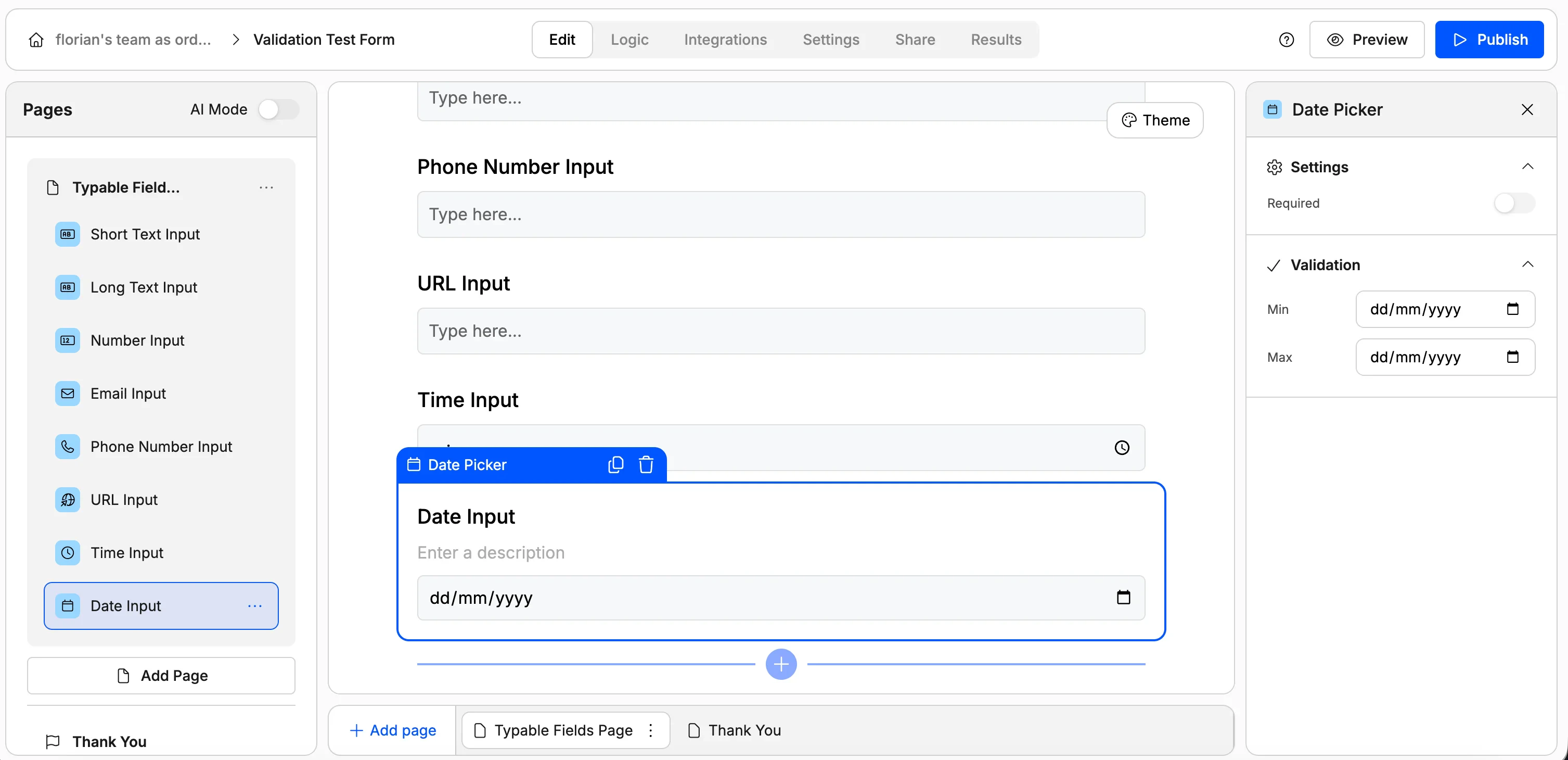
Weavely lets you set validation rules on every field where respondents can type freely. This ensures you only collect clean, correctly formatted data. No more garbage responses to clean up later.
This guide covers validation options for each input type and shows you how to use custom patterns (with help from AI) for advanced rules.
Text inputs (short and long)
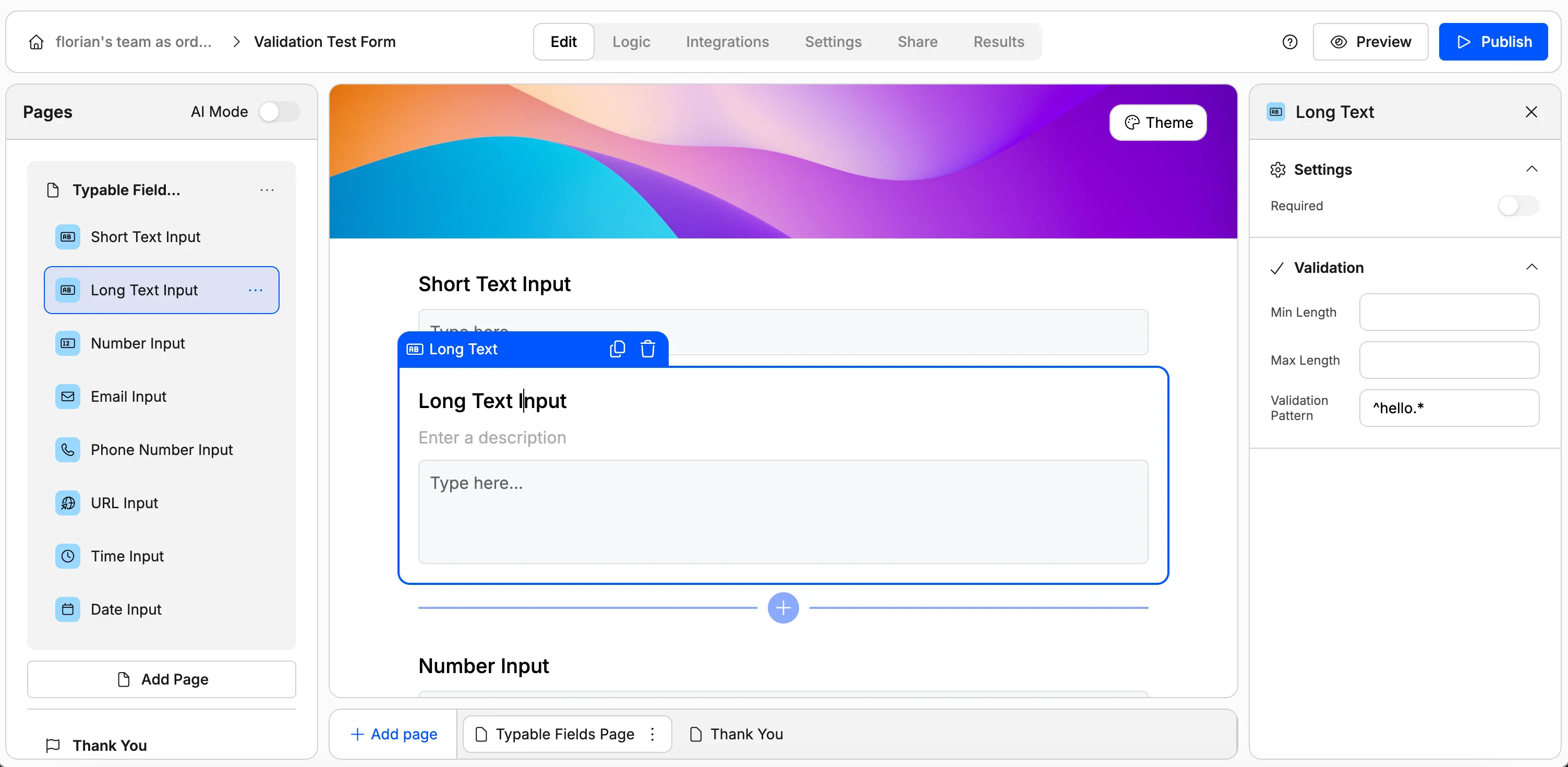
Short text and long text fields share the same validation options.
Min / max length
Set a minimum and maximum character count to control the length of responses. This is useful when you need answers within a specific range — for example, requiring at least 10 characters for a feedback field or capping a field at 100 characters.
Custom pattern (regex)
For more specific validation, you can define a custom pattern using regular expressions. This lets you enforce rules like “must start with a specific word” or “must follow a particular format.”
Don’t know how to write regular expressions? No problem, just describe what you want in the AI chat and Weavely will generate the pattern for you.
Example: require text to start with “hello”
Describe your rule to the AI
In the Weavely AI chat, type something like: “All of the inputs in the long text input question should start with hello in order to be valid.”
AI generates the regex pattern
Weavely’s AI creates a regular expression and automatically fills it into the custom pattern field for that question.
Test it in preview
Open the form preview and try submitting a response that doesn’t start with “hello” — you’ll see a “please enter valid format” error. Now change your input to start with “hello” and submit again. This time it goes through.
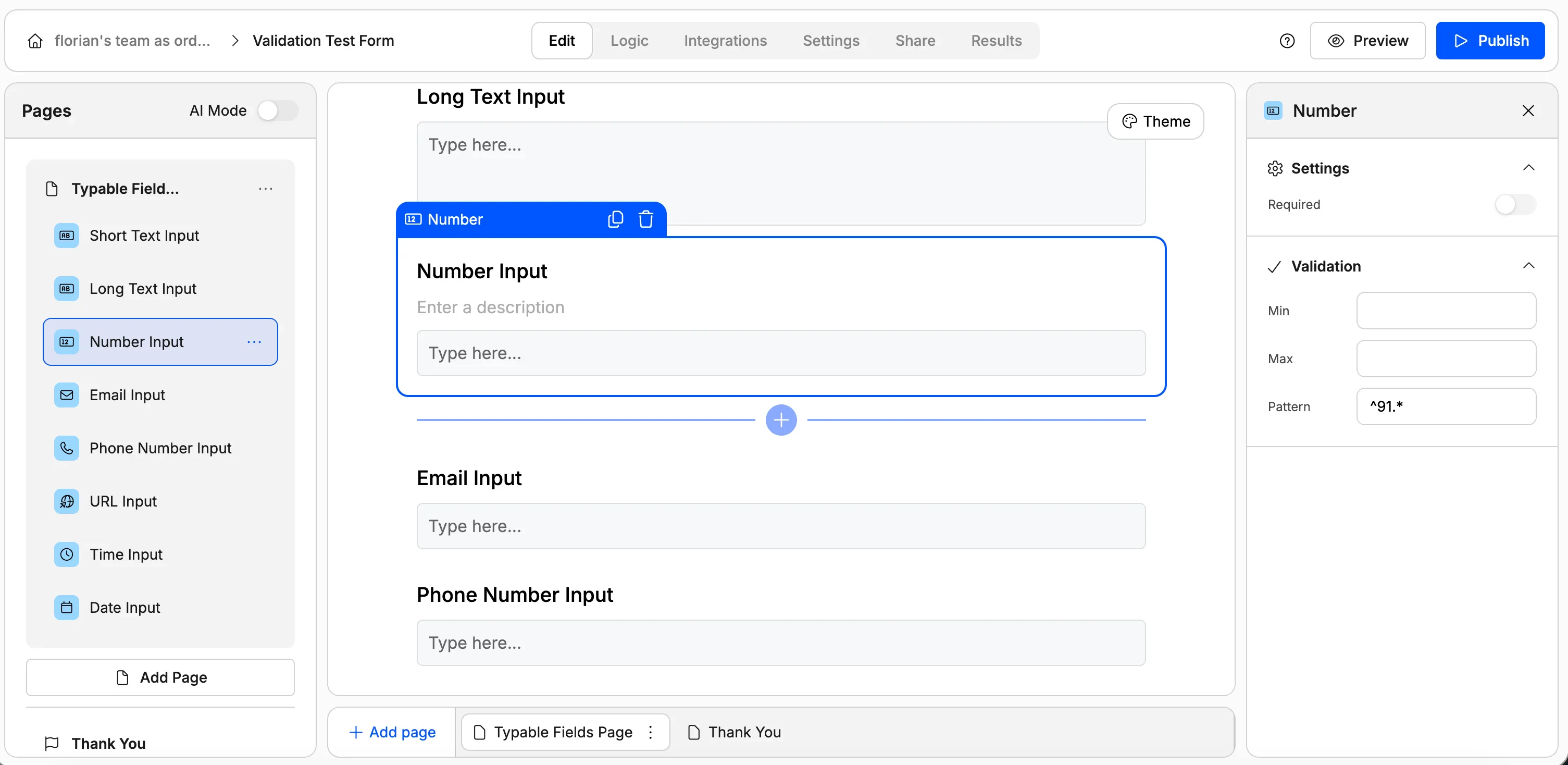
Number fields validate the actual value (not the number of digits).
Min / max value
Set a minimum and maximum accepted value. For example, you could require a number between 1 and 100.
Custom pattern (regex)
Just like text fields, you can specify a pattern for numeric inputs. This is useful for things like ID numbers or account numbers that must follow a specific format.
Example: require numbers starting with “91”
Describe your rule to the AI
In the AI chat, type something like: “A response is only valid if it starts with 91 and then anything after that.”
AI generates the pattern
The AI creates a regex and sets it in the pattern field for your number input.
Test it in preview
In the form preview, enter a number like 10 and submit — you’ll get an error. Now enter 911 and submit — it goes through successfully.
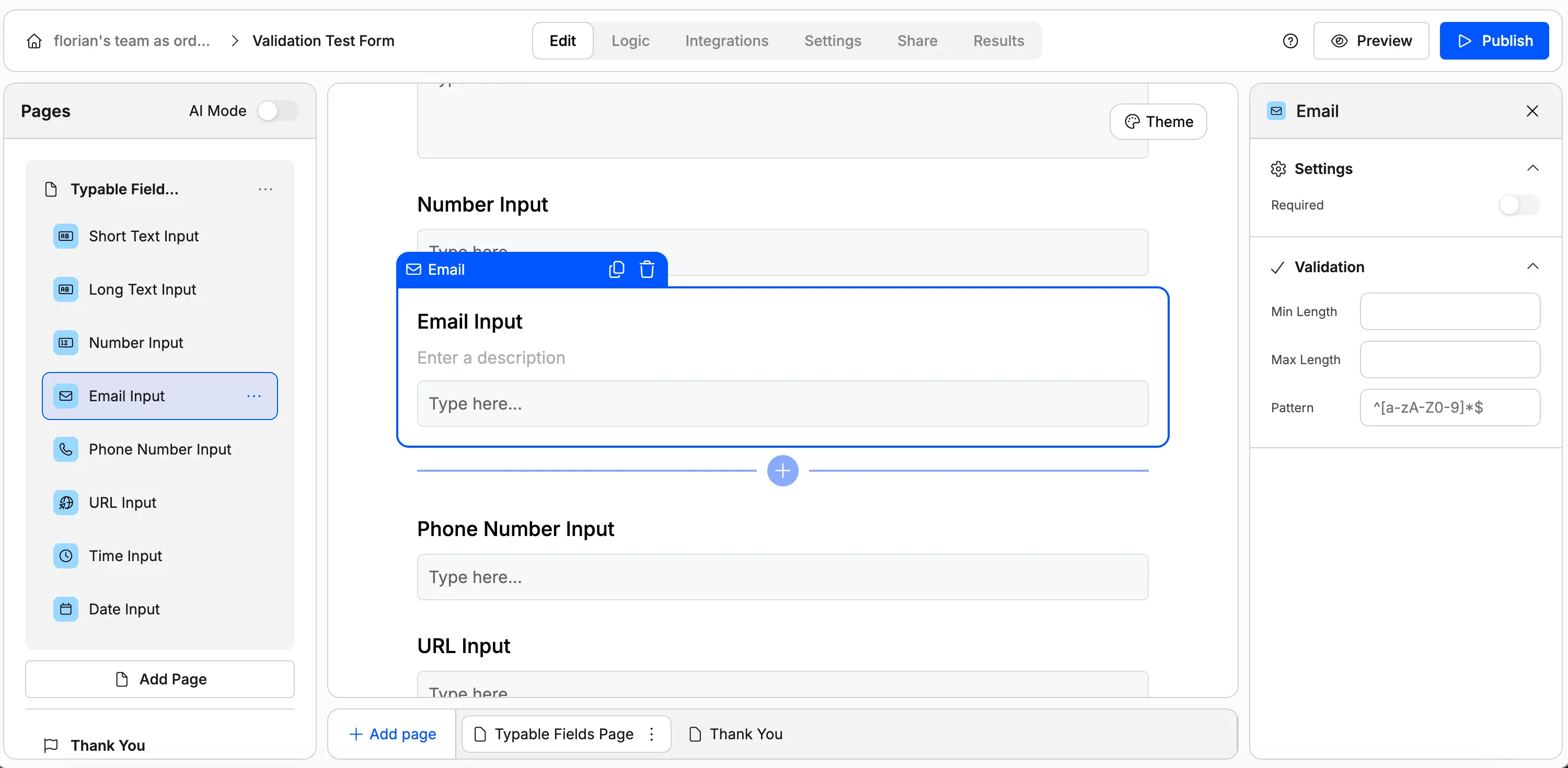
Email fields come with built-in validation — the input must contain an @ symbol to be accepted. No configuration needed.
Custom pattern (regex)
You can add a pattern to further restrict which emails are accepted. For example, if you only want to allow Gmail addresses, describe that rule to the AI and it will generate the appropriate pattern.
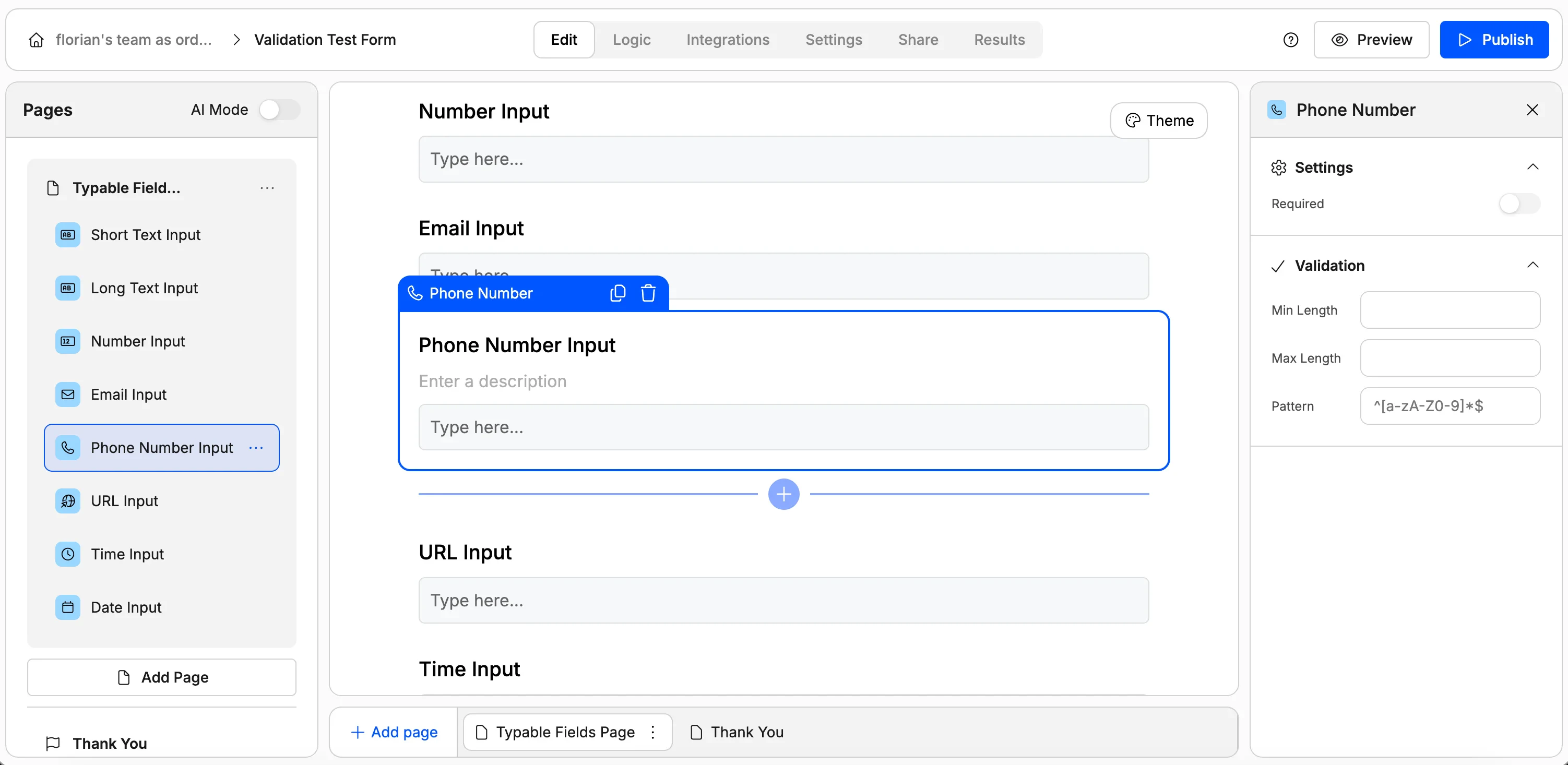
Phone number fields require a country code to be valid. If a respondent enters just their phone number without the country code (e.g. +1, +44, +32), the form will reject it.
Custom pattern (regex)
You can further restrict phone inputs by specifying a pattern — for instance, only accepting numbers from a specific country code.
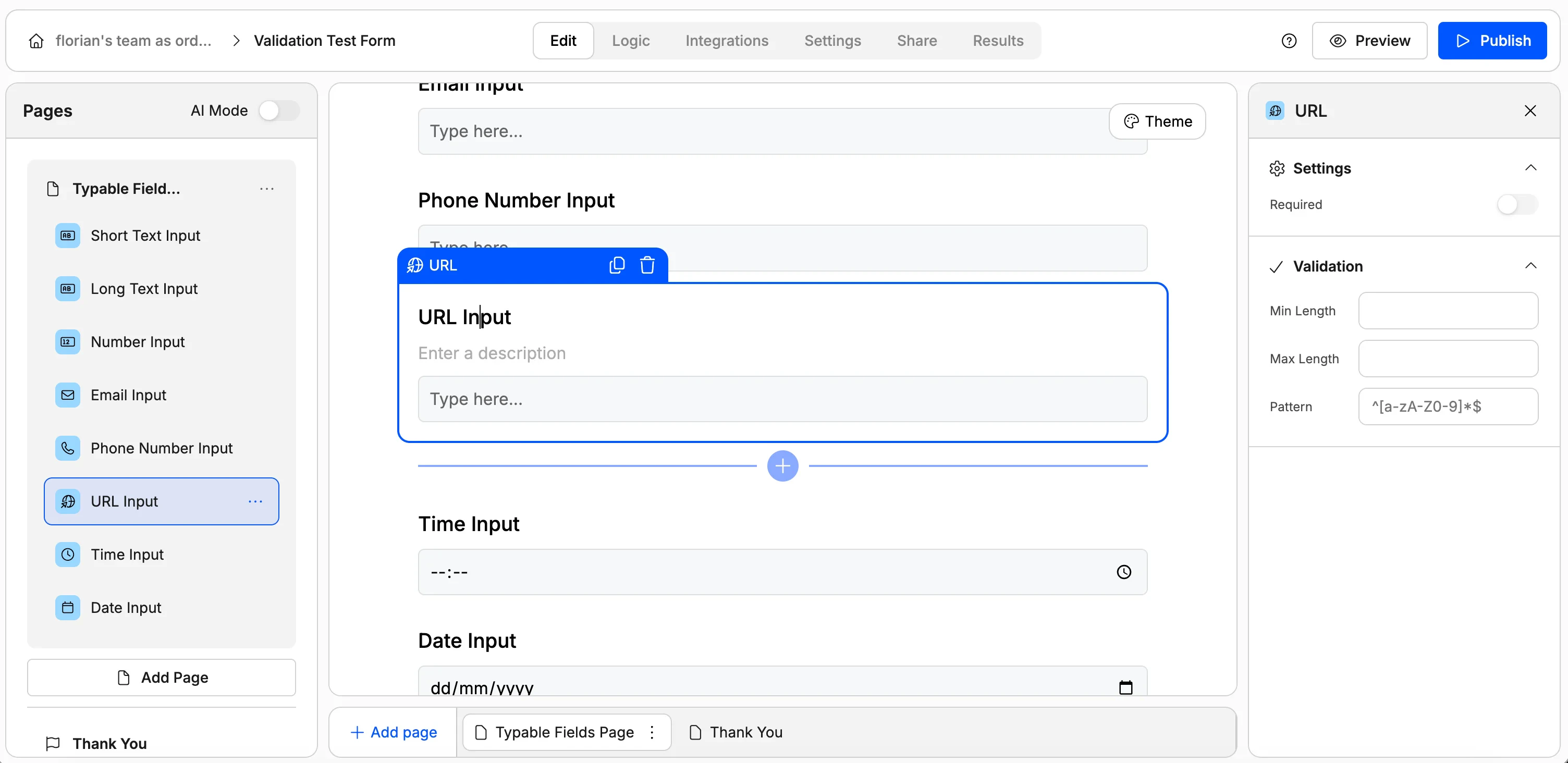
URL fields require the input to start with http:// or https:// followed by the rest of the address. Entering just a domain name like weavely.ai without the protocol will be rejected.
Min / max length and custom pattern
You can also set length restrictions and custom patterns on URL fields. For example, you could restrict inputs to only .com domains.
Date input
Set a minimum and maximum date to define an acceptable date range. This is useful for booking forms, event registrations, or any scenario where responses must fall within a specific window.
Time input
Set a minimum and maximum time to restrict which times are valid. For example, you could limit a booking form to only accept times between 9:00 AM and 5:00 PM.
Quick reference
| Field type | Built-in validation | Configurable options |
|---|
| Short text | — | Min/max length, custom pattern |
| Long text | — | Min/max length, custom pattern |
| Number | — | Min/max value, custom pattern |
| Email | Must contain @ | Custom pattern |
| Phone | Requires country code | Custom pattern |
| URL | Must start with http(s):// | Min/max length, custom pattern |
| Date | — | Min/max date |
| Time | — | Min/max time |
For any field that supports a custom pattern, you can always ask the AI to generate the regular expression for you. Just describe the rule you want in plain English, no regex knowledge required.