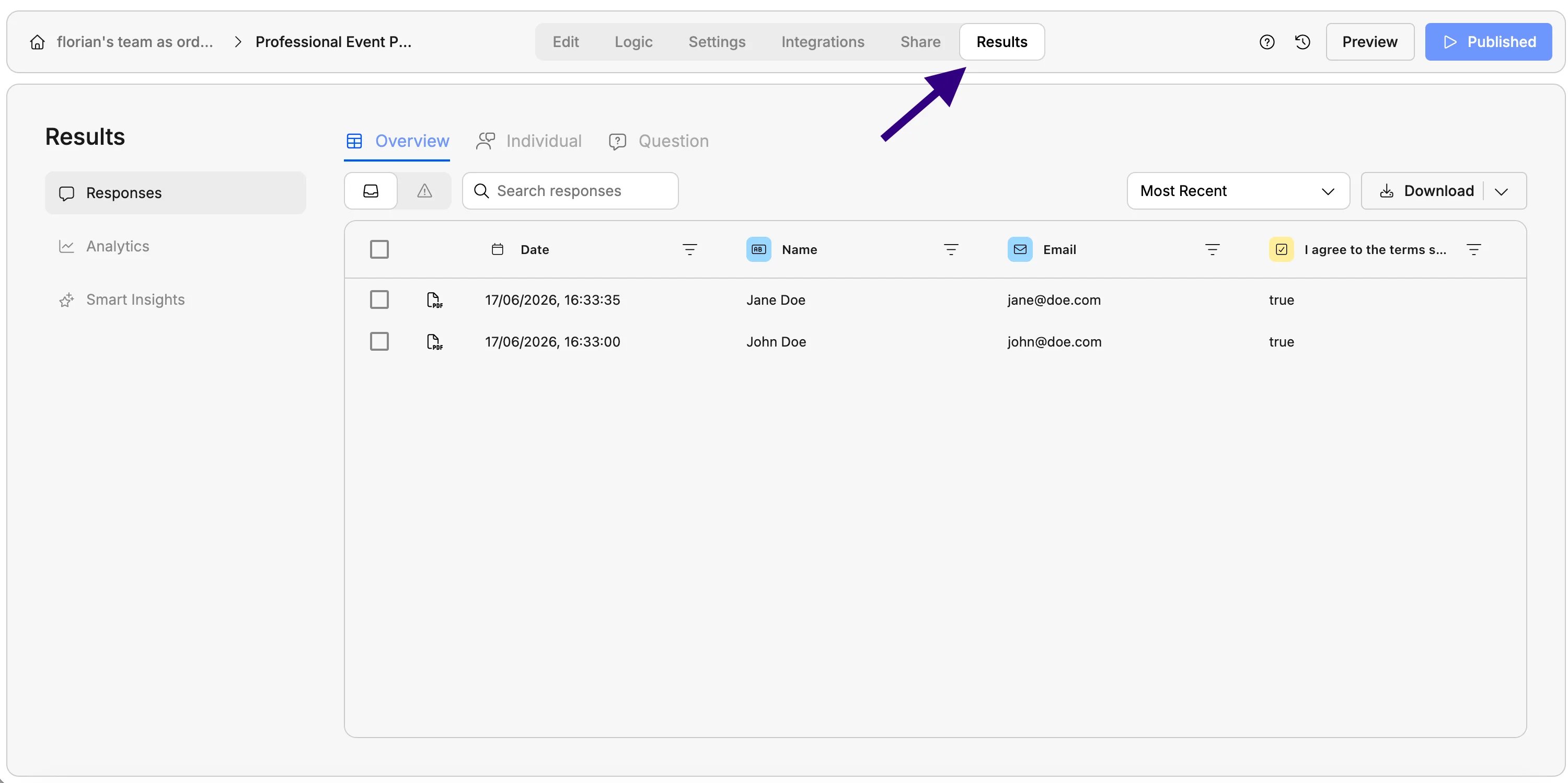
Match your form exactly
Export a single response as a PDF that mirrors your form’s layout, banner, and branding — ideal for consent waivers, contracts, or anything you’ll print or file.
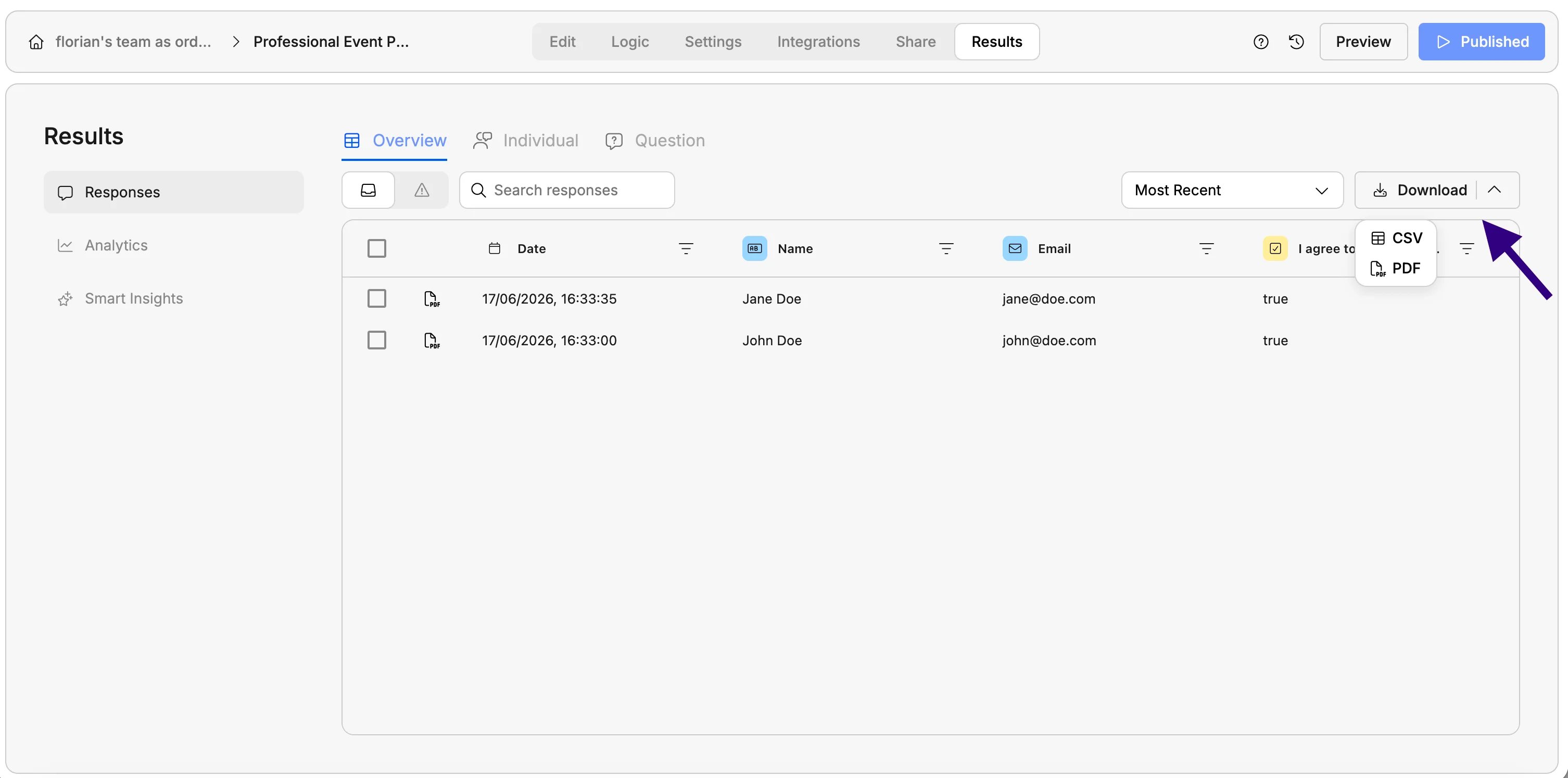
Bulk download
Export many responses at once as plain question-and-answer PDFs. Faster, but not styled like your form.
Both options work from the Results view of your form, where every submission is listed as a row.
Choose your method
- PDF that looks like your form
- Bulk download (many at once)
Use this when each PDF needs to match your form’s exact design — for example, a photo consent waiver you want to store, print, or share. The result looks as if you took a snapshot of the completed form, with the same banner, fields, and submitted answers in place.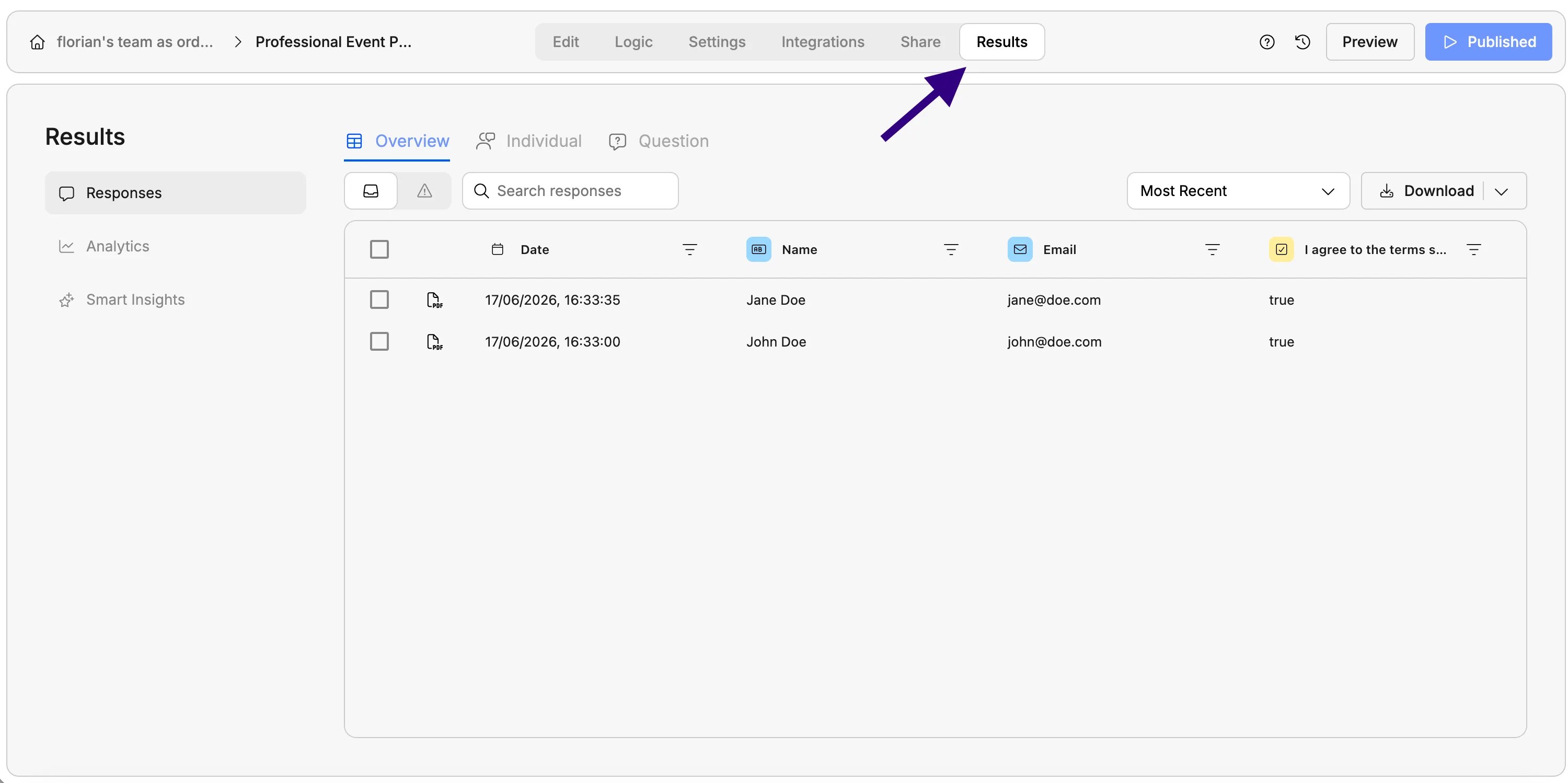
-1.webp?fit=max&auto=format&n=3us8I7lOYFE7a37d&q=85&s=845a94b844874a34b6d8a7273047d77f)
1
Open your form's Results
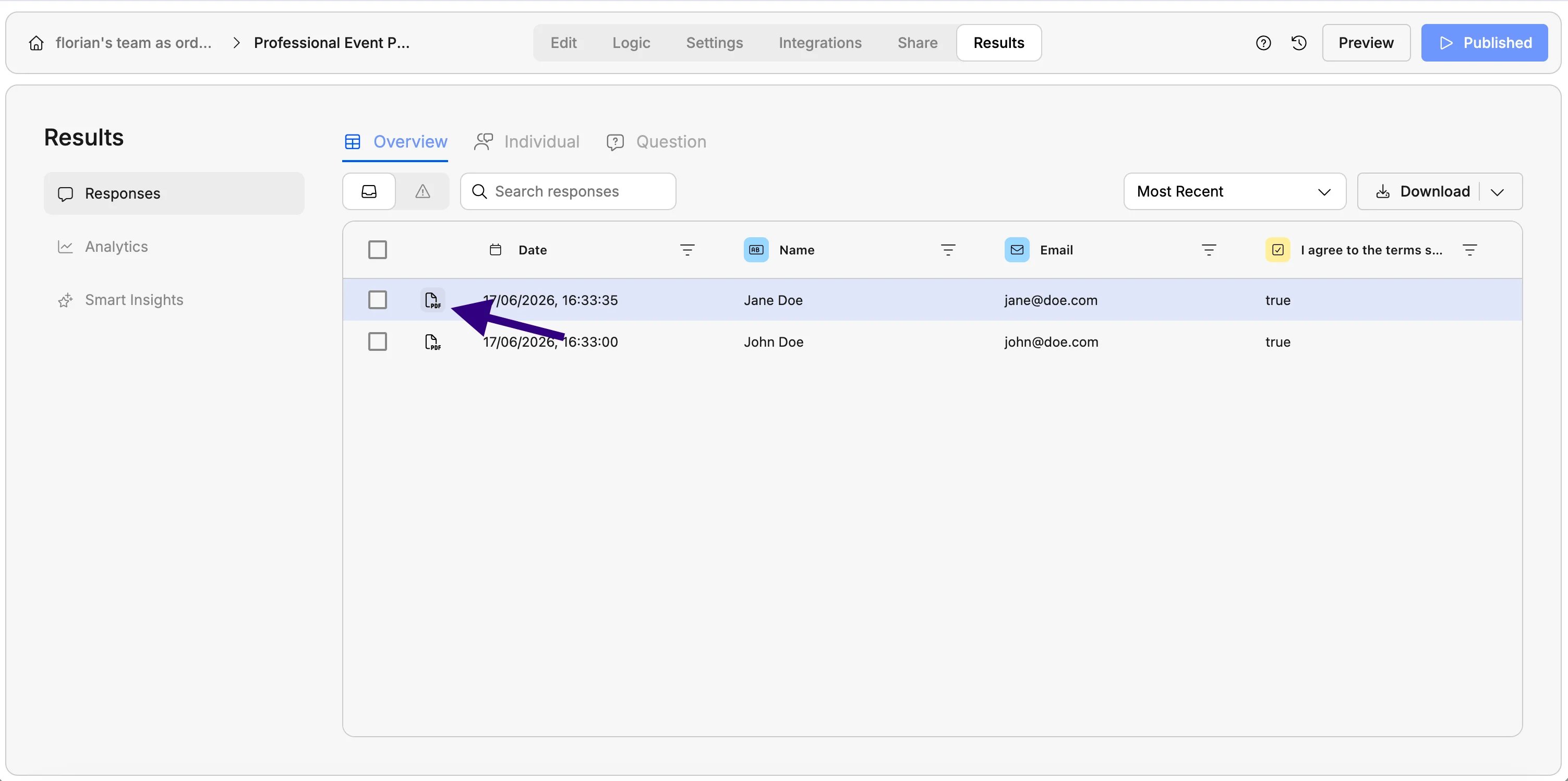
2
Find the response you want and click the PDF icon
3
Save the file