Protect your forms from spam submissions and automated bot attacks with Google reCAPTCHA v3. Weavely makes it easy to enable invisible spam protection that works in the background without disrupting your users’ experience.

What is reCAPTCHA?

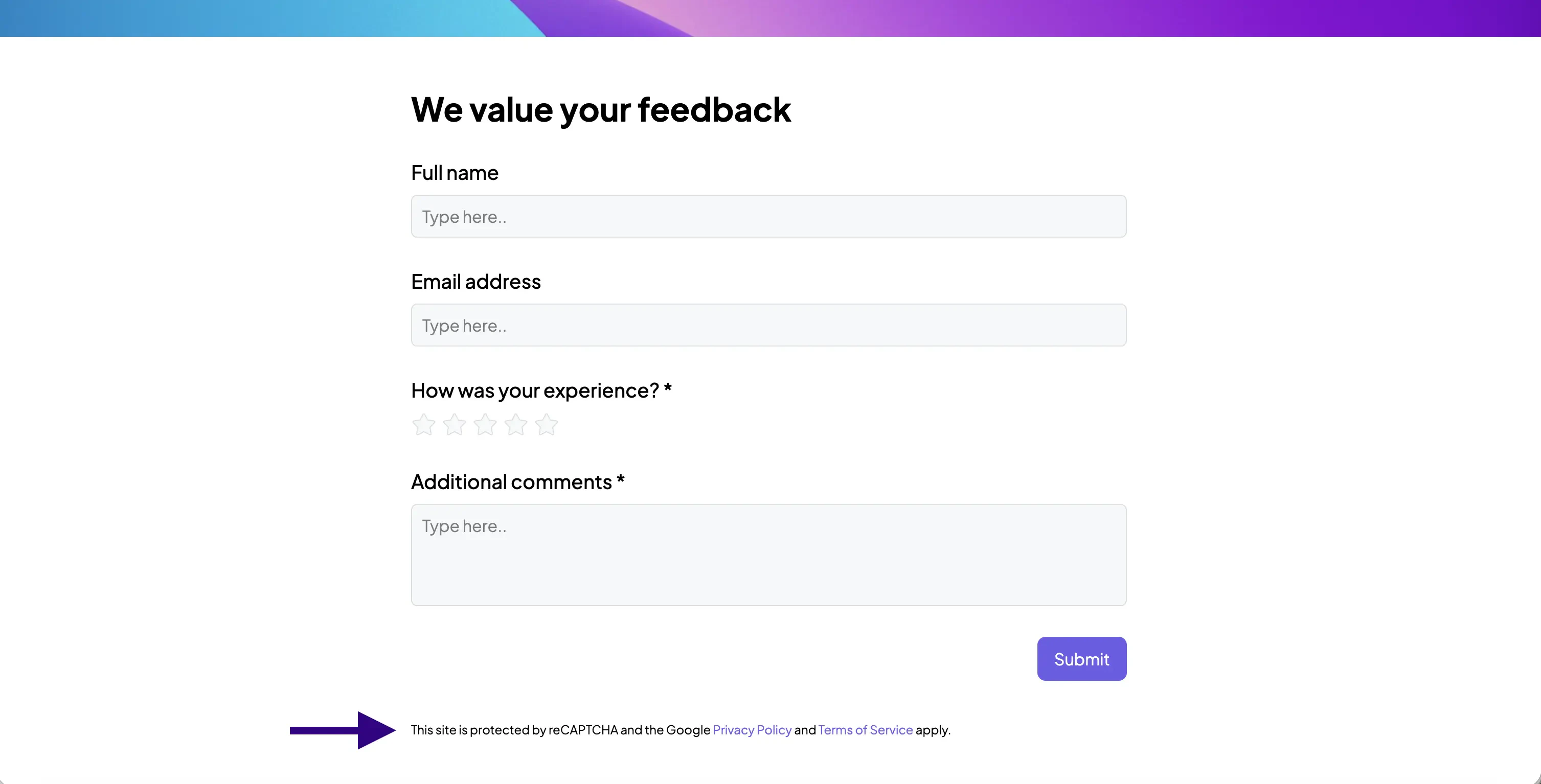
reCAPTCHA is Google’s free spam protection service that helps you stop automated bots from submitting fake entries to your forms. Weavely uses reCAPTCHA v3, the latest invisible version that works silently in the background to analyze user behavior and automatically detect spam submissions without interrupting real users. Screenshot showing a Weavely AI form protected by Google's reCAPTCHA V3

Why Use reCAPTCHA for Form Spam Protection?

Form spam can waste your time, clog your inbox, and affect your ability to identify real leads. Bot attacks and automated spam submissions can:
  • Fill your inbox with fake entries and malicious links
  • Waste time sorting through junk submissions
  • Affect your conversion tracking and analytics
  • Expose your site to security risks
  • Damage your credibility with fake data
Weavely’s reCAPTCHA integration provides invisible bot protection that stops spam at the source while maintaining a smooth user experience for legitimate visitors.

How to Enable reCAPTCHA Spam Protection

reCAPTCHA is a premium feature available on paid Weavely plans. Free tier users won’t be able to enable this functionality. Upgrade to a paid plan to protect your forms from spam submissions.

Using AI (Fastest Method)

Simply ask Weavely AI to enable reCAPTCHA protection on your form: Example Commands:
  • Enable reCAPTCHA on this form
  • Add spam protection
  • Protect this form from bots

Manual Setup

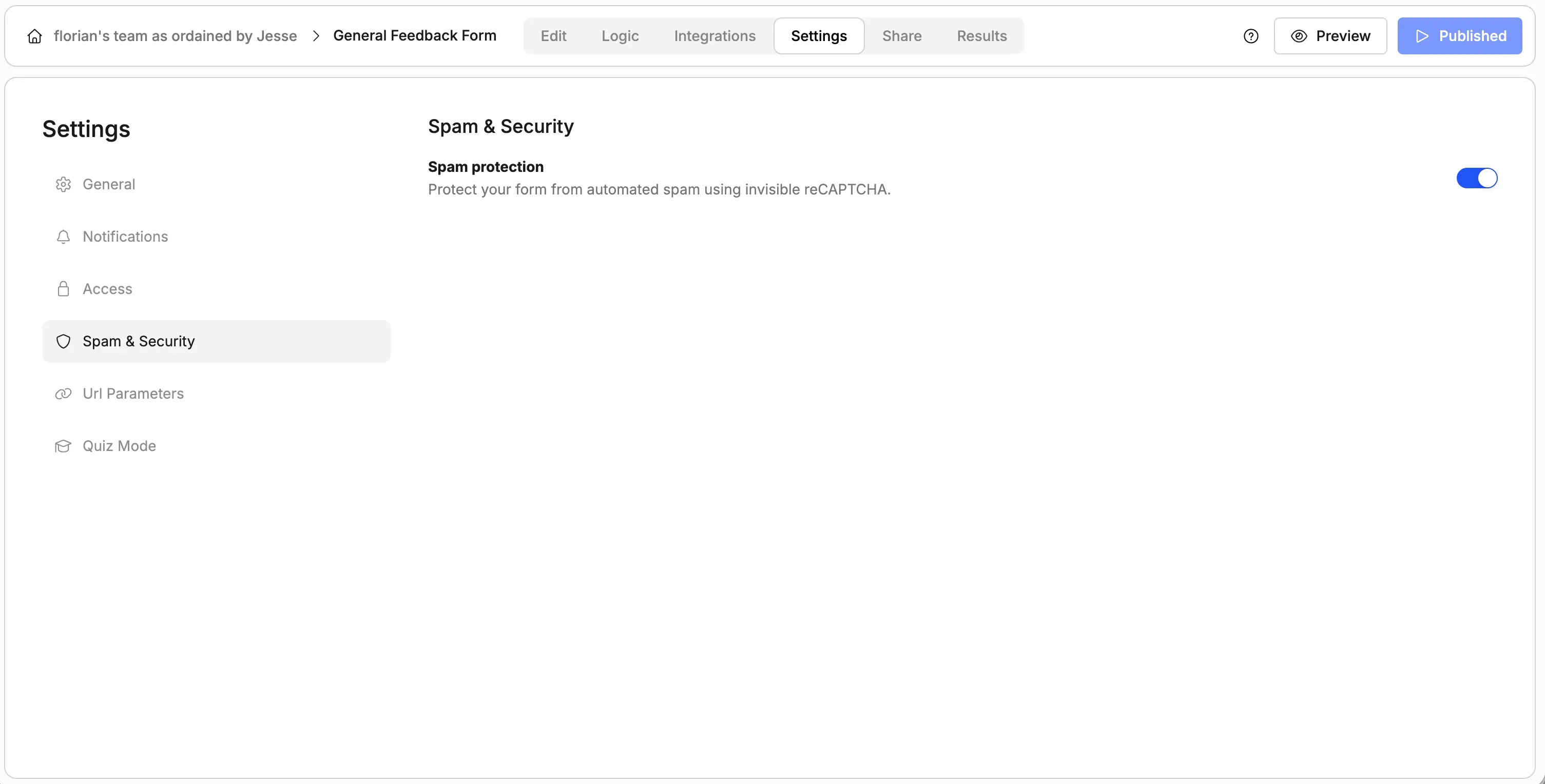
  1. Open your form in the Weavely editor
  2. Click Settings in the top menu bar
  3. Navigate to Spam and Security
  4. Toggle on Enable reCAPTCHA
  5. Publish your form
Screenshot showing how to enable spam protection in Weavely AI using reCAPTCHA That’s it! Your form is now protected from automated spam submissions.

How reCAPTCHA v3 Works

Unlike older CAPTCHA versions that require users to solve puzzles or click checkboxes, reCAPTCHA v3 works completely invisibly:
  • Automatic Detection: Analyzes user behavior in the background without any interaction required
  • Risk Scoring: Assigns each submission a spam score from 0.0 (bot) to 1.0 (human)
  • Smart Filtering: Automatically blocks suspicious submissions while allowing legitimate users through
  • No Interruptions: Real users never see challenges or puzzles, it just works

Testing Your Spam Protection

After enabling reCAPTCHA, test your form to confirm it’s working:
  1. Publish your form to make it live
  2. Look for the reCAPTCHA badge in the bottom of your form’s last page (shows “protected by reCAPTCHA”)
  3. Submit a test entry with real information
  4. Check your responses to confirm the submission went through

Viewing Spam vs Regular Responses

Weavely automatically separates spam submissions from legitimate responses:
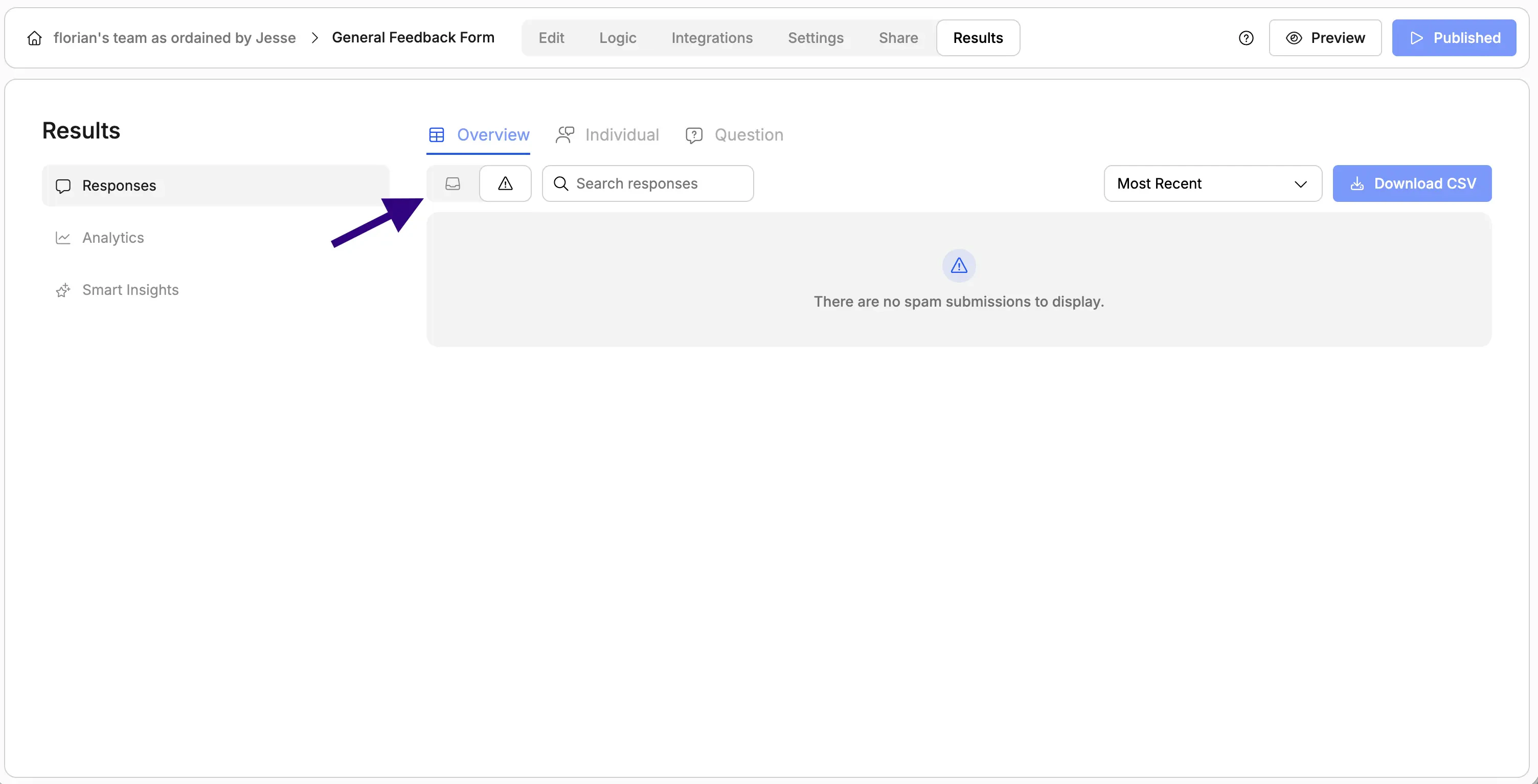
  1. Navigate to your form’s Responses page
  2. You’ll see two sections:
    • Responses: Legitimate submissions from real users
    • Spam: Entries flagged by reCAPTCHA as suspicious
Screenshot showing where to find regular and spam submissions in Weavely AI.

Reviewing Spam Submissions

While reCAPTCHA is highly accurate, you can review spam entries to check for false positives:
  • Click on the Spam tab to view flagged submissions
  • Review entries to confirm they’re actually spam
Google’s reCAPTCHA system is very effective at distinguishing between real users and bots, so false positives are rare.

Best Practices for Form Spam Protection

While reCAPTCHA provides excellent protection, here are additional tips to maximize your form security:
  • Enable reCAPTCHA on all public-facing forms, especially contact forms, registration forms, and feedback forms
  • Monitor your spam folder regularly to catch any false positives
  • Keep forms simple - the fewer fields, the less attractive to spambots
  • Use required fields strategically to ensure you get quality submissions
  • Consider email validation for forms collecting email addresses

Frequently Asked Questions

Is reCAPTCHA free?

Yes, Google reCAPTCHA is free to use. However, enabling it in Weavely requires a paid plan subscription.

Will reCAPTCHA slow down my form?

No. reCAPTCHA v3 is lightweight and runs in the background without affecting form performance or user experience.

Can users see the reCAPTCHA?

Users will see a small “protected by reCAPTCHA” badge in the corner of your form, but they won’t see any challenges or puzzles. The protection works invisibly.

What happens if reCAPTCHA blocks a real user?

This is extremely rare with reCAPTCHA v3. If a legitimate submission is flagged as spam, you can review it in the Spam section and manually recover it.

Does reCAPTCHA work on mobile devices?

Yes, reCAPTCHA v3 works seamlessly on all devices including mobile phones and tablets.

Can I customize the reCAPTCHA appearance?

The reCAPTCHA badge position and appearance are controlled by Google to maintain consistency and trust. However, it’s designed to be unobtrusive and blend with your form design.