

This guide shows you how to track two things on your Weavely forms with Google Analytics 4 (GA4):
- Form views and traffic: how many people open your form, and where they came from.
- Form submissions: when someone actually clicks the submit button. The first takes about a minute and just needs your GA4 Measurement ID. The second uses Google Tag Manager (GTM) to catch the submit click.
Tracking is available on the free plan, under Settings → Tracking (while editing a form). This guide assumes you already have a basic familiarity with Google Analytics and Google Tag Manager. It focuses on the Weavely-specific steps.
Part 1: Track form views with Google Analytics
This connects your form directly to GA4 so you can see views and traffic sources. No Tag Manager needed.1
Copy your GA4 Measurement ID
In Google Analytics, go to Admin → Data streams, open your web stream, and copy the Measurement ID at the top. It always starts with
G- (for example, G-XXXXXXXXXX).2
Paste it into Weavely
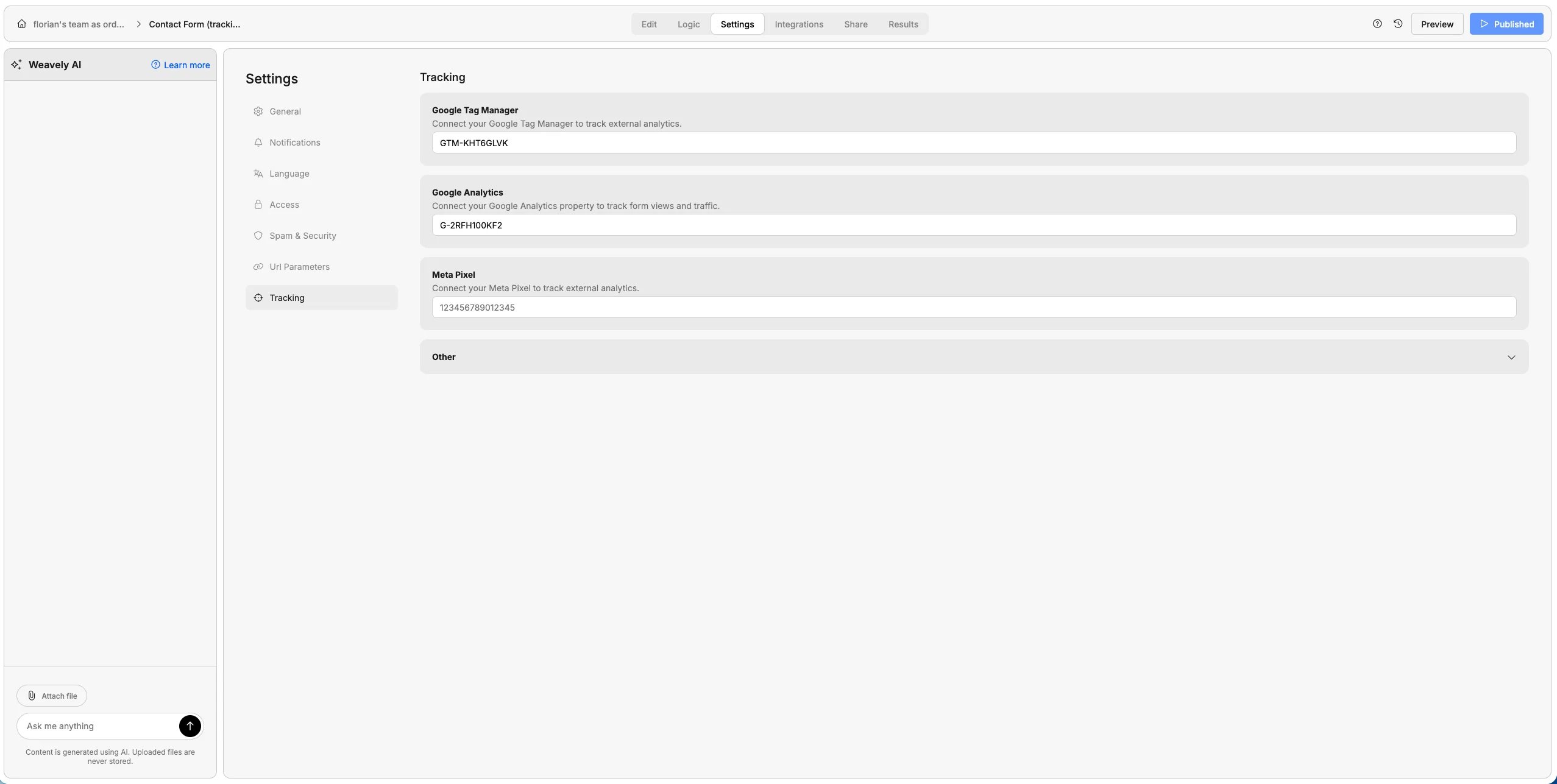
3
Publish your form
Hit Publish. Tracking only goes live on the published form, not the editor preview.
This tracks views and traffic only, not conversions. Submitting the form won’t show up as anything special here. To track submissions, continue to Part 2.
Part 2: Track form submissions with Google Tag Manager
Google Analytics can’t detect your form’s submit button on its own, so this part uses Google Tag Manager to listen for the click and send aform_submit event to GA4.
Every Weavely submit button carries the CSS class submit-form, and that’s the stable hook you’ll listen for.
1
Enable the Click Classes variable
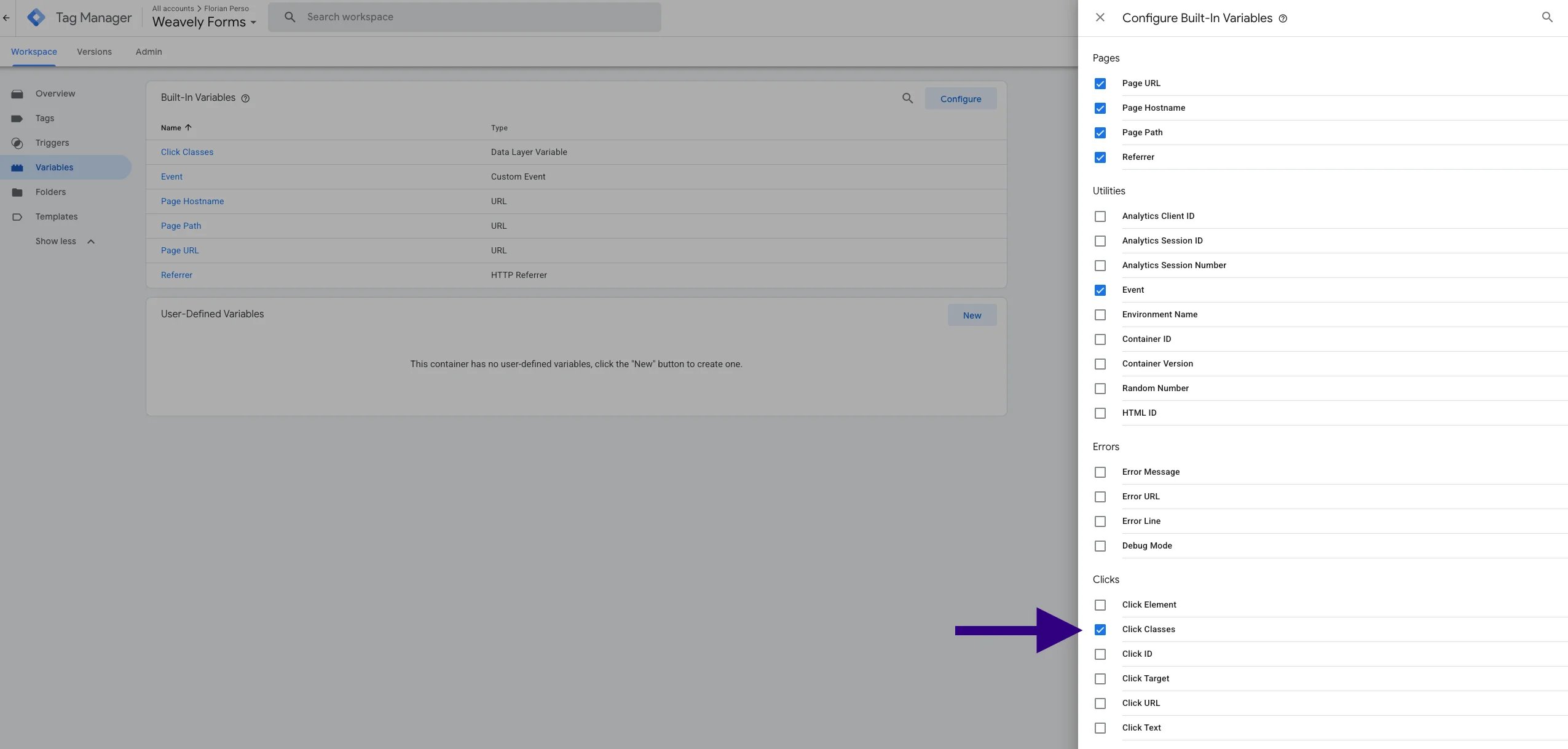
2
Create the submit-button trigger
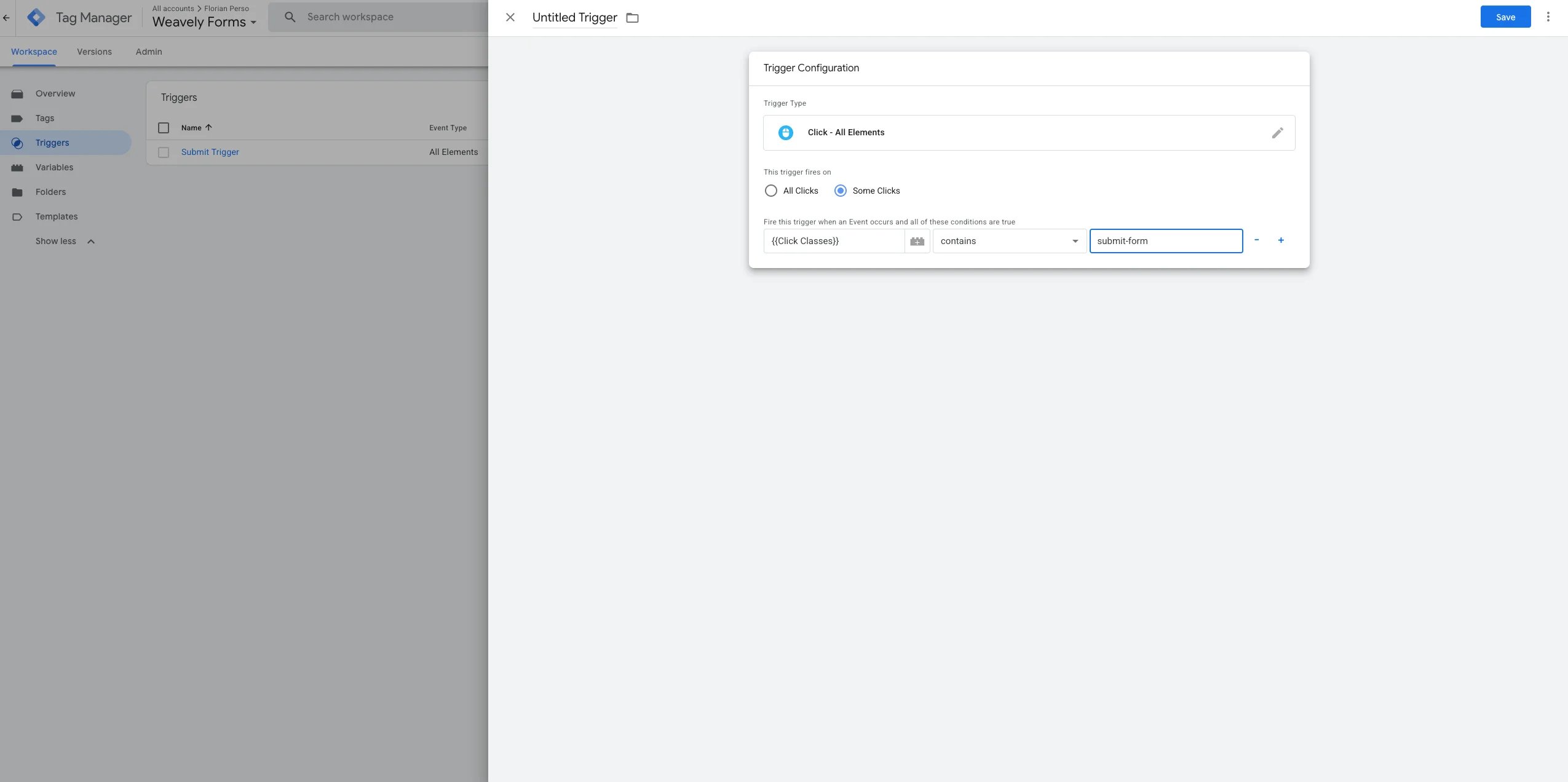
submit-formName it something like Submit trigger and save.3
Create the GA4 Event tag
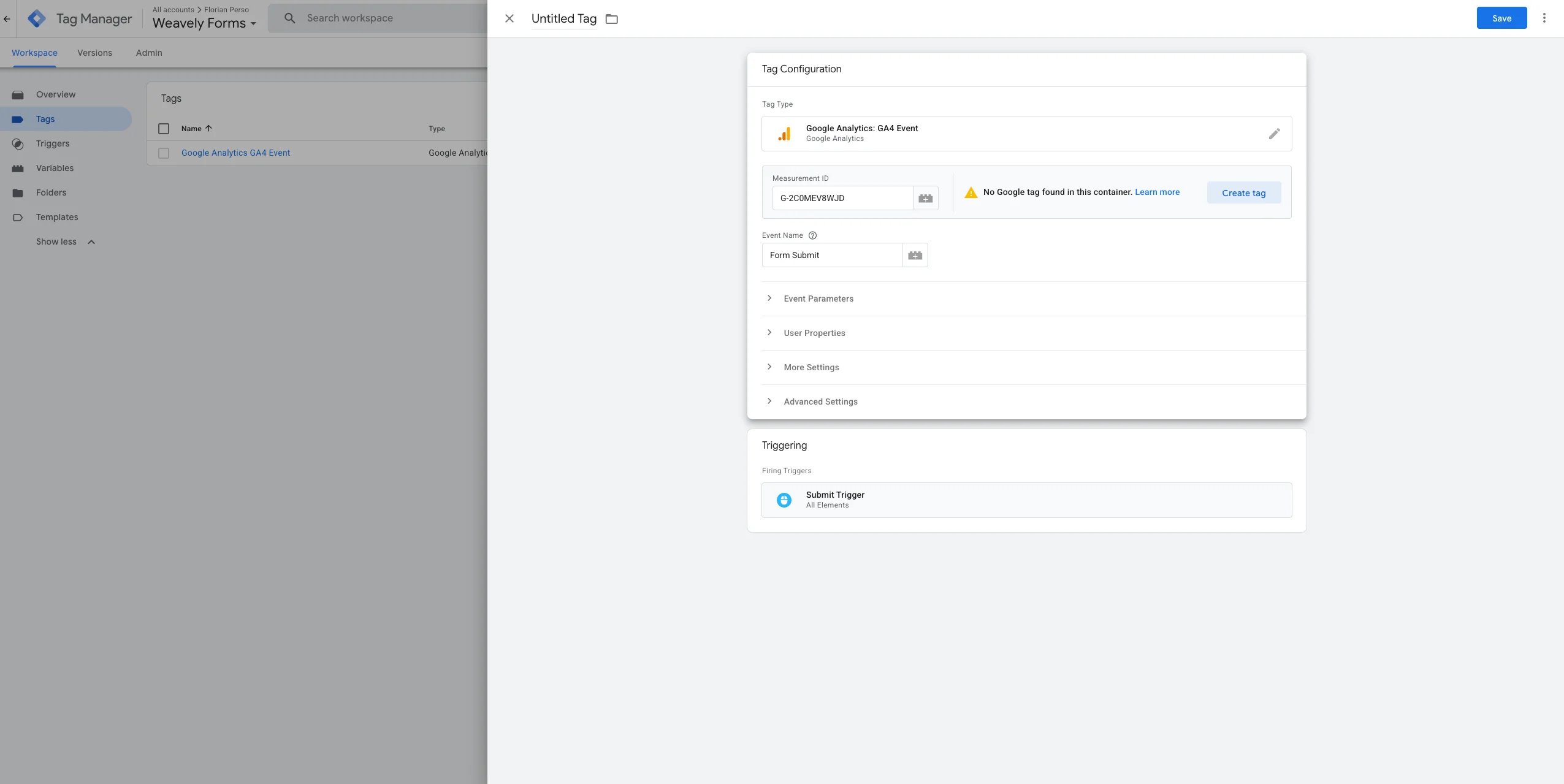
- Measurement ID: your
G-ID (the same one from Part 1) - Event Name:
form_submit - Triggering: the
Submit triggeryou just made
4
Add your GTM container to Weavely
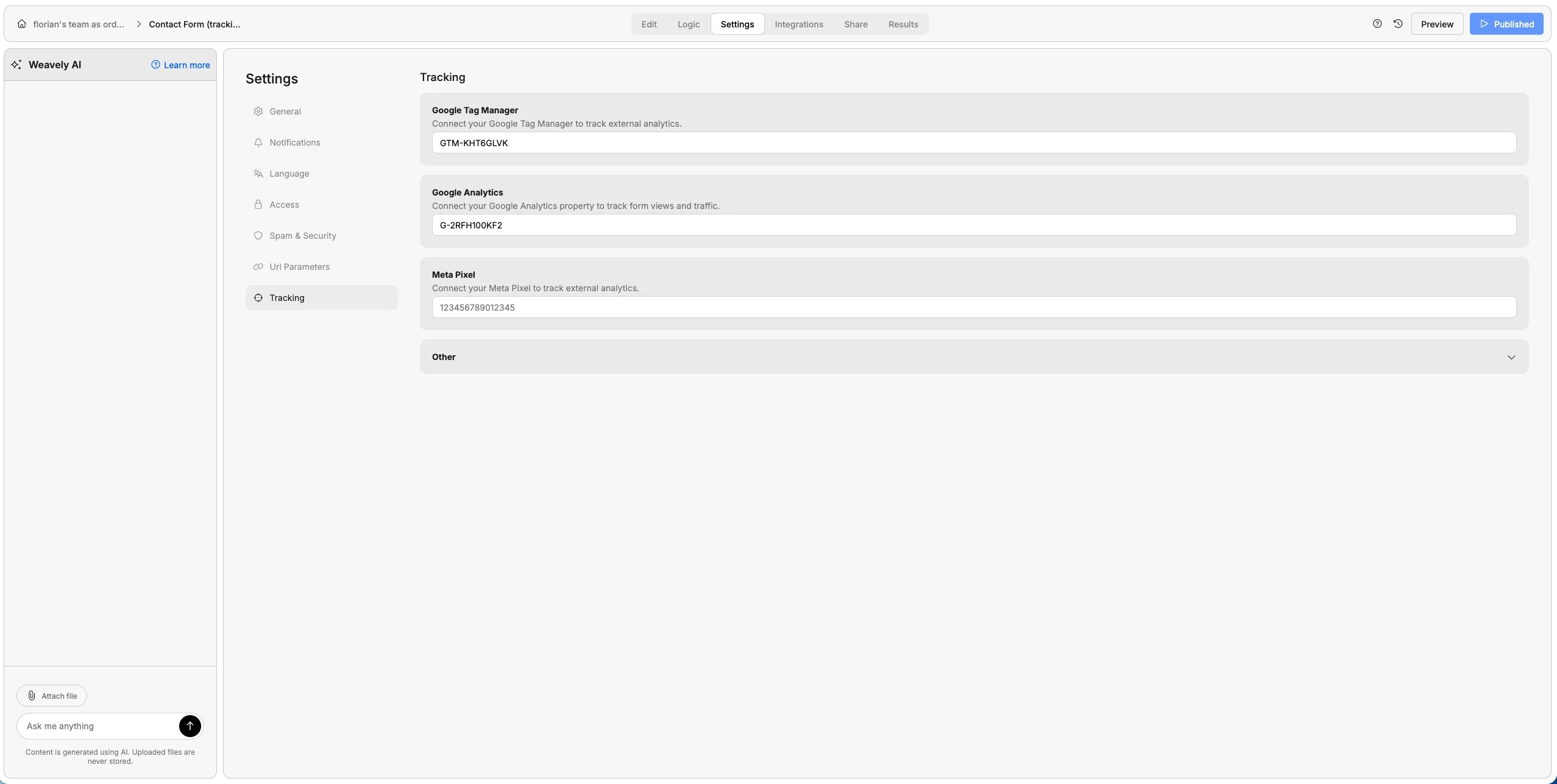
GTM-XXXXXXX). In Weavely, go to Settings → Tracking, paste it into the Google Tag Manager field, and Publish the form.5
Test it in Preview
In GTM, click Preview, paste your published form’s URL, and submit the form with any dummy data. In the Tag Assistant panel you should see your event tag fire once when you press submit. For a second check, confirm the
form_submit event lands in GA4 under Admin → DebugView.6
Publish the container
Back in GTM, click Submit → Publish to make the container live. Preview mode alone doesn’t publish your changes.
This fires on the button click, not on a confirmed successful submission. That means clicks where a required field was empty can still count, so your
form_submit number may run slightly high. It’s a solid proxy for “roughly how many submissions”; just don’t treat it as an exact count.