

What Is the Weavely MCP Server?
The Weavely MCP server turns Le Chat Mistral into a free AI form builder, letting you create, style, and publish forms and surveys through conversation without leaving your chat. Describe what you need, and Mistral builds it step by step. You get a live preview URL to follow along in your browser and a shareable link once you publish. The Model Context Protocol (MCP) is an open standard that connects AI assistants to external tools. The Weavely MCP connector extends Le Chat Mistral with full form-building capabilities, including 25 element types, multi-page layouts, custom themes, and conditional logic, completely free with no coding required.How to Connect the Weavely MCP Server to Mistral
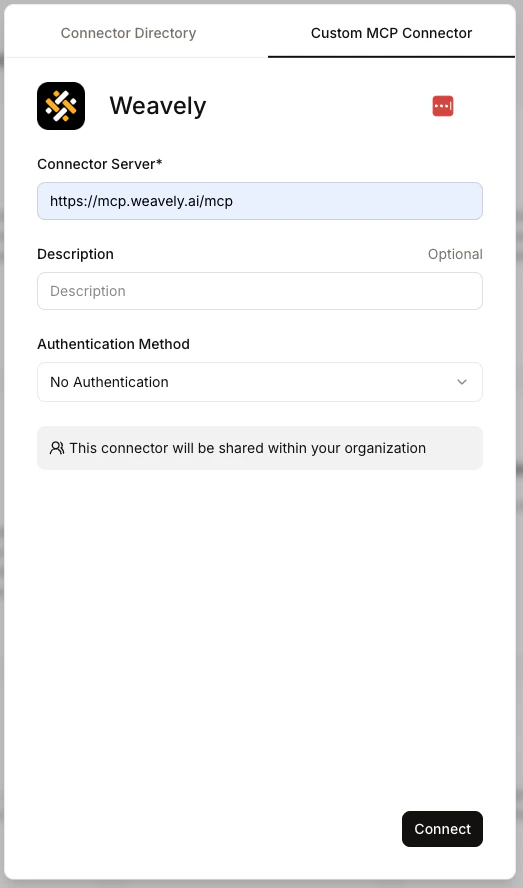
- Open Le Chat and navigate to Intelligence > Connectors.
- Click “Add connector”, select the “Custom MCP Connector” tab and paste the following server URL:
- Leave the authentication field empty. No authentication is required.
- The description field is optional. Click Connect.
How to Build Forms and Surveys with Mistral AI
Start a new chat and select the Weavely connector from your connector list. Then simply describe the form or survey you need and Mistral handles the rest. This MCP tutorial walks through a B2B lead generation form, but the same steps apply to any form or survey type. Mistral will ask for your permission before creating anything outside the chat, then build the form and share a live preview URL. Open it in your browser and refresh at any point to see the latest version. You can iterate naturally:- “I need a lead generation form for my B2B marketing agency” - Mistral creates the form and suggests fields like company name, contact person, industry, and email
- “Add those fields to the form” - Mistral updates the form with the suggested elements
- “Change the dropdown to a radio button” - Mistral swaps the field type
- “Add conditional logic” - Mistral applies it to the relevant fields
- “Can you come up with a nicer colour scheme?” - Mistral reskins the form; just refresh the preview to see the result
The more specific your initial prompt, the more tailored the form. A generic prompt like “a lead gen form” gives you a solid starting point; adding details like industry, audience, or specific fields gives you something closer to finished.
Publishing Your Form
When you’re happy with the form, either:- Ask Mistral in the chat: “Publish my form”, or
- Click the publish button directly on the preview link
- Share your form via a unique URL and start collecting responses
- View and manage responses in your Weavely dashboard
- Set up integrations - Google Sheets, Make, Zapier, n8n, HubSpot, Notion, and more
- Further customise the form with AI or manually using the Weavely editor
- Embed the form on your website or share it as a pop-up