

Before you start, you’ll need:
- A published Weavely form
- An ActiveCampaign account
Step 1: Generate a personal token in Weavely
A personal token links your Weavely account to third-party tools like ActiveCampaign. if you don’t know how to create one, head on over to the dedicated tutorial and come back afterwards (only takes a couple of seconds to complete).Step 2: Add Weavely in ActiveCampaign
1
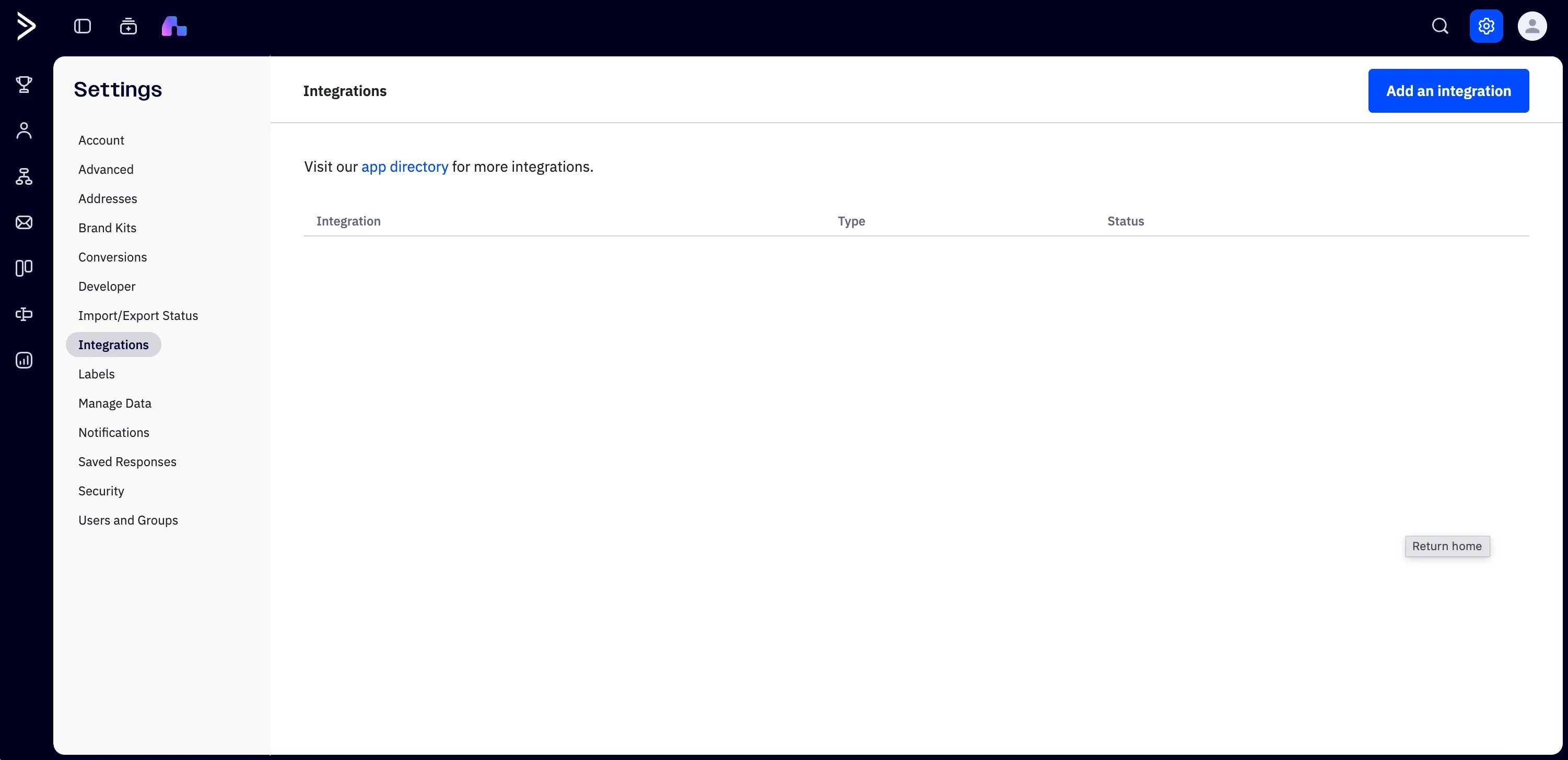
Open the app directory
2
Find the Weavely app
Search for Weavely and select the Weavely app.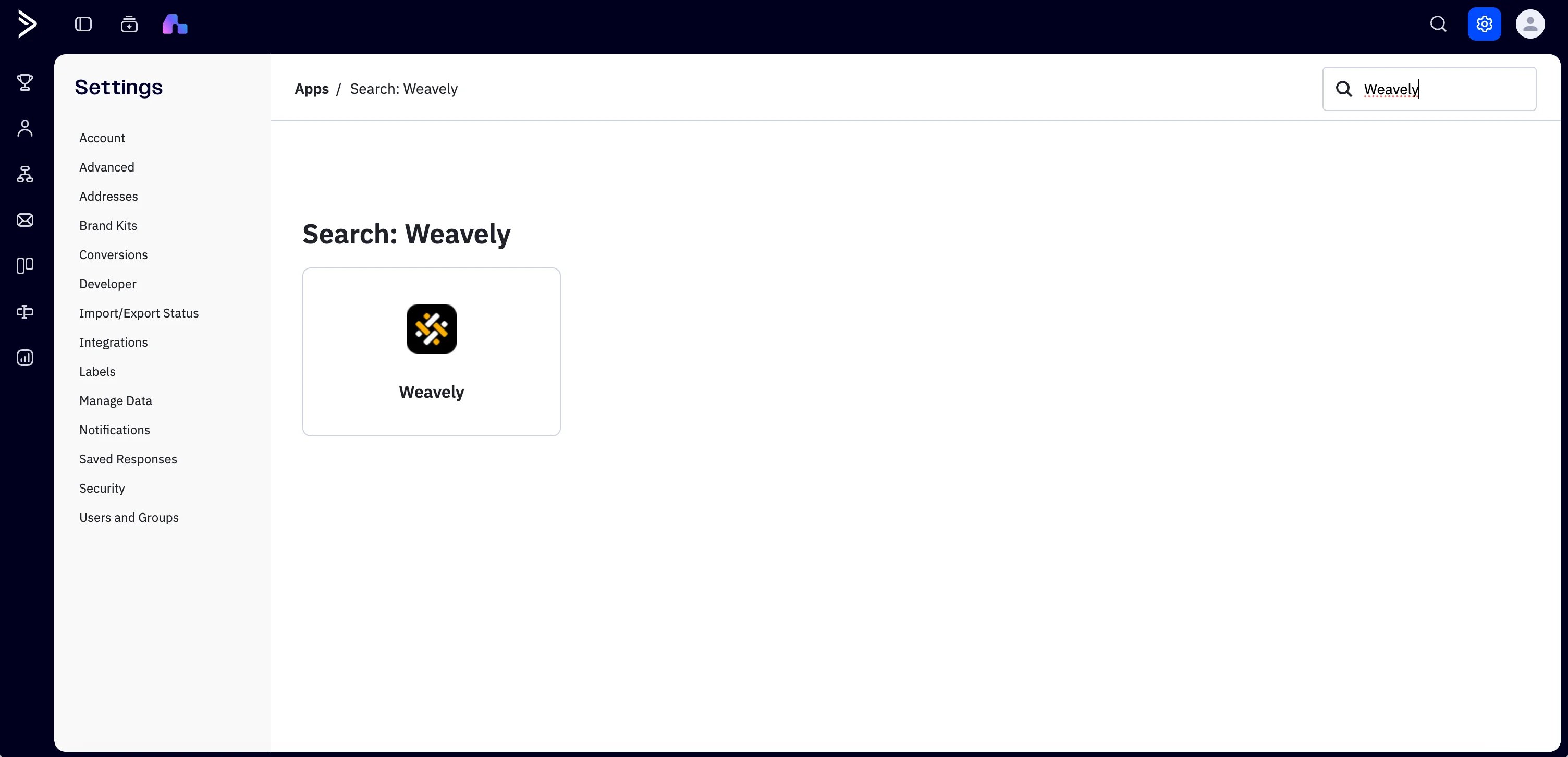
3
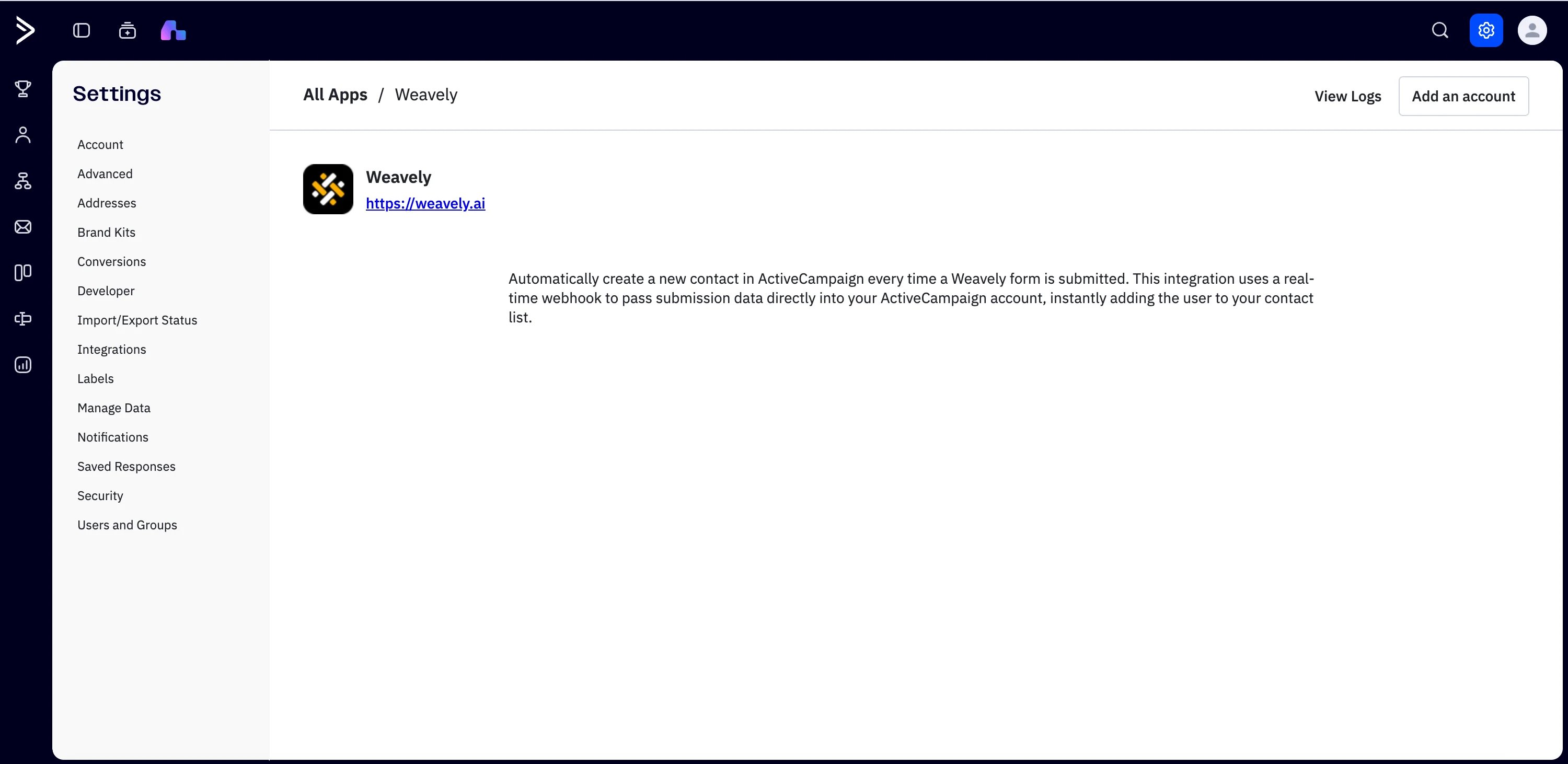
Add an account
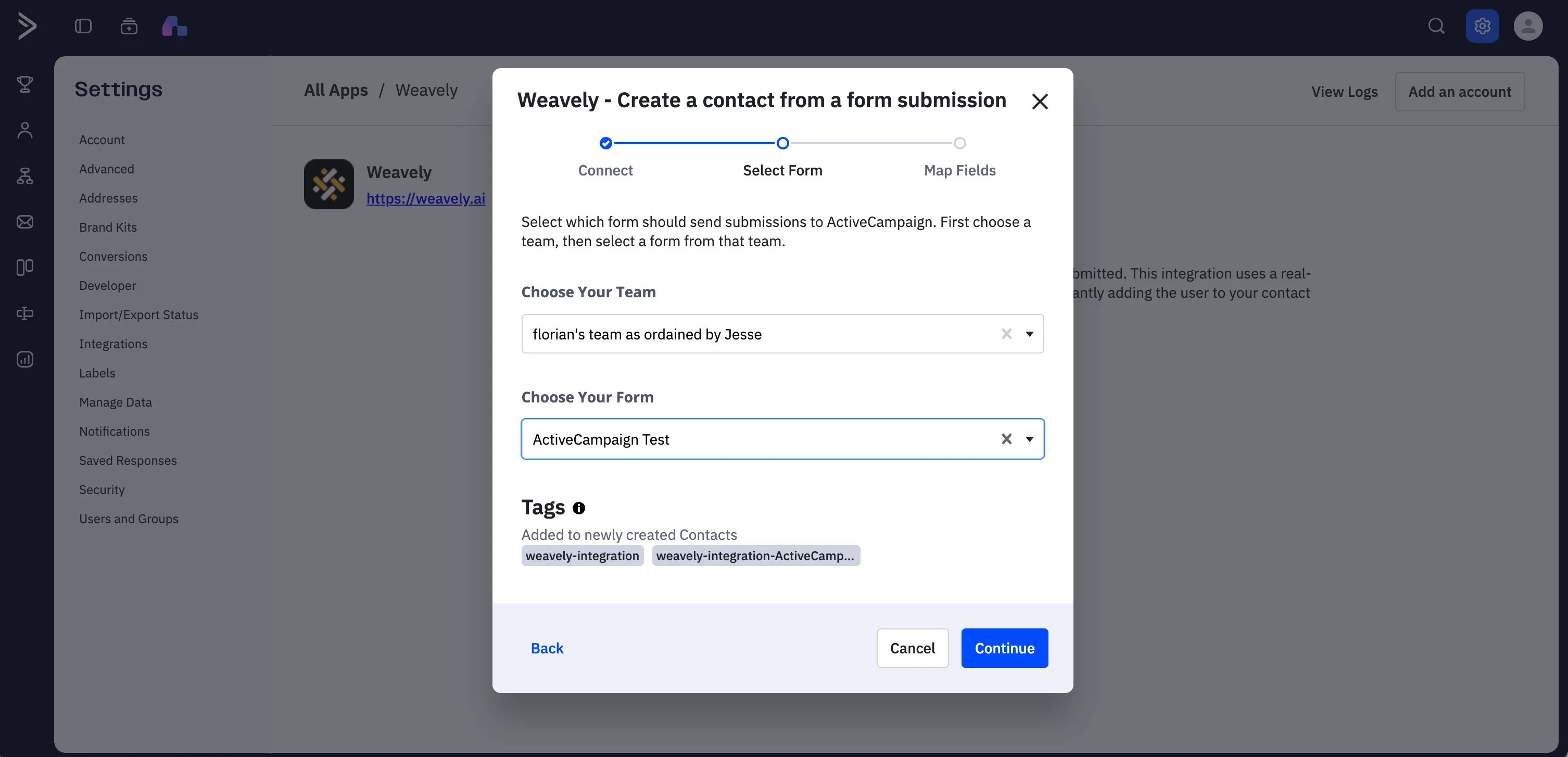
Step 3: Choose your team and form
Step 4: Map your form fields
Map each field on your form to an ActiveCampaign contact property. map your form’s email field to the ActiveCampaign Email property. Other fields (like phone number, subject, or message) are optional. If you want to capture more data, create custom contact properties in ActiveCampaign first. They’ll then be available to map to your form fields.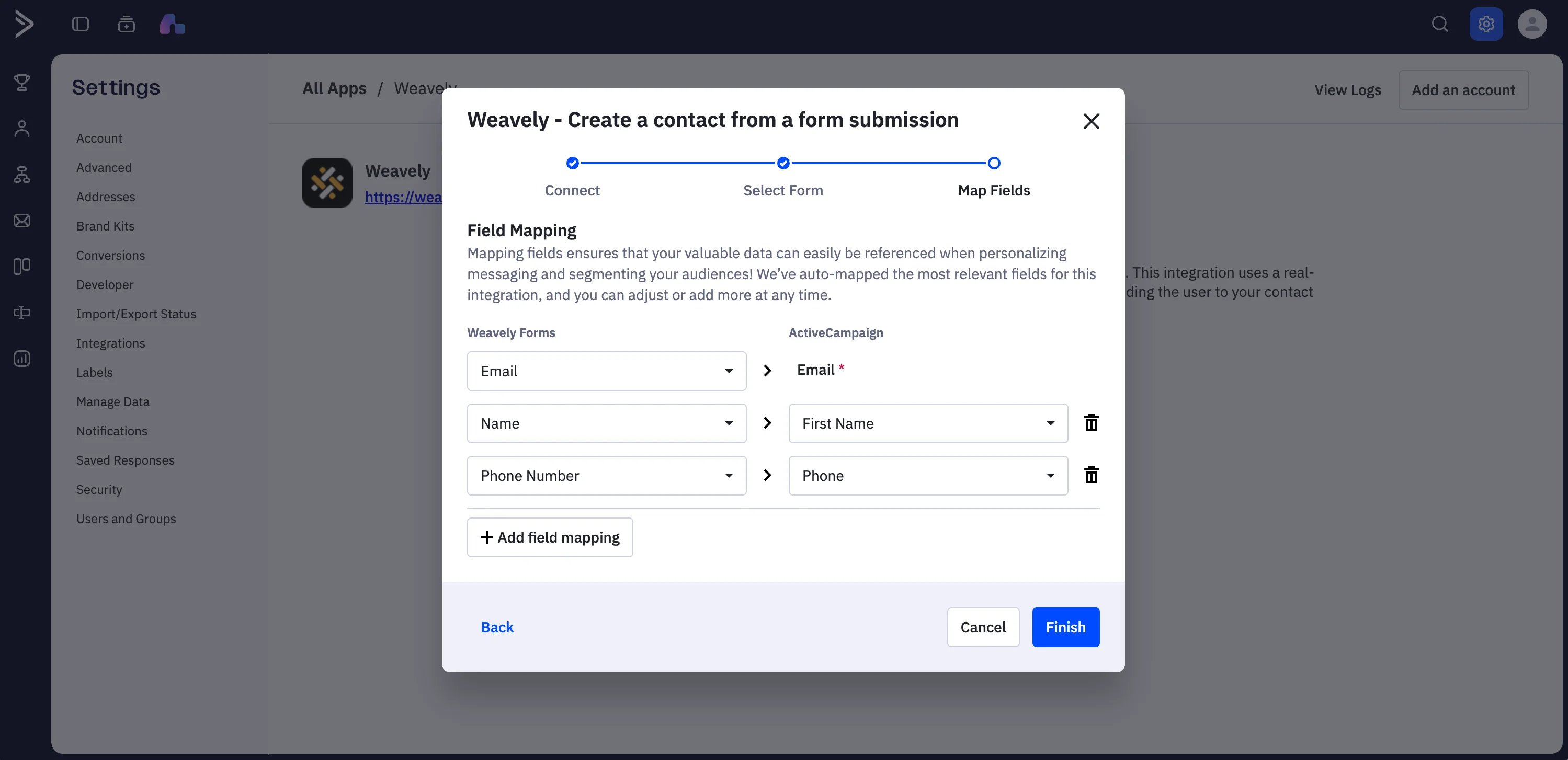
Your responses are always stored in Weavely too. The integration adds ActiveCampaign as a destination, it doesn’t replace Weavely’s own response storage.